Account
The "Account" module displays your personal account balance, income and expenses, order records, and API key quota change details, helping you keep track of your spending at any time.
Entry path: Left sidebar menu User Center > Account, page route
/admin/user-center/account. This module was added in version 2.2. The "Transaction Overview" is available to all users; "Order Overview" and "API Quota Overview" are only available in the User Center of the Admin Console (visible to administrators) — the User Interface's User Center does not include these two sub-pages.
Page Menu
| Page | Route | Description |
|---|---|---|
| Transaction Overview | /admin/user-center/account-overview | Balance, monthly income/expense summary, and transaction details (visible to all users) |
| Order Overview | /admin/user-center/order-overview | Personal order list and payment status (Admin Console only) |
| API Quota Overview | /admin/user-center/api-quota-overview | API key quota change history (Admin Console only) |
Transaction Overview
The "Transaction Overview" is used to view your personal account balance, monthly income/expense summary, and transaction details.
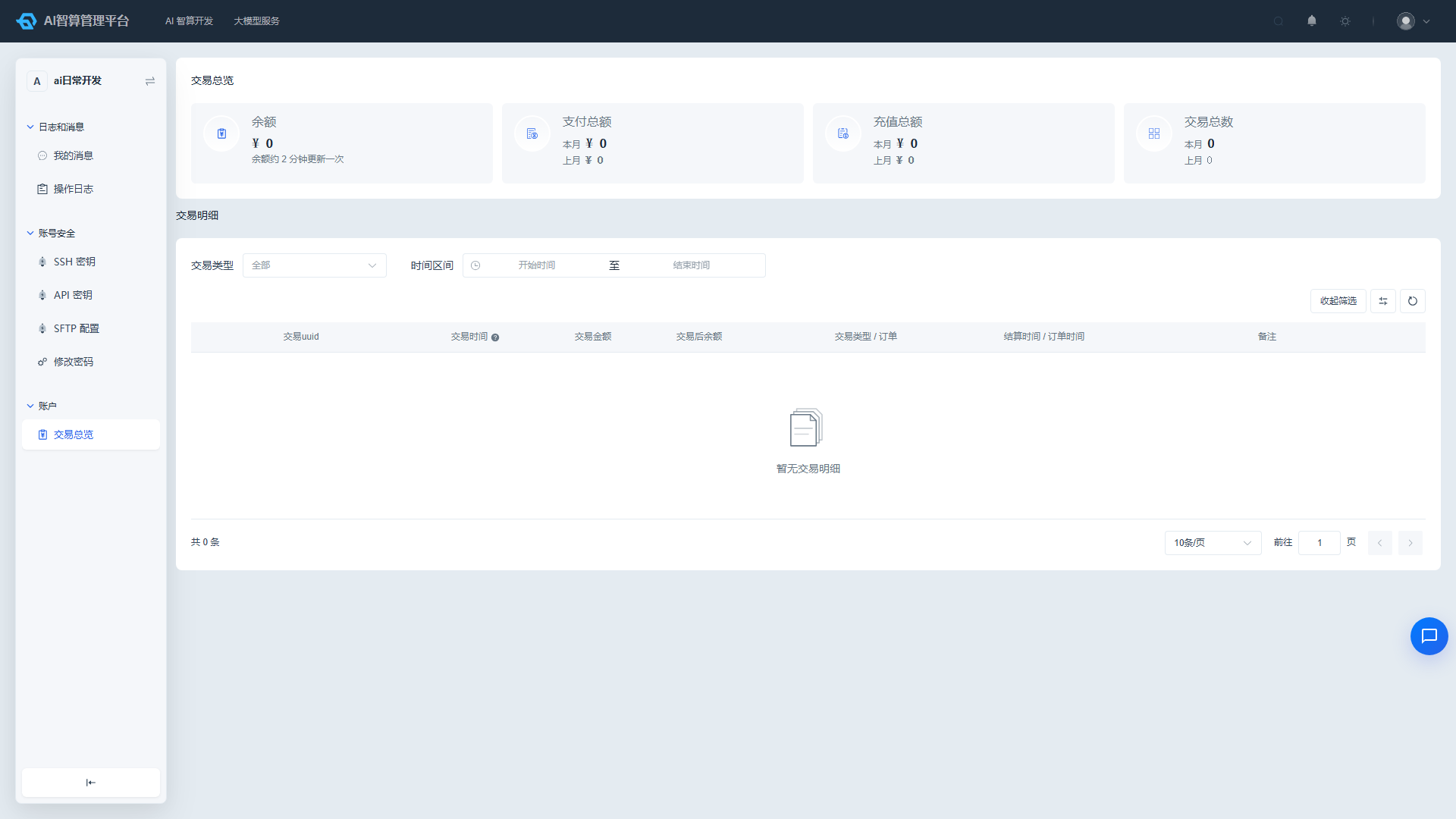
Summary Cards
Four cards at the top of the page:
- Balance: Current account balance (point-in-time value). The balance updates approximately every 2 minutes; negative balances are displayed in red when in arrears.
- Total Payments / Total Top-ups / Total Transactions: Displays the "current month" primary value and a "previous month" comparison row. The total transaction count is the sum of top-up and consumption transactions for the current month.
Top-up: When the balance is insufficient, you can top up the account via the "Top-up" entry; if the current account is not enabled, the top-up entry is grayed out and unclickable.
Transaction Details
The table below lists each transaction in reverse chronological order by posting time:
- Transaction UUID: Includes a copy button for easy reconciliation.
- Transaction Time: The posting time; may differ from "Settlement Time" by several days in arrears backfill scenarios (column header includes an explanatory note).
- Transaction Amount: Top-ups displayed in green
+¥, payments displayed in red-¥. - Balance After Transaction: The account balance after the transaction is completed; negative balances are displayed in red.
- Transaction Type / Order: Top-up / Payment / Refund status labels, with the associated order UUID displayed below.
- Settlement Time / Order Time: Displayed in two rows.
- Remarks: Contains traceability identifiers (e.g., request ID); hover to view the full text when truncated.
Supports filtering by Transaction Type (All/Top-up/Payment) and Time Range; the maximum time range span is 60 days, automatically truncated if exceeded.
The currency unit is nano-yuan (¥1 = 10⁹ nano-yuan); the page displays full precision, truncated with ellipsis when column width is insufficient — hover to view the complete value.
Order Overview (Admin Console Only)
The "Order Overview" displays all orders under your account, querying your own data upon page load. This page is only available in the User Center of the Admin Console.
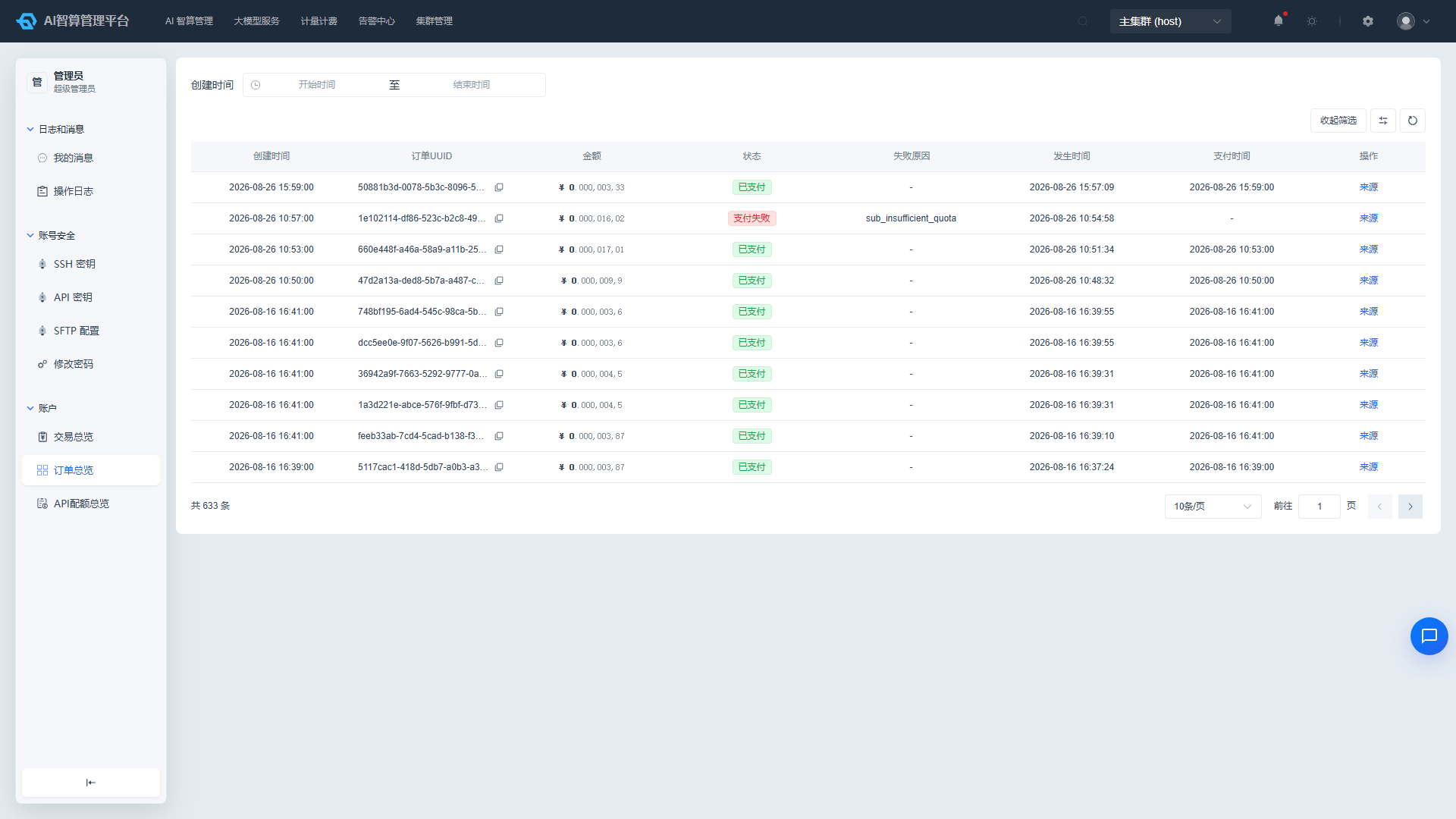
- List fields: Creation time, order UUID (with copy button), amount, status (Pending Payment / Paid / Payment Failed / Cancelled), failure reason, occurrence time, payment time.
- Filters: Creation time range, order status, order UUID.
- Row action "Source": Opens a modal displaying the source record of that order (formatted JSON), making it easy to trace which API call or top-up triggered the order.
API Quota Overview (Admin Console Only)
The "API Quota Overview" displays the quota change history for your personal API keys, querying your own data upon page load. This page is only available in the User Center of the Admin Console.
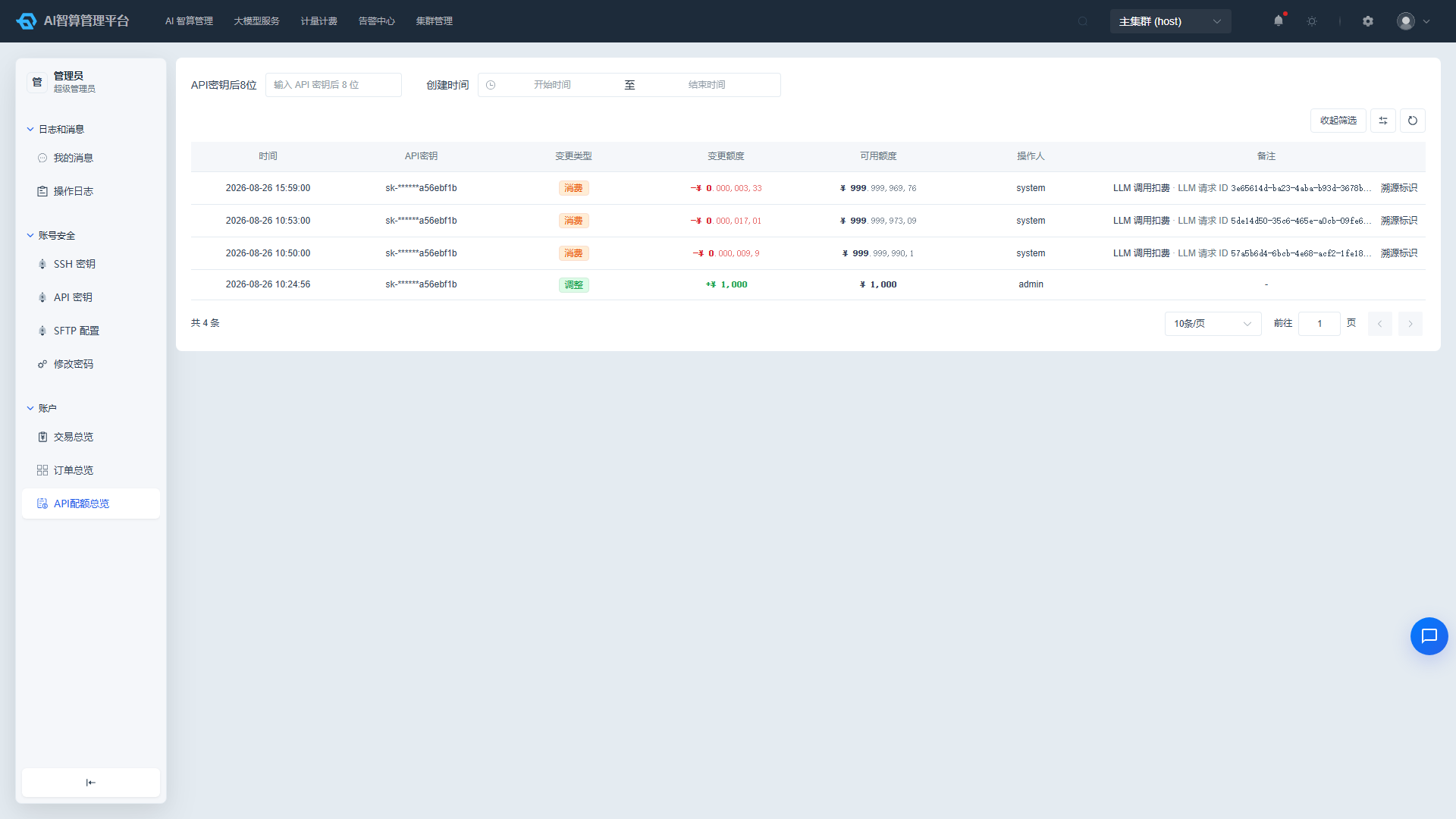
- List fields: Time, API key (masked as
sk-******last 8 digits), change type (Adjustment / Consumption / Enable/Disable), quota change (green+/ red-), available quota (value after change), operator, remarks. - Filters: Last 8 digits of API key, change type (Adjustment / Consumption / Enable/Disable), creation time range.
- Traceability identifier: The "Traceability Identifier" button at the end of the remarks column opens a modal showing the LLM request ID / payment order UUID / billing record UUID, each individually copyable, for tracing the source of a specific deduction.
You can also navigate here from the "Quota Details" row action in the Account Security > API Keys list; the system will automatically filter by that key.
FAQ
Q: How often is the balance updated? A: The balance updates approximately every 2 minutes; transaction details are displayed in real-time in reverse chronological order by posting time.
Q: Why do the amounts in transaction details show so many decimal places? A: Account amounts are recorded and displayed with nano-yuan precision (9 decimal places); hover to view the complete value.
Q: What should I do if I have a question about an API deduction? A: Find the corresponding record in API Quota Overview, click "Traceability Identifier" to copy the LLM request ID, then look up the call details in Large Model Service > My Call Records.
Q: Can I export transaction/order data? A: None of the three pages in the Account module provide an export button; to export call details, use the CSV export in My Call Records.