Traffic
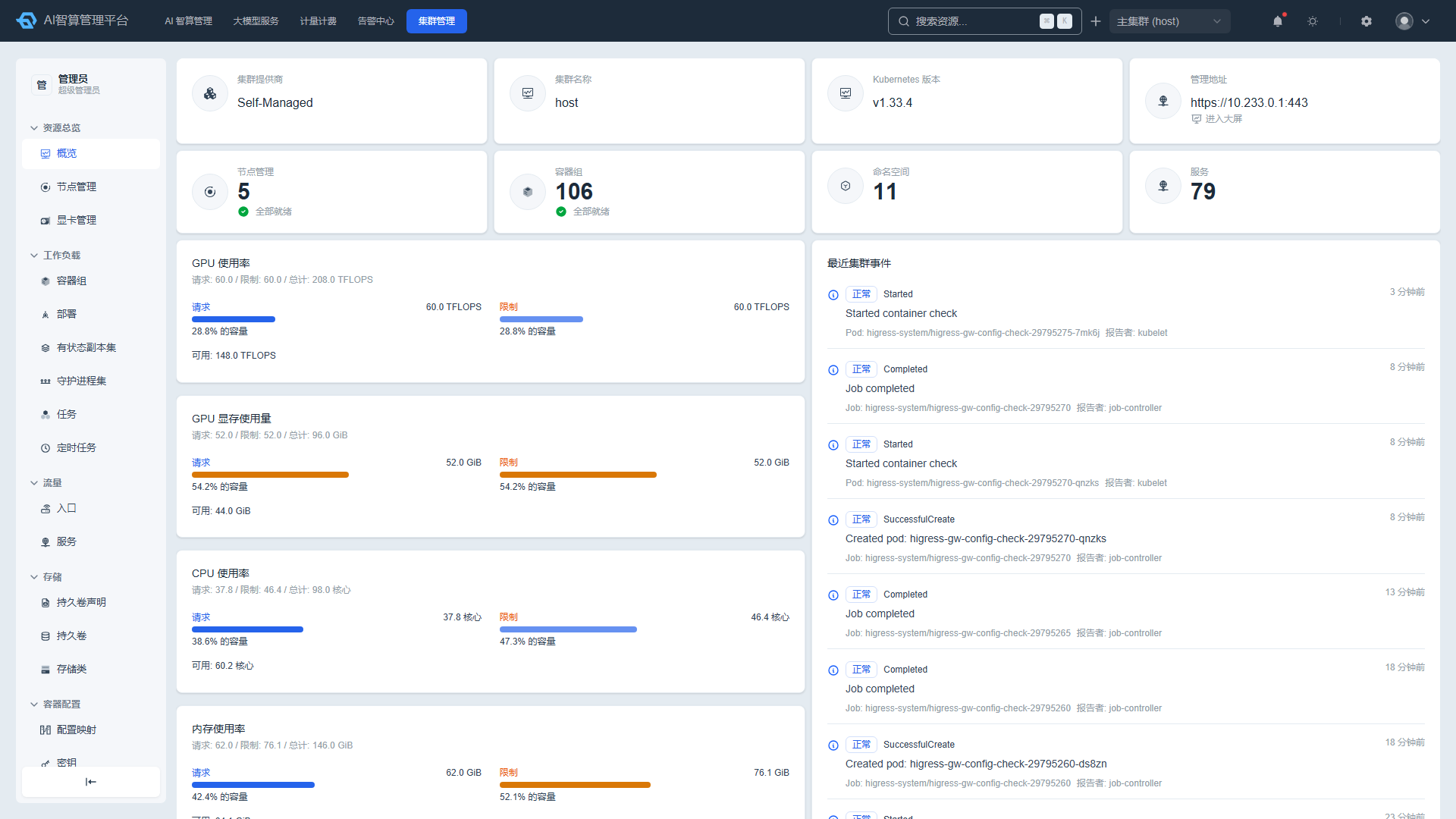
Traffic provides operations engineers with visual management of Ingress and Service resources, supporting list search, YAML editing, related resource viewing, and event tracing.
Access path: Left sidebar K8s Cluster Management > Traffic.
Ingress
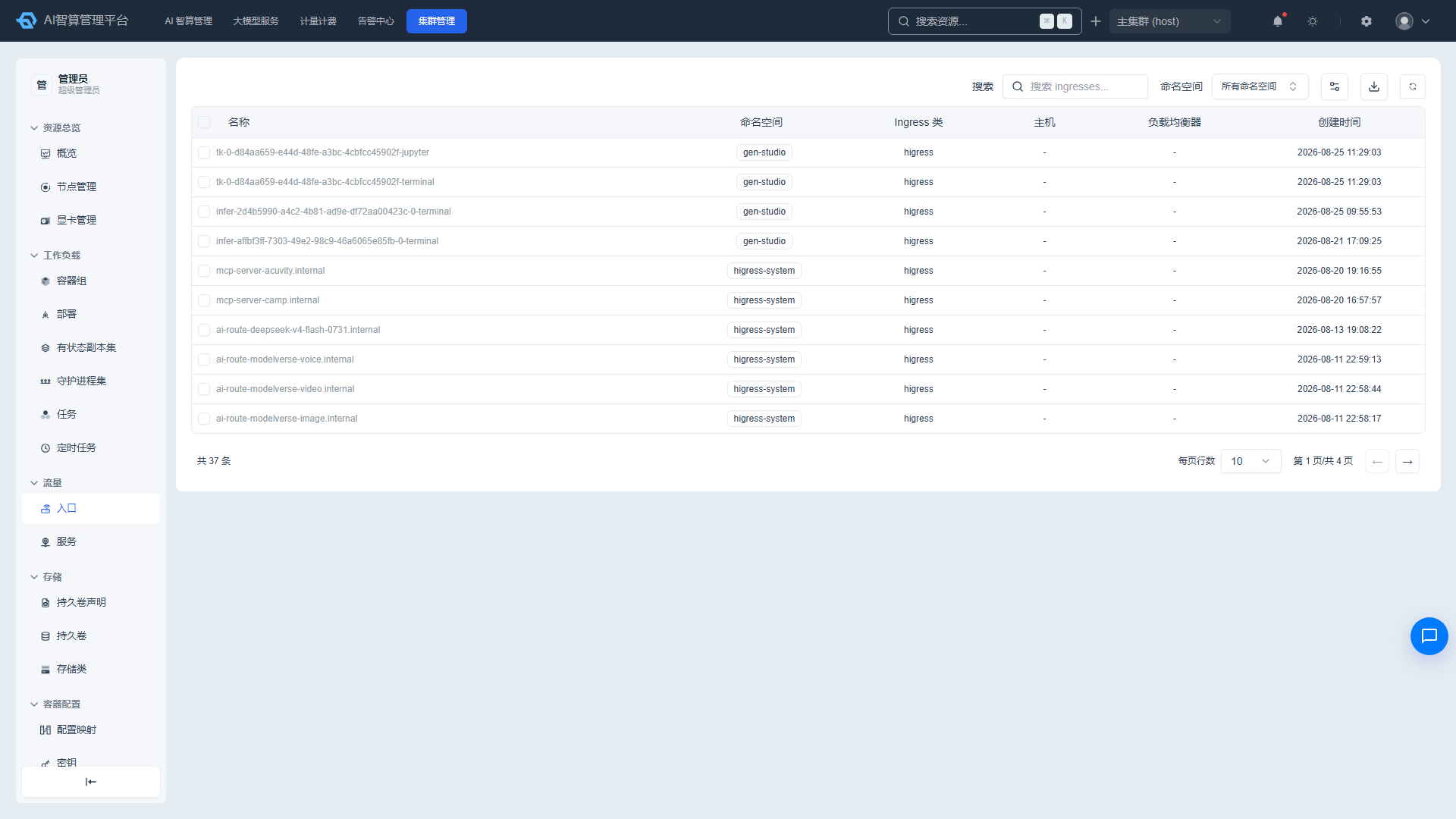
Viewing the Ingress List
- Navigate to K8s Cluster Management > Traffic > Ingress.
- The list displays: name, Ingress class, host, load balancer, and creation time.
- Use the namespace selector and top search box to filter by name.
- Supports column sorting, column visibility, pagination, manual refresh, and CSV export.
Managing Ingresses
Select multiple rows and click "Batch Delete," enter the resource name to confirm, with an option to force delete.
Click an Ingress name to enter the detail page:
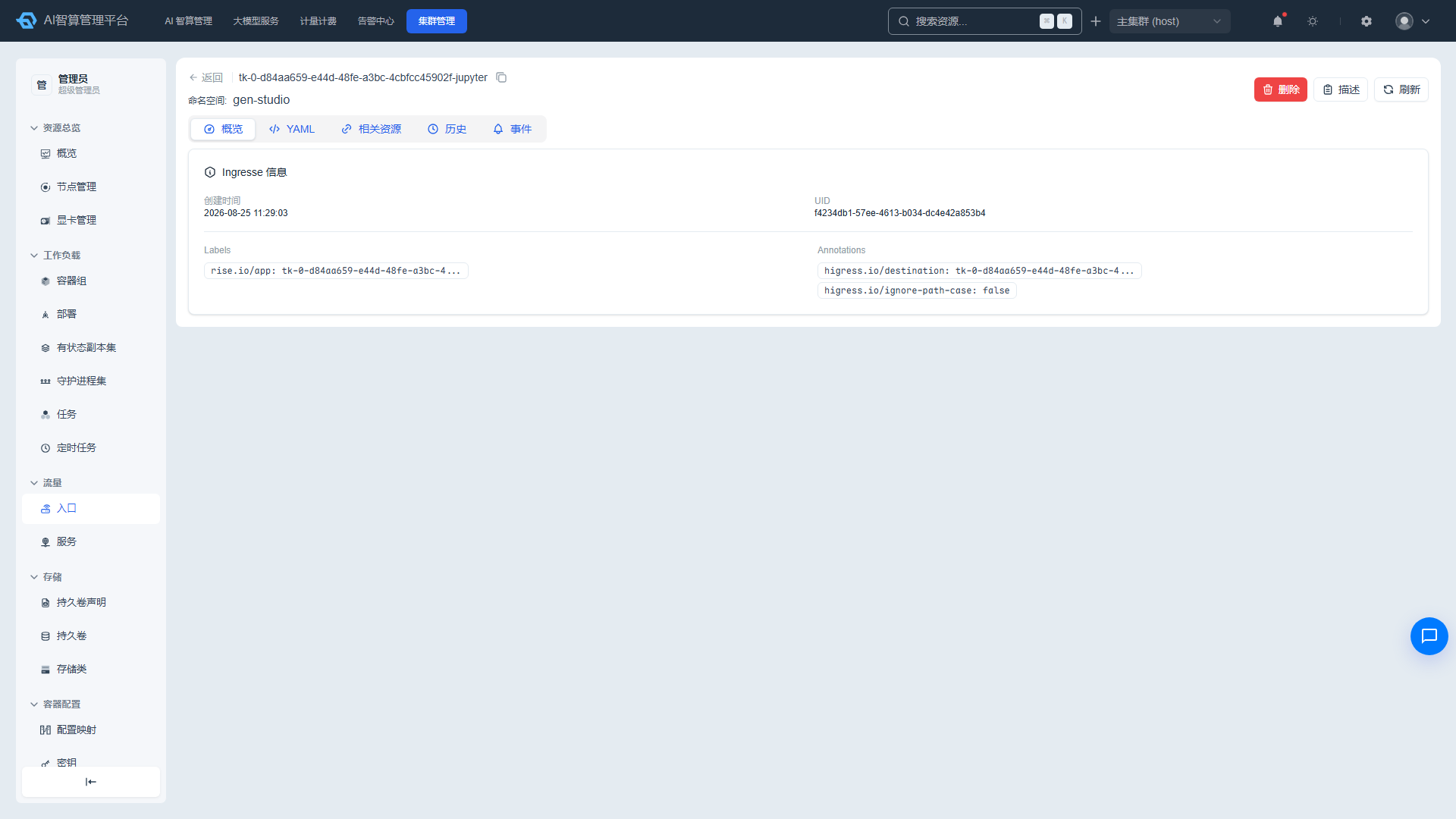
- Overview: creation time, UID, owner resource links, labels/annotations.
- YAML: edit online and save.
- Related Resources: associated Service, Secret, and more; click to navigate.
- History: change records with YAML diff comparison and rollback support.
- Events: related K8s events.
The detail page provides delete, Describe, and refresh operations.
Service
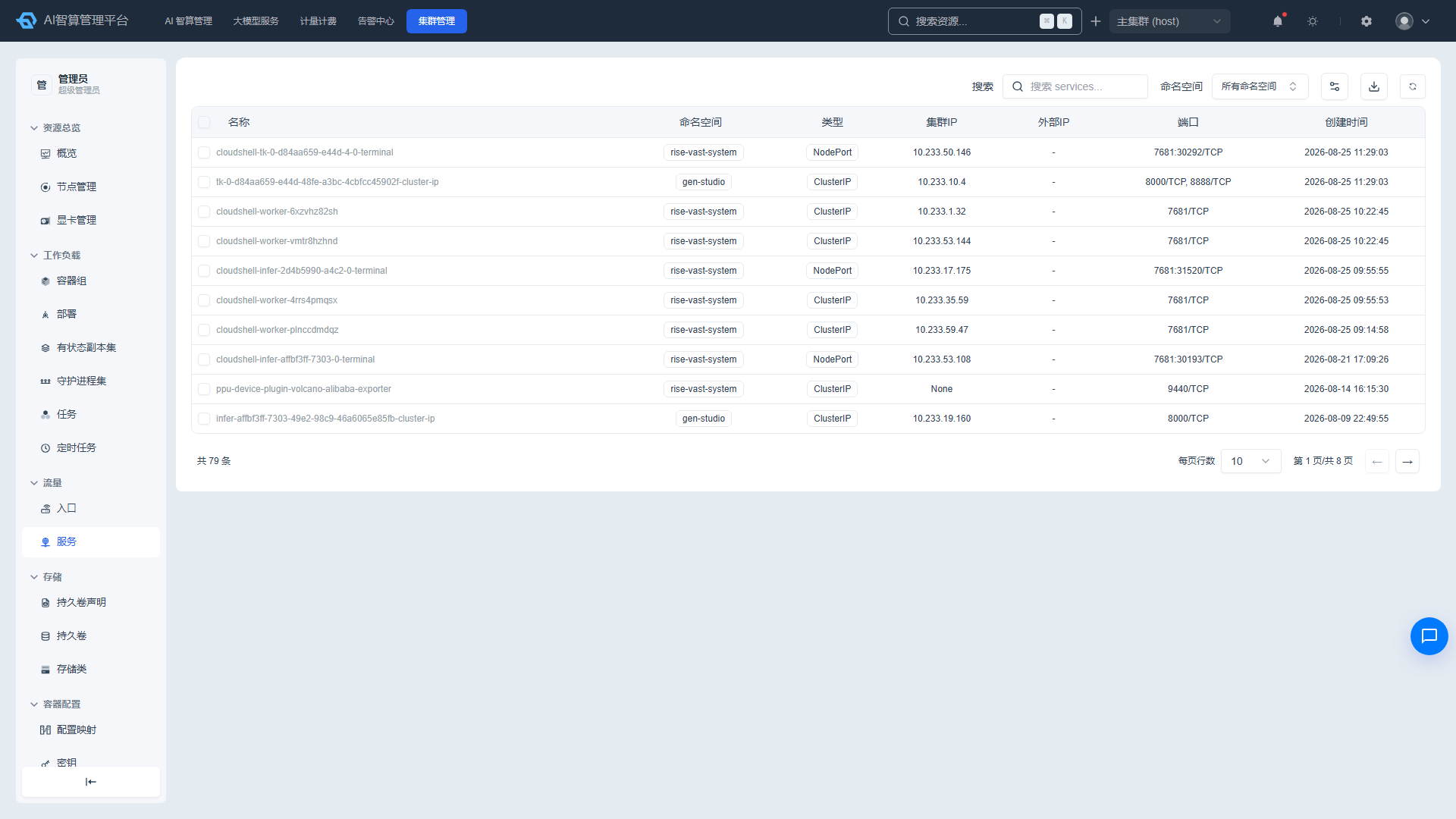
Viewing the Service List
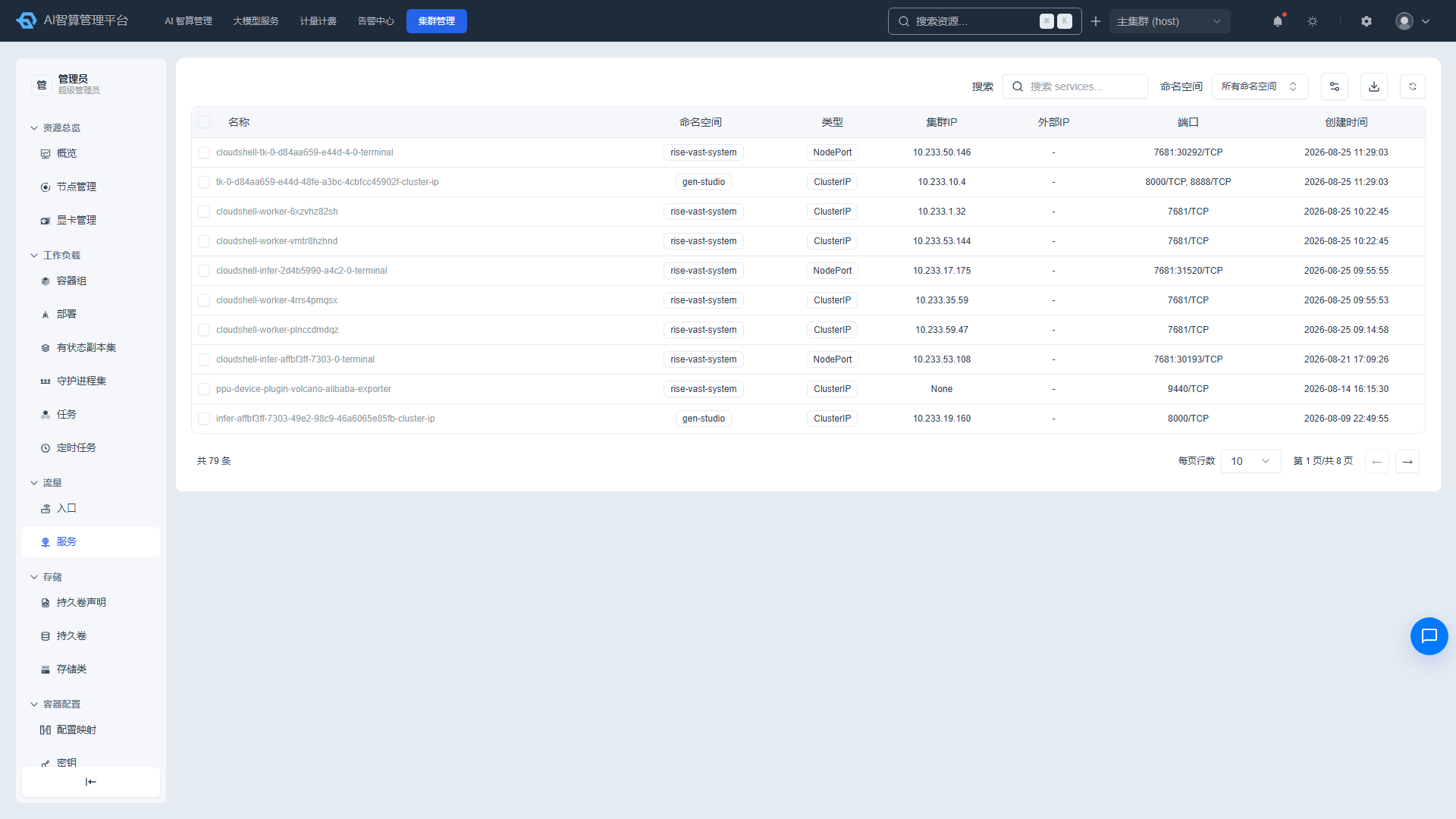
- Navigate to K8s Cluster Management > Traffic > Service.
- The list displays: name, namespace, type, cluster IP, external IP, port, and creation time.
- Use the search box to search by name, type, or cluster IP keywords; supports namespace selector, column filtering, column visibility, column sorting, and pagination.
Managing Services
Select multiple rows and click "Batch Delete" or "Export."
Click a Service name to enter the detail page:
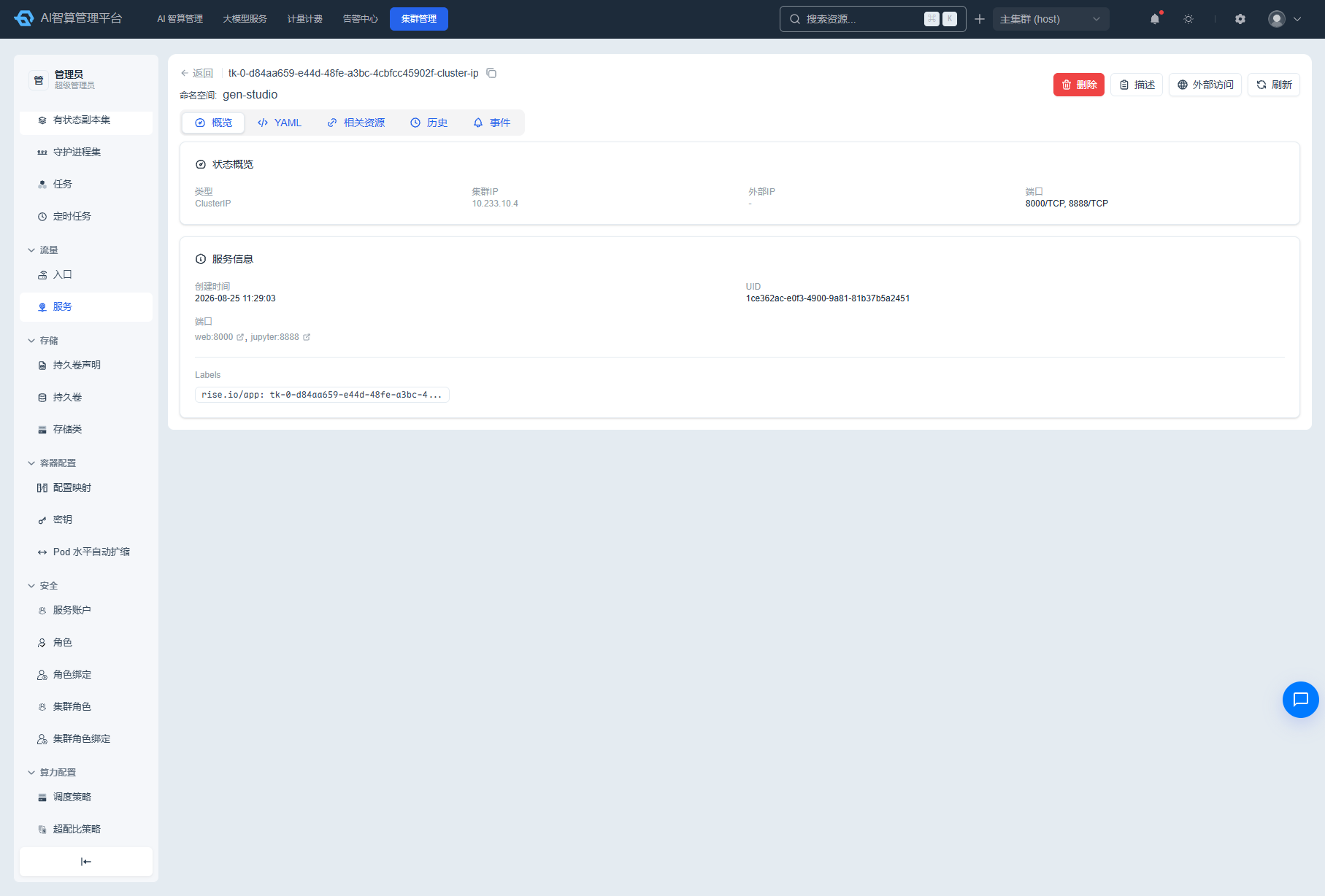
- Overview: type, cluster IP, external IP, port list (ports with
/proxy/links can open in a new window), UID, owner links, labels/annotations. - YAML: edit online and save.
- Related Resources: associated Pods, Endpoints, and more.
- History: change records with diff comparison and rollback support.
- Events: related K8s events.
- Overview: type, cluster IP, external IP, port list (ports with
The detail page provides delete, Describe modal, and external access configuration.
Configuring External Access
- On the Service detail page, click "External Access."
- Select an access mode:
- None: Do not expose external access.
- NodePort: Expose via node port.
- LoadBalancer: Expose via load balancer (requires cluster support).
- Click "Save" to apply.
FAQ
Q: Ingress configuration was saved but is inaccessible? A: Check whether the corresponding Service and Pod are running normally, whether the Ingress Controller is deployed, and whether DNS/hosts resolution is correct.
Q: Service external IP remains Pending? A: If LoadBalancer mode is selected but no LoadBalancer controller is deployed in the cluster, the external IP will remain Pending. Switch to NodePort or contact the platform administrator.