AI Asset Management
AI Asset Management is designed for platform / tenant admins to centrally manage foundational resources in AI compute scenarios: storage services, data storage volumes, compute flavors, image sources, image repositories, credentials and keys, and asset labels. These resources form the data and compute foundation for creating container instances, training / fine-tuning / inference jobs.
Entry path: Left sidebar AI Compute Management > AI Asset Management, page route
/admin/ai/manage.
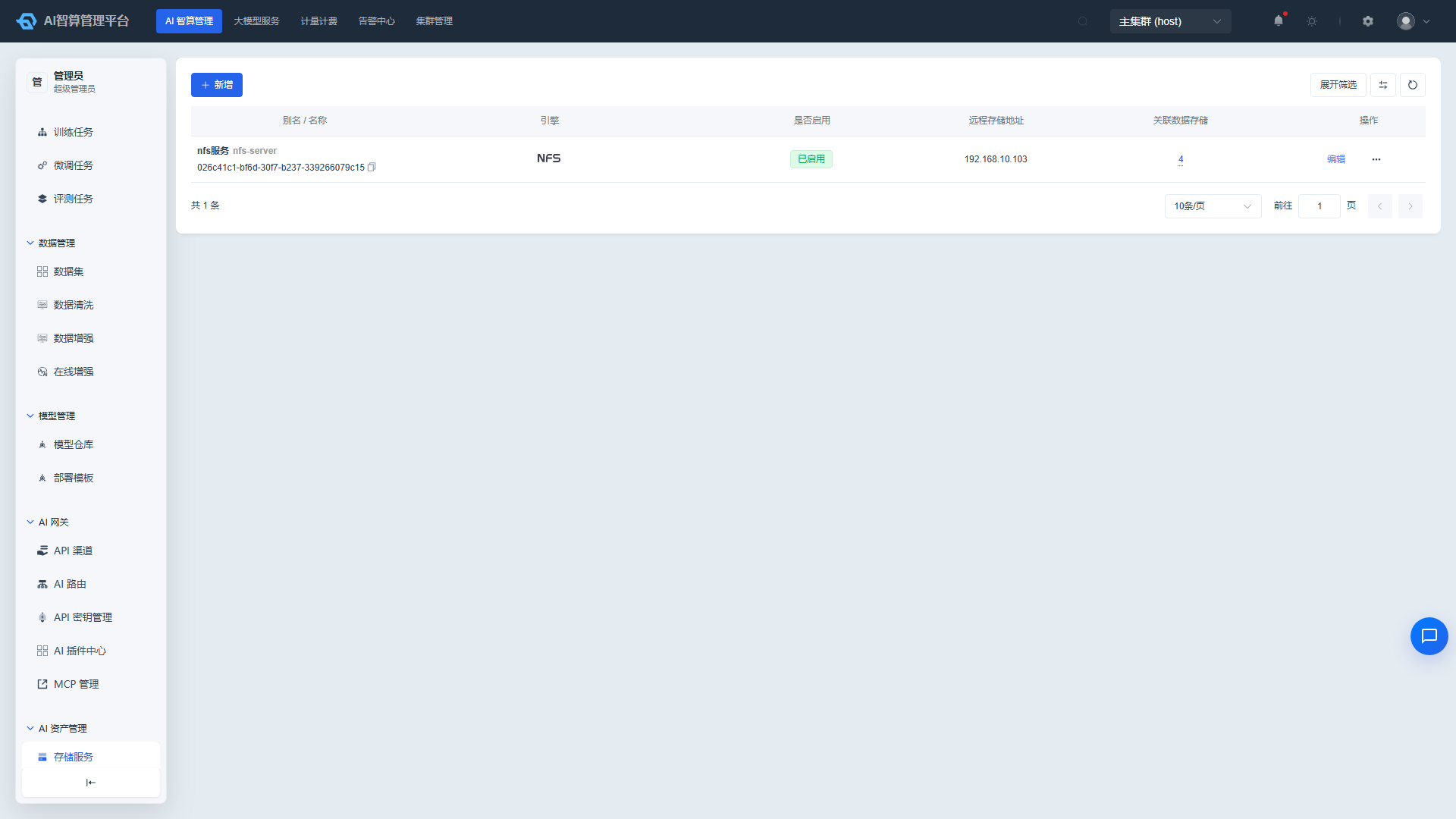
Page Menu
| Page | Route | Description |
|---|---|---|
| Storage Services | /admin/ai/manage/storage-engine | Storage engine (NFS / JuiceFS) integration |
| Storage | /admin/ai/manage/data-storage | Data storage volume (PVC) management |
| Flavors | /admin/ai/manage/flavor | Compute flavor template management |
| Create Flavor | /admin/ai/manage/flavor/create | Create a new compute flavor |
| Image Sources | /admin/ai/manage/registry | Image repository sources (Harbor / SWR) |
| Image Services | /admin/ai/manage/repository | Image repository card list |
| Image Service Details | /admin/ai/manage/repository/detail/:uuid | Image versions and pull commands |
| Credentials & Keys | /admin/authorization/secret-key | Sensitive configuration management |
| Labels | /admin/ai/manage/label | Asset label management |
| Admin Workbench | /admin/ai/manage/workbench | Admin operational cockpit |
Storage Services
Storage services integrate third-party storage engines (NFS / JuiceFS) to provide persistent data storage capabilities for the platform.
View Storage Services
- Navigate to AI Compute Management > AI Asset Management > Storage Services.
- The list displays: Alias / Name, Engine Type (NFS / JuiceFS), Enabled status, Remote Storage Address, Associated Data Storage Count.
- Use the top filter bar to query by workspace, parent project, name, engine type, and enabled status.
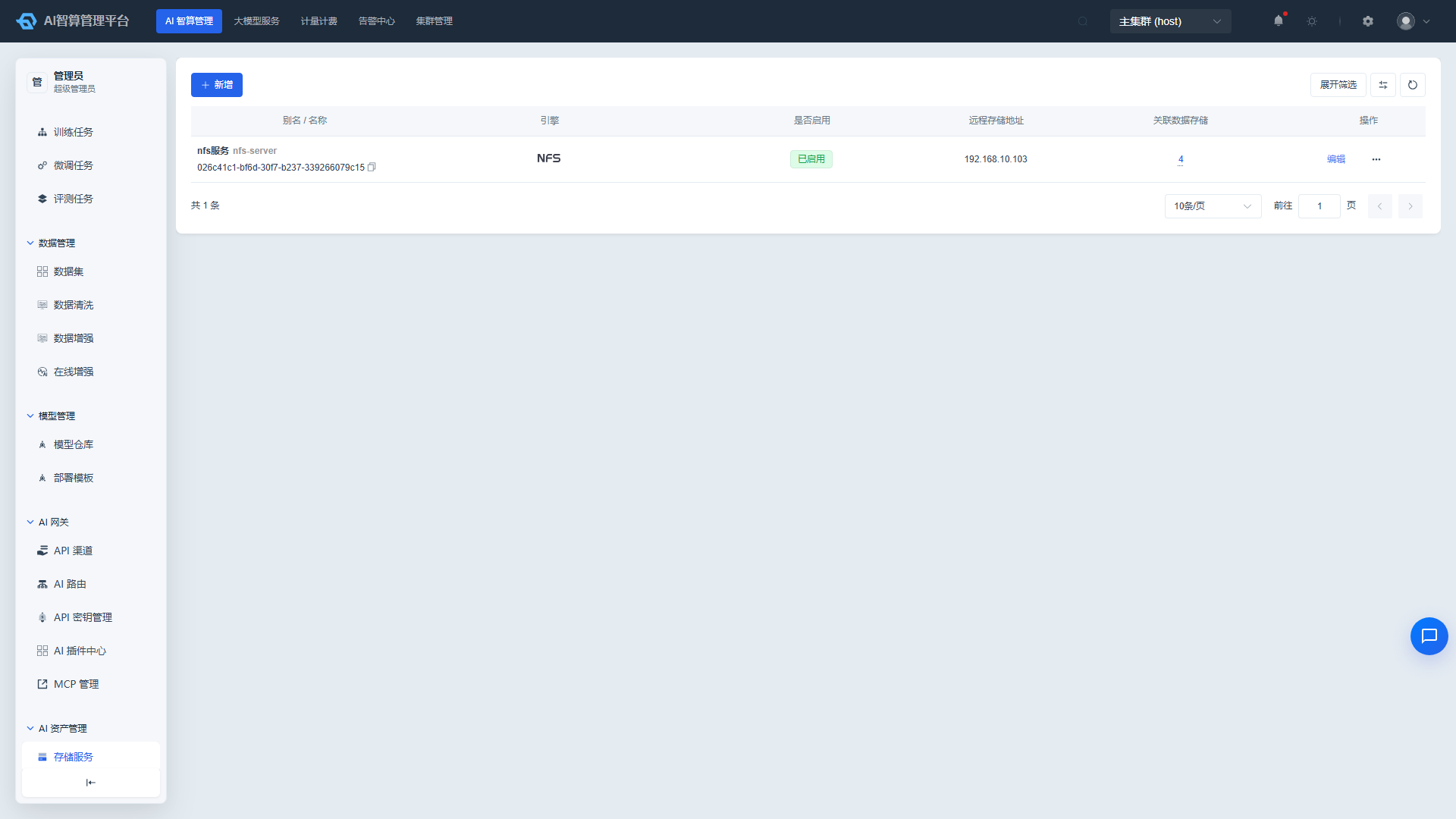
Create a Storage Service
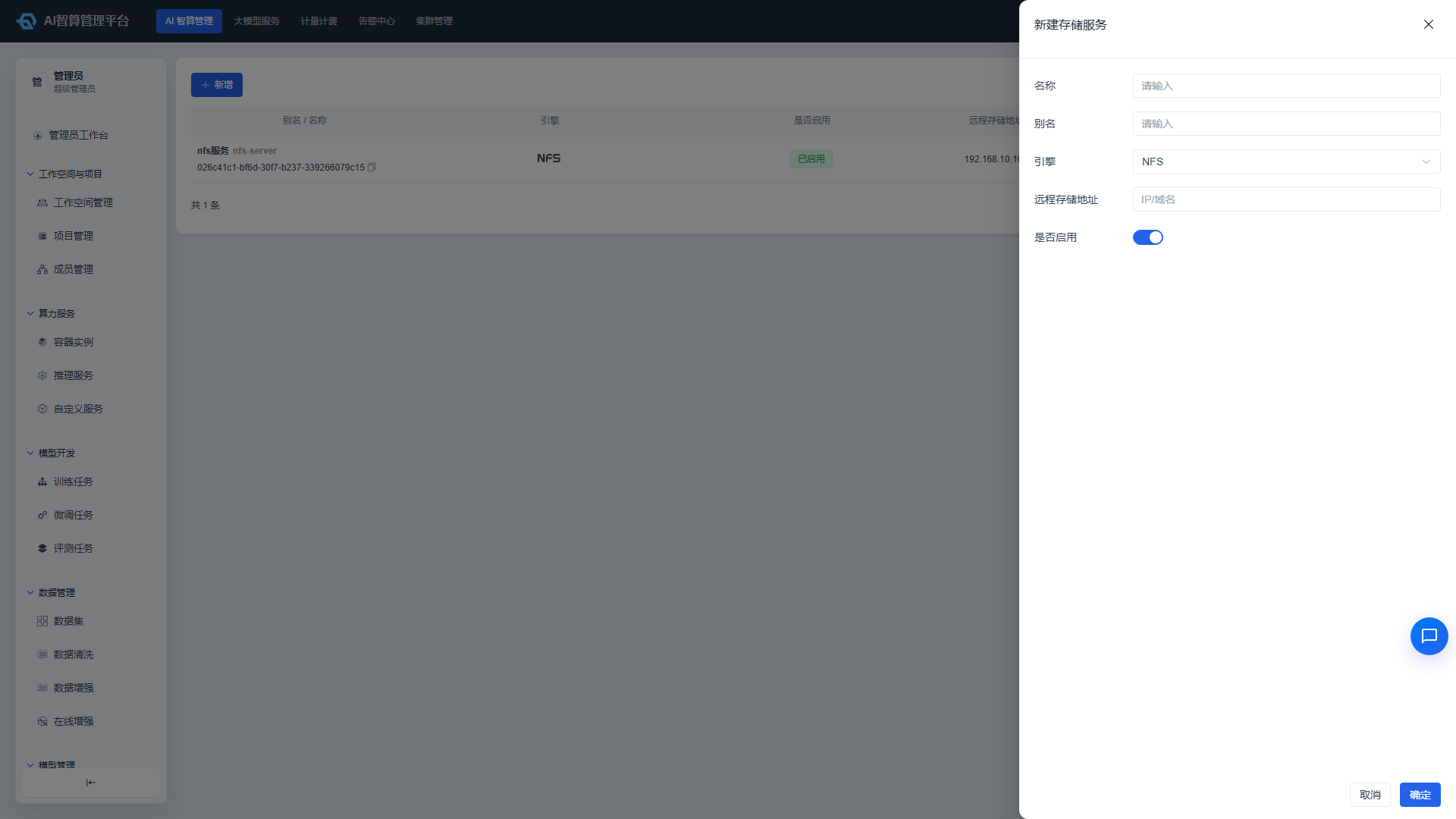
- Click "New" on the storage service list page; a drawer slides out from the right.
- Fill in the configuration:
- Workspace / Parent Project: Select the tenant and project that owns the storage service.
- Name: Letters, numbers, hyphens, underscores, 2-64 characters.
- Alias: An easy-to-identify display name.
- Engine: Required; NFS or JuiceFS.
- Remote Storage Address: Storage service endpoint address.
- Enabled: Must be enabled for data storage volumes to reference this service.
- Click "Create."
Manage Storage Services
- Click "More Actions" in the list row:
- Edit: Modify name, alias, remote address, and enabled status.
- Enable / Disable: When disabled, newly created data storage volumes cannot reference this service.
- Delete: Before deletion, confirm that no data storage volumes reference this service; the system prevents deletion when associations exist.
Storage
Storage refers to data storage volumes (PVCs) used to mount data into instances, jobs, and services. It supports two modes: dynamic allocation (via storageClass) and static allocation (binding to a specific storage service).
View Storage
- Navigate to AI Compute Management > AI Asset Management > Storage.
- The list displays: Alias / Name (with a copyable UUID below), Engine Type, Access Permission (Public / Tenant), Storage Service, Mount Path, Capacity, Allocation Mode, Enabled status, System Built-in status, Parent Workspace, Parent Project, Associated Instance / Job / Inference Service count.
- Hover over the "Allocation Mode" column to view access mode, read-only status, remote storage address, remote storage path, container mount path, subPath, and matchLabels details.
- Use the top filter bar to query by access permission, workspace, project, name, engine type, enabled status, and system built-in status.
Create Storage
- Click "New" on the storage list page; a drawer slides out from the right.
- Fill in the basic information:
- Access Permission: Public / Tenant; public storage can be mounted read-only or read-write by all tenants, tenant storage is limited to the specified tenant.
- Workspace / Parent Project: Select the tenant and project.
- Name / Alias: Name is used for system identification; alias is used for display.
- Select the storage method:
- Dynamic Allocation: Pull storageClass from the cluster; the system automatically creates the PVC.
- Static Allocation: Select an enabled storage service (filtered by engine type) and enter the remote storage path.
- Fill in the mount configuration:
- Mount Path: The mount path inside the container; must comply with path rules.
- SubPath: Optional; used to mount a subdirectory of the storage to the container.
- Capacity: Numeric input, supports GiB / TiB / PiB unit conversion, range 1 GiB–100 PiB.
- Access Mode: ReadWriteOnce / ReadOnlyMany / ReadWriteMany; multi-select supported.
- Fill in advanced configuration:
- Node Selector matchLabels: For static allocation + local engine, enter label key-value pairs for node selection.
- Enabled: Must be enabled to be selectable when creating jobs / instances.
- System Built-in: Marks storage as automatically created by the platform.
- Click "Create."
Manage Storage
- Click "More Actions" in the list row:
- Edit: Modify name, alias, mount path, capacity, enabled status, etc.; note that some fields are locked when associated resources exist to prevent impact on running jobs.
- Enable / Disable: When disabled, new jobs / instances cannot select this storage.
- Delete: Before deletion, confirm that no associated resources exist; the system prevents deletion when associations exist.
- Click the "Associated Instance / Job / Inference Service" count to display a detail table of associated resources.
Flavors
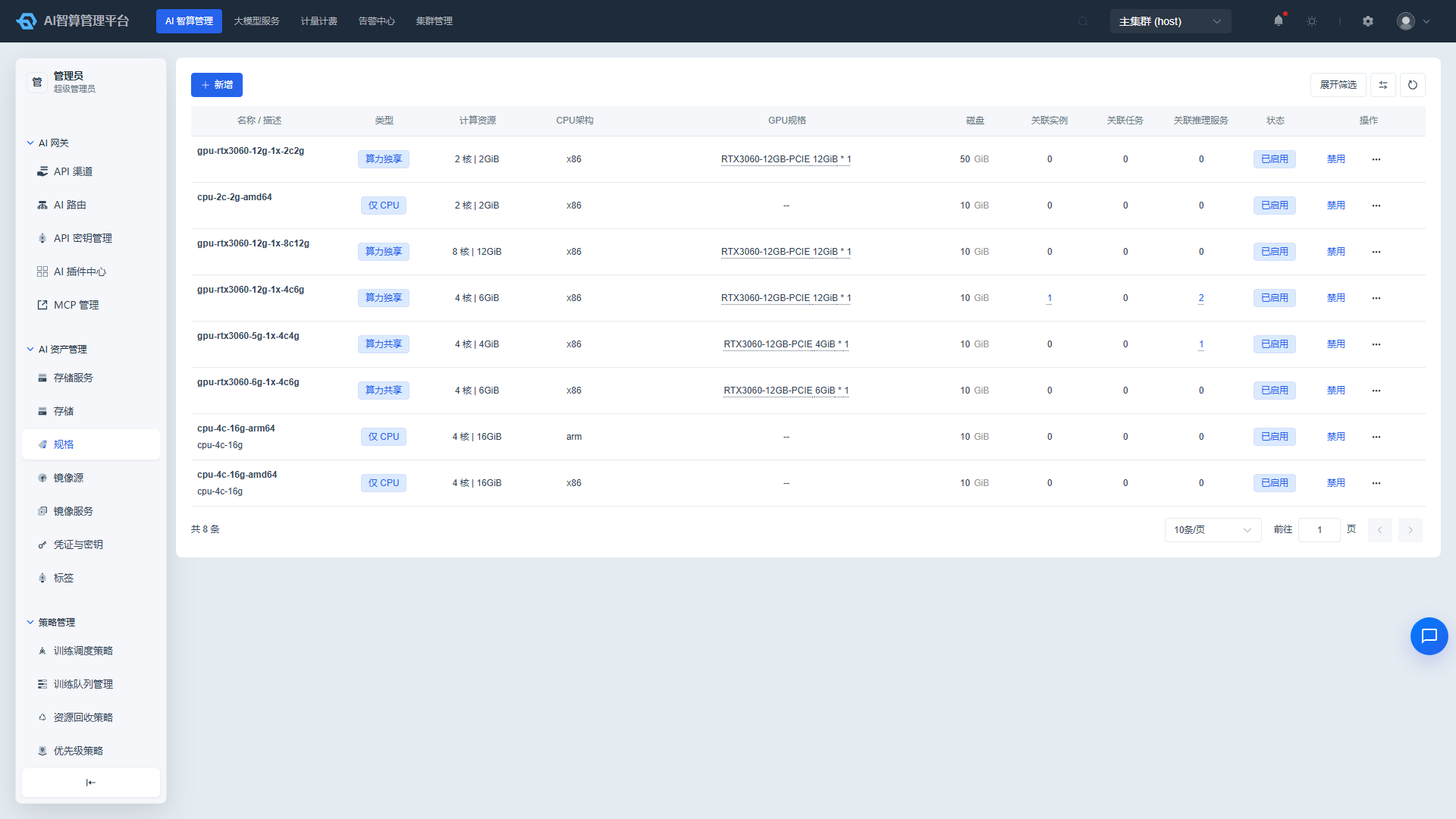
A Flavor defines compute templates including CPU, memory, GPU, etc. Select one when creating a job / instance to quickly specify resources.
View Flavors
- Navigate to AI Compute Management > AI Asset Management > Flavors.
- The list displays: Flavor Name, Description, Type, Compute Resources (vCPU / Memory), CPU Architecture, GPU Specification (Card Model / GPU Count / Compute), Disk, Associated Instance / Job / Inference Service count, Status.
- Use the top filter bar to query by name, type, status, CPU architecture, and GPU manufacturer.
Create a Flavor
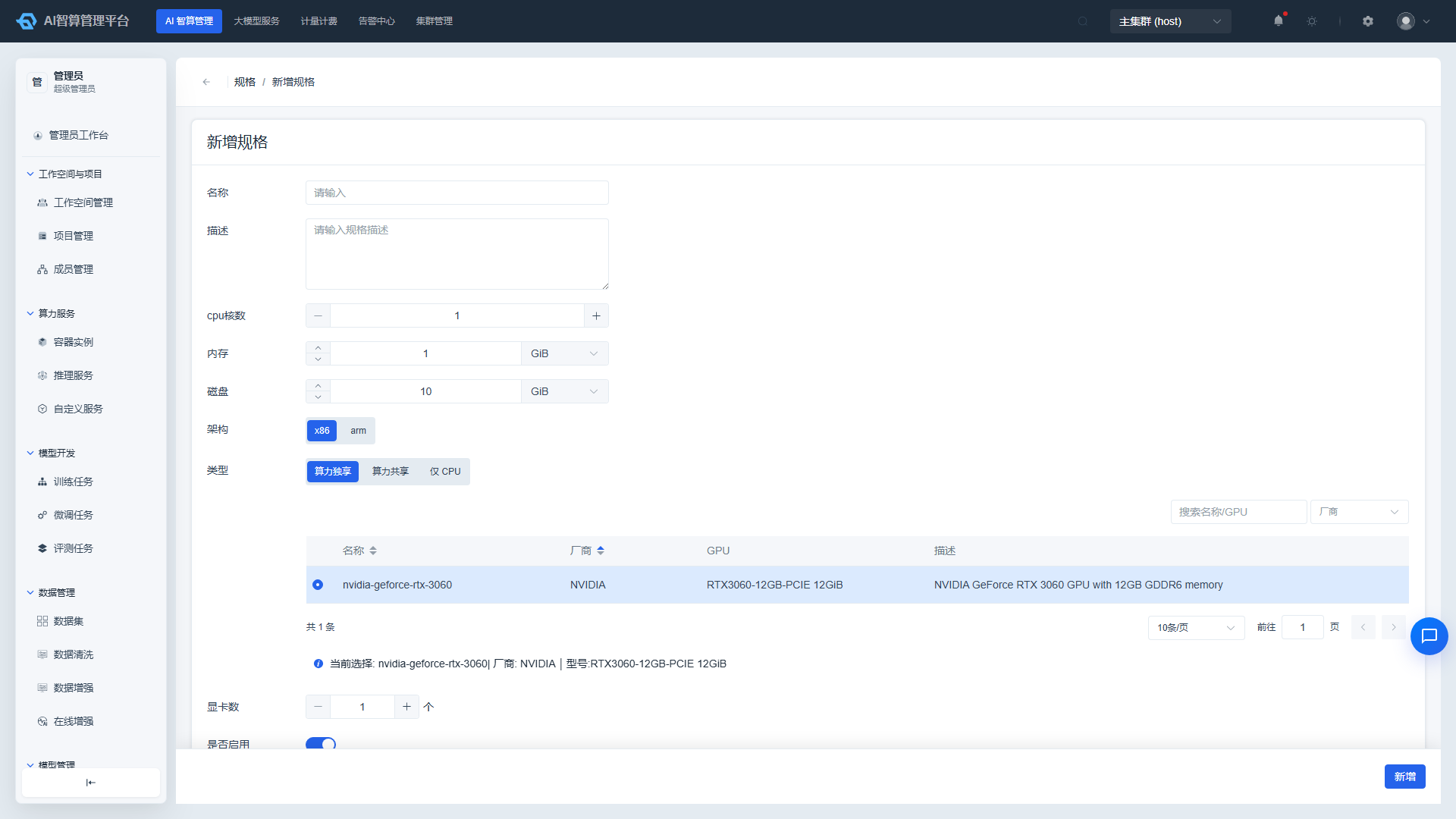
- Click "Create Flavor" on the flavor list page.
- Basic Information
- Name: Unique flavor identifier.
- Description: Optional.
- Type: CPU / GPU / Other.
- CPU Architecture: x86 / ARM.
- Compute Resources: vCPU core count, memory size (GiB).
- Disk: Disk size (GiB).
- GPU Specification
- In the GPU specification table, filter by manufacturer and splitting mode, or search by flavor name keywords.
- Select a GPU specification row, confirming the card model, GPU count, compute percentage, and memory size.
- To add a new GPU specification, click "Add GPU Specification" and enter the manufacturer, model, memory, compute, and other core parameters online.
- Click "Create."
Manage Flavors
- Click "More Actions" in the list row:
- Edit: Modify name and description; when associated resources exist, vCPU / memory / disk fields are locked to prevent impact on running jobs.
- Enable / Disable: Controls whether the flavor is selectable when creating jobs / instances.
- Delete: Before deletion, confirm that no associated resources exist.
- Click the "Associated Instance / Job / Inference Service" count to display a detail table of associated resources.
Image Sources
Image sources manage integration information for external image repositories (Harbor / SWR) and form the foundation of image services.
View Image Sources
- Navigate to AI Compute Management > AI Asset Management > Image Sources.
- The list displays: Image Source Name, Domain, Type (Harbor / SWR), Skip TLS Authentication status, Associated Image Repository Count.
- Hover over the "Associated Image Repository Count" column to view each repository's name / alias, category, and parent workspace.
Create an Image Source
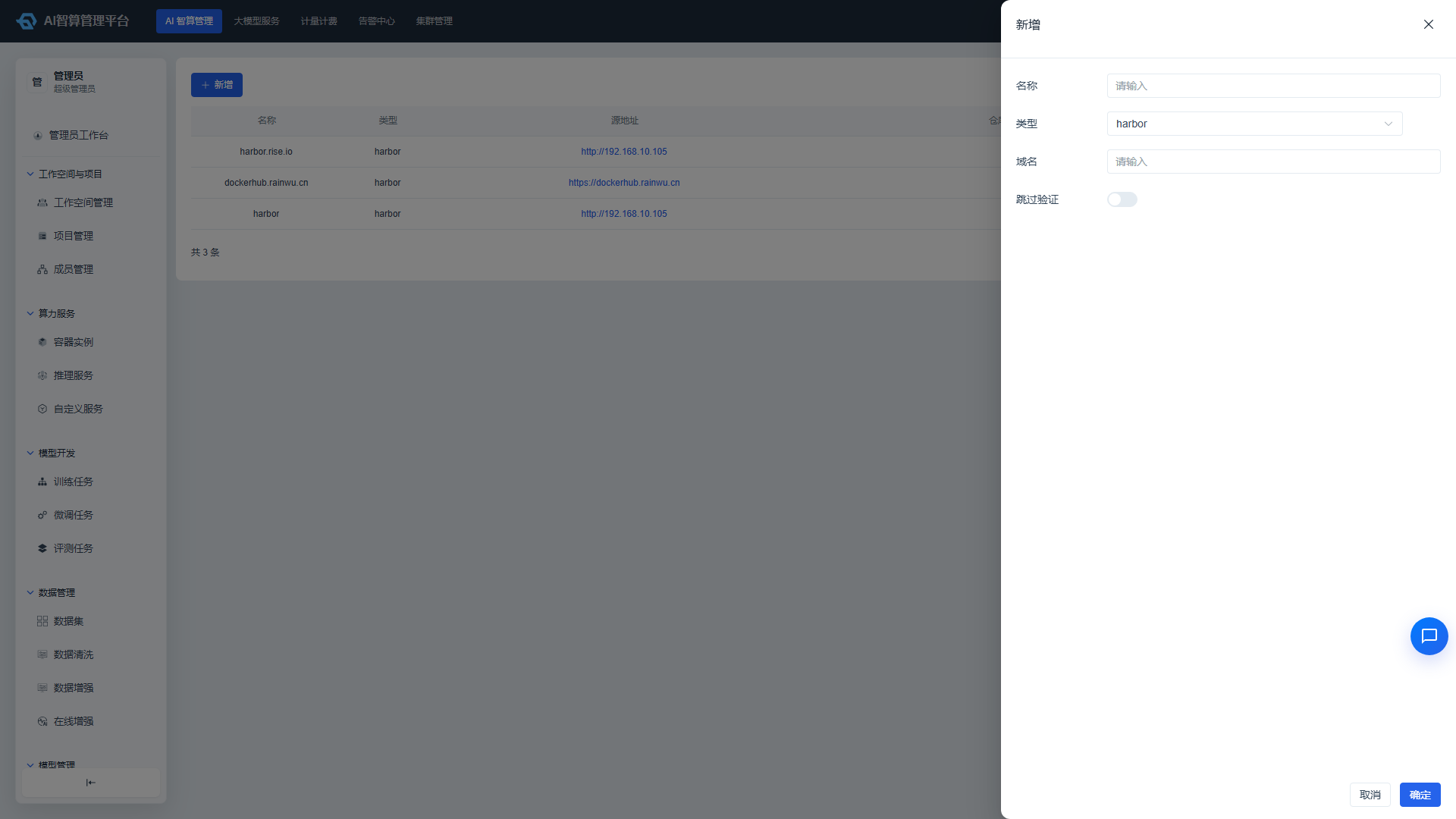
- Click "Create Image Source" on the image source list page.
- Fill in the configuration:
- Name: Unique image source identifier.
- Domain: Image repository domain, e.g.,
harbor.example.com. - Type: Harbor or SWR.
- Skip TLS Authentication: Can be enabled for self-signed certificate scenarios.
- Click "Create."
Manage Image Sources
- Click "More Actions" in the list row:
- Edit: Modify name, domain, type, and TLS configuration.
- Delete: When associated image repositories exist, the system automatically prevents deletion to avoid accidental removal that could render images unavailable.
Image Services
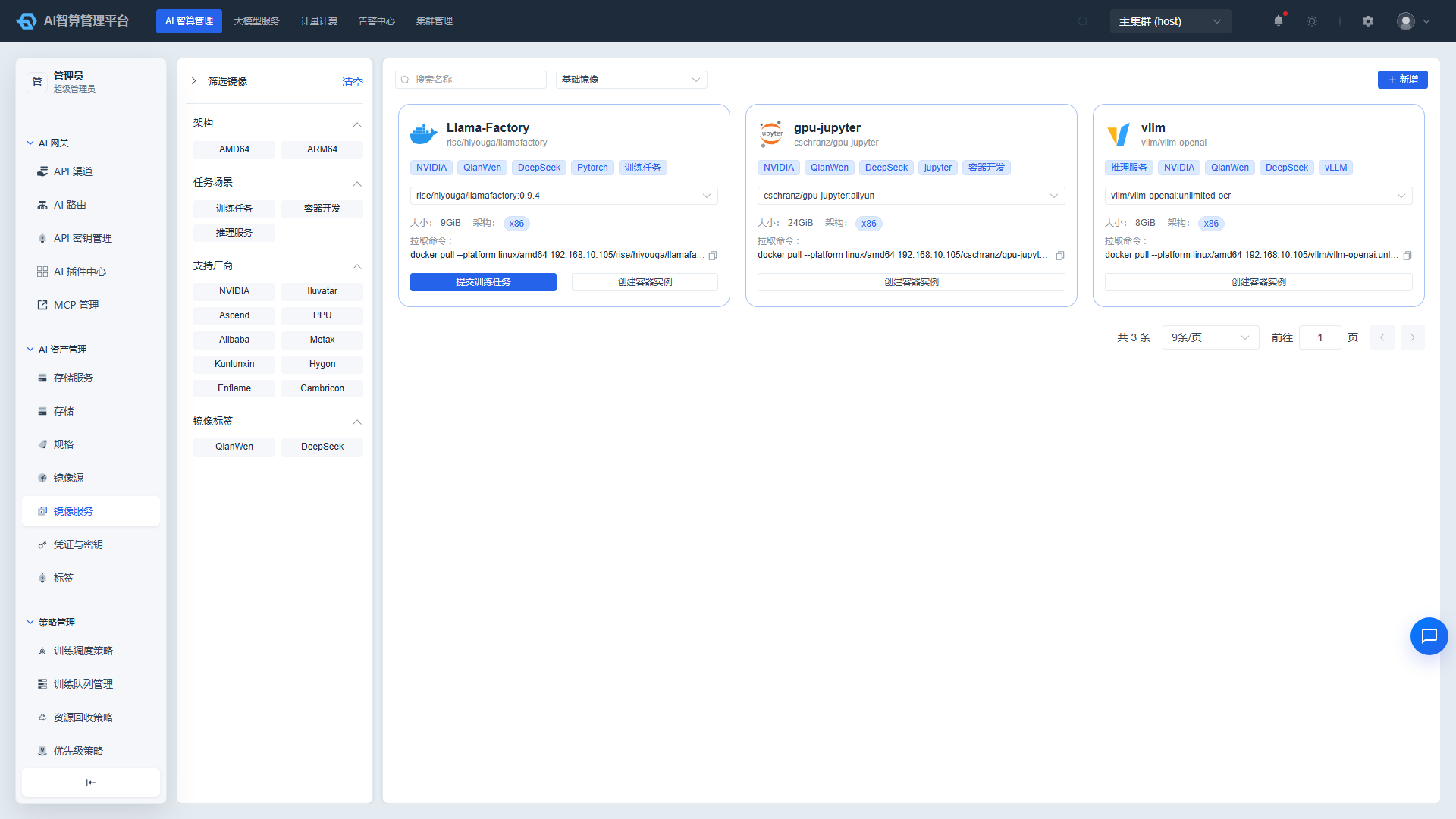
Image services display accessible image repositories in card format, including platform-preset base images and tenant / project private custom images.
View Image Services
- Navigate to AI Compute Management > AI Asset Management > Image Services.
- The list is displayed as cards: Repository icon, alias and name, labels, image version dropdown, image size, architecture labels, docker pull command.
- Use the top filter bar to query by architecture (AMD64 / ARM64), task scenario, supported manufacturer, image label, and name keywords.
- Switch between "Base Image / Custom Image" types:
- Base Image: Platform-preset public images.
- Custom Image: Filter tenant / project private images by workspace and project.
Add a Custom Image
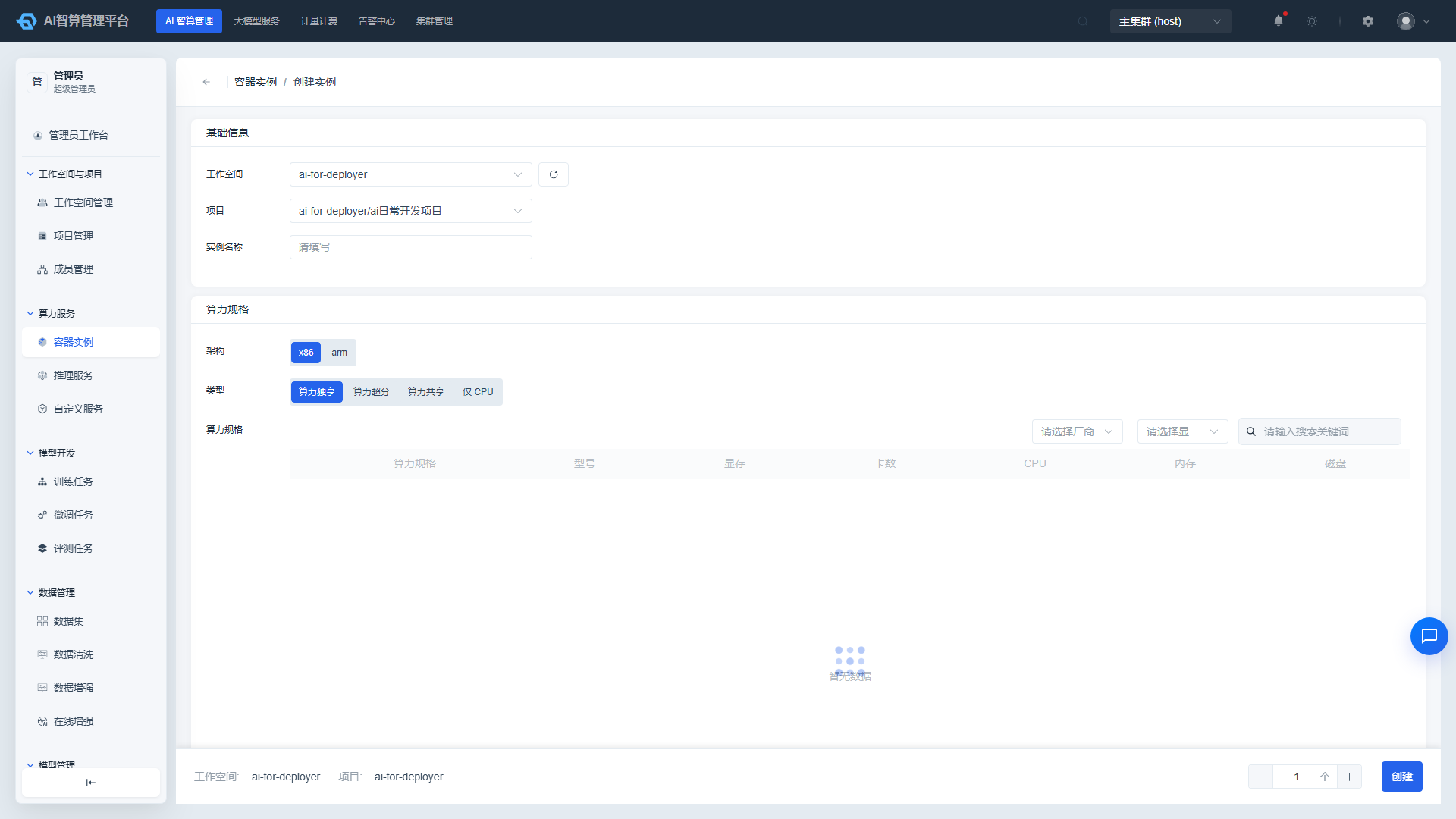
- Switch to the "Custom Image" type on the image service list page, then click "Add Custom Image."
- Fill in the configuration:
- Workspace / Project: Select the image ownership.
- Repository Source: Select a previously created image source.
- Key: Select the credential and key required for pulling the image.
- Name / Alias / Description: Image repository identification information.
- Click "Create."
Manage Image Repositories
- Click the version dropdown on an image card to switch between different image versions, viewing each version's image size, supported architecture, and pull command.
- Click "More Actions" on a custom image card:
- Sync: Sync image versions from the upstream image source.
- Delete: Delete the image repository; supports multi-selecting cards for batch deletion.
- Click "Create Container Instance" or "Submit Training Job" on an image card (displayed when the image is labeled as training-supported); the system will automatically pre-fill the image version and repository information.
Credentials & Keys
Credentials and keys are used to centrally manage sensitive configuration information, such as account passwords and image repository keys.
View Credentials & Keys
- Navigate to AI Compute Management > AI Asset Management > Credentials & Keys.
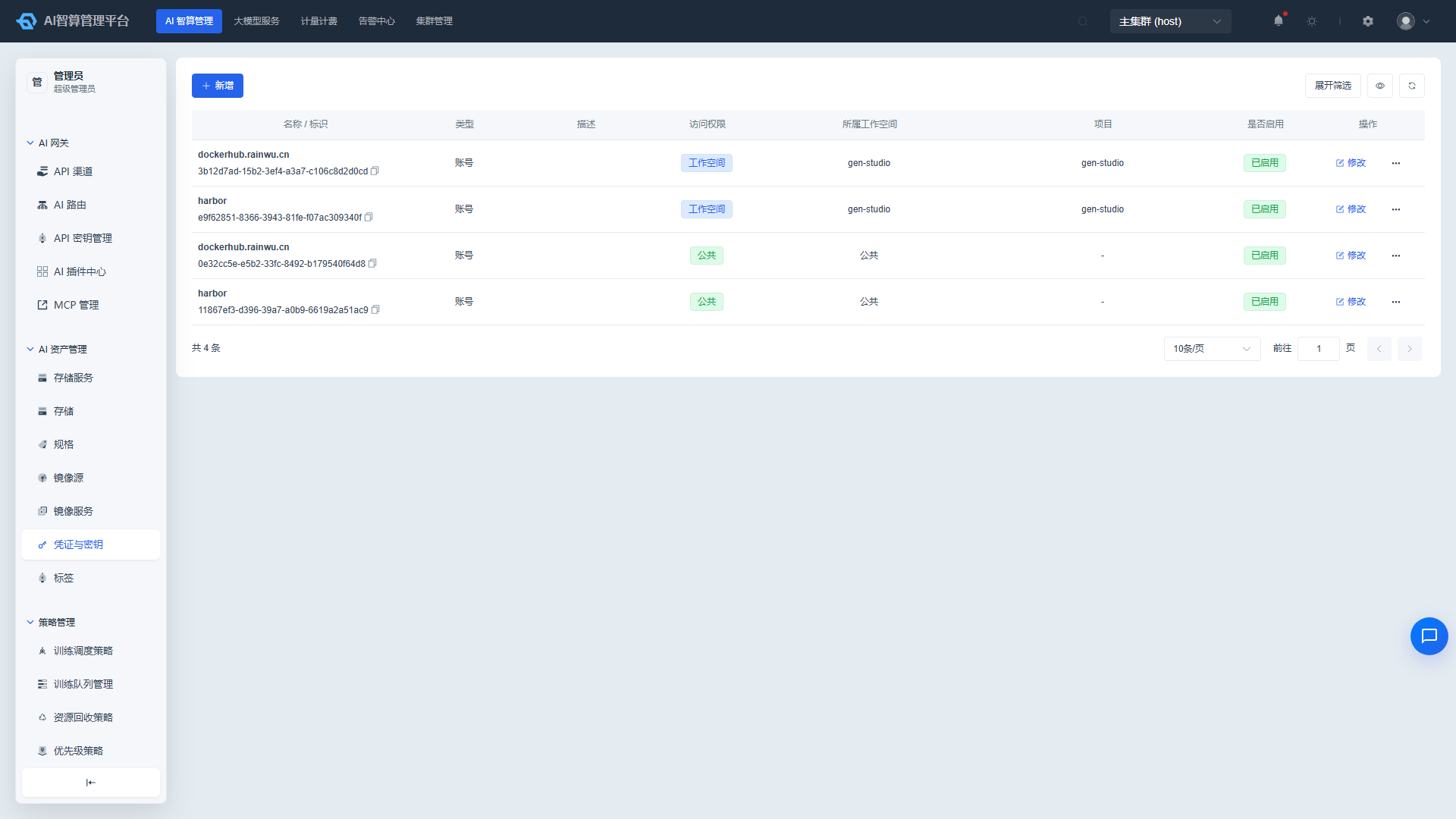
- The list displays: Name / Identifier, Type (Account / Image Repository SWR), Description, Access Permission (Public / Workspace), Parent Workspace, Parent Project, Enabled status.
- Use the top filter bar to query by enabled / disabled status, workspace, project, type, and name.
Create Credentials & Keys
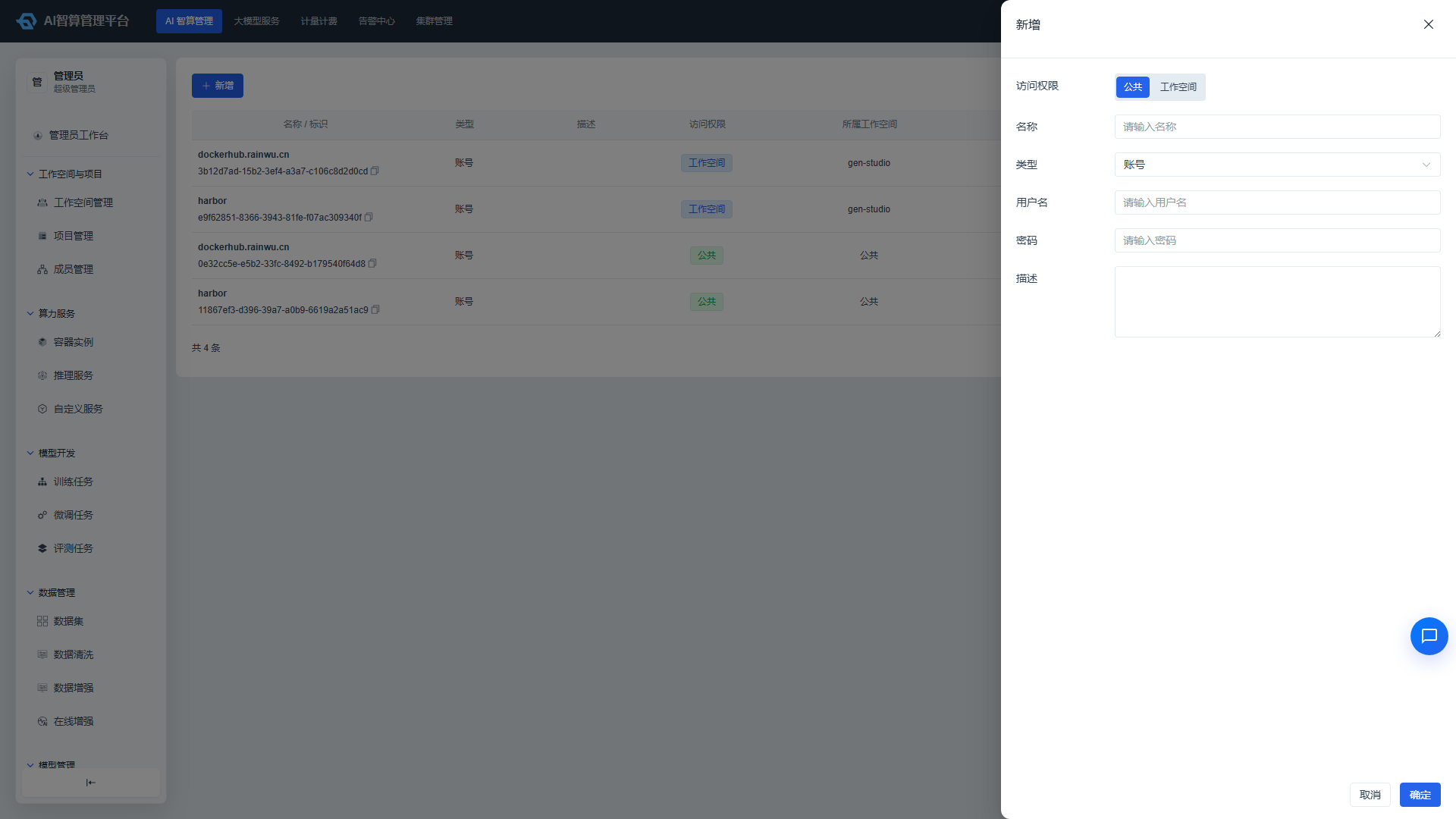
- Click "Create Key" on the credentials & keys list page.
- Fill in the basic information:
- Type: Account / Image Repository SWR.
- Workspace / Project: Select ownership.
- Name / Description: Identification information.
- Fill in authentication configuration:
- Account Type: Username, password.
- Image Repository SWR Type: ACCESS KEY, SECRET KEY, Region.
- Click "Create."
Manage Credentials & Keys
- Click "More Actions" in the list row:
- Edit: Modify name, type, description, and authentication configuration information (SSH public key / account password / image repository key).
- Delete: When associated resources exist, the system automatically prevents deletion to avoid accidental removal that could render jobs unavailable.
Labels
Labels are used to manage category tags for models, compute, images, and other assets, enabling precise resource matching and quick filtering.
View Labels
- Navigate to AI Compute Management > AI Asset Management > Labels.
- The list displays: Label Name / UUID, Category, Enabled status.
Create Labels
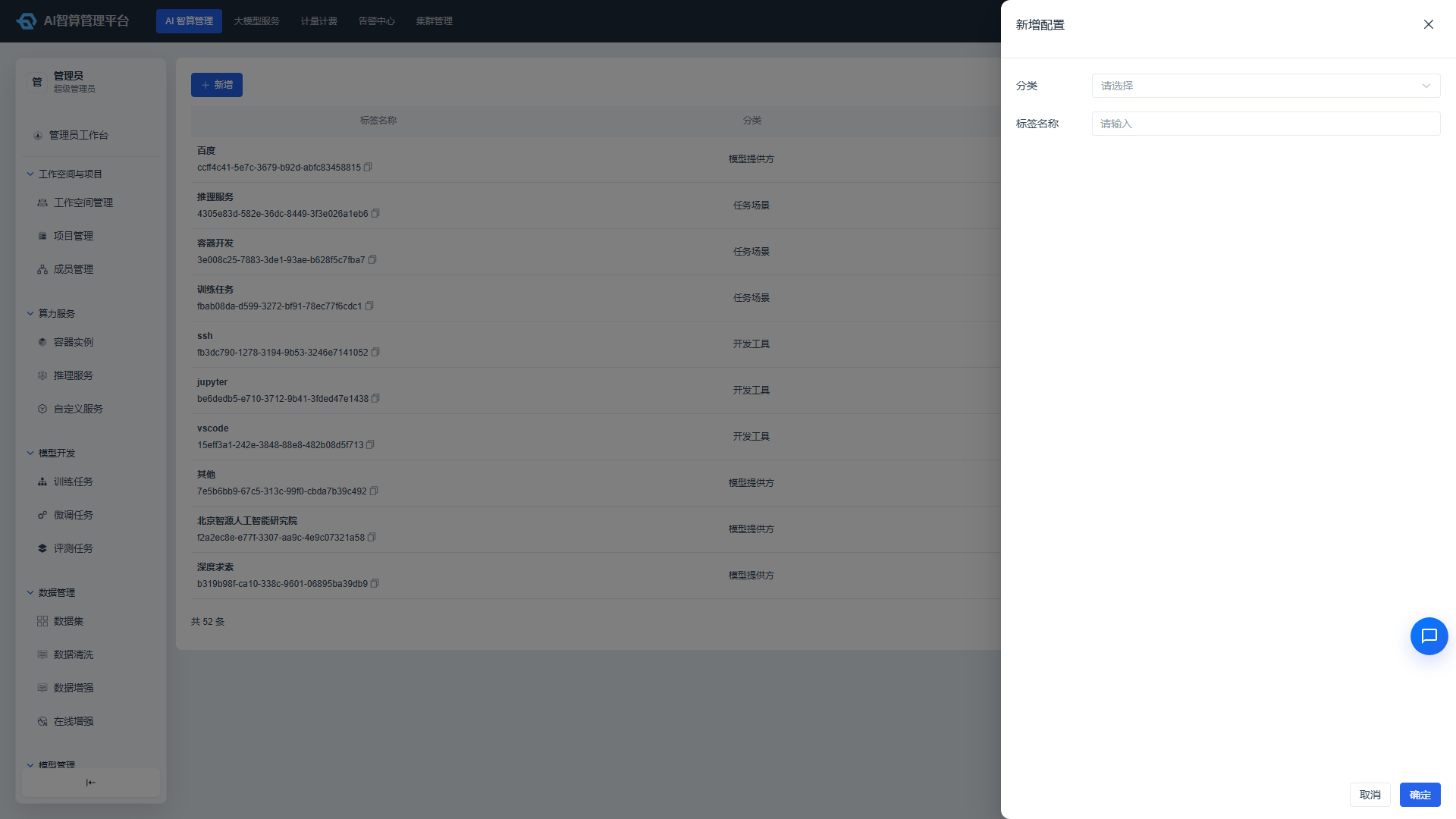
- Click "Create Label" on the label list page.
- Fill in:
- Label Name: E.g.,
PyTorch,vLLM,Multimodal. - Category: Select or enter a category name.
- Label Name: E.g.,
- Click "Create."
Manage Labels
- Click "More Actions" in the list row:
- Edit: Modify the label name or category.
- Enable / Disable: Controls whether the label is selectable.
- Delete: Remove labels no longer in use.
FAQ
Q: Creating storage shows "Remote Storage Path Already Exists"? A: In static allocation mode, the remote path for the same storage service cannot be duplicated; please check whether a storage volume with the same path already exists.
Q: Why can't I see an enabled flavor when creating a job? A: Please confirm that the flavor type matches the resource type required by the job, and that the parent resource pool has available quota; flavors with associated resource locks can still be selected.
Q: Custom image pull failed. What should I do? A: Check whether the image source domain is correct, whether the credential and key are valid, and whether the platform network can access the image repository.
Q: Can system built-in storage be deleted? A: System built-in storage is typically automatically created by the platform and is not recommended for manual deletion; before cleaning up, first confirm that no associated jobs / instances exist.