Recycle Bin
The Recycle Bin provides a safety net: deleted container instances, training jobs, fine-tuning jobs, and inference services are temporarily held within a retention period, allowing admins to restore or permanently delete them with one click. The retention period countdown is visually displayed, and resources exceeding the retention period are automatically cleaned up.
Entry path: Left sidebar AI Compute Management > Recycle Bin, page route
/admin/trash.
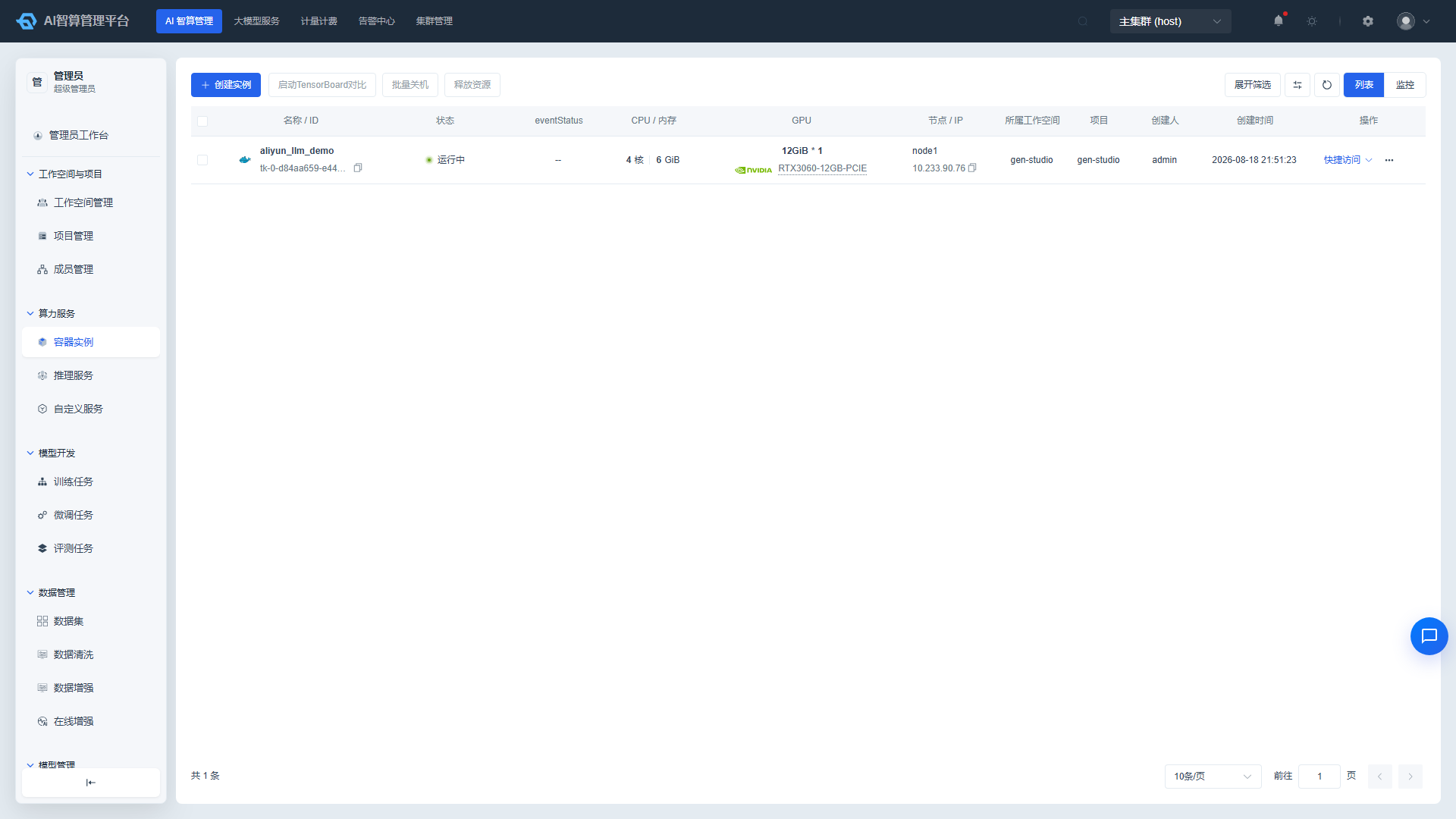
Page Menu
| Page | Route | Description |
|---|---|---|
| Container Instances | /admin/trash/instances | Deleted container instance list |
| Container Instance Details | /admin/trash/instances/detail/:uuid | View deleted instance details |
| Training Jobs | /admin/trash/training | Deleted training job list |
| Training Job Details | /admin/trash/training/detail/:uuid | View deleted job details |
| Fine-tuning Jobs | /admin/trash/finetuning | Deleted fine-tuning job list |
| Fine-tuning Job Details | /admin/trash/finetuning/detail/:uuid | View deleted job details |
| Inference Services | /admin/trash/inference | Deleted inference service list |
| Inference Service Details | /admin/trash/inference/detail/:uuid | View deleted service details |
Container Instance Recycle Bin
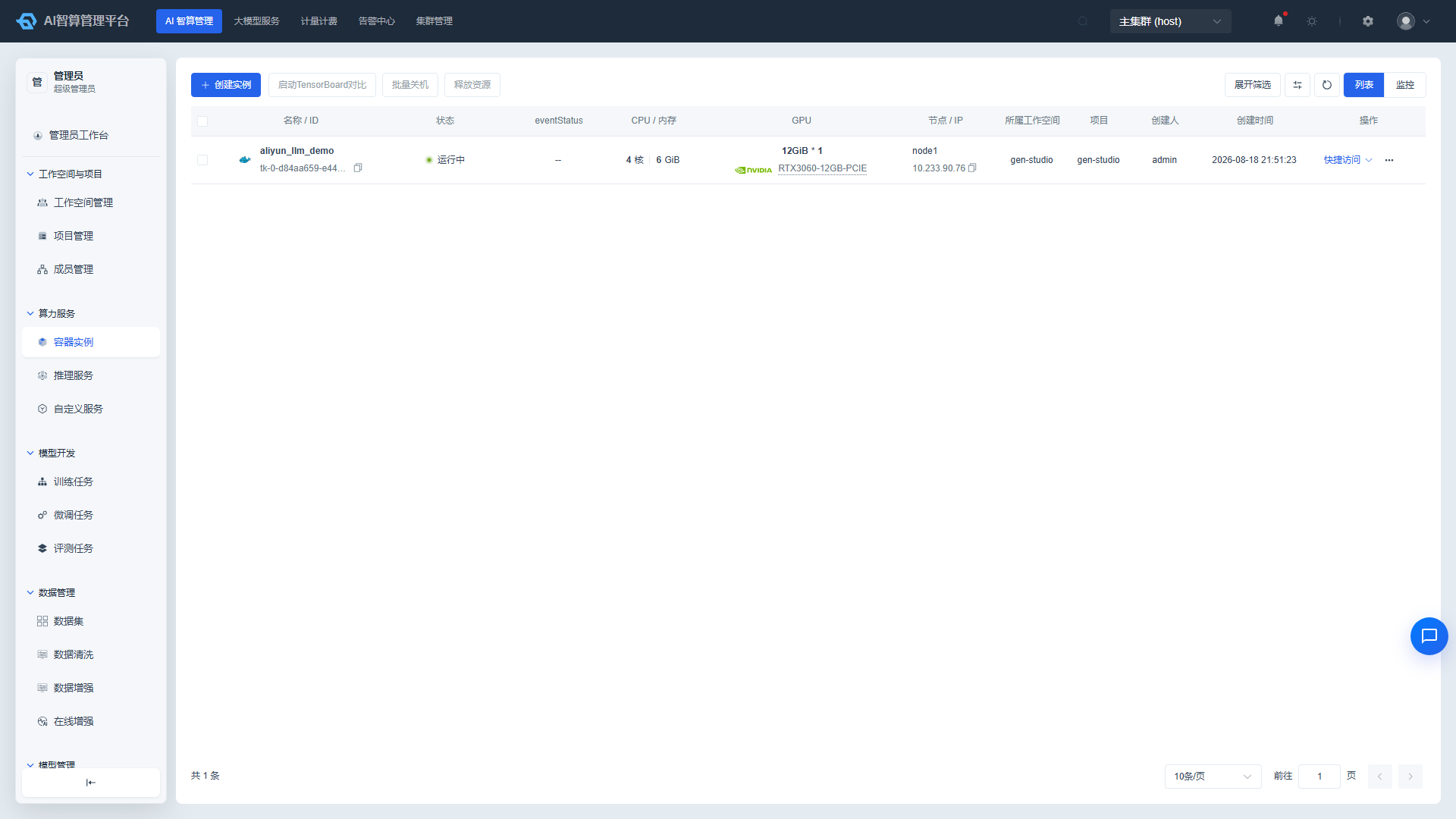
View Deleted Instances
- Navigate to AI Compute Management > Recycle Bin > Container Instances.
- The list displays: Name / ID, Status, eventStatus, Compute Resources, GPU, Disk, Image, Storage, Parent Project, Creator, Creation Time, Auto-cleanup Countdown.
- Use the top filter bar to query by instance name, workspace (remote search with project linkage), parent project, and creator.
- Click an instance name to enter the detail page to view the pre-deletion configuration information.
Restore or Permanently Delete Instances
- Select multiple instances on the left side of the list, or operate on a single row:
- Restore: Restores the instance to the original project; status changes to "Shut Down" and can be started again.
- Permanent Delete: Immediately releases resources and cleans up records; requires confirmation before deletion.
- Click the corresponding button, confirm the scope of impact, then submit.
- Batch operations support "Batch Restore" and "Batch Permanent Delete."
Training Job Recycle Bin
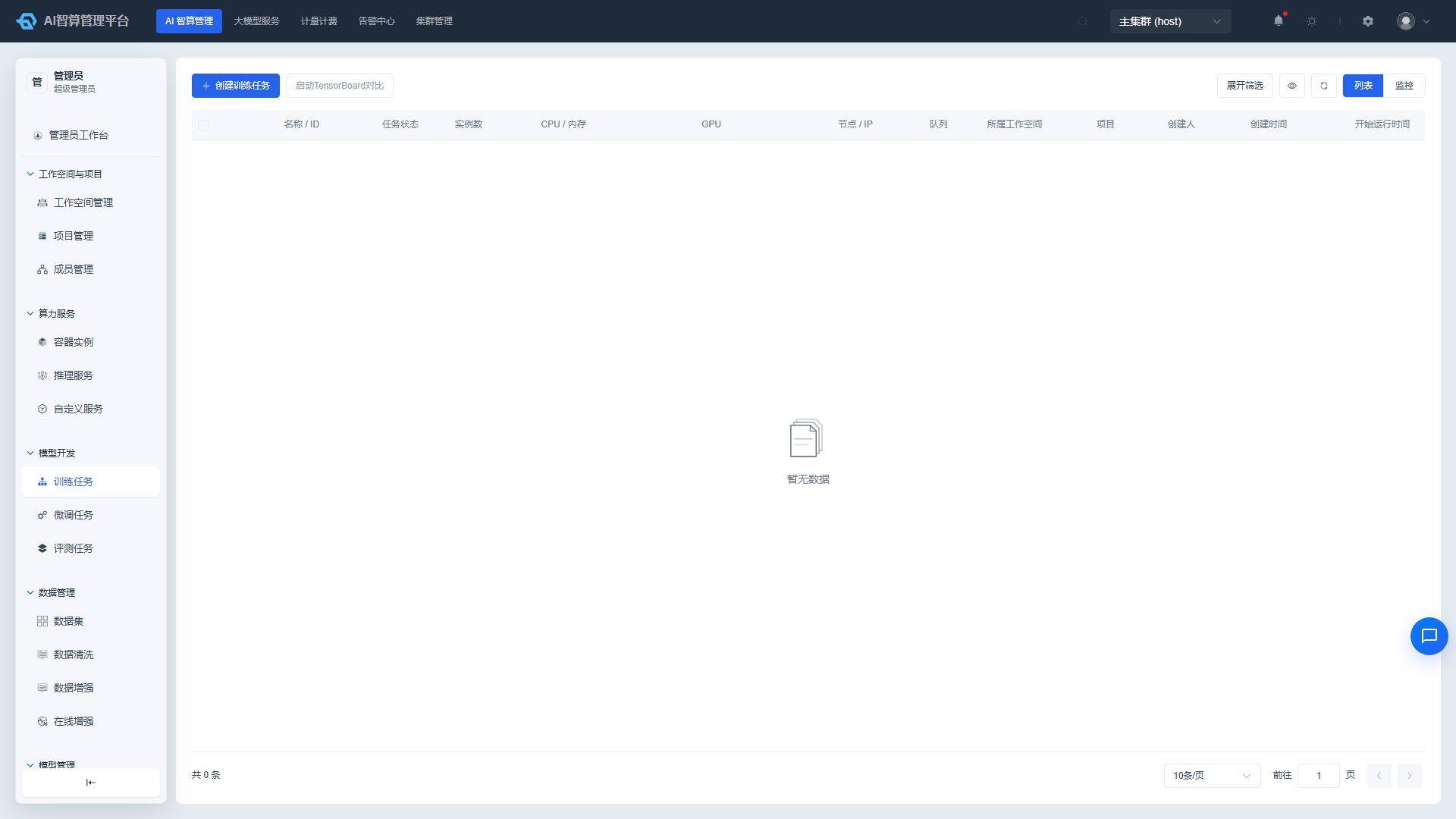
View Deleted Jobs
- Navigate to AI Compute Management > Recycle Bin > Training Jobs.
- The list displays: Name / ID, Job Status, Instance Count, Compute Resources, Disk, GPU, Priority, Image (with image name and framework category icon), Queue, Creation Time, Start Time, Completion Time, Runtime, Parent Workspace, Parent Project, Creator, Auto-cleanup Countdown.
- Use the top filter bar to query by name, parent project, and creator.
- Click a job name to enter the detail page.
Restore or Permanently Delete Training Jobs
- Select multiple jobs on the left side of the list, or operate on a single row:
- Restore: Restores the job to the original project, preserving the original configuration and logs.
- Permanent Delete: Immediately cleans up the job record and associated resources; requires confirmation before deletion.
- Batch operations support "Batch Restore" and "Batch Permanent Delete."
Fine-tuning Job Recycle Bin
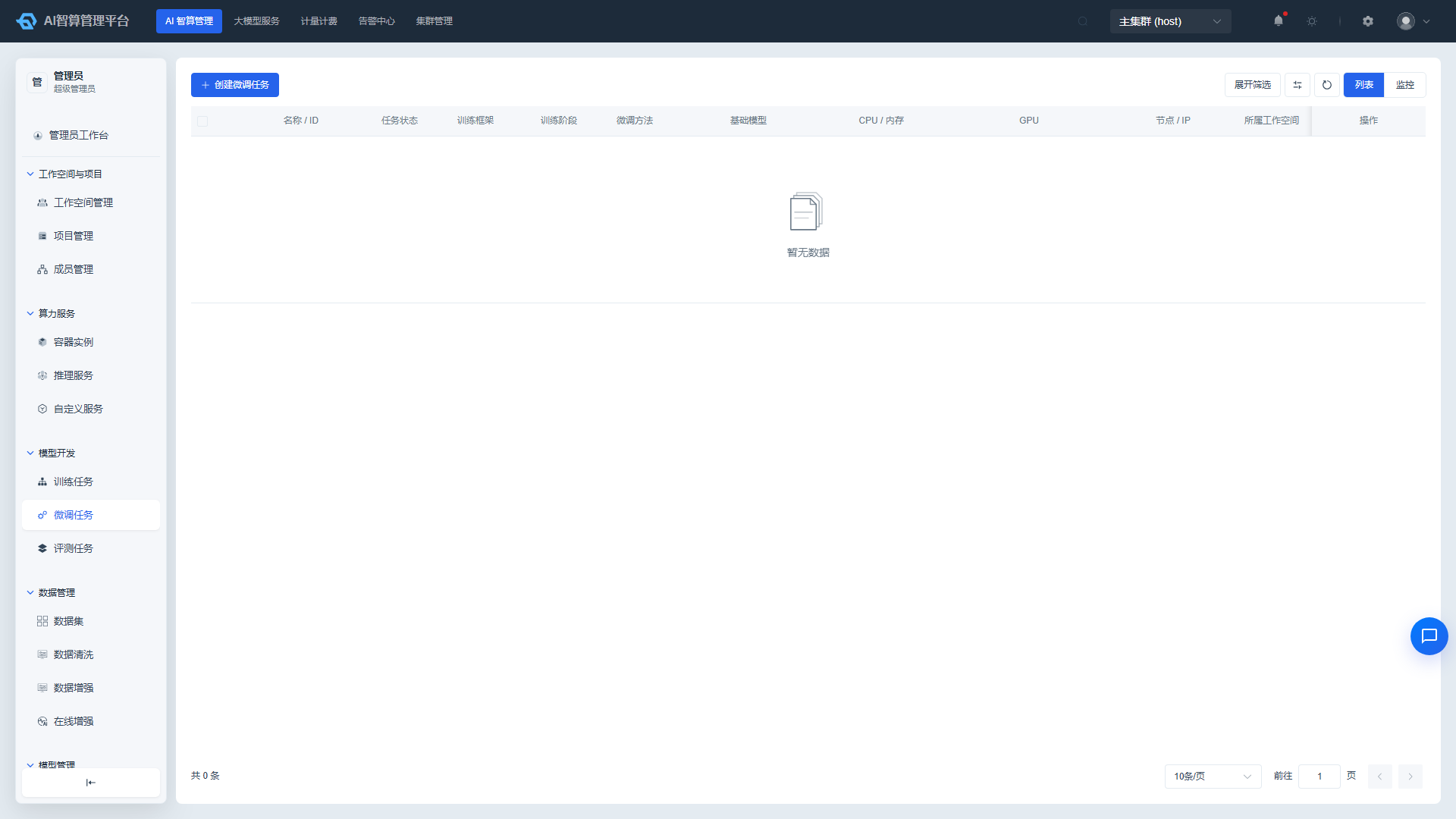
View Deleted Jobs
- Navigate to AI Compute Management > Recycle Bin > Fine-tuning Jobs.
- The list displays: Name / ID, Status, Framework, Fine-tuning Method (LoRA / QLoRA / Full), Base Model (baseModelPath), CPU / Memory, GPU (including physical compute flavor), Creation Time, Completion Time, Runtime, Parent Workspace, Parent Project, Creator, Auto-cleanup Countdown.
- Use the top filter bar to query by name, parent project, and creator.
- Click a job name to enter the detail page.
Restore or Permanently Delete Fine-tuning Jobs
- Select multiple jobs on the left side of the list, or operate on a single row:
- Restore: Restores the job to the original project.
- Permanent Delete: Immediately cleans up the job record; requires confirmation before deletion.
- Batch operations support "Batch Restore" and "Batch Permanent Delete."
Inference Service Recycle Bin
View Deleted Services
- Navigate to AI Compute Management > Recycle Bin > Inference Services.
- The list displays: Name / ID, Inference Engine, Status, Compute Resources (CPU / Memory), Instance Count, Replica Count, GPU (including physical compute flavor), Disk, Image, Storage (data volume), Parent Project, Creator, Creation Time, Auto-cleanup Countdown.
- Use the top filter bar to query by name, parent project, and creator.
- Click a service name to enter the detail page.
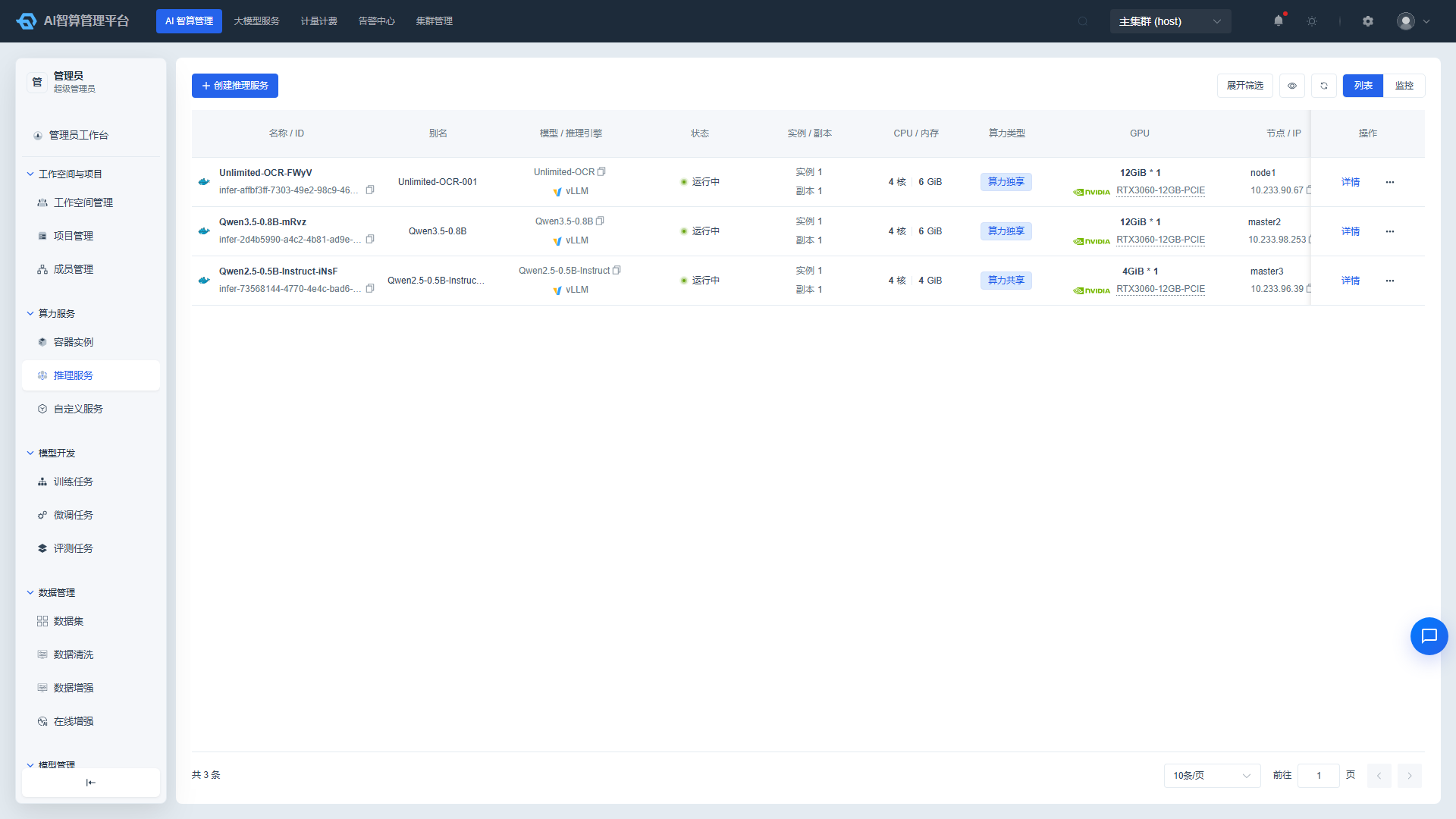
Restore or Permanently Delete Inference Services
- Select multiple services on the left side of the list, or operate on a single row:
- Restore: Restores the service to the original project; status changes to "Stopped" and can be started again.
- Permanent Delete: Immediately releases resources and cleans up records; requires confirmation before deletion.
- Batch operations support "Batch Restore" and "Batch Permanent Delete."
FAQ
Q: How long is the Recycle Bin retention period? A: The retention period is determined by the platform global configuration, typically between 7-30 days; contact the platform admin to confirm the exact number of days.
Q: Why isn't the restored instance / service in Running status? A: After restoring a container instance, the status is "Shut Down" and must be started manually; after restoring an inference service, the status is "Stopped" and must be started manually.
Q: Can resources be recovered after permanent deletion? A: No. Permanent deletion immediately releases the underlying resources and cleans up metadata — please proceed with caution.
Q: Why don't some deleted resources appear in the Recycle Bin? A: Possible reasons include: resources were directly cleaned up during the creation-failed / not-ready stage, the retention period has expired and auto-cleanup has occurred, or the current account does not have view permissions for that resource.