Data Management (Admin View)
Data Management (Admin View) is designed for platform / tenant admins to view and manage datasets, data cleaning jobs, data augmentation jobs, and online augmentation tools across workspaces and projects. Admins can create data resources on behalf of a specified project and view the running status of data jobs platform-wide.
Entry path: Left sidebar AI Compute Management > Data Management, page route
/admin/ai/manage/data.
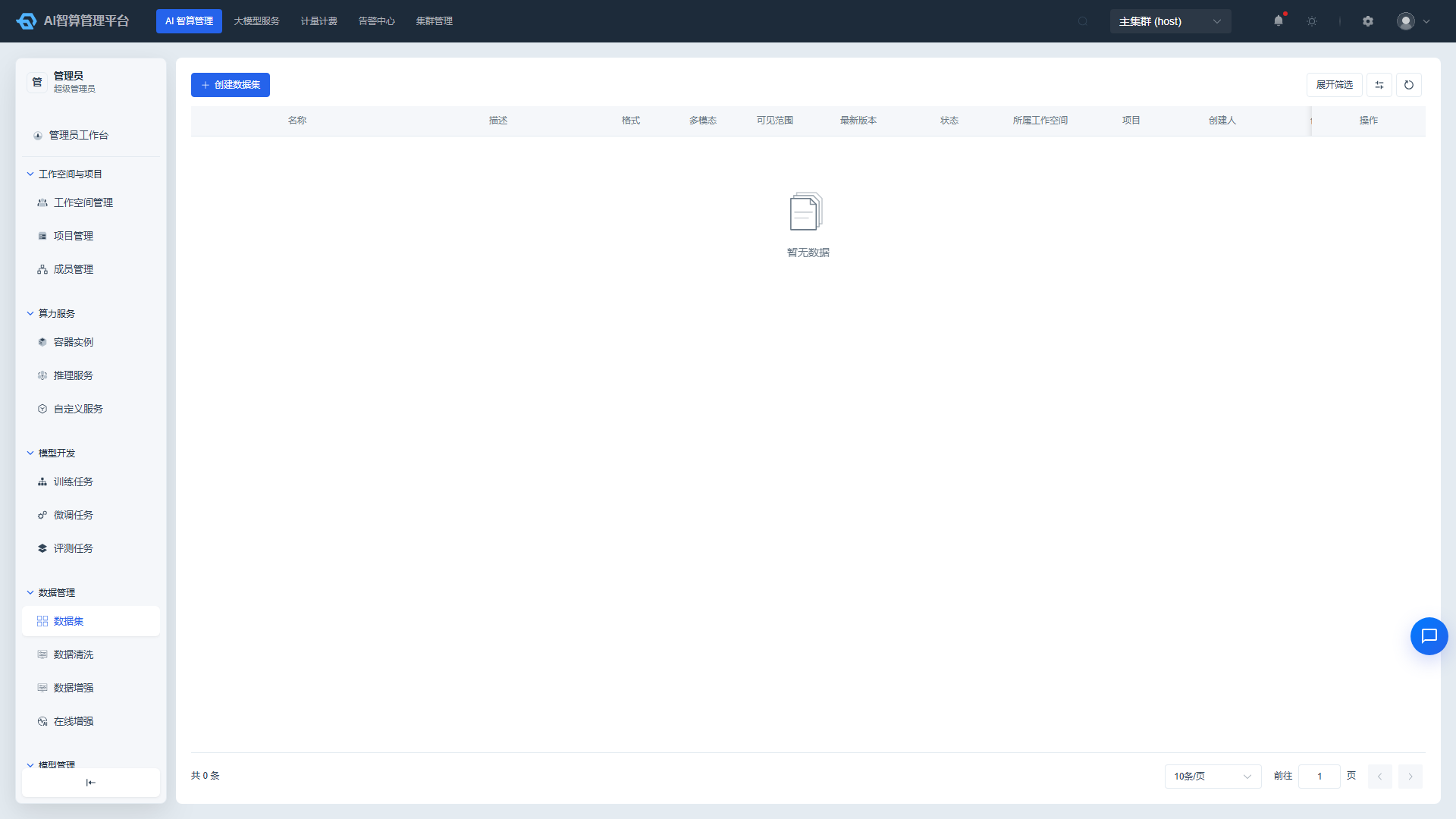
Page Menu
| Page | Route | Description |
|---|---|---|
| Datasets | /admin/ai/manage/data/dataset | Cross-tenant dataset list and management |
| Dataset Details | /admin/ai/manage/data/dataset/detail/:uuid | View versions, files, Hub import |
| Data Cleaning | /admin/ai/manage/data/data-cleaning | Cross-tenant data cleaning job list |
| Create Data Cleaning | /admin/ai/manage/data/data-cleaning/create | Create cleaning job on behalf of a specified project |
| Data Cleaning Details | /admin/ai/manage/data/data-cleaning/detail/:uuid | View job details, logs, results |
| Data Augmentation | /admin/ai/manage/data/data-augmentation | Cross-tenant data augmentation job list |
| Create Data Augmentation | /admin/ai/manage/data/data-augmentation/create | Create augmentation job on behalf of a specified project |
| Data Augmentation Details | /admin/ai/manage/data/data-augmentation/detail/:uuid | View job details, logs, results |
| Online Augmentation | /admin/ai/manage/data/online-augment | Real-time single-text rewriting / expansion |
Datasets
View and Filter Datasets
- Navigate to AI Compute Management > Data Management > Datasets.
- In the top filter bar, select query conditions:
- Workspace: Select the target tenant; leave empty for all.
- Project: After selecting a workspace, the project list appears.
- Visibility: Project / Tenant / Public.
- Name: Supports fuzzy search.
- The list displays: Name, Description, Format, Multimodal Type, Visibility, Latest Version, Status, Parent Workspace, Parent Project, Creator, Creation Time.
- Click a dataset name to enter the detail page to view the version list and file browser.
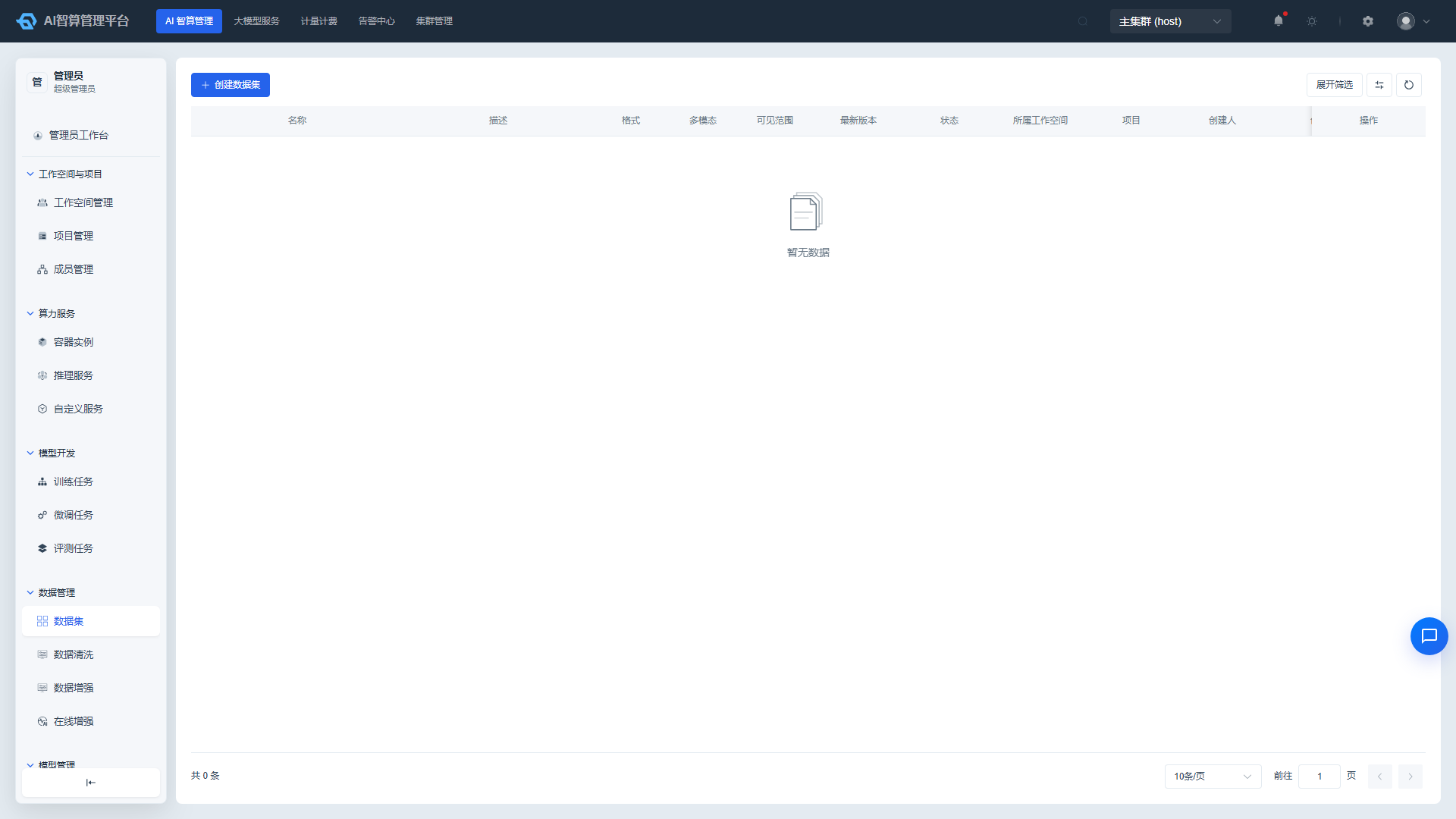
Create Dataset on Behalf of a Project
- Click "Create Dataset" on the dataset list page; a drawer slides out from the right.
- Fill in the basic information:
- Workspace / Project: Select the target tenant and project.
- Name: Letters, numbers, hyphens, underscores, 2-64 characters, e.g.,
alpaca-train. - Display Name: Chinese or English, easy to identify.
- Description: Optional, within 255 characters.
- Data Format: Alpaca / ShareGPT / Custom.
- Multimodal Type: None / Image / Audio / Video; cannot be modified after creation.
- Visibility: Project Visible / Tenant Visible / Public.
- Storage Path: Optional; leave empty for automatic system generation.
- Click "Create"; after successful creation, the dataset enters the detail page.
Manage Versions and Files
Enter the dataset detail page:
- New Version: Click "New Version," enter a version name (e.g.,
v1) and description; the system generates an independent storage path. - Upload Files: Upload local files in the version details; nested subdirectories are supported.
- File Operations:
- Preview text / JSON file contents.
- Edit JSON files online.
- Download, delete, rename files or directories.
- Hub Import: Click "Hub Import," select ModelScope or HuggingFace, enter the repository ID and access Token; the system automatically downloads and creates a version; view progress badges during the import process.
- Version Archive / Delete: Ready versions that are no longer in use can be archived; non-ready versions can be deleted directly.
- Mark as Ready: If a version is in the "Creating / Uploading" state and local files have been confirmed as fully uploaded, you can click "Mark as Ready" to manually confirm the version is available.
Data Cleaning
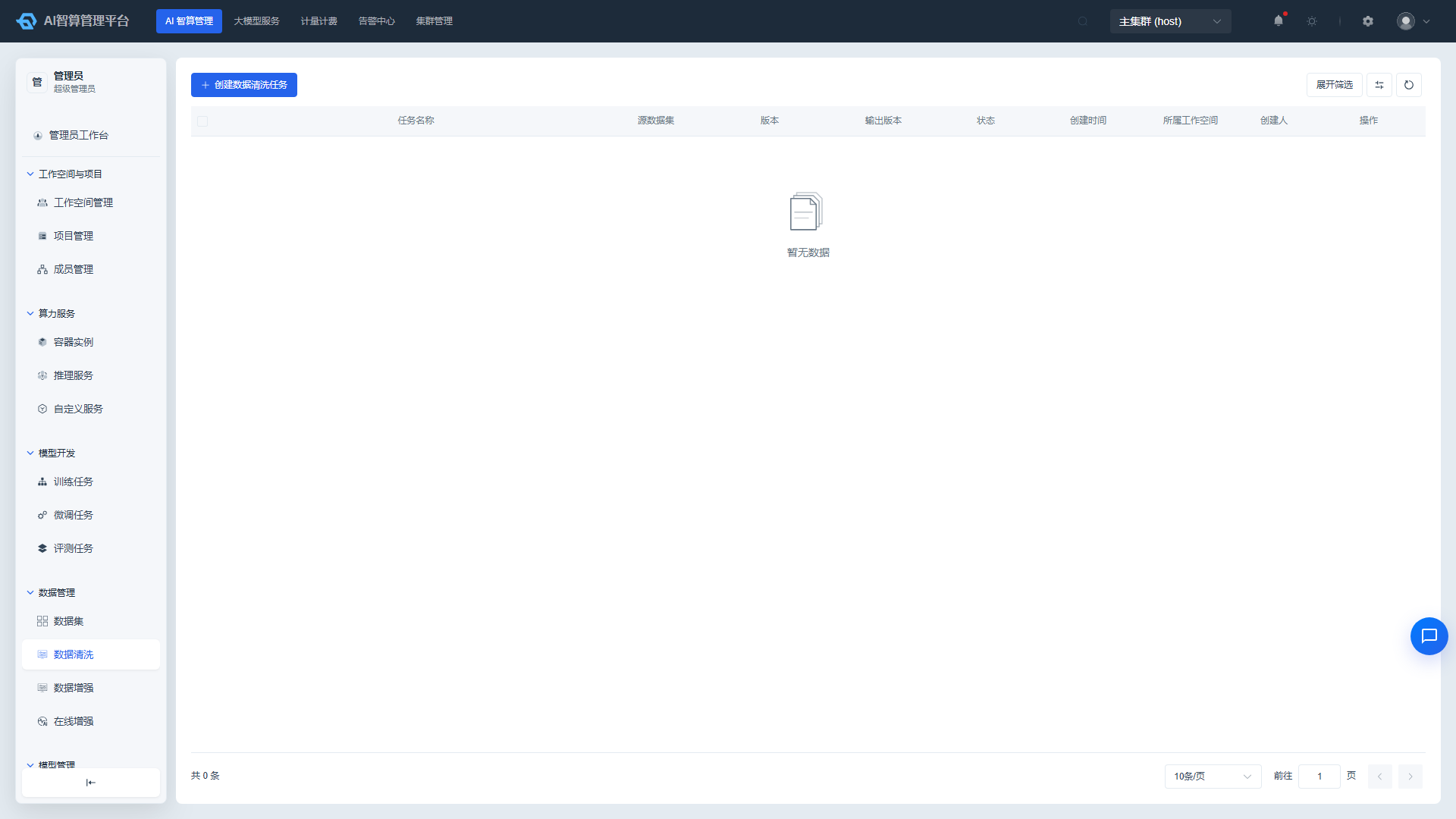
View and Filter Cleaning Jobs
- Navigate to AI Compute Management > Data Management > Data Cleaning.
- Use the top filter bar to query by workspace, project, status, and job name.
- The list displays: Job Name, Source Dataset, Version, Output Version, Status, Creation Time, Parent Workspace, Creator.
- Click a job name to enter the detail page, which contains tabs: Overview, Pod Group, Running Logs, Events, Cleaning Configuration, Cleaning Results.
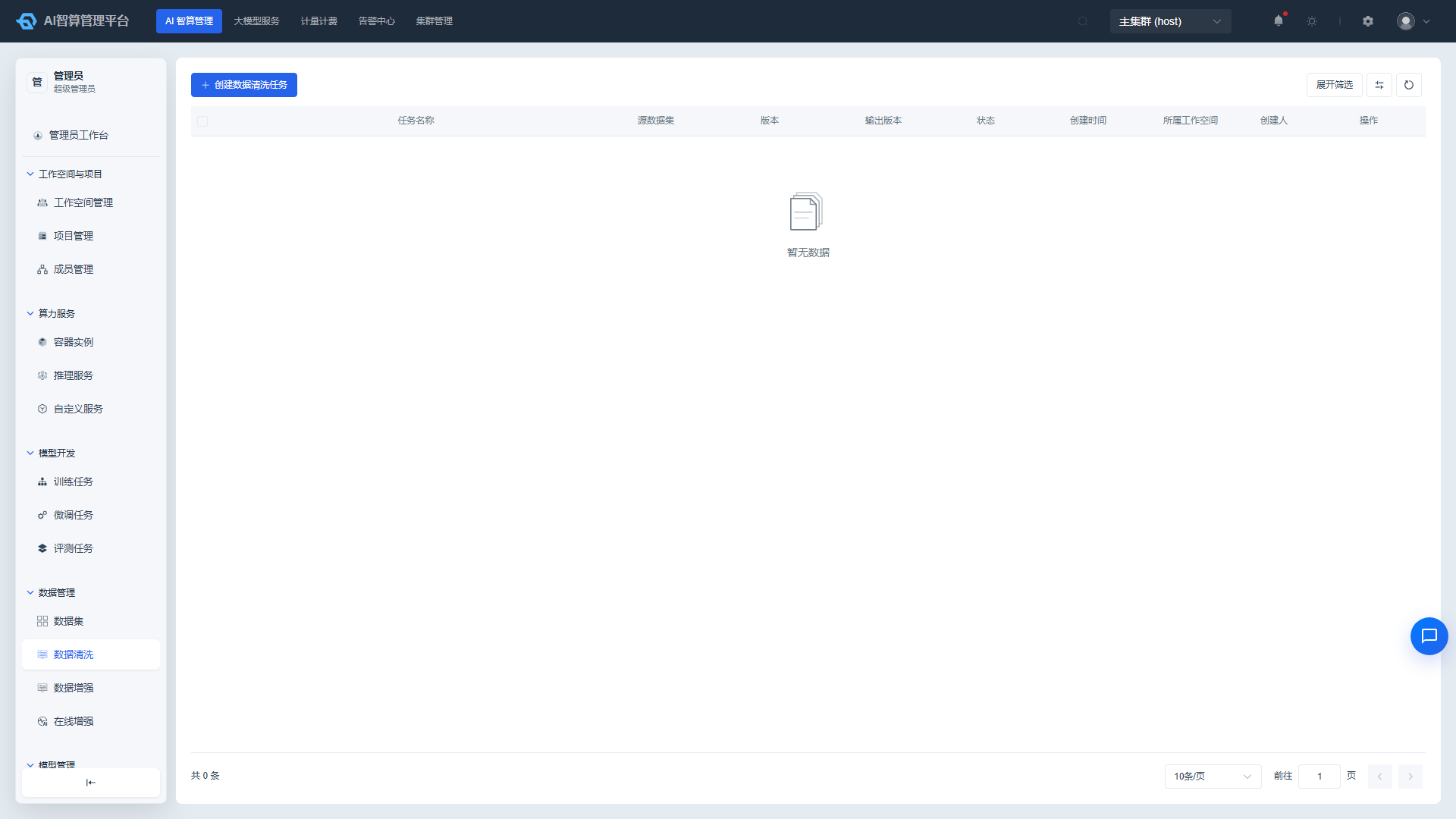
Create Cleaning Job on Behalf of a Project
- Click "Create Data Cleaning Job" on the data cleaning list page.
- Step 1: Basic Information
- Workspace / Project: Select the target tenant and project.
- Job Name: Lowercase English, numbers, hyphens.
- Source Dataset & Version: Select the dataset version to clean.
- Cleaning Fields: Select fields to process (e.g.,
instruction,output,content); custom fields supported. - Output Version Name: Cleaning results will be saved as a new version under the source dataset.
- Step 2: Cleaning Configuration
- Cleaning Configuration: Remove garbled text, remove HTML tags / web identifiers.
- Filter Configuration: Length filtering (min / max length), special character ratio, harmful content filtering; advanced options support language detection (target language Chinese / English), perplexity filtering (maximum perplexity threshold).
- Deduplication Configuration: Fuzzy deduplication, exact deduplication, duplicate content detection (maximum duplication ratio).
- Privacy Protection: Replace privacy information with
[NAME]/[PHONE]placeholders, or remove privacy information. - Normalization Configuration: Unicode normalization, whitespace cleanup, Traditional-to-Simplified Chinese conversion.
- Step 3: Confirm & Submit
- The system calls preflight to validate the dataset schema, displaying file scan results (file fields, common fields, differing fields, missing cleaning fields).
- Verify the source dataset, cleaning rules, and output version, then click "Submit Job."
- During job execution, the list shows a four-stage progress bar: Download Source Data → Write Configuration → Execute Cleaning → Upload Results.
- After the job completes, go to the source dataset detail page to view the latest version.
Manage Cleaning Jobs
- Click "More Actions" in the list row:
- Details: View job overview, logs, events, cleaning configuration, and results.
- Clone: Quickly create a new job based on the current job configuration; the system pre-fills the job name (appending
-copy), cleaning configuration, cleaning fields, dataset / version, and output version name. - Stop: Terminate a running / waiting job.
- Delete: Delete terminal-state jobs; batch deletion supported.
Data Augmentation
View and Filter Augmentation Jobs
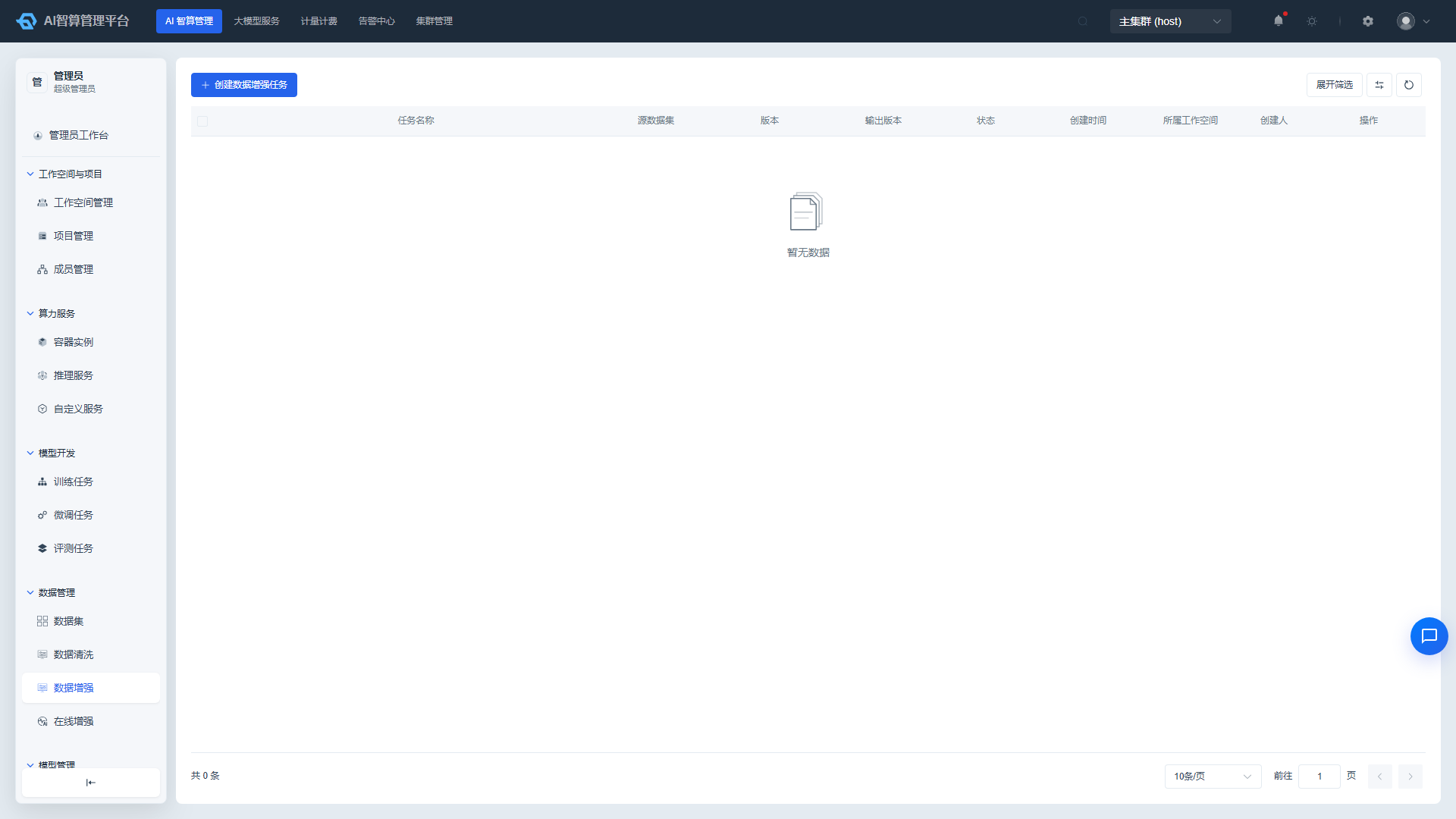
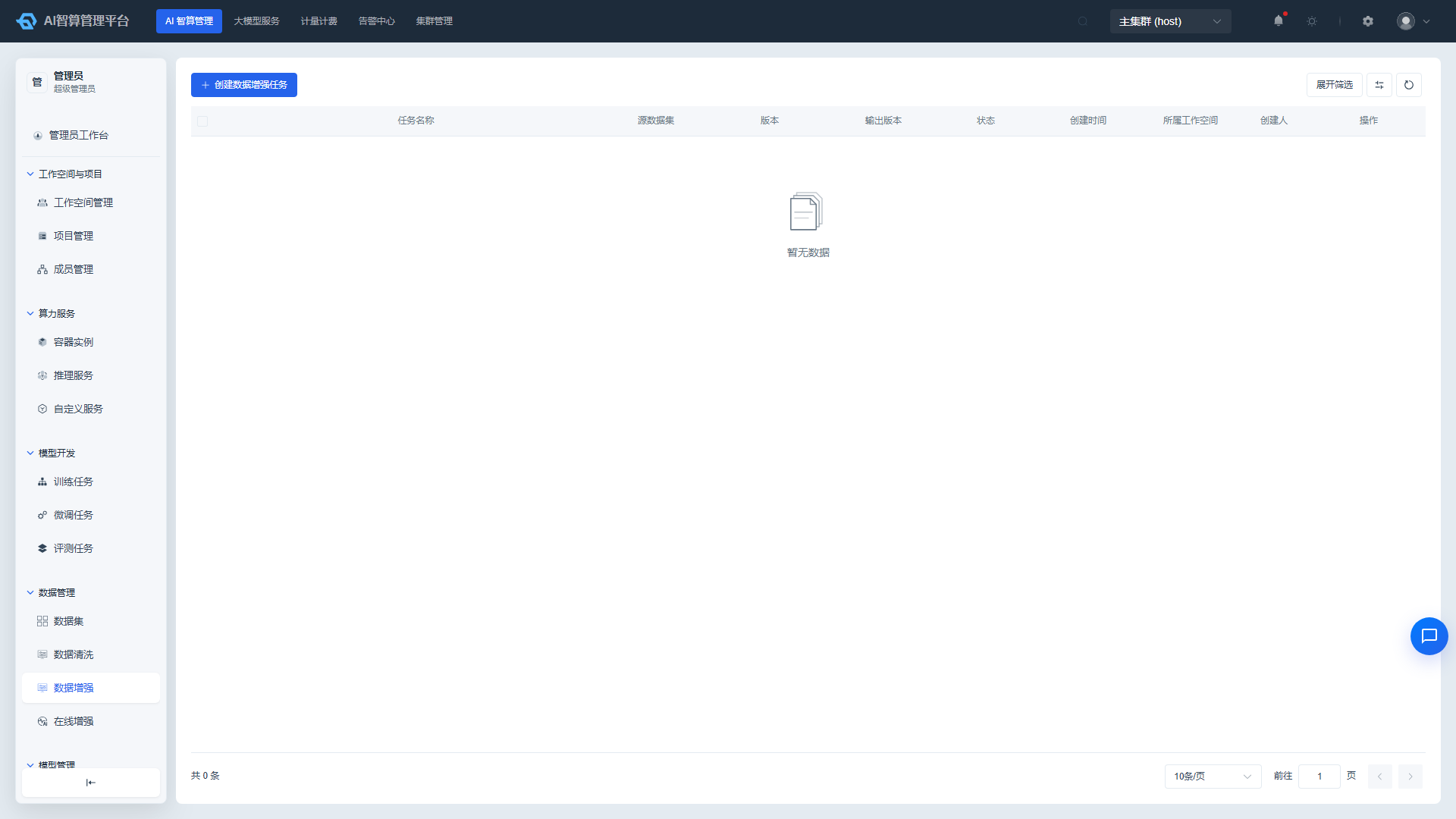
- Navigate to AI Compute Management > Data Management > Data Augmentation.
- Use the top filter bar to query by workspace, project, status, and job name.
- The list displays: Job Name, Source Dataset, Version, Output Version, Status, Creation Time, Parent Workspace, Creator.
- Click a job name to enter the detail page, which contains tabs: Overview, Pod Group, Running Logs, Events, Augmentation Configuration, Augmentation Results.
Create Augmentation Job on Behalf of a Project
- Click "Create Data Augmentation Job" on the data augmentation list page.
- Select Dataset
- Workspace / Project: Select the target tenant and project.
- Job Name: Lowercase English, numbers, hyphens.
- Source Dataset & Version: Only Ready status versions are displayed.
- Output Version Name: Augmentation results will be saved as a new version under the source dataset.
- Model Configuration
- Model Endpoint: The large model service address used for generation.
- Model Name: The specific model name to call.
- API Key: The key for accessing the model service.
- Click "Model Test" to verify model connectivity; a successful connection will show "Model Connection Normal."
- Augmentation Configuration
- Data Expansion (enabled by default): Select operation fields, expansion multiplier, and custom expansion prompts.
- Data Quality Check (disabled by default): Select operation fields and custom quality check prompts (within 500 characters).
- At least one of "Data Expansion" or "Data Quality Check" must be enabled; otherwise, the job cannot be submitted.
- Click "Create" to start the job.
Manage Augmentation Jobs
- Click "More Actions" in the list row:
- Details: View job overview, logs, events, augmentation configuration, and results.
- Clone: Quickly create a new job based on the current job configuration; the clone automatically removes the source job's API Key to prevent key leakage.
- Stop: Terminate a running / waiting job.
- Delete: Delete terminal-state jobs; batch deletion supported.
Online Augmentation
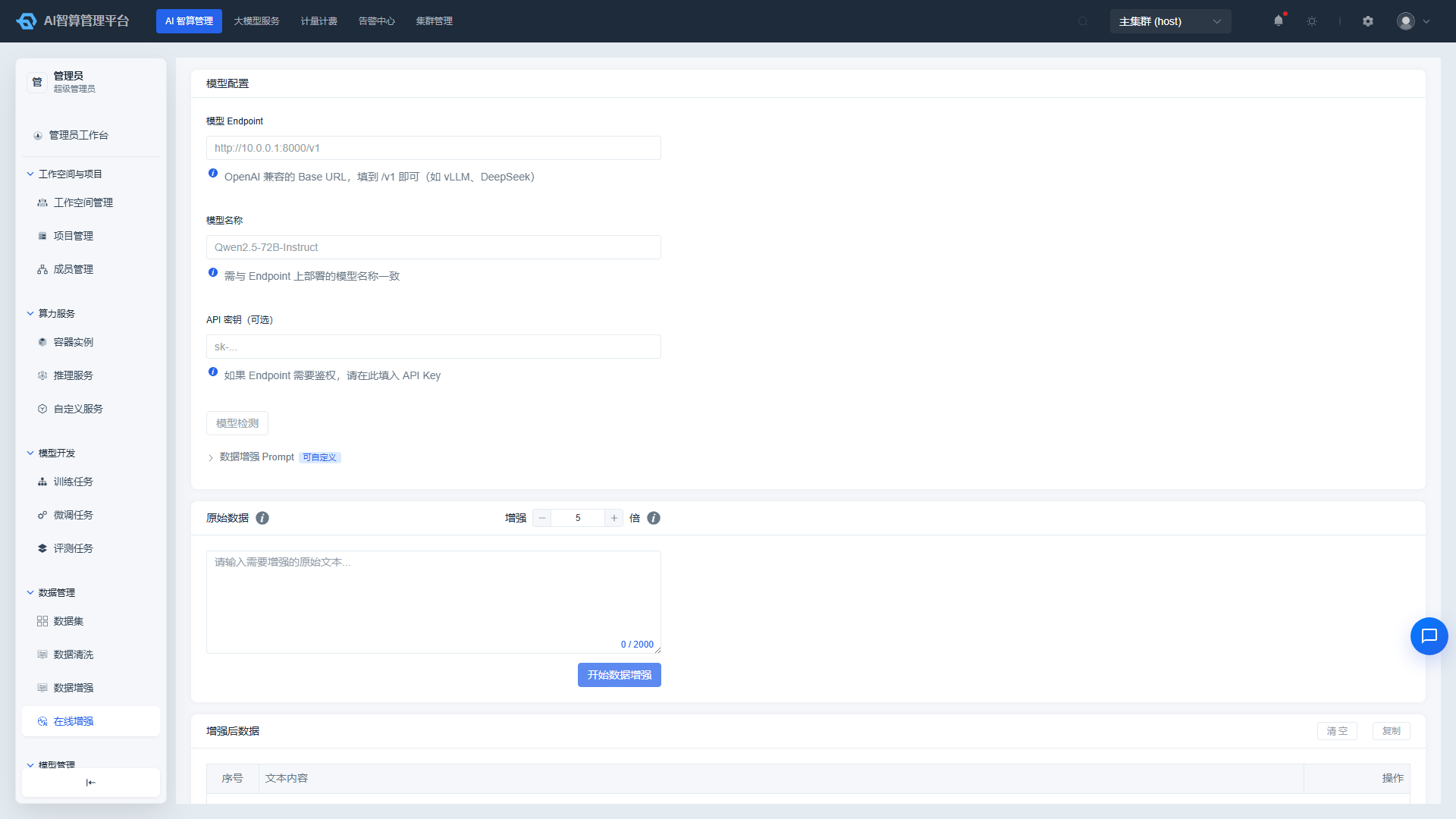
Online Augmentation provides a real-time rewriting / expansion entry for single-text items, allowing quick preview of effects without submitting a background job.
Use Online Augmentation
- Navigate to AI Compute Management > Data Management > Online Augmentation.
- Configure the Model Endpoint, Model Name, and API Key, then click "Model Test" to confirm connectivity.
- Write the augmentation rewriting prompt in the "System Prompt" text box.
- Enter the single text to be augmented in the "Original Data" text box.
- Set the augmentation multiplier and click "Start Data Augmentation."
- The system displays tiered notifications for all-succeeded / partial-failure / failed; augmentation results are displayed in a table, supporting single-item copy / deletion, one-click clear, and one-click copy all.
FAQ
Q: Can admins view other tenants' datasets? A: In the admin view, you can view tenant data within the authorized scope through workspace filtering; unauthorized workspaces will not appear in the dropdown list.
Q: Dataset version status stuck at "Creating"? A: Hub imports or large file uploads may take several minutes; click the version "Details" to view file count and status, and error information will be displayed if the upload fails. After local file uploads are complete, you can manually "Mark as Ready."
Q: Cleaning job reports "Model Path Not Found"? A: Data cleaning does not load models; this error typically indicates a misconfigured task image or startup command. Check the job detail page logs.
Q: Multimodal dataset images not recognized in fine-tuning jobs? A: Confirm that the correct multimodal type was selected when creating the dataset, and that the media file paths match the relative paths of the JSON placeholders.