AI Assets
AI Assets centrally manages three categories of foundational dependencies: image services, data storage, and sensitive credentials. These assets are referenced when creating container instances, training jobs, and inference services. It is recommended to configure commonly used image registries, data storage, and secrets in advance.
Access path: Left sidebar AI Compute Development > AI Assets, route
/admin/ai/assets.
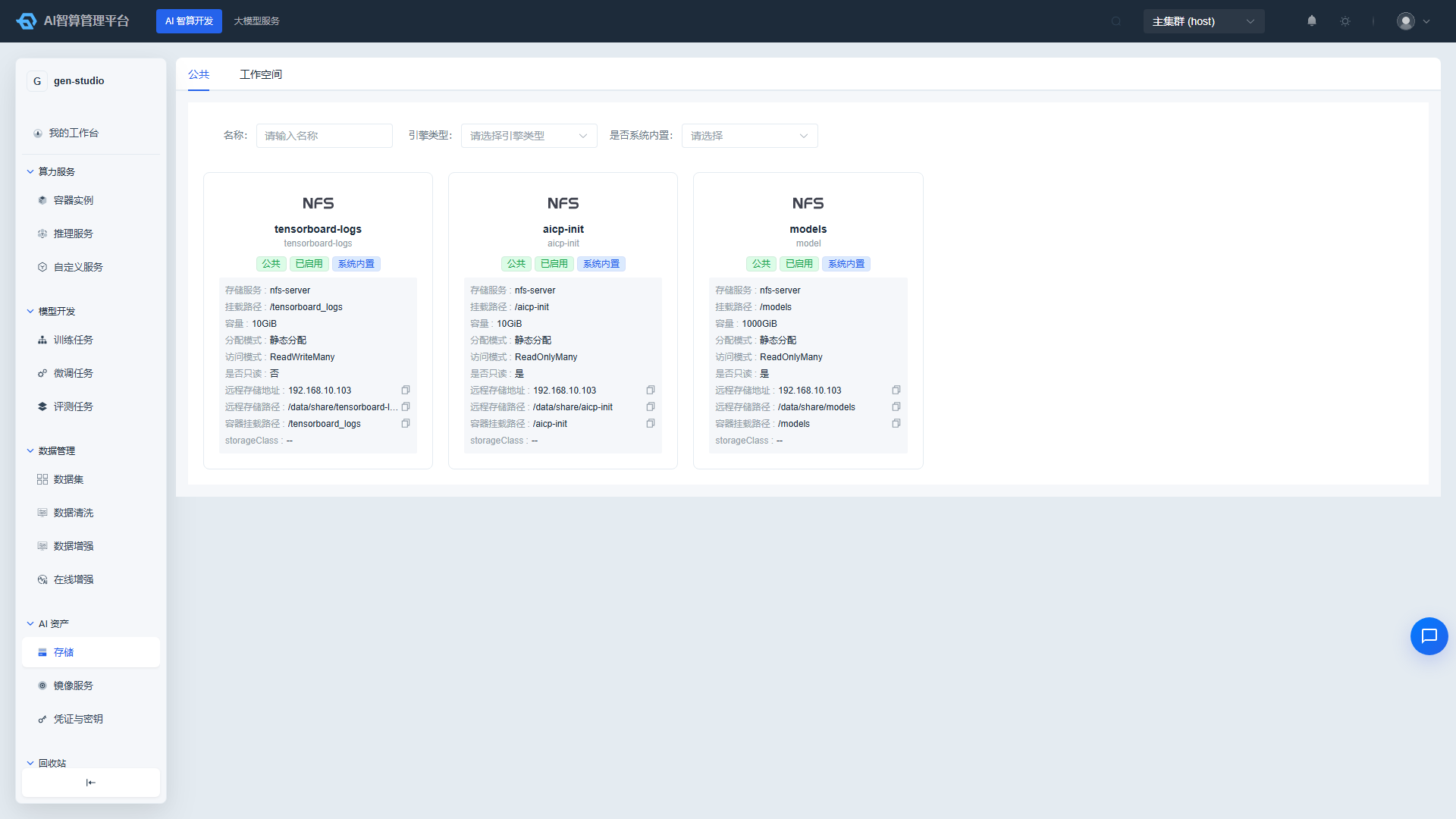
Page Menu
| Page | Route | Description |
|---|---|---|
| Image Service | /admin/ai/assets/image | View public images, manage tenant/project private images |
| Storage | /admin/ai/assets/tenant-data-storage | View public storage, create tenant custom storage volumes |
| Credentials & Keys | /admin/deployer/authorization/secret-key | Manage image registry, SSH, account credentials, and other sensitive secrets |
Image Service
Viewing Images
Navigate to AI Compute Development > AI Assets > Image Service.
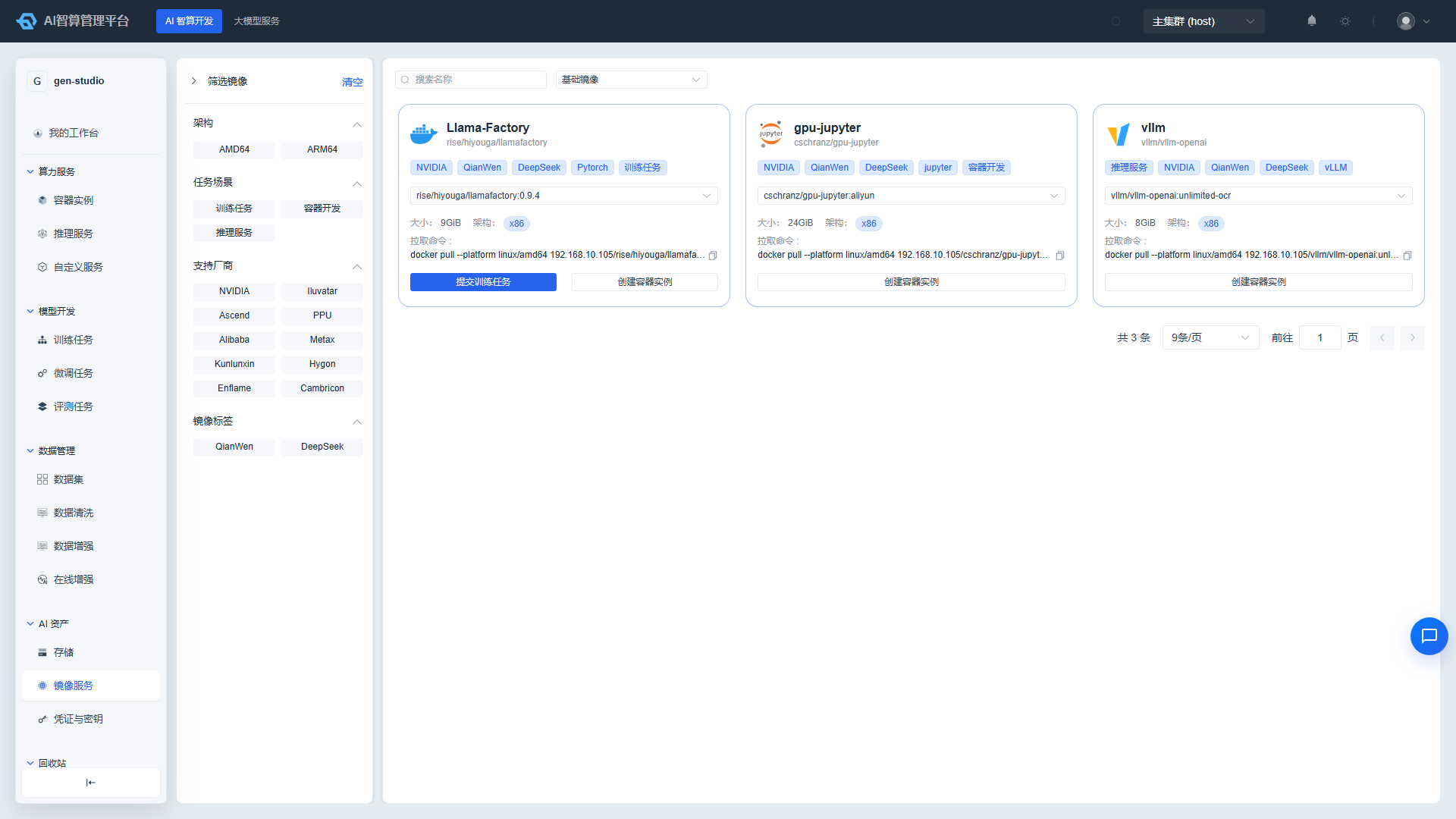
The page displays accessible image registries:
- Public Images: Common images pre-configured by the platform administrator (e.g., Jupyter, PyTorch, TensorFlow).
- Tenant/Project Private Images: Custom images saved under the current workspace or project.
Use the search box to enter an image name or tag for quick lookup.
Click an image card or name to enter the image detail page:
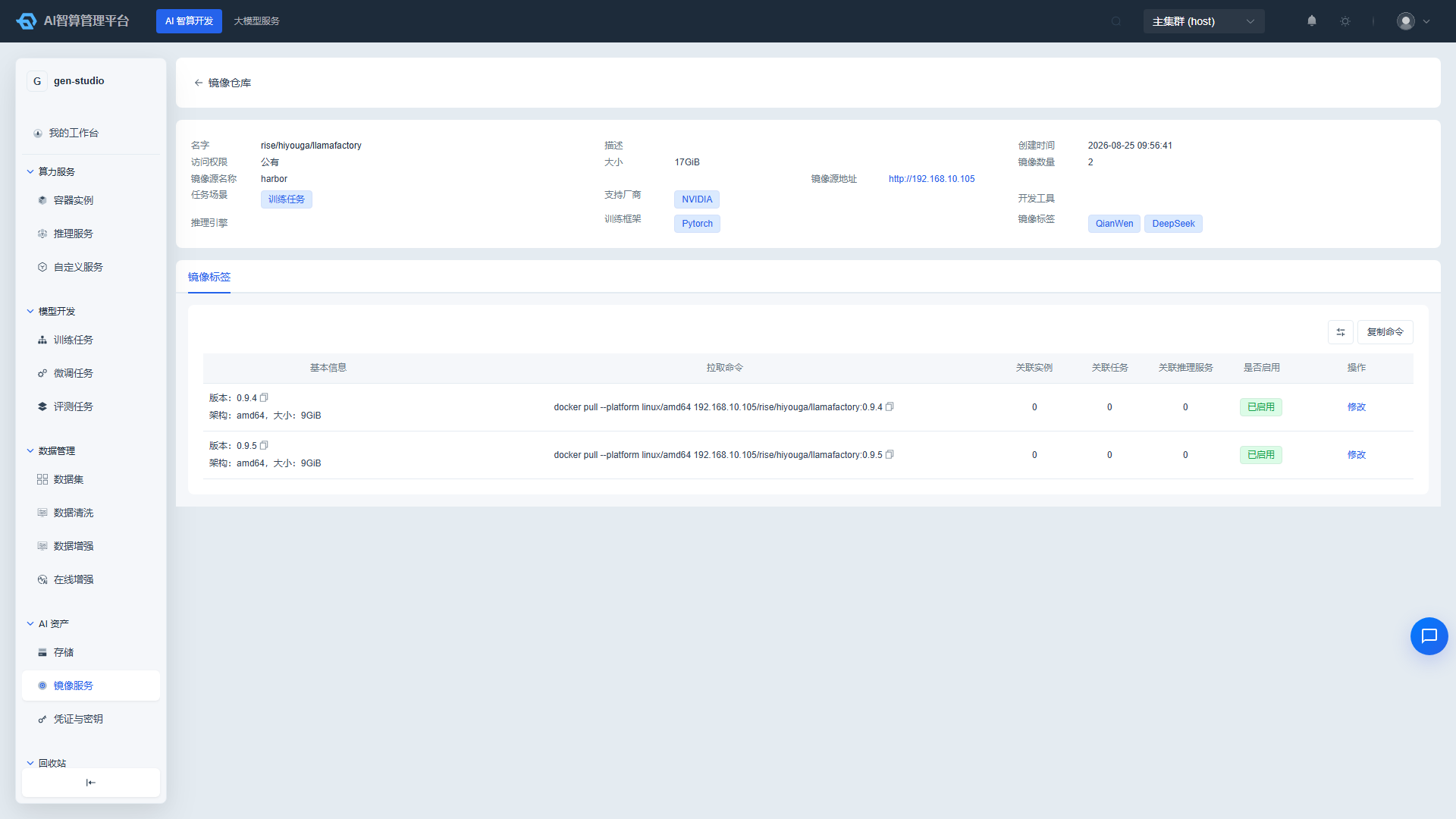
- Image version (Tag) list.
- Image size, creation time, and associated project.
- Number of associated instances or services.
Saving a Custom Image
- In the Compute Services > Container Instances list, find a running instance.
- Click "Save Image" in the row actions.
- Fill in:
- Image Name: Recommended format is
project/image-namefor easy identification. - Version Tag: e.g.,
v1.0. - Description: Record the image's purpose or installed dependencies.
- Image Name: Recommended format is
- Click "Confirm". The system will package the current container environment and push it to the tenant image registry.
- After saving, return to Image Service to see the new image.
Custom images can be quickly reused when creating instances or jobs later.
Storage
Viewing Public Storage
- Navigate to AI Compute Development > AI Assets > Storage.
- The page displays storage volumes mountable by the current project by default.
- List fields include: Name, Alias, Storage Method, Engine Type, Capacity, Access Mode, Status, and Associated Project.
- Use the top filter bar to filter by name, status, and storage method.
Creating a Tenant Data Storage
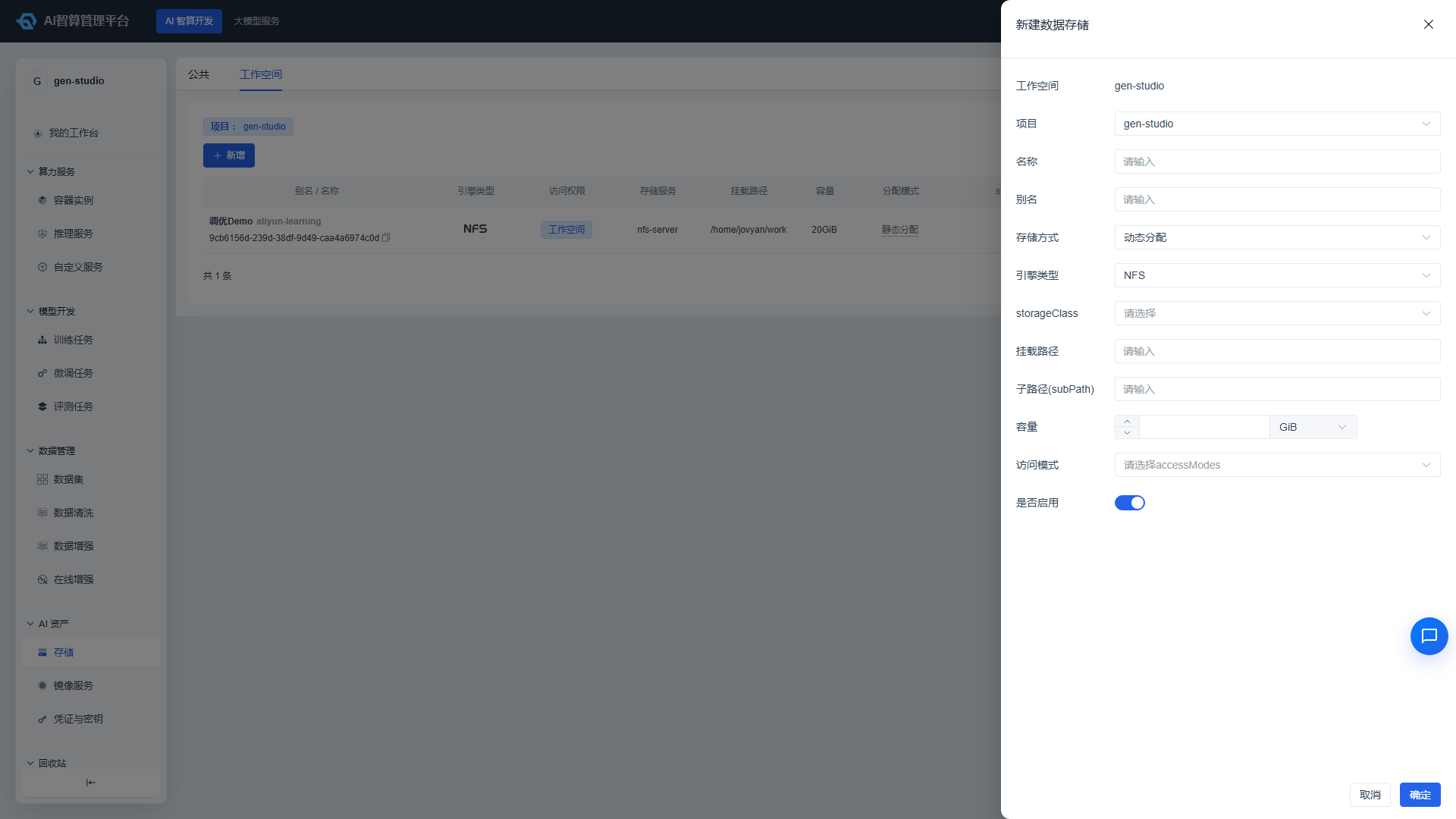
- Click "New Data Storage" on the storage list page.
- Fill in basic information:
- Associated Project: Select the project to associate with (cannot be changed after creation).
- Name: Must comply with K8s naming conventions. Cannot be changed after creation.
- Alias: Chinese or English display name.
- Select Storage Method:
- Dynamic: The platform automatically creates PVs based on the storageClass.
- Static: Manually specify an existing storage path or local directory.
- Select Engine Type: local / nfs / juicefs, etc.
- Based on the engine type and storage method, fill in the corresponding configuration:
- Storage Service: Select an enabled storage engine (required for dynamic mode or certain engine types).
- storageClass: Select a StorageClass from the cluster when in dynamic mode.
- Mount Path: Path inside the container, e.g.,
/data. - Sub-path (subPath): Optional. Used to mount different subdirectories of the same storage volume to different instances.
- Capacity: Enter the size and select a unit (GiB / TiB / PiB).
- Access Mode: Multiple selections allowed:
ReadWriteOnce/ReadOnlyMany/ReadWriteMany. - Remote Storage Path: Enter the actual file path in static mode (except for JuiceFS).
- Node Selector: In static + local mode, you can constrain mounting by node labels.
- Set Enable/Disable: Enabled by default. When disabled, new jobs cannot mount it, but existing mounts are unaffected.
- Click "Create".
- After successful creation, you can select this storage in "Storage Configuration" when creating instances/jobs.
Before creating, confirm that a storage engine or StorageClass is available under the project; otherwise, the corresponding options may not be selectable.
Managing Storage
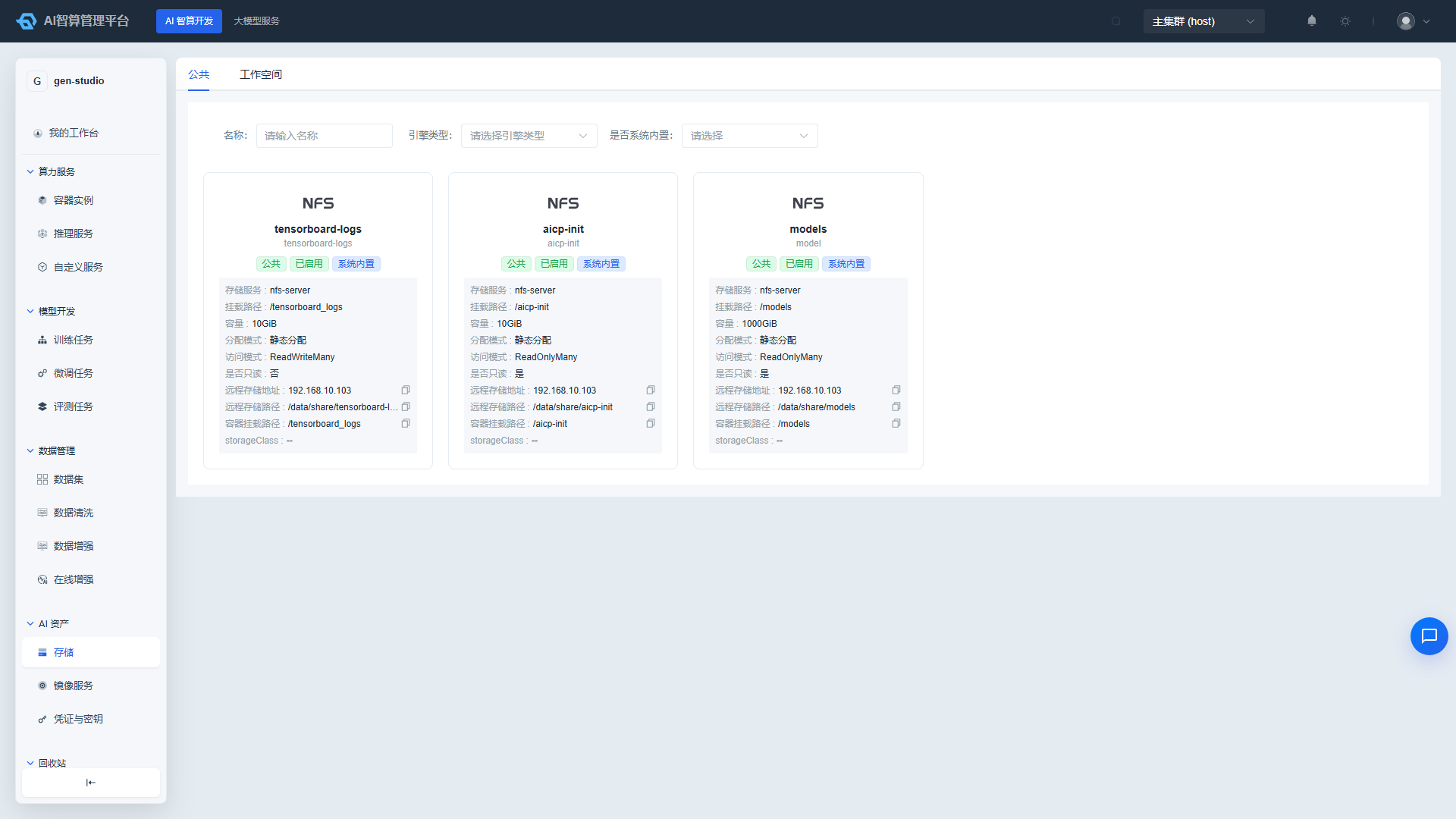
- Edit: Modify alias, capacity, mount path, and enabled status. Name and associated project cannot be changed.
- Delete: Before deleting, confirm that no running instances or jobs are currently mounting this storage.
Credentials & Keys
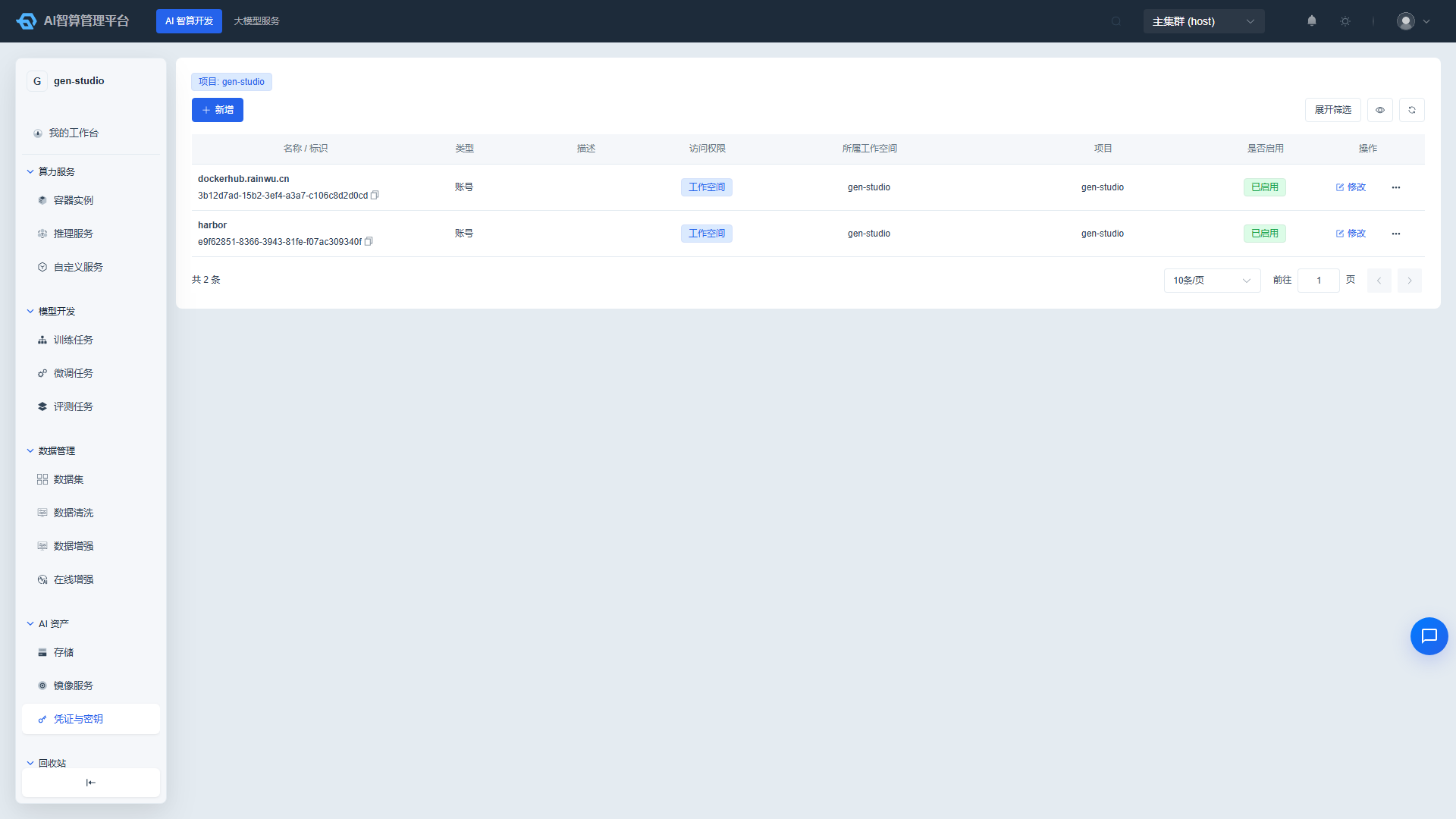
Viewing Credentials
- Navigate to AI Compute Development > AI Assets > Credentials & Keys.
- The list displays credentials under the current workspace:
- Name, UUID, Type, Description.
- Access level (Public / Tenant).
- Associated Workspace / Project.
- Enabled status.
- Use the top filter bar to filter by name, type, access level, and enabled status.
Creating a Credential
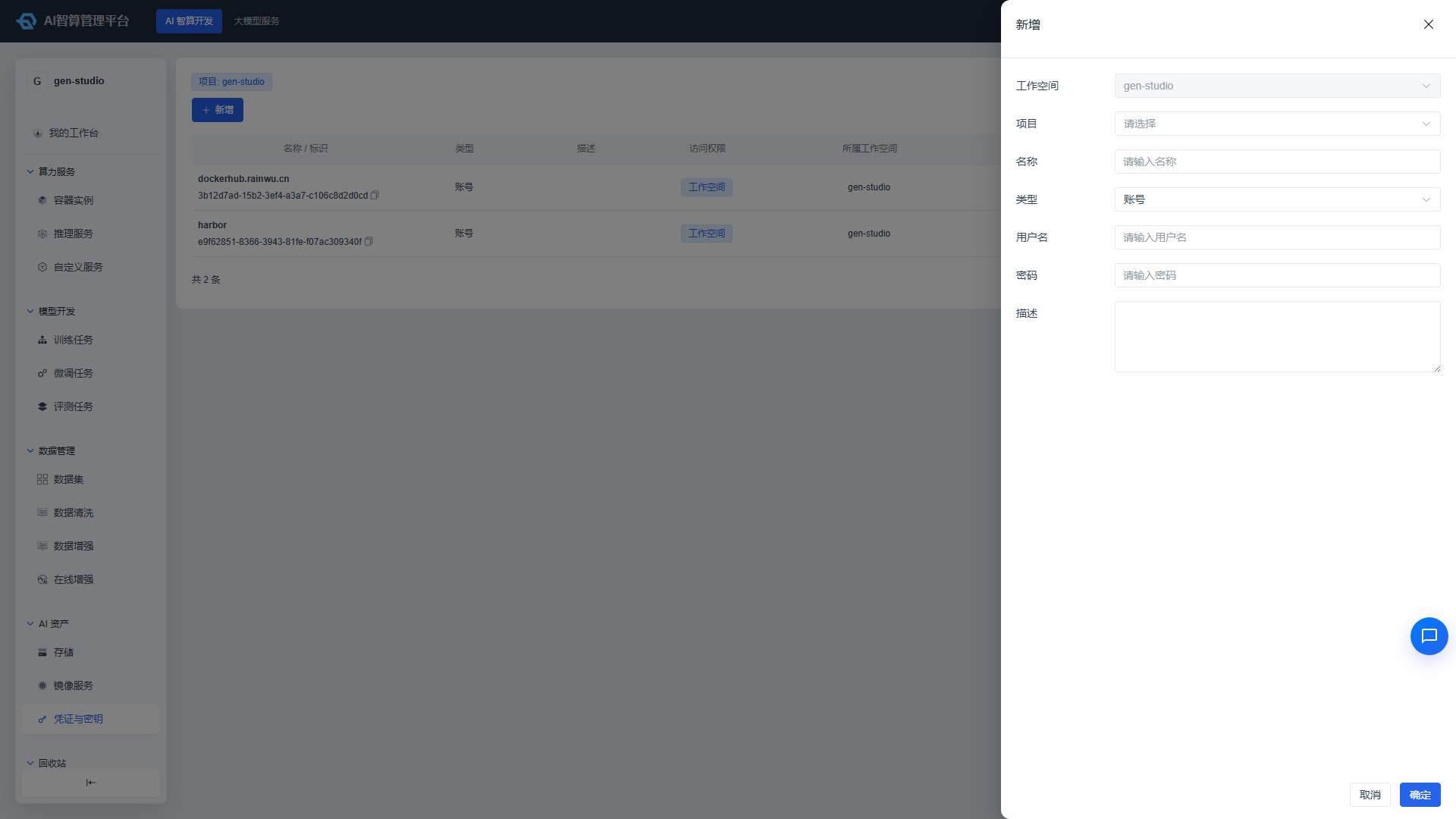
- Click "New Credential".
- Fill in basic information:
- Access Level:
- Public: Visible to all workspaces.
- Tenant: Visible only to the current workspace. Select the associated workspace/project.
- Name: Unique name.
- Type:
- Account (account): For image registry accounts, FTP, etc.
- SSH Public Key (ssh): For container instance SSH login.
- Image Registry (swr): For Huawei Cloud SWR image registry ACCESS KEY / SECRET KEY / Region.
- Access Level:
- Fill in the corresponding credential content based on the type:
- Account: Username, password.
- SSH Public Key: Paste the public key text.
- Image Registry: ACCESS KEY, SECRET KEY, Region.
- (Optional) Enter a description.
- Click "Confirm".
Credential content is encrypted at rest and sensitive values are not displayed in the list.
Using Credentials
- When creating container instances/jobs/services: Select previously created image registry credentials or SSH keys in the "Image" or "Advanced Configuration" section.
- SSH login to instance: Select an SSH public key when creating the instance. Once the instance is running, connect via SSH using the corresponding private key.
- Pulling private images: When creating an instance or service, select the account credentials or SWR credential in the image configuration.
Managing Credentials
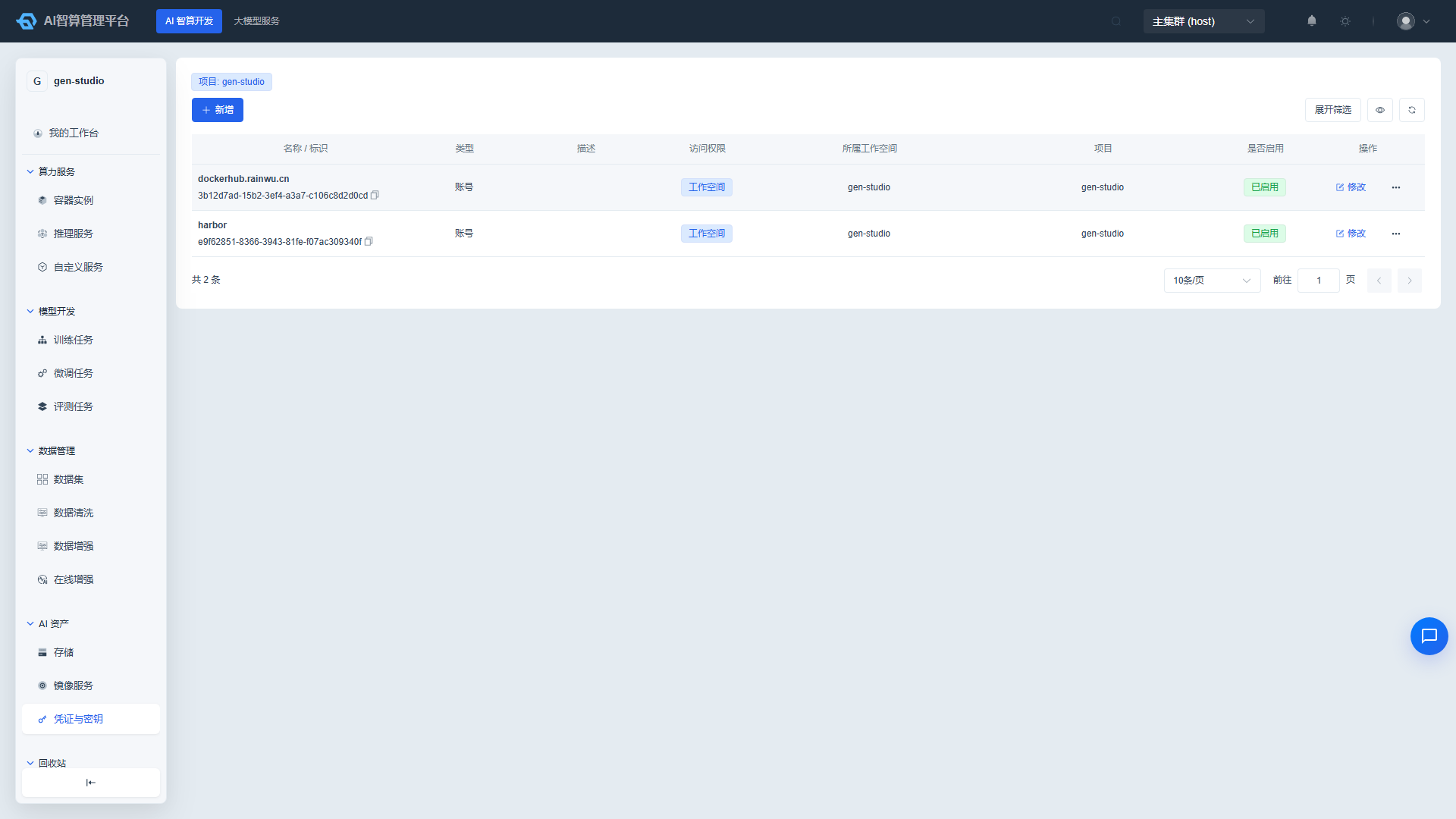
- Edit: Modify credential content, description, and enabled status. Name and type cannot be changed after creation.
- Delete: The system checks for associated instances or jobs before deletion. Deletion is not allowed when associations exist.
- Enable/Disable: When disabled, new jobs cannot select this credential.
FAQ
Q: The custom image I just saved doesn't appear in Image Service? A: Saving an image requires some push time. Please refresh the page and confirm that the current workspace/project matches the one used when saving.
Q: The storageClass dropdown is empty when creating storage? A: Contact the platform administrator to confirm that a usable StorageClass has been created in the cluster and that the platform has registered it in the storage engine.
Q: I added an SSH public key but SSH login to the instance still fails? A: Confirm that you selected the SSH key when creating the instance. Also check that the local private key matches the public key and that the SSH port is open.
Q: Can credentials be shared across projects? A: Yes. Select "Public" access level when creating, or select tenant-level and specify multiple projects. Actual sharing depends on the permission policies configured by the administrator.
Q: Can I rename storage or credentials after creation? A: Key fields such as name and associated project typically cannot be changed after creation. Please verify carefully before creating.
Q: Deletion of storage or credentials reports associated resources? A: First go to AI Compute Development > Compute Services / Model Development to confirm that no running instances or jobs are using the storage/credential. Otherwise, deletion may cause job failures.