Compute Service (Admin View)
Compute Service (Admin View) is designed for platform admins or tenant admins to view and manage container instances, inference services, and custom services across workspaces and projects. Admins can create resources on behalf of a project and perform batch operations on all resources.
Entry path: Left sidebar AI Compute Management > Compute Service, page route
/admin/ai/compute.
Page Menu
| Page | Route | Description |
|---|---|---|
| Container Instances | /admin/ai/manage/instances | Cross-tenant container instance list and management |
| Create Container Instance | /admin/ai/manage/instances/create | Create instance on behalf of a specified project |
| Container Instance Details | /admin/ai/manage/instances/detail/:uuid | View instance details, logs, events |
| Edit Container Instance | /admin/ai/manage/instances/edit | Modify select instance configurations |
| Inference Services | /admin/ai/manage/inference | Cross-tenant inference service list and management |
| Create Inference Service | /admin/ai/manage/inference/create | Create inference service on behalf of a specified project |
| Inference Service Details | /admin/ai/manage/inference/detail/:uuid | View service details, API address, monitoring |
| Custom Services | /admin/ai/manage/custom-service | Cross-tenant custom service list and management |
| Create Custom Service | /admin/ai/manage/custom-service/create | Create custom service on behalf of a specified project |
| Custom Service Details | /admin/ai/manage/custom-service/detail/:uuid | View service details and access address |
Container Instances
View and Filter Instances
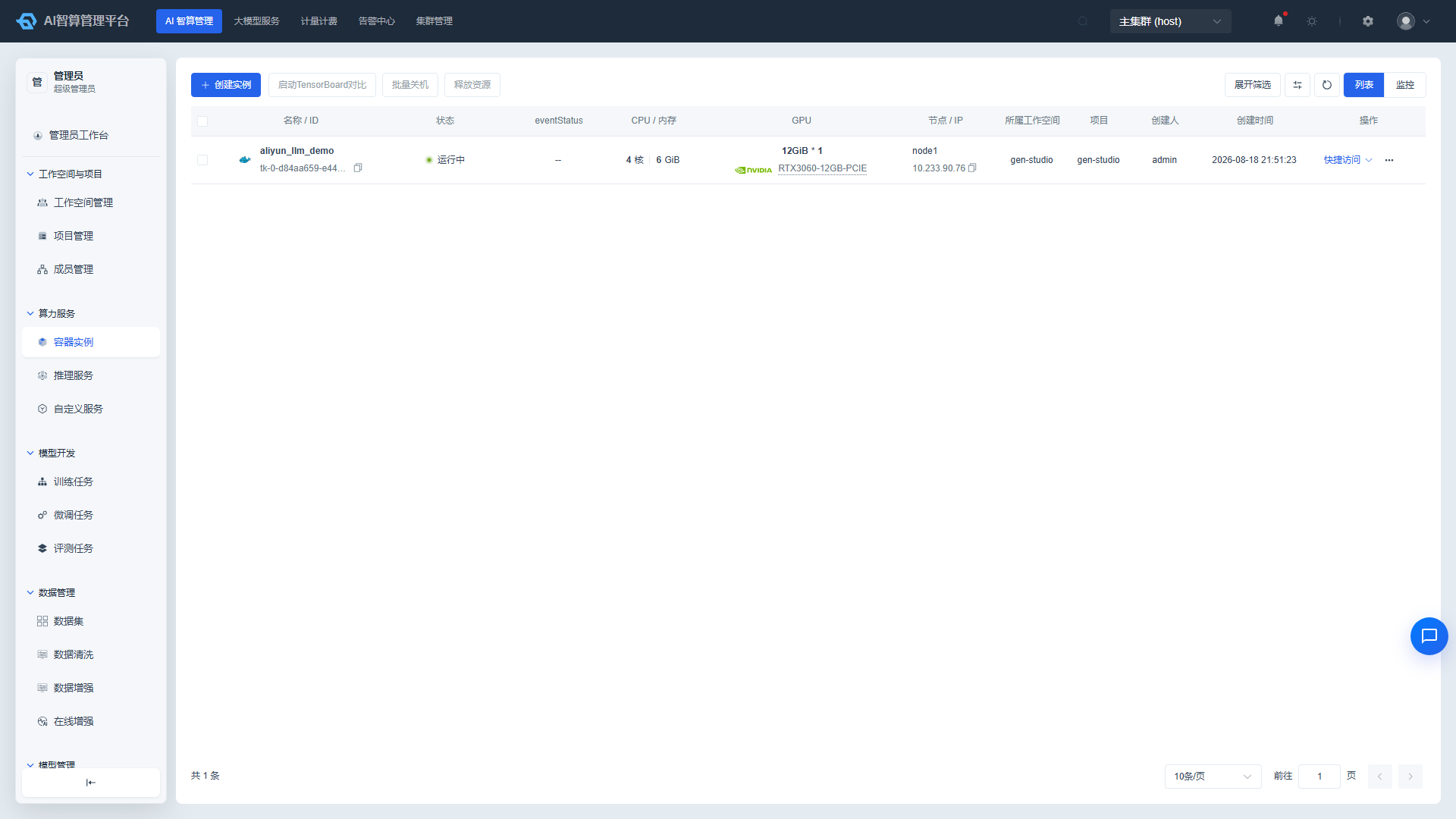
- Navigate to AI Compute Management > Compute Service > Container Instances.
- In the top filter bar, select query conditions:
- Workspace: Select the target tenant from the dropdown; leave empty for all.
- Project: After selecting a workspace, the project list appears.
- Status: Filter by Running, Shut Down, Pending, etc.
- Creator: Enter a username for quick lookup.
- Name: Supports fuzzy search.
- The list displays by default: Name / ID, Status, Compute Resources, GPU, Node / IP, Parent Workspace, Parent Project, Creator, Creation Time, Runtime.
- Click the column settings icon in the upper-right corner of the table to customize visible / hidden columns (e.g., CPU / Memory, GPU, Node / IP, Runtime).
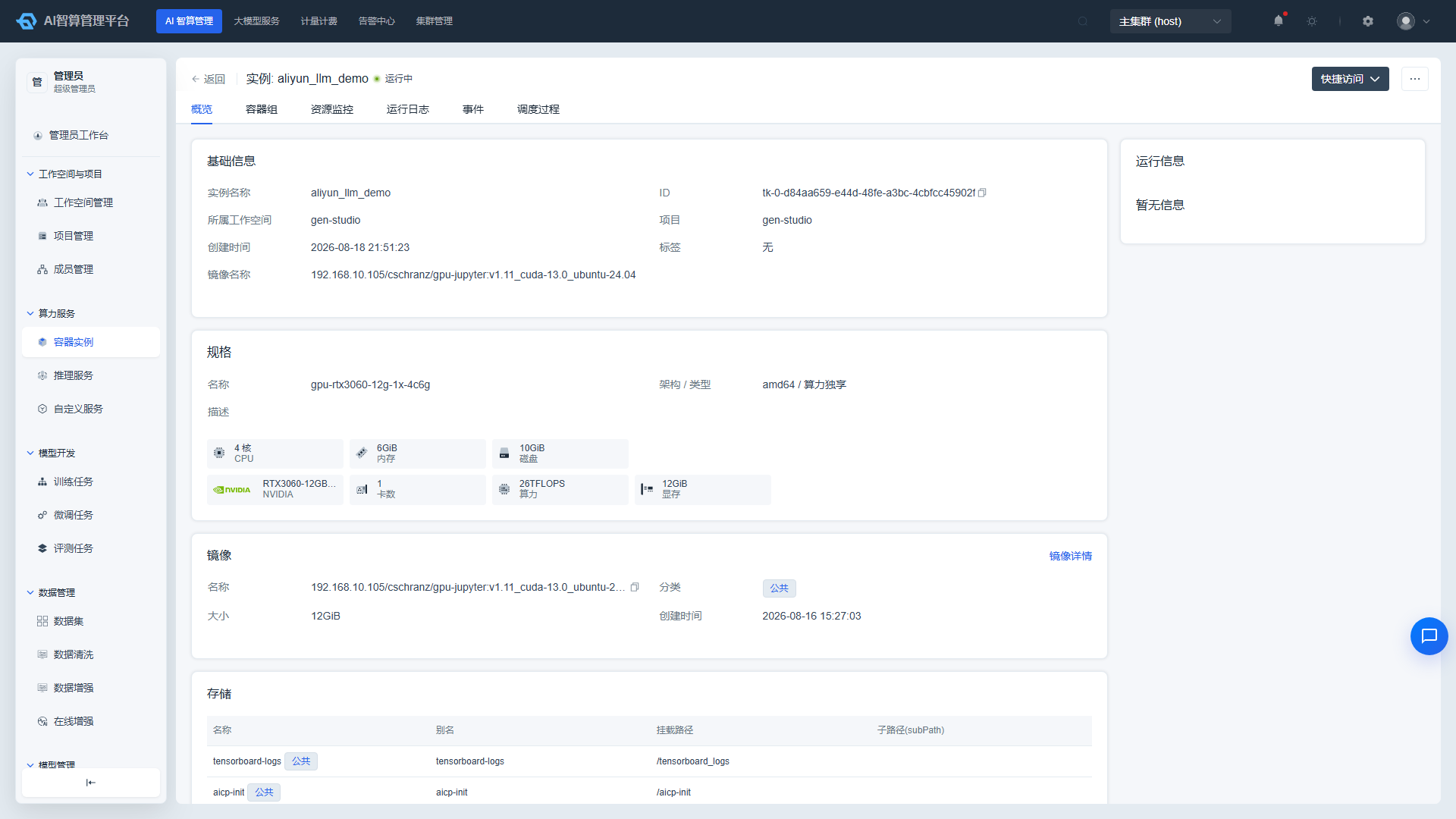
- Click an instance name to enter the detail page, which contains tabs: Overview, Pod Group, Running Logs, Events, Monitoring.
Create Container Instance on Behalf of a Project
- Click "Create Container Instance" on the container instance list page.
- Select Ownership
- Workspace: Select the target tenant.
- Project: Select the target project under the tenant.
- Instance Name: 2-50 characters, supports Chinese, letters, numbers, hyphens, and underscores.
- Compute Flavor / Image / Storage / Advanced Configuration: Same as the developer view; see AI Compute Development > Compute Service.
- Select the creation quantity (1-10) at the bottom, then click "Create."
- After successful creation, return to the list and monitor the instance status in the Status column until it enters "Running."
Batch Manage Instances
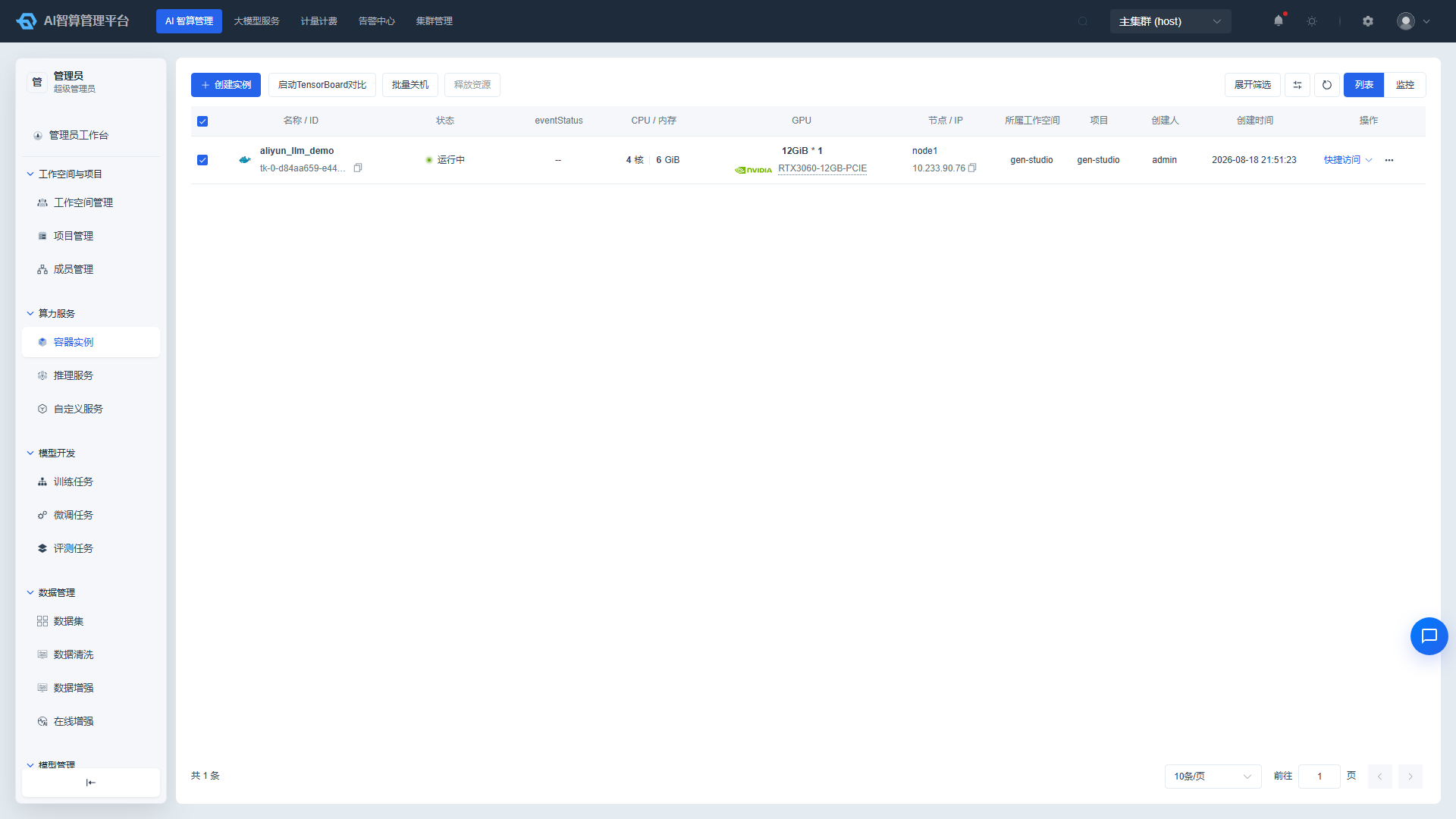
- Select multiple instances on the left side of the list.
- A batch action bar appears above the list:
- Batch Shut Down: Only applies to running instances.
- Batch Release: Permanently deletes and reclaims resources; requires confirmation before releasing.
- Click the corresponding button, confirm the scope of impact, then submit.
Single Instance Common Operations
| Operation | Use Case |
|---|---|
| Start / Shut Down | Shut Down preserves disk and stops billing; Start restores the environment. |
| Release | Permanently deletes the instance and reclaims resources; accidentally deleted items can be restored from the Recycle Bin. |
| Save Image | Saves the current container environment as a new custom image. |
| Clone | Quickly creates a new instance using an existing instance's configuration. |
| Edit | Modifies select fields such as storage and development tools, then updates. |
Inference Services
View and Filter Services
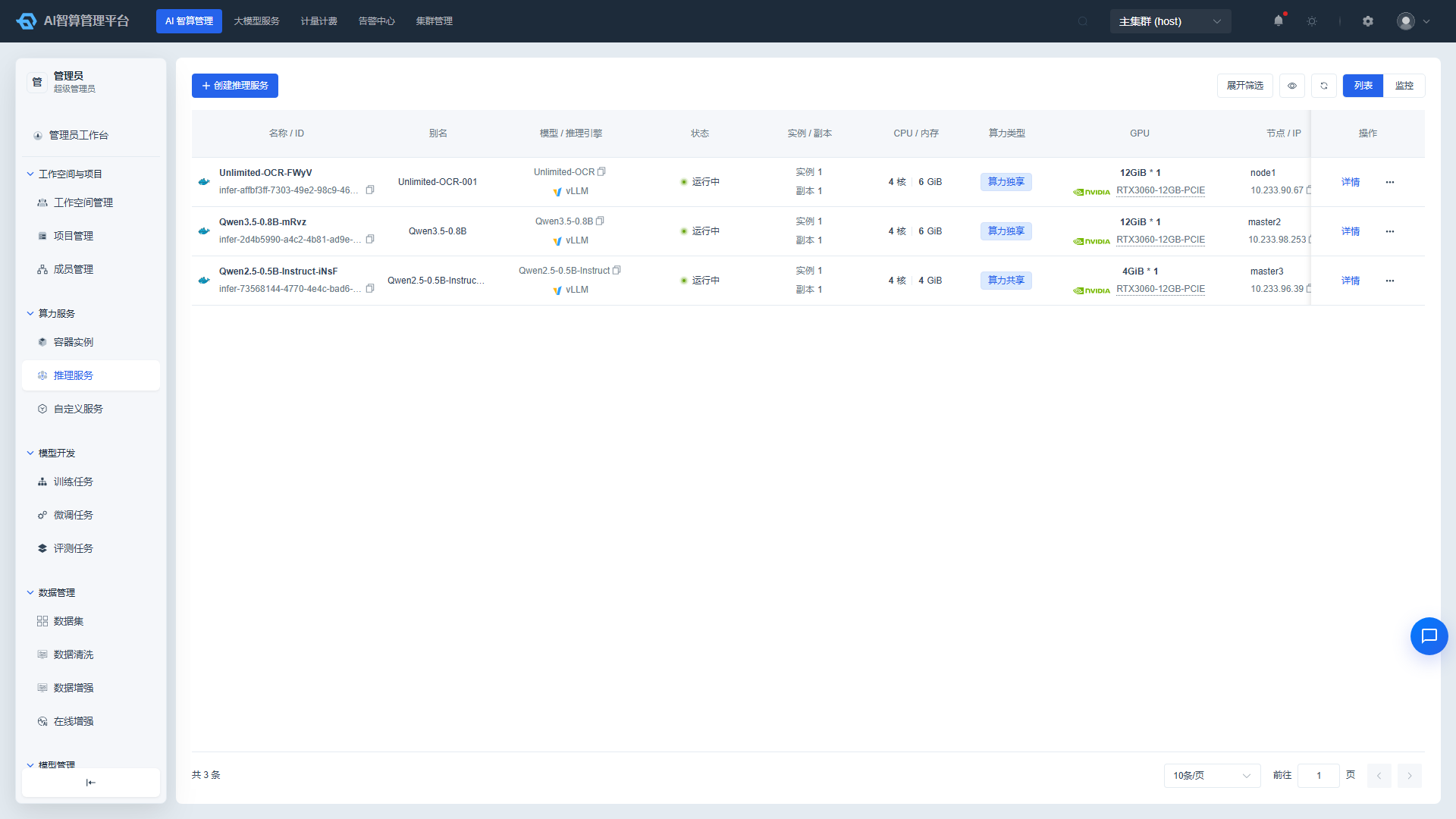
- Navigate to AI Compute Management > Compute Service > Inference Services.
- Use the top filter bar to query by workspace, project, status, and service name.
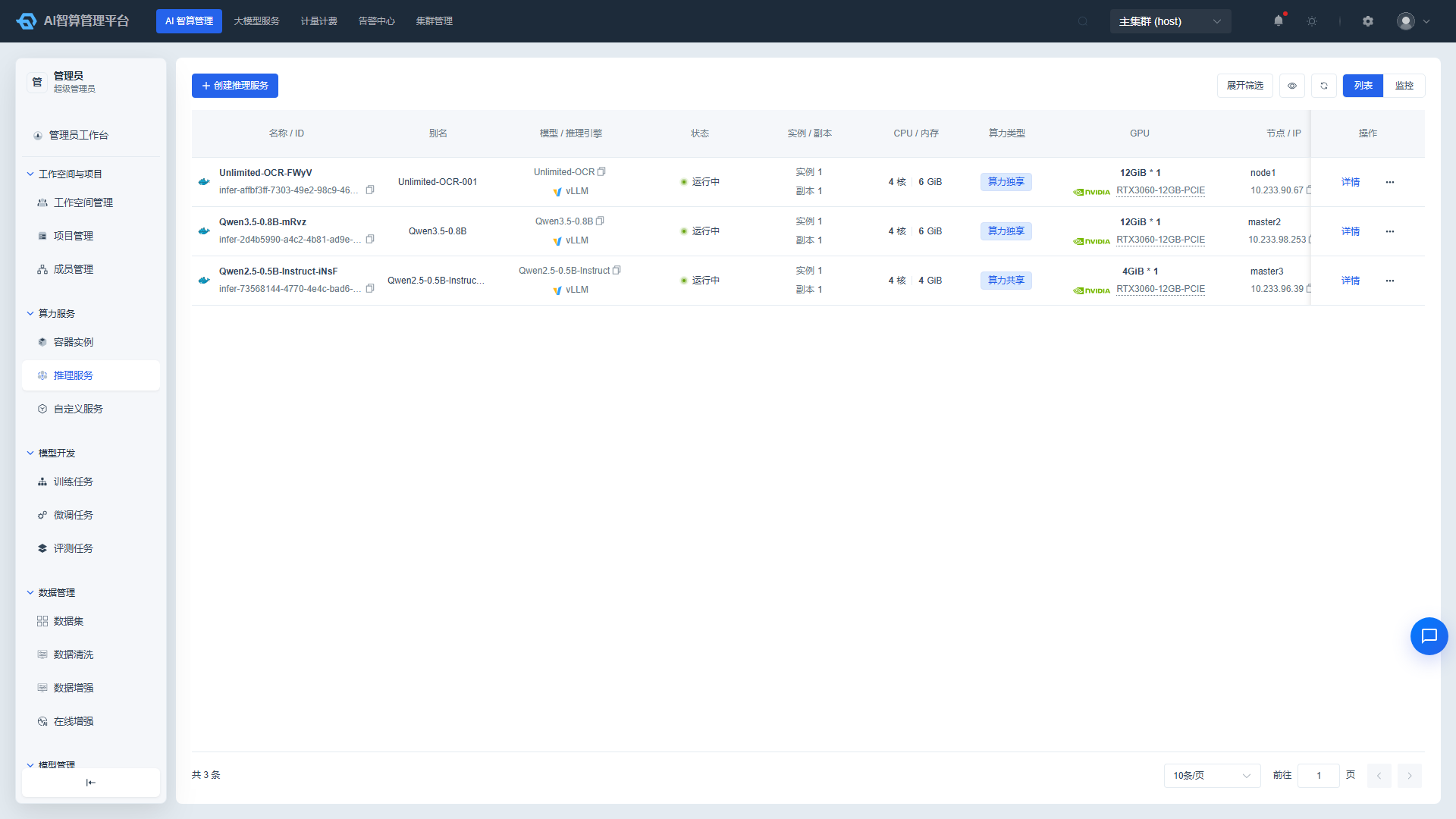
- The list displays: Name / ID, Status, Inference Engine, Replica Count, GPU Usage, Node / IP, Parent Workspace, Parent Project, Creator, Creation Time.
- Click a service name to enter the detail page, which contains tabs: API Call Address, Monitoring Metrics, Events, Logs, Version Management.
Create Inference Service on Behalf of a Project
- Click "Create Inference Service" on the inference service list page.
- Select Ownership
- Workspace: Select the target tenant.
- Project: Select the target project under the tenant.
- Model & Deployment
- Model Source: Select "Model Hub" or "Custom Model."
- Model: Select the model to deploy from the dropdown.
- Service Alias: Used to identify the service in lists and call examples.
- Deployment Mode: Single-node (StatefulSet) or multi-node (LWS).
- Deployment Template: Select a preset vLLM / SGLang / MindIE template.
- Instance Count: Number of service replicas.
- Rolling Update: Maximum unavailable percentage allowed during upgrades / rollbacks.
- Compute Flavor / Image / Storage / Deployment Parameters: Same as the developer view.
- Click "Create," return to the list, and wait for the status to change to "Running."
Manage Inference Services
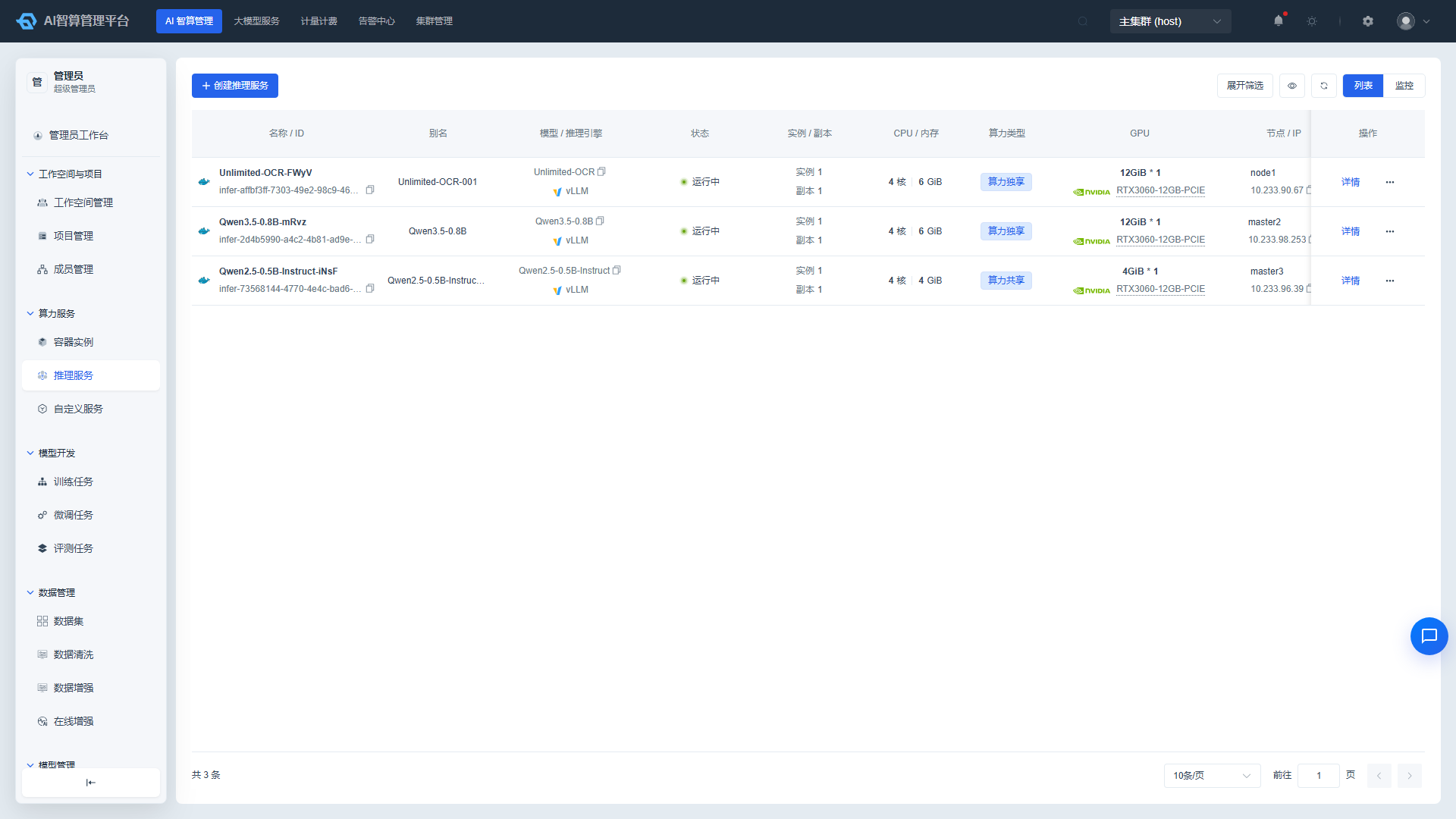
- Click "More Actions" in the list row or click the corresponding button at the top of the detail page:
- Start / Stop: Stops billing when stopped; configuration is preserved.
- Upgrade / Rollback: Redeploy after modifying configuration or switching model versions; supports rollback to a specific version.
- Scale: Manually adjust replica count or configure HPA for auto-scaling.
- Release: Permanently deletes the service and reclaims resources.
- Clone: Quickly creates a new service based on the current service configuration.
- For critical actions (such as Release, Scale), the system will display a confirmation dialog; the action takes effect after confirmation.
Custom Services
View and Filter Services
- Navigate to AI Compute Management > Compute Service > Custom Services.
- Use the top filter bar to query by workspace, project, status, and service name.
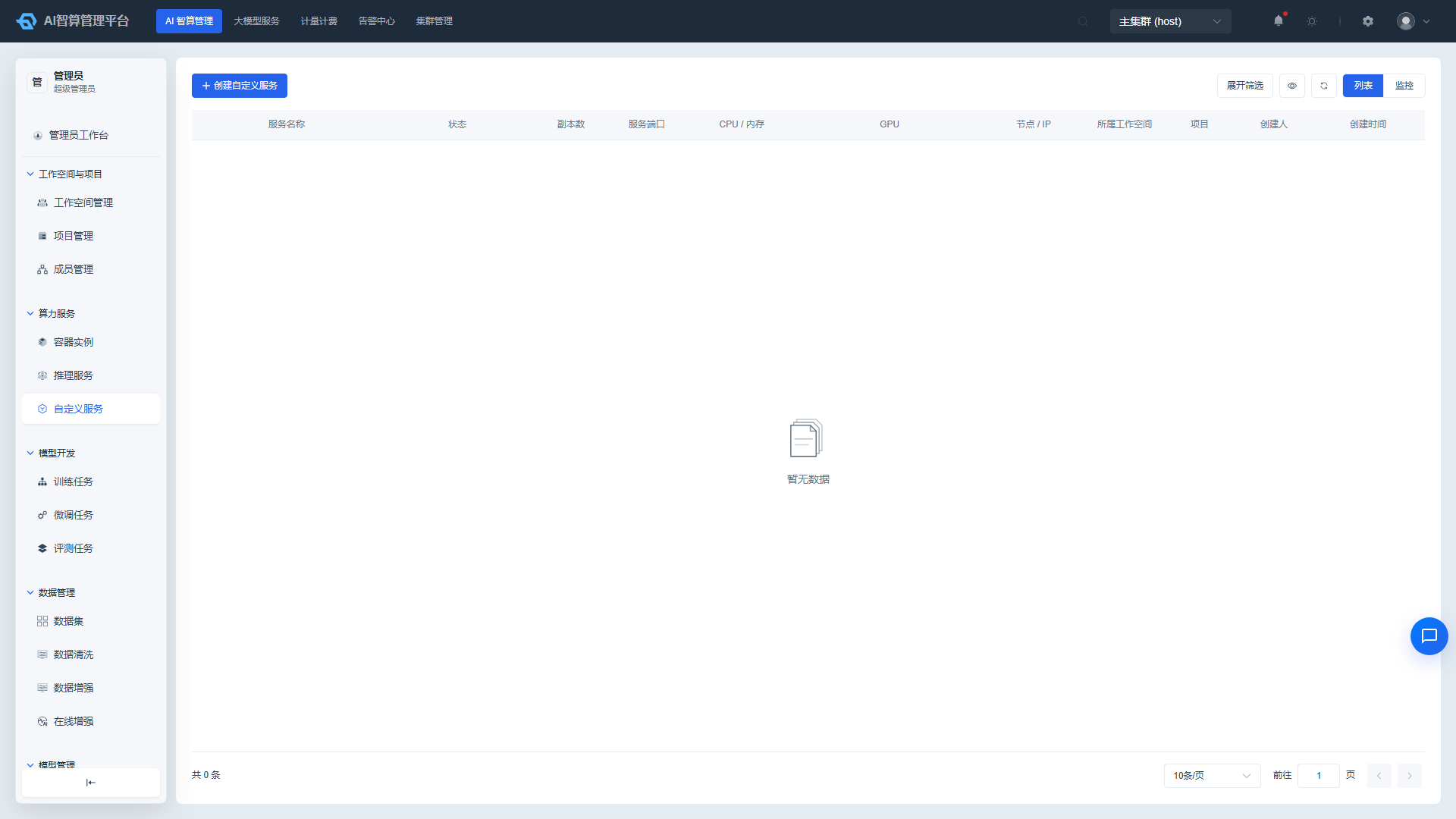
- The list displays: Name / ID, Status, Access Address, Replica Count, Resource Usage, Parent Workspace, Parent Project, Creator.
Create Custom Service on Behalf of a Project
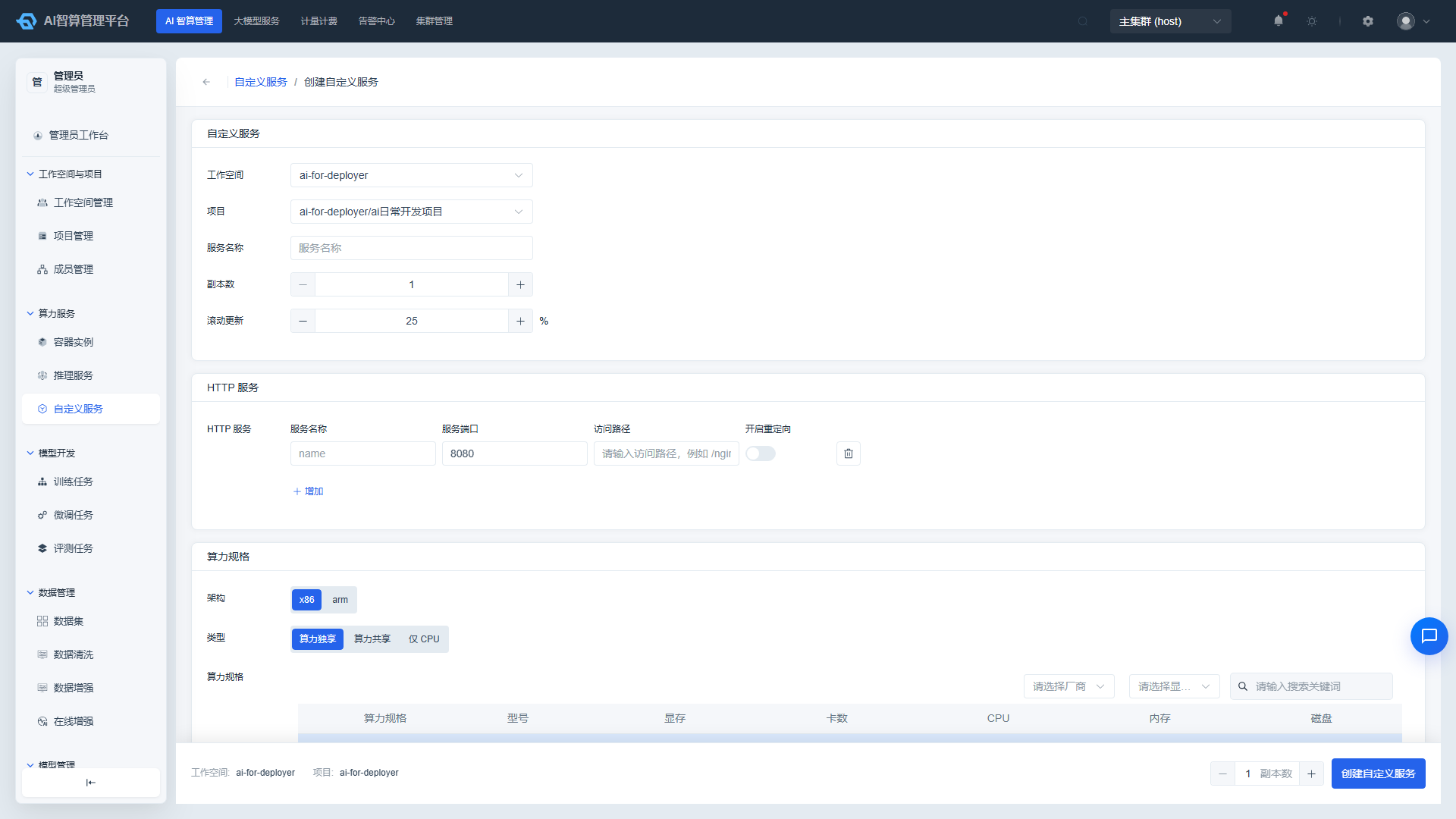
- Click "Create Custom Service" on the custom service list page.
- Select Ownership: Select the target workspace and project.
- Basic Information: Service name, replica count, HTTP service port and path, rolling update percentage.
- Compute Flavor: If the service does not require GPU, select a pure CPU flavor.
- Instance Image: Select or enter the image address.
- Storage Configuration: Mount the required storage volumes.
- Deployment Parameters: Environment variables, startup command, startup arguments, working directory, startup user, etc.
- Advanced Configuration: Health check, shared memory, scheduled scaling (CronScale), auto-scaling (HPA).
- Click "Create."
Access Custom Services
After the service is running, view the exposed "Access Address" in the list, or copy the URL from the "HTTP Service" tab in the detail page.
FAQ
Q: Can an admin restrict GPU usage for a specific project? A: Yes. Configure a quota for the project in AI Compute Management > Workspaces & Projects to limit CPU / Memory / GPU compute and memory ceilings.
Q: The instance / service list has a large volume of data. How do I quickly locate items? A: Use the top filter bar to search by workspace, project, status, and name; the list supports custom column display and CSV export.
Q: "No Available Projects" when creating resources on behalf of a project? A: Confirm that projects have been created under the selected workspace, and that the current admin account has write permissions for that workspace / project.
Q: Can batch-released resources be recovered? A: Released resources enter the AI Compute Management > Recycle Bin, where they can be restored within the retention period; after the retention period, they will be automatically cleaned up.