Resource Overview
Resource Overview is the default workbench page you see after logging in to the Rise AI Compute Platform. It provides a centralized view of the current workspace's resource quotas, running assets, recent activity, and commonly used quick-access shortcuts. It serves as the starting point for developers to check workspace status and quickly create resources.
Access path: Left sidebar AI Compute Development > Resource Overview > My Workbench, route
/admin/ai/overview/console.
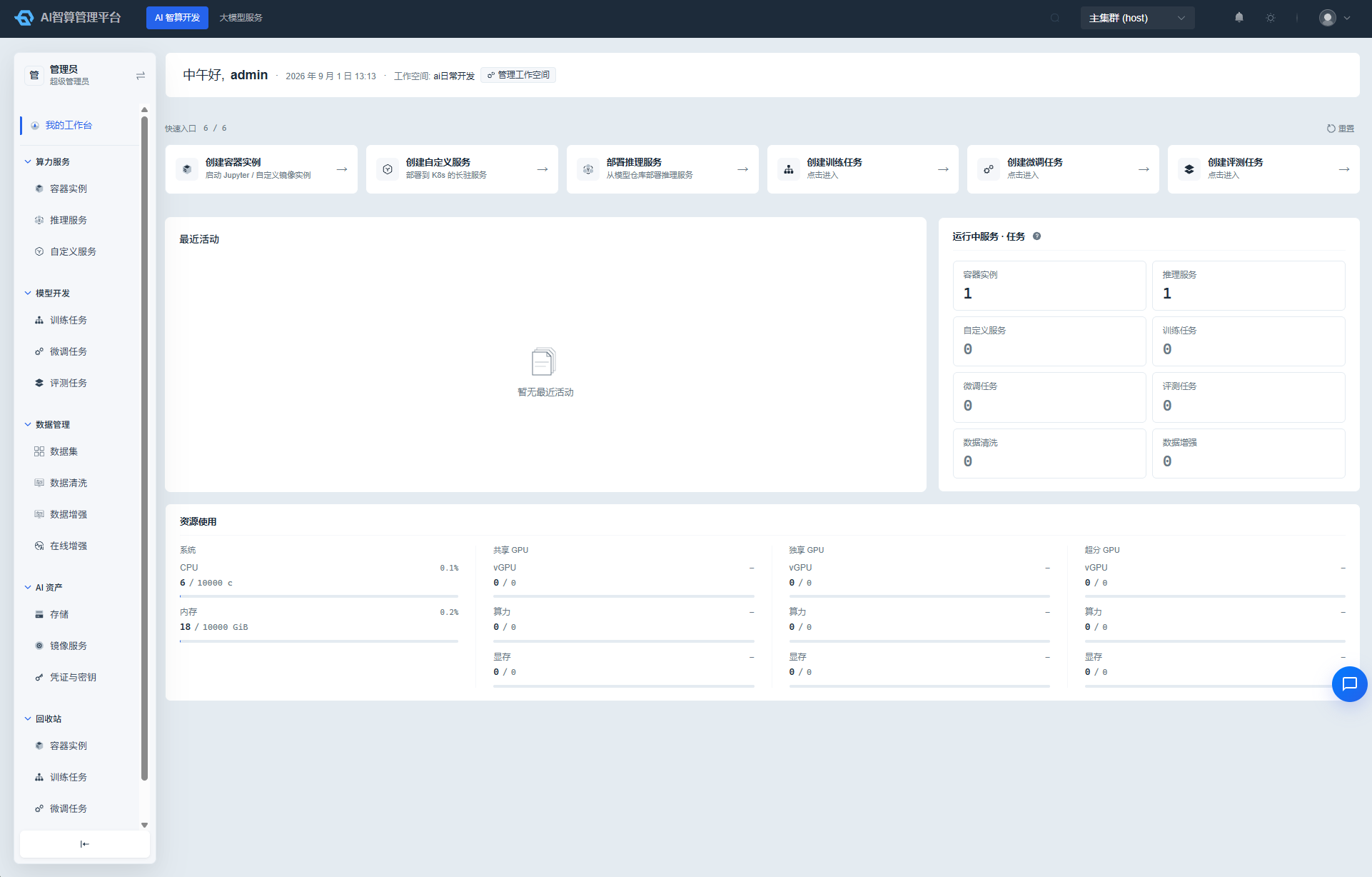
Page Layout
My Workbench consists of four areas:
- Top Welcome Bar: Greeting message, current workspace, mini KPI cards, and LLM call trend sparkline on the right.
- Quick Access Shortcuts: Up to 6 customizable commonly-used operation cards.
- Middle Dual Column: "Recent Activity" timeline on the left, "Running Tasks" statistics on the right.
- Bottom Resource Usage: Quota levels for four resource pools — System / Shared GPU / Dedicated GPU / Over-subscribed GPU.
Viewing Resource Quotas
The "Resource Usage" area at the bottom of the page displays quotas for the four pools:
| Resource Pool | Metrics | Description |
|---|---|---|
| System | CPU / Memory | Overall CPU cores and memory quota for the workspace. |
| Shared GPU | vGPU / Compute / GPU Memory | Virtual GPU cards, compute percentage/TFLOPS, and VRAM in the shared GPU pool. |
| Dedicated GPU | vGPU / Compute / GPU Memory | Usage of the whole-card allocation pool. |
| Over-subscribed GPU | vGPU / Compute / GPU Memory | GPU resources in over-subscription mode. |
Each metric shows Used / Total with a percentage progress bar. When utilization reaches a high level, it is recommended to clean up unused instances or contact the administrator to expand capacity.
Using Quick Access Shortcuts
Quick access shortcuts are pre-filled with 6 commonly-used creation pages: Create Container Instance, Create Custom Service, Deploy Inference Service, Create Training Job, Create Fine-tuning Job, Create Evaluation Job (dynamically shown based on permissions and feature flags).
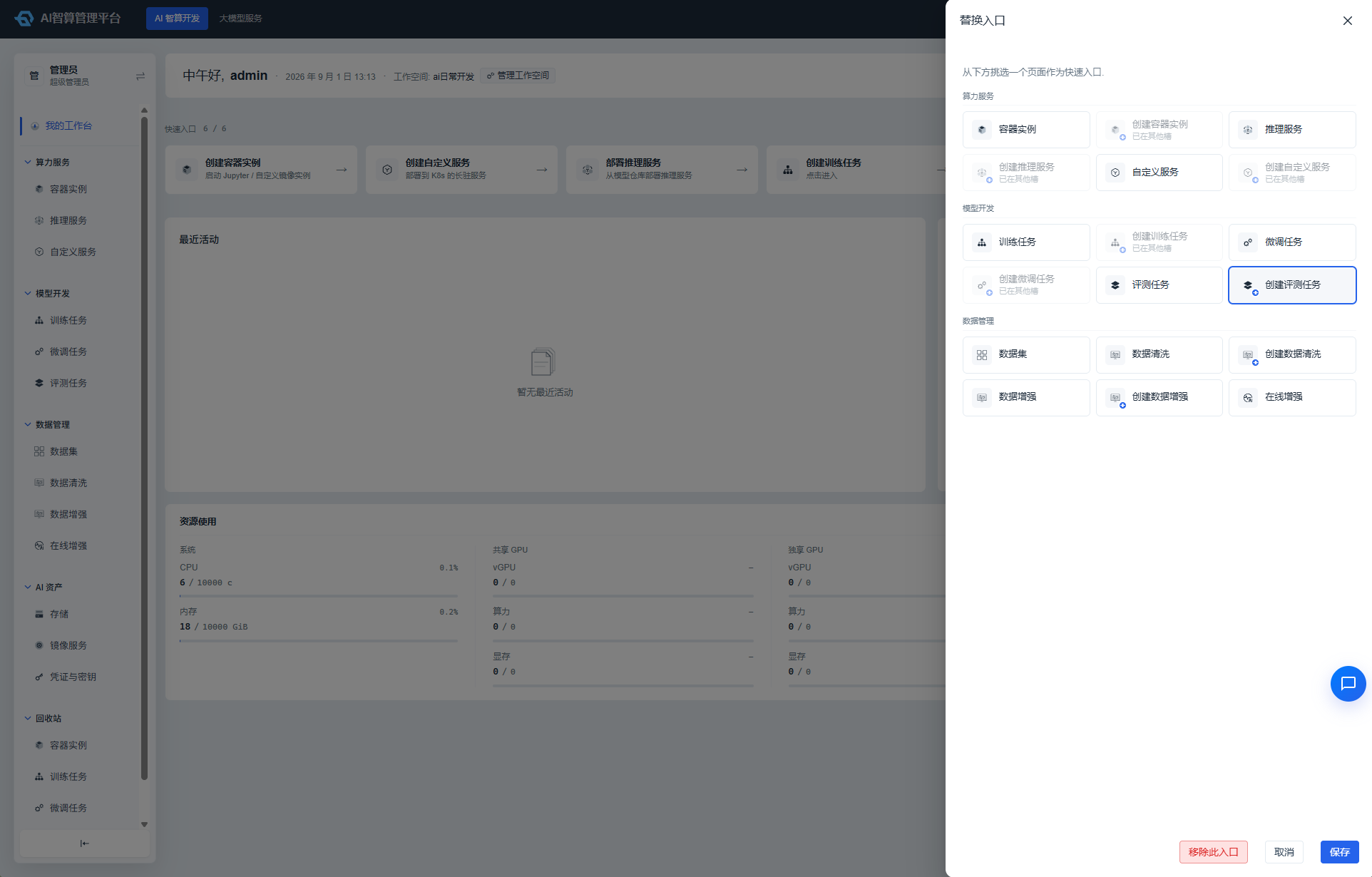
Customizing Quick Access Shortcuts
- Find the shortcut card you want to modify, hover over it, and click the "Edit" icon in the top-right corner.
- In the drawer that opens, select the target page from the left-side groups:
- Compute (Container Instance / Inference Service / Custom Service)
- Model (Training / Fine-tuning / Evaluation Job)
- Data (Data Cleaning / Data Augmentation / Dataset)
- Gateway (AI Route / API Channel, etc.)
- Assets (Image / Storage / Credentials)
- Each group offers two entry types: "List Page" or "Create Page".
- Click the target card and select "Save".
- To remove an entry, click "Delete" to restore it to a placeholder slot.
- Click "Reset" at the top to restore all defaults at once.
Quick access shortcut configurations are saved in the browser's local storage. Switching browsers or clearing the cache will restore defaults.
Viewing Recent Activity
The "Recent Activity" section in the middle-left of the page displays the 5 most recent operation records, including:
- Creation/start/stop/release of container instances, inference services, and custom services.
- Submission and status changes of training/fine-tuning/evaluation jobs.
- Execution of data cleaning/augmentation jobs.
Each record shows the time, operation type, and resource name. Click to navigate to the corresponding list or detail page.
Viewing Running Tasks
The "Running Tasks" section in the middle-right displays running counts for 8 asset types using a 2×4 card layout:
- Container Instances
- Inference Services
- Custom Services
- Training Jobs
- Fine-tuning Jobs
- Evaluation Jobs
- Data Cleaning Jobs
- Data Augmentation Jobs
Click any card to enter the corresponding list page with the "Running" status automatically filtered.
Switching Workspaces
If your account belongs to multiple workspaces:
- Click the current workspace name in the top navigation bar.
- Select the target workspace from the dropdown list.
- After switching, My Workbench will reload the quota, activity, and task data for that workspace.
Switching workspaces preserves the current page context (e.g., you remain on "Resource Overview").
Workspace and Project Details
The right side of the top welcome bar in My Workbench has a "Manage Workspace" entry (requires corresponding permissions). Click to enter the Tenant Details page:
- Overview: Workspace resource gauges, resource status pie charts, and project list; click a project to enter the Project Details page.
- Resource Pool Management: Node and GPU statistics for unallocated/shared/dedicated/over-sold resource pools.
- Quota Management / Member Management / Queues / Reclaim Policies: Workspace-level configurations.
The Project Details page includes: Overview (project resource gauges and status pie charts), Quota Management (CPU/GPU quota table, editable and saveable), Member Management, and Policy Management (compute preemption and reclaim policies).
These two pages do not appear in the left sidebar; they can only be accessed through the management entry on the Resource Overview page and the project list.
FAQ
Q: Resource usage shows a quota of 0? A: Please confirm that a quota has been configured for the current workspace. If not, contact the platform or tenant administrator to allocate a quota in AI Compute Management > Workspace & Projects.
Q: Running task counts don't match the list page? A: Workbench statistics aggregate by workspace scope, while the list page may filter by creator. The two use different aggregation criteria.
Q: Quick access shortcut edits didn't take effect? A: Check whether the browser has disabled localStorage. Quick access shortcuts rely on local storage for persistence.
Q: Workbench data doesn't match the detail page? A: Workbench data refreshes periodically. For resource quotas and task status, refer to the corresponding detail pages.
Q: Why are some menus missing from the quick access shortcut candidate list? A: Unauthorized menus will not appear in the candidate list. Additionally, some feature entries are controlled by feature flags.