Account Security
"Account Security" is designed for end users to manage personal passwords, SSH keys, API keys, and SFTP configuration.
Entry path: Left sidebar menu User Center > Account Security, page route
/admin/user-center/security.
Page Menu
| Page | Route | Description |
|---|---|---|
| Change Password | /admin/org/change-password | Change login password |
| SSH Keys | /admin/user-center/ssh-key | Personal SSH key management |
| API Keys | /admin/user-center/api-key | Personal API key management |
| SFTP Configuration | /admin/user-center/sftp-service | Personal SFTP service configuration |
Change Password
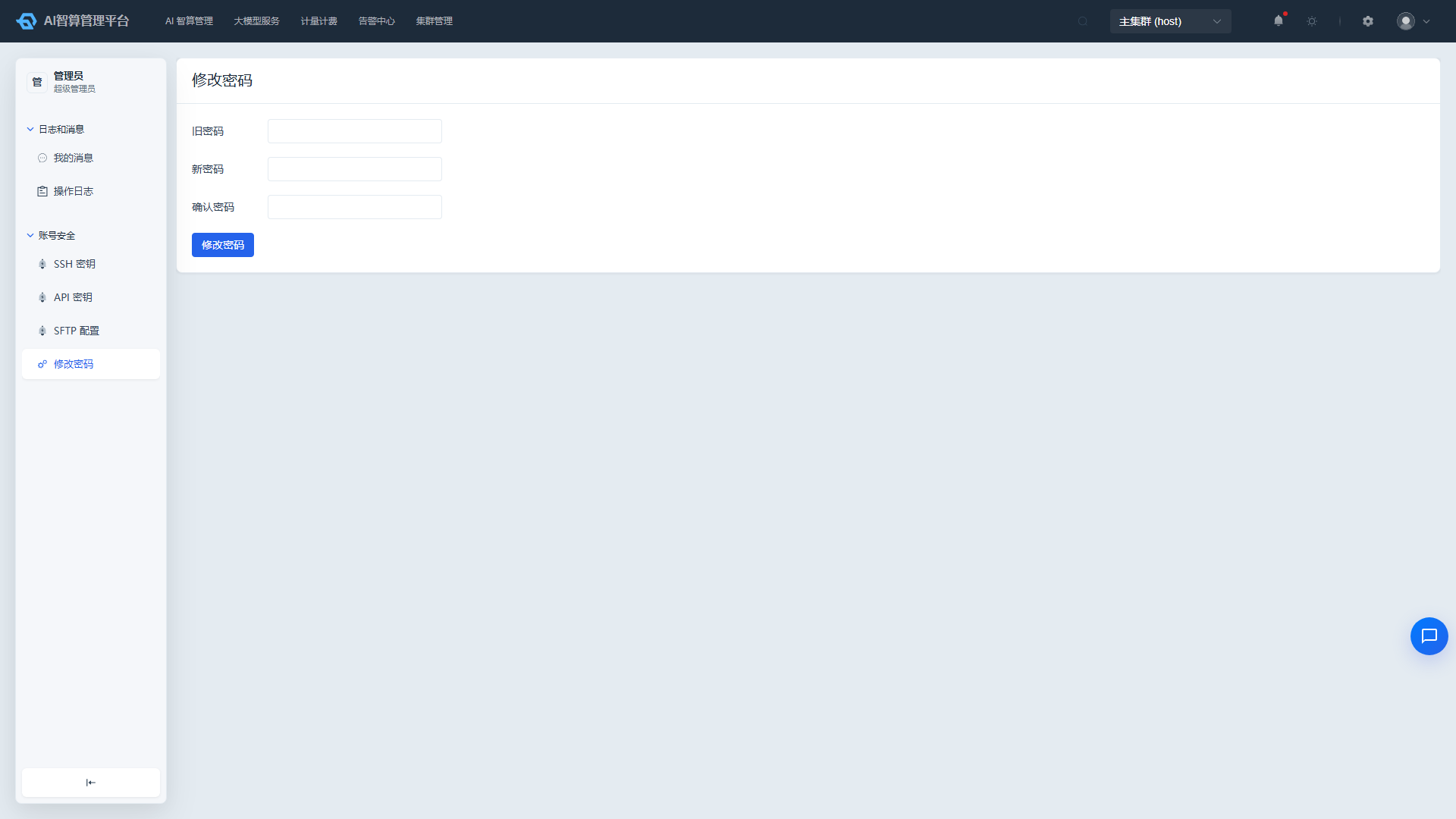
- Navigate to User Center > Account Security > Change Password.
- Fill in:
- Current Password: The input field is automatically hidden when there is no current password (first login).
- New Password: Must comply with the platform password complexity rules.
- Confirm Password: Must match the new password.
- Click "Submit". After a successful change, you will need to use the new password for your next login.
The "Profile" entry in the user menu at the top-right of the navigation bar opens the same password change page.
SSH Keys
View SSH Keys
- Navigate to User Center > Account Security > SSH Keys.
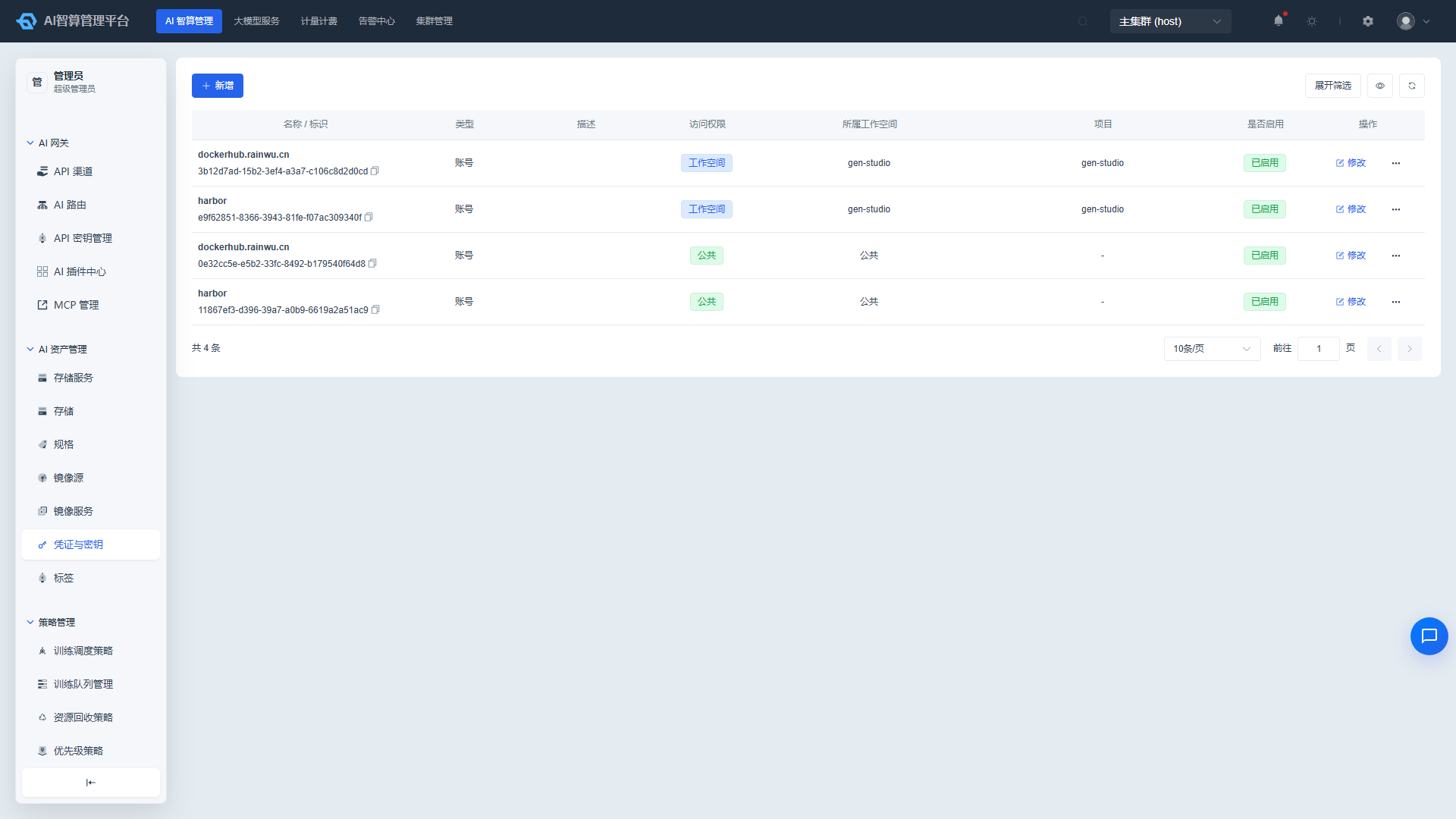
- The list displays: key name/UUID, type (SSH / Account / Image Repository), description, access permissions, associated workspace, associated project, enabled status.
- Use the top filter bar to search by name, access permissions, workspace, project, type, and enabled status.
Add SSH Key
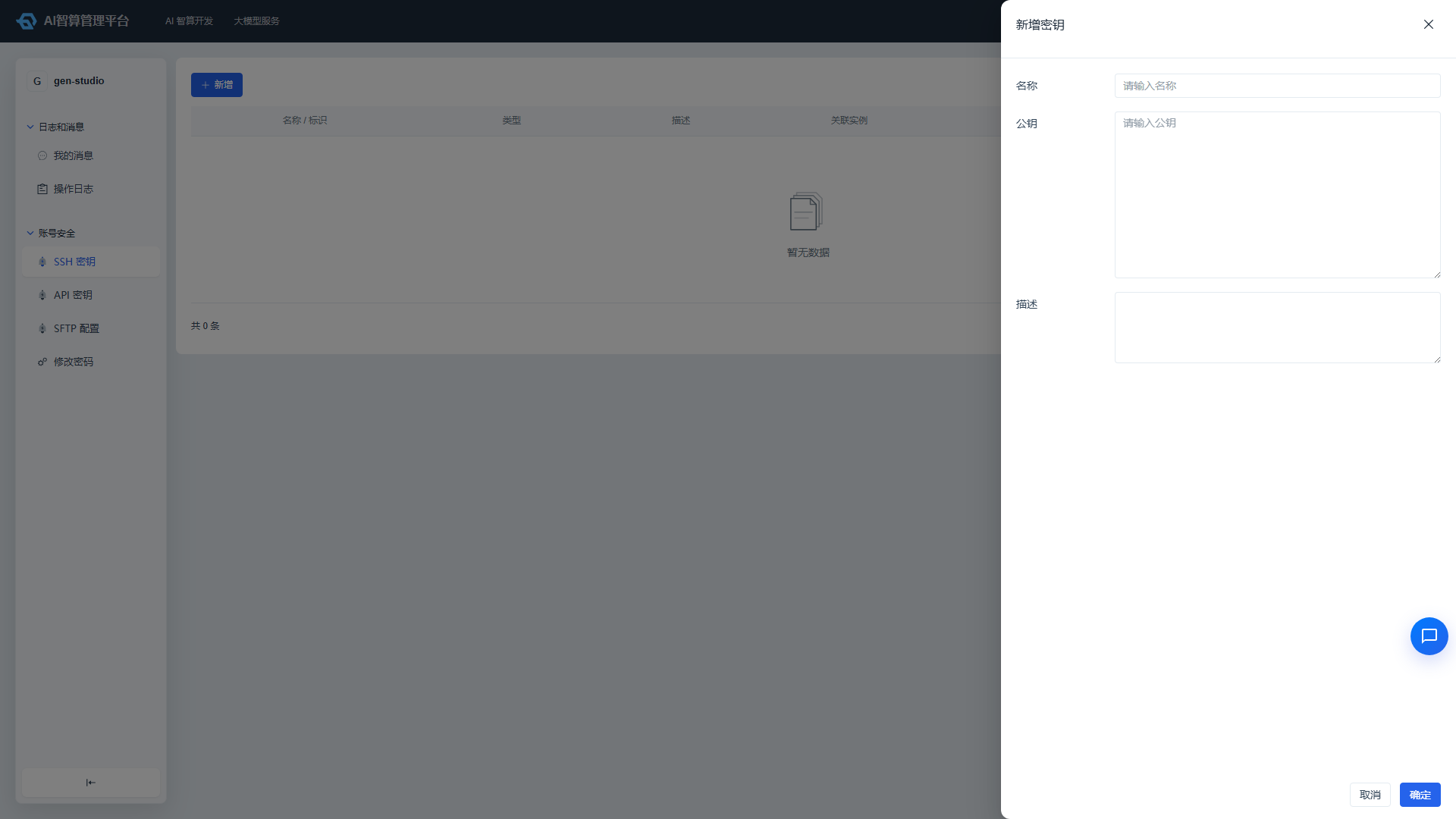
- Click "Add Key".
- Fill in:
- Type: Select SSH.
- Name/Description: For easy identification.
- Public Key Content: Paste the public key string from
~/.ssh/id_rsa.pub. - Workspace/Project: Select the scope the key belongs to.
- Click "Create".
Manage Keys
- Click "More Actions" in the list row:
- Edit: Modify the key name, description, or public key content.
- Delete: Keys associated with container instances or training tasks are protected and cannot be deleted.
API Keys
View API Keys
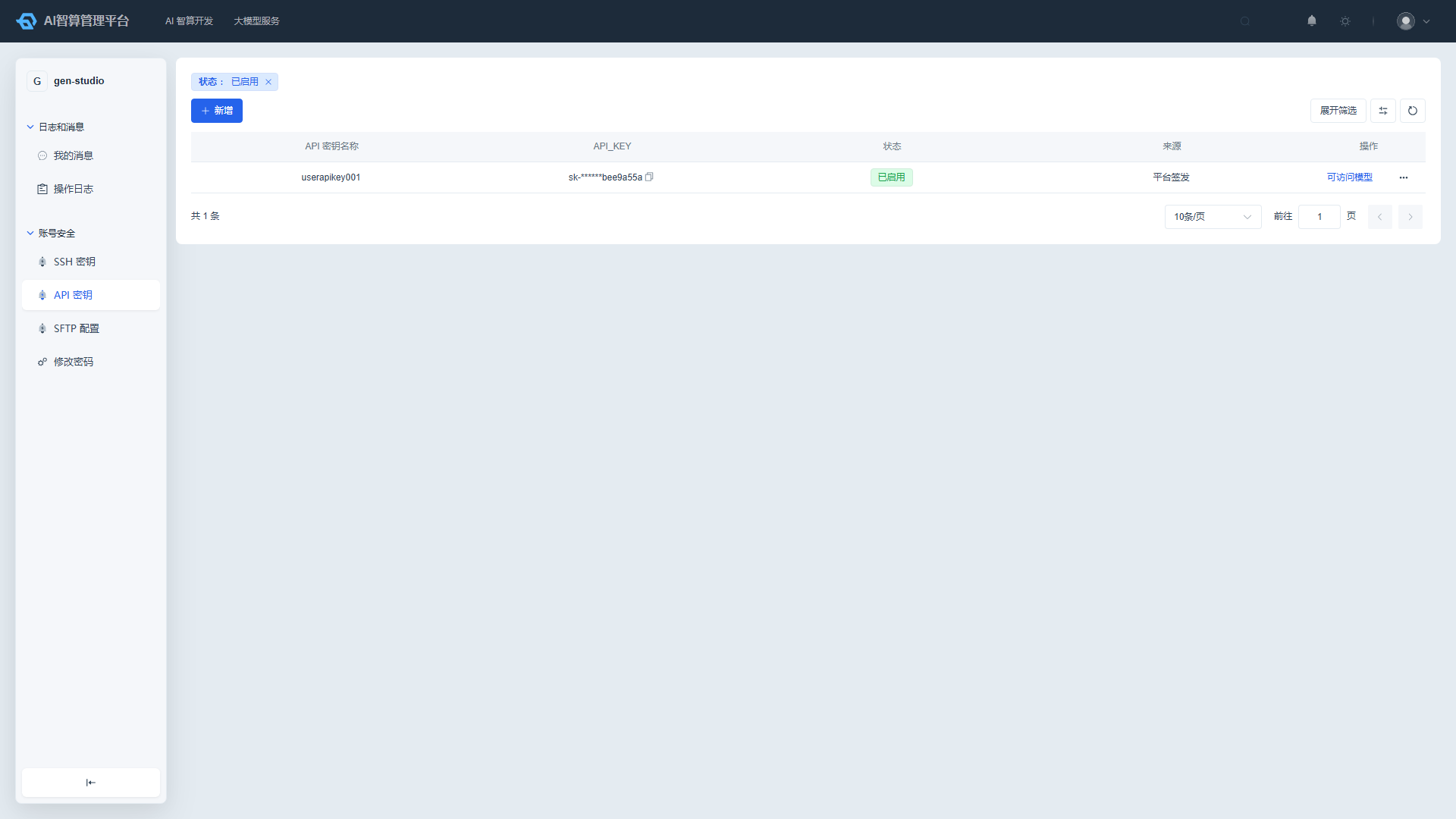
- Navigate to User Center > Account Security > API Keys.
- The list displays: key name, accessible models, source (Platform-issued / Externally imported), enabled status.
- API keys are masked, showing only the first 3 and last 8 characters.
Create API Key
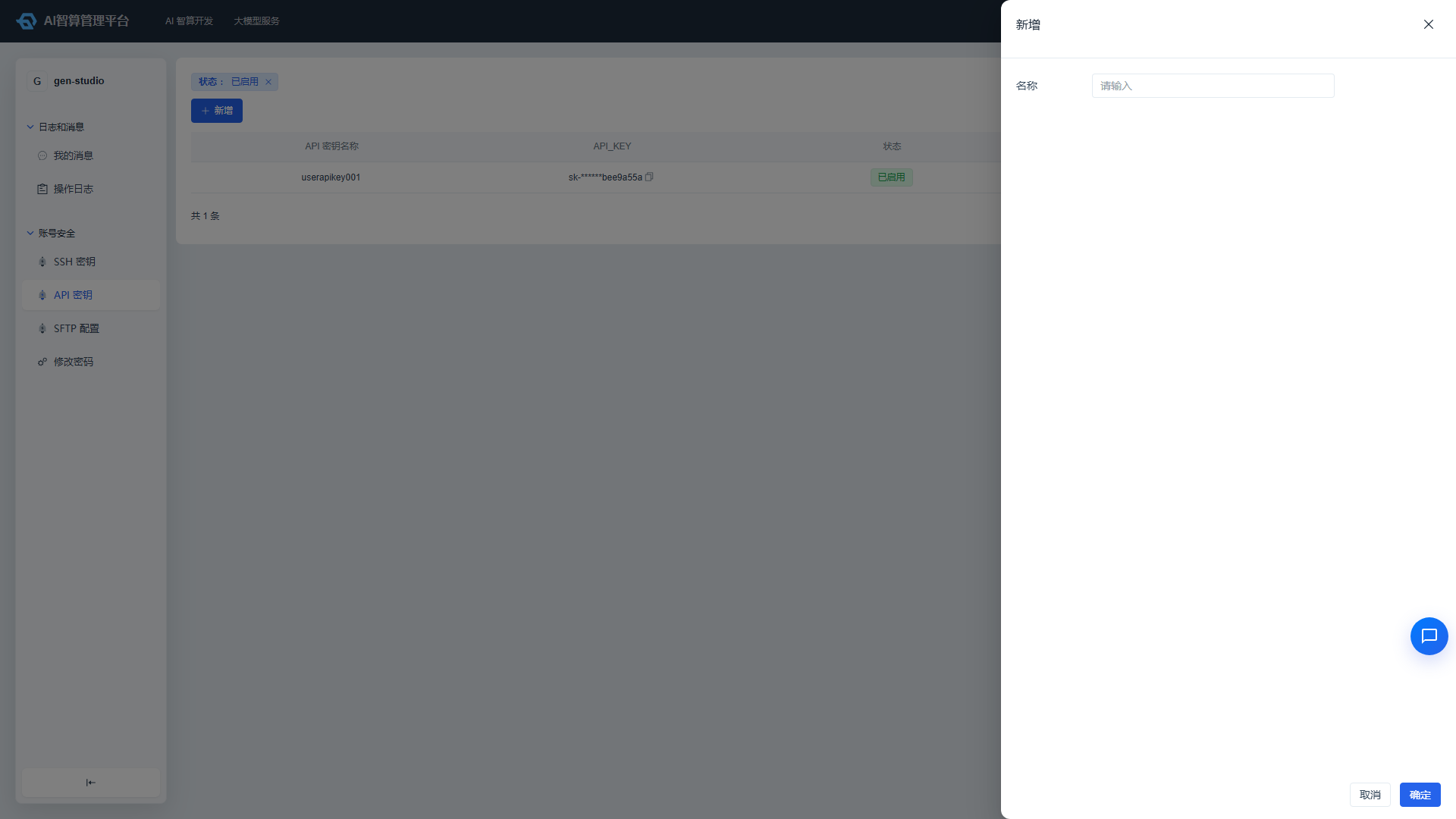
- Click "Create API Key".
- Fill in:
- Name: For easy identification.
- Accessible Models: Select the model scope this key is authorized to call.
- Click "Create".
- Copy the key value immediately after creation; the key value is only displayed once at creation time — please store it securely.
Manage API Keys
- Click "More Actions" in the list row:
- View: View the list of models accessible by this key.
- Enable/Disable: Control whether the key can be used for API calls.
- Delete: Delete keys that are no longer in use.
SFTP Configuration
Initialize SFTP Service
- Navigate to User Center > Account Security > SFTP Configuration.
- On first use, click "Initialize Account Password" to set the SFTP login username and password.
- The page displays SFTP service connection information: address, port, username, password.
Link Data Storage
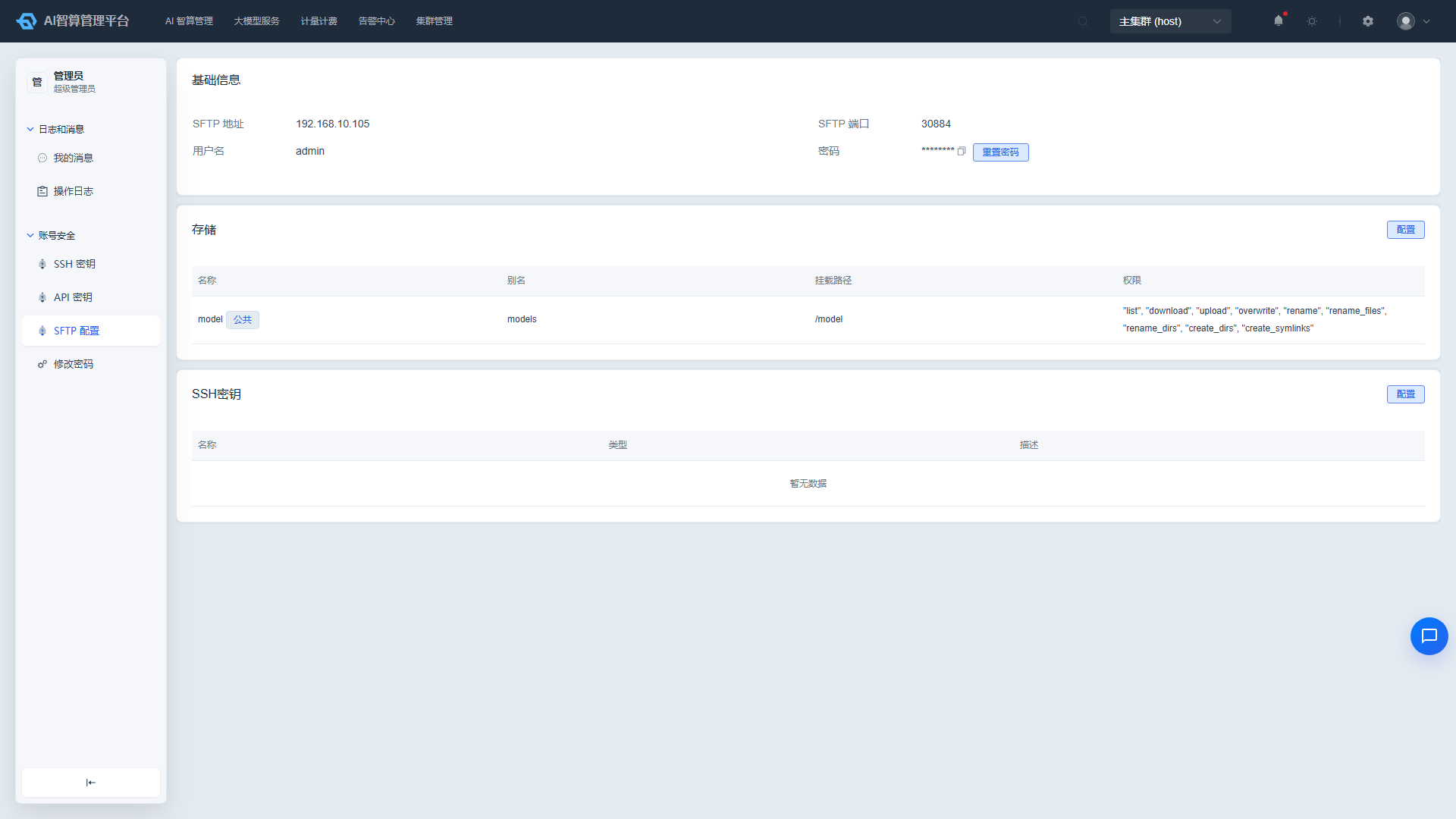
- On the SFTP configuration page, view the "Linked Data Storage" list.
- Click "Add Linked Storage", select an authorized data storage (name, alias, mount path, permissions).
- Click "Confirm"; the storage will be mounted under the SFTP root directory and accessible via an SFTP client.
Link SSH Key
- On the SFTP configuration page, view the "Linked SSH Key" list.
- Click "Add Linked Key", select a previously created SSH key.
- After adding, you can log in to SFTP using key-based authentication.
Upload Files via SFTP
- Use any SFTP client (e.g., FileZilla, WinSCP, command-line sftp).
- Enter the address, port, username, and password displayed on the page (or select SSH key authentication).
- After a successful connection, you can upload/download large files in the linked storage directories.
FAQ
Q: Password change fails with a rule violation message? A: Please ensure the new password contains at least three of the following categories: uppercase letters, lowercase letters, numbers, and special characters, and meets the platform's length requirements.
Q: Cannot delete an SSH key? A: If the key is associated with a running container instance or training task, the system will prevent deletion; please remove the association first or wait for the task to complete.
Q: What if I didn't save the API key after creation? A: The key value is only displayed in full once at creation time; if you did not save it, please delete the key and create a new one.
Q: SFTP connection fails? A: Please confirm that the SFTP service has been initialized, the credentials are correct, the network is reachable, and at least one data storage has been properly linked.