Logs & Messages
"Logs & Messages" is designed for cluster administrators, providing platform-wide operation audit and message notification management capabilities to meet security compliance and operational notification needs.
Entry path: Left sidebar menu Cluster Management > Logs & Messages, page route
/admin/settings/logs.
Page Menu
| Page | Route | Description |
|---|---|---|
| Operation Logs | /admin/settings/audit-logs | Cluster operation audit logs |
| Notifications | /admin/settings/event-message | Cluster user message notifications |
Operation Logs
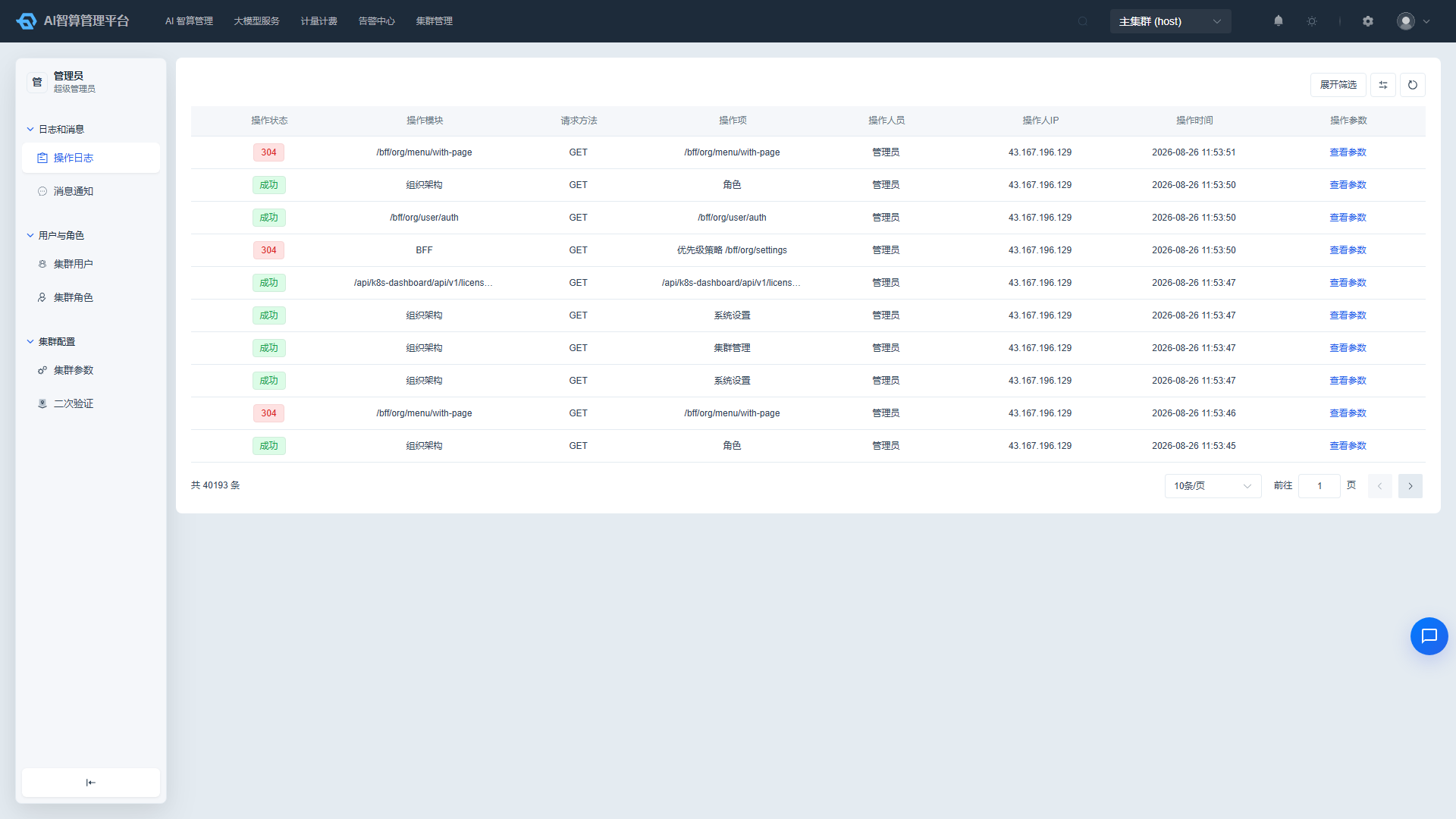
View Operation Logs
- Navigate to Cluster Management > Logs & Messages > Operation Logs.
- The list displays: operation status, operation module, operation item (API name), operator, operator IP, operation time.
- Operation status is indicated by colored labels: Success, Network Error, Access Denied, Invalid Account, Multi-device Login, Login Expired, Incorrect Account or Password, Account Disabled, etc.
- Operation modules are mapped to Chinese module names: Infrastructure, Organization Structure, Platform Configuration, AI Computing Service, Monitoring Service, Compute Management, etc.
Filter Logs
- Use the top filter bar to search by operation status, operation module, operation item, operator, operator IP, and operation time.
- Operator supports remote search by username.
- Click "Reset" to clear all filter conditions.
View Operation Parameters
- Click "View Parameters" in the list row.
- A modal displays the request parameters of that operation in formatted JSON.
- Click "Copy" to copy the parameter content with one click.
Export Logs
- After setting the filter conditions, click "Export CSV" in the top-right corner of the list.
- The system will download the current filtered results locally.
Notifications
View Notifications
- Navigate to Cluster Management > Logs & Messages > Notifications.
- The list displays: recipient, title, content, event status, event type, sent status, read status, send time.
- Clickable links in the content are highlighted and support navigation.
- Read/unread status and sent successfully/failed status are visually distinguished by icons.
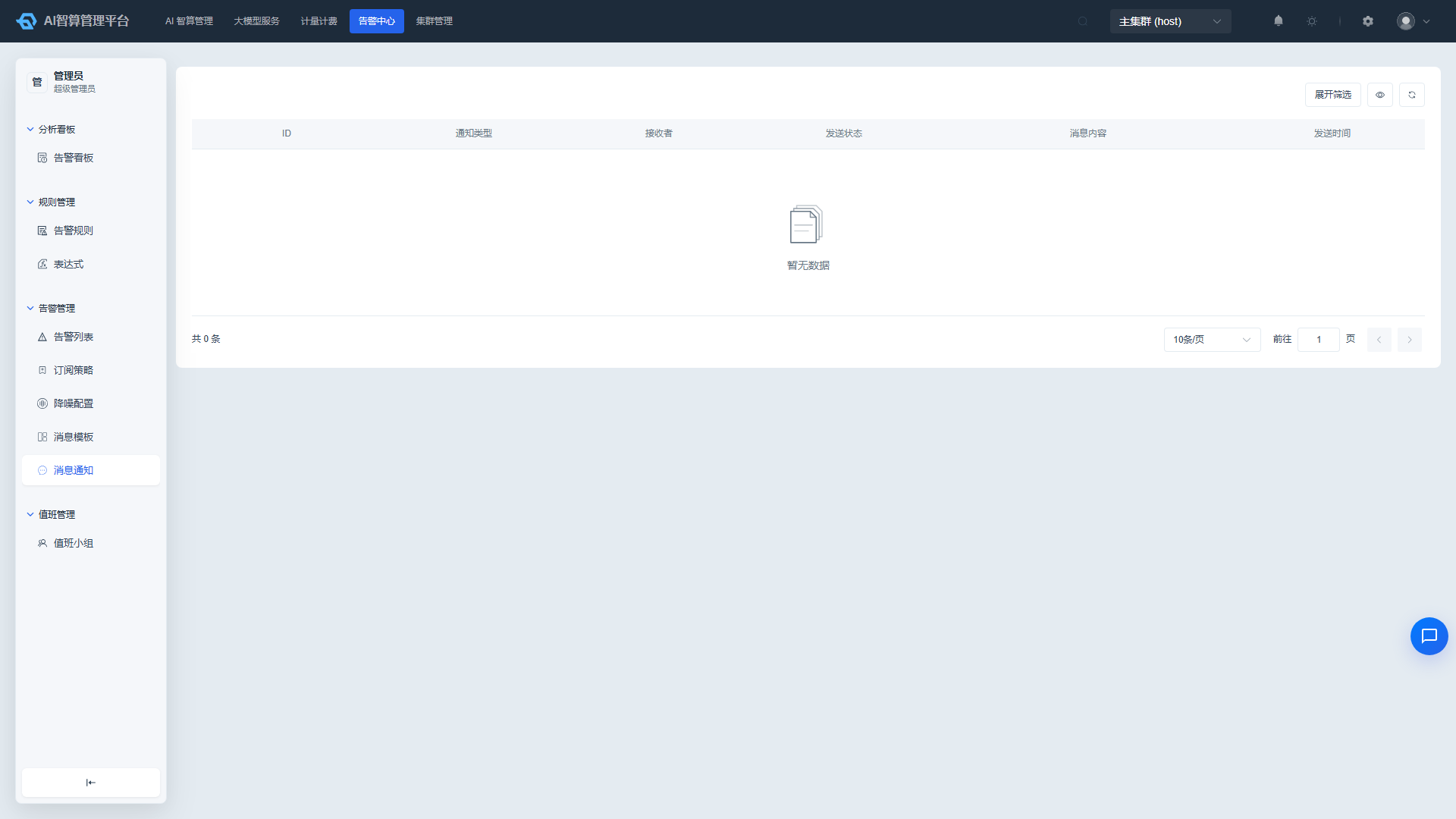
Filter Notifications
- Use the top filter bar to search by recipient, title, event status, sent status, and read status.
- Click "Reset" to clear filter conditions.
Bulk Operations
- Select multiple notifications to perform bulk deletion.
- Click a notification title to view the full content.
FAQ
Q: How long are operation logs retained? A: The retention period is determined by the platform configuration, typically several months; expired logs are automatically archived or cleaned up.
Q: Links in notifications cannot be opened? A: Please confirm that the current account has access permissions for the corresponding page; links may fail to navigate or be blocked without authorization.
Q: How can I quickly identify abnormal operations? A: Filter by "Operation Status" in the operation logs list to show non-success statuses, then sort by time in reverse chronological order to quickly locate recent abnormal operations.