Platform & Members
"Platform & Members" is designed for platform administrators to uniformly manage multiple Kubernetes clusters and manage platform-level users, departments, and role permissions.
Entry path: Left sidebar menu Platform Management > Platform & Members, page route
/admin/global/clusters-admin.
Page Menu
| Page | Route | Description |
|---|---|---|
| Platform Overview | /admin/global/clusters | Multi-cluster list and resource overview |
| Platform Details | /admin/global/clusters/detail/:uuid | Single cluster details and member management |
| Platform Users | /admin/global/org-dept | Platform users and department management |
| Platform Roles | /admin/global/org-rbac | Platform roles and permission management |
| Role Permissions | /admin/global/org-rbac/permission/:roleUUID | Assign menu/API permissions to roles |
Platform Overview
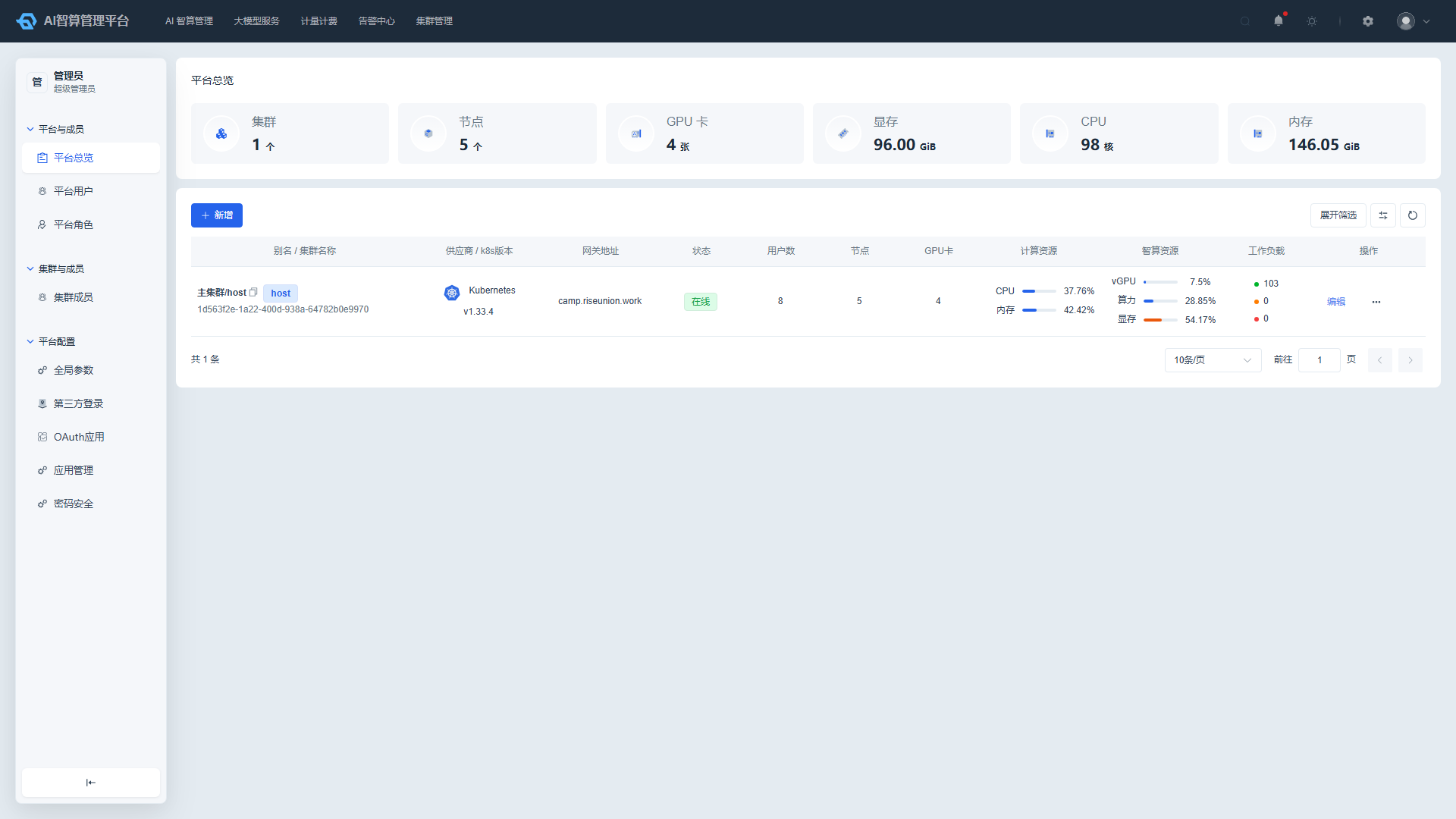
View Cluster List
- Navigate to Platform Management > Platform & Members > Platform Overview.
- The top of the page displays core metrics: number of clusters, nodes, GPU cards, total GPU memory, total CPU, total memory.
- The list shows each cluster: alias/name, provider/K8s version, gateway address, status (Online / Offline / Inactive), user count, node count, GPU card count, CPU/memory and vGPU/compute power/GPU memory resource usage progress bars, workload status distribution (Running / Waiting / Failed).
- Use the top filter bar to search by cluster name, gateway address, status, and user count.
- Click a cluster row to enter the cluster details page.
Add Cluster
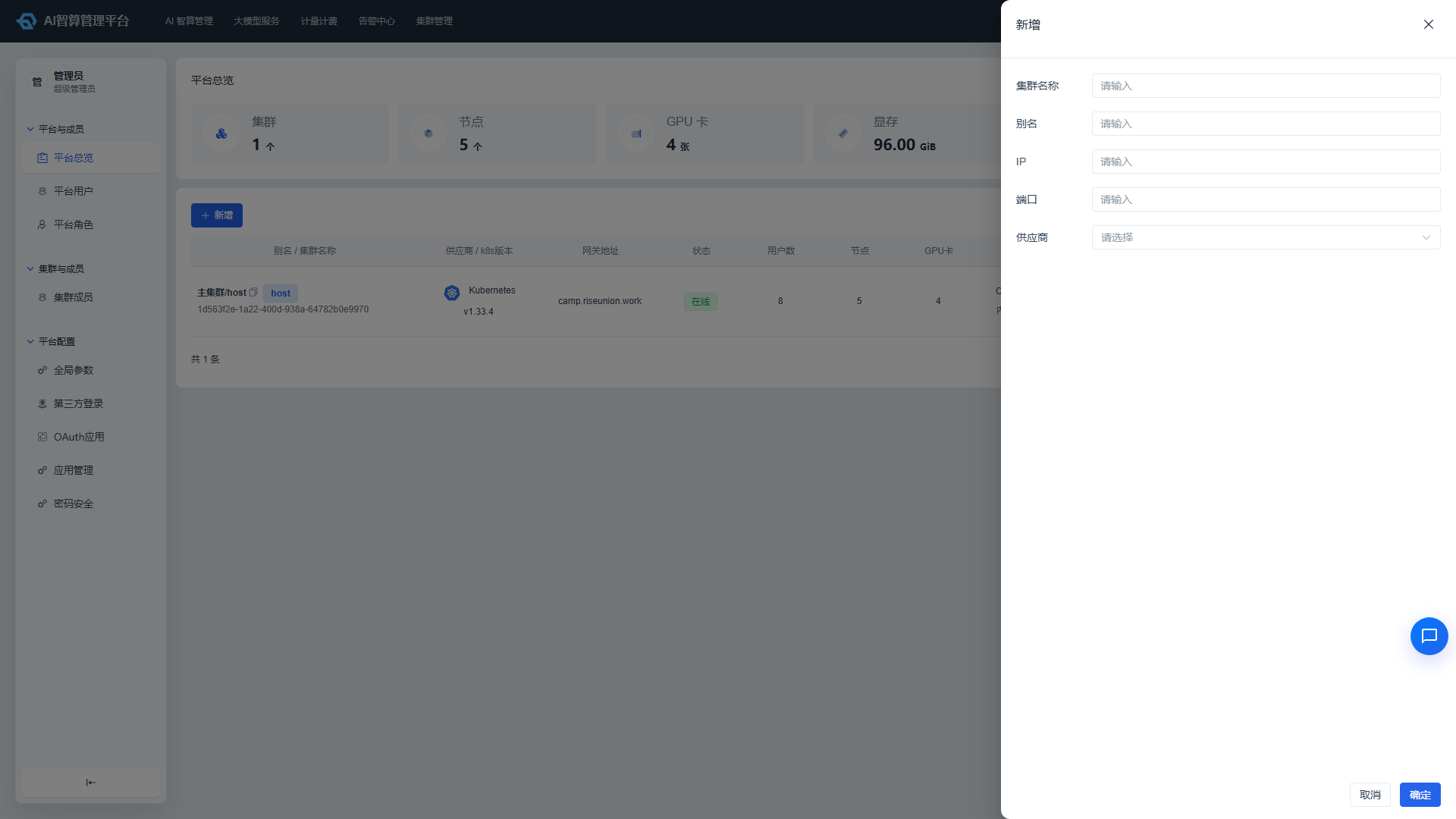
- Click "Add Cluster" on the Platform Overview list page.
- Select the cloud provider and cluster type:
- Kubernetes: Standard Kubernetes cluster.
- Alibaba Cloud ACK
- Huawei Cloud CCE
- QingCloud Kubernetes
- Tencent Cloud TKE
- Fill in the cluster connection information (such as kubeconfig, gateway address, credentials, etc.; different fields are displayed depending on the provider type).
- Click "Create"; the system will automatically activate the cluster and refresh the page.
Manage Clusters
- Click "More Actions" in the list row:
- Activate: Execute activation for an inactive cluster; the page will refresh and display a notification upon success or failure.
- Edit: Modify cluster alias, gateway address, and other information.
- Delete: Delete a member cluster; primary clusters cannot be deleted, and a secondary confirmation is required before deletion.
View Cluster Details
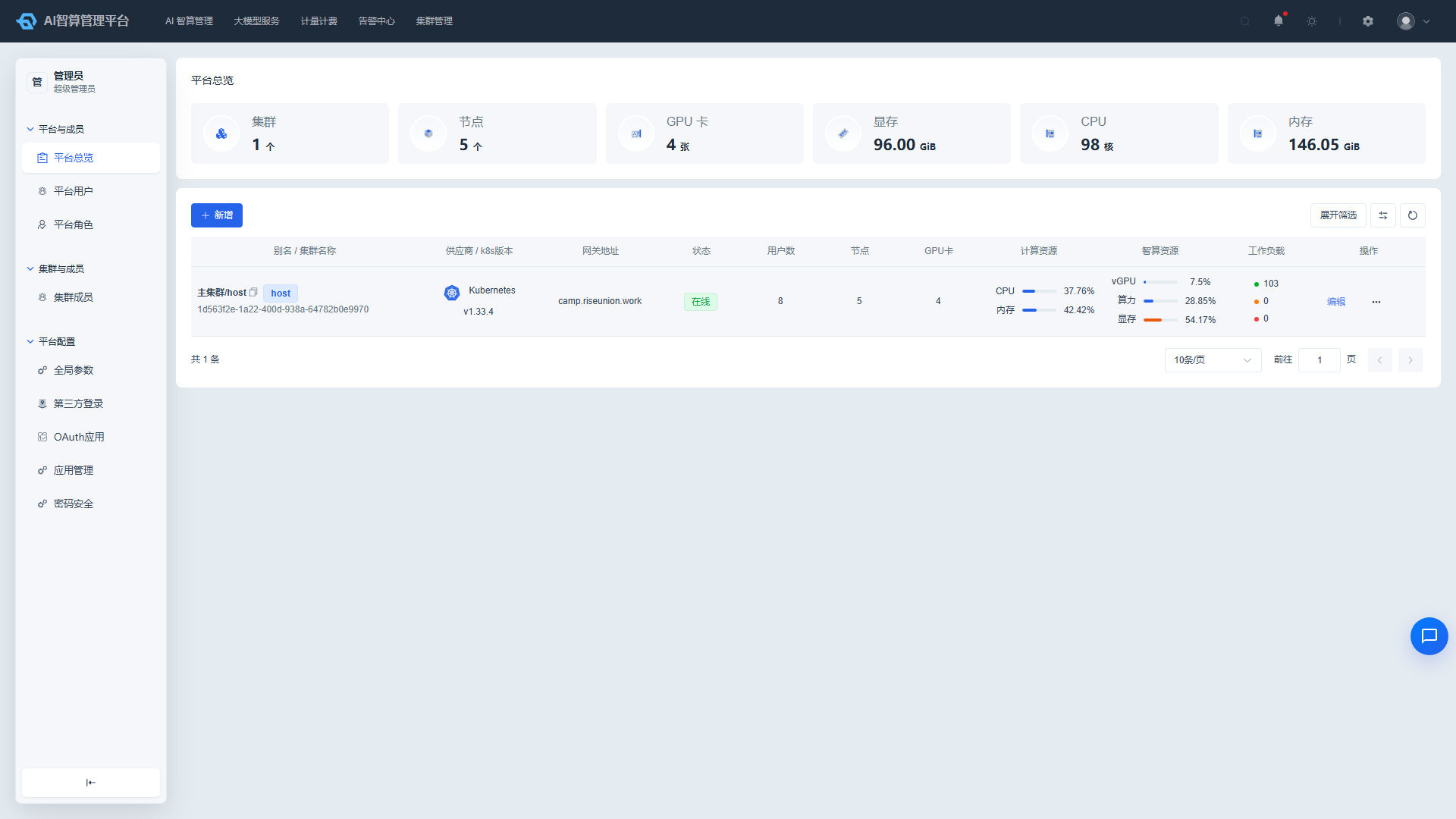
- Click a cluster name to enter the details page.
- The Overview tab displays:
- Basic information: alias/name, type, UUID, gateway address, status, user count.
- Resource summary cards: total CPU cores, memory, GPU cards, GPU memory.
- Resource allocation trend line chart: vGPU/compute power/GPU memory over time.
- The Cluster Users tab: manage the user list for this cluster, supporting add user, delete user, filter by department, search by username/UUID.
Platform Users
View Users and Departments
- Navigate to Platform Management > Platform & Members > Platform Users.
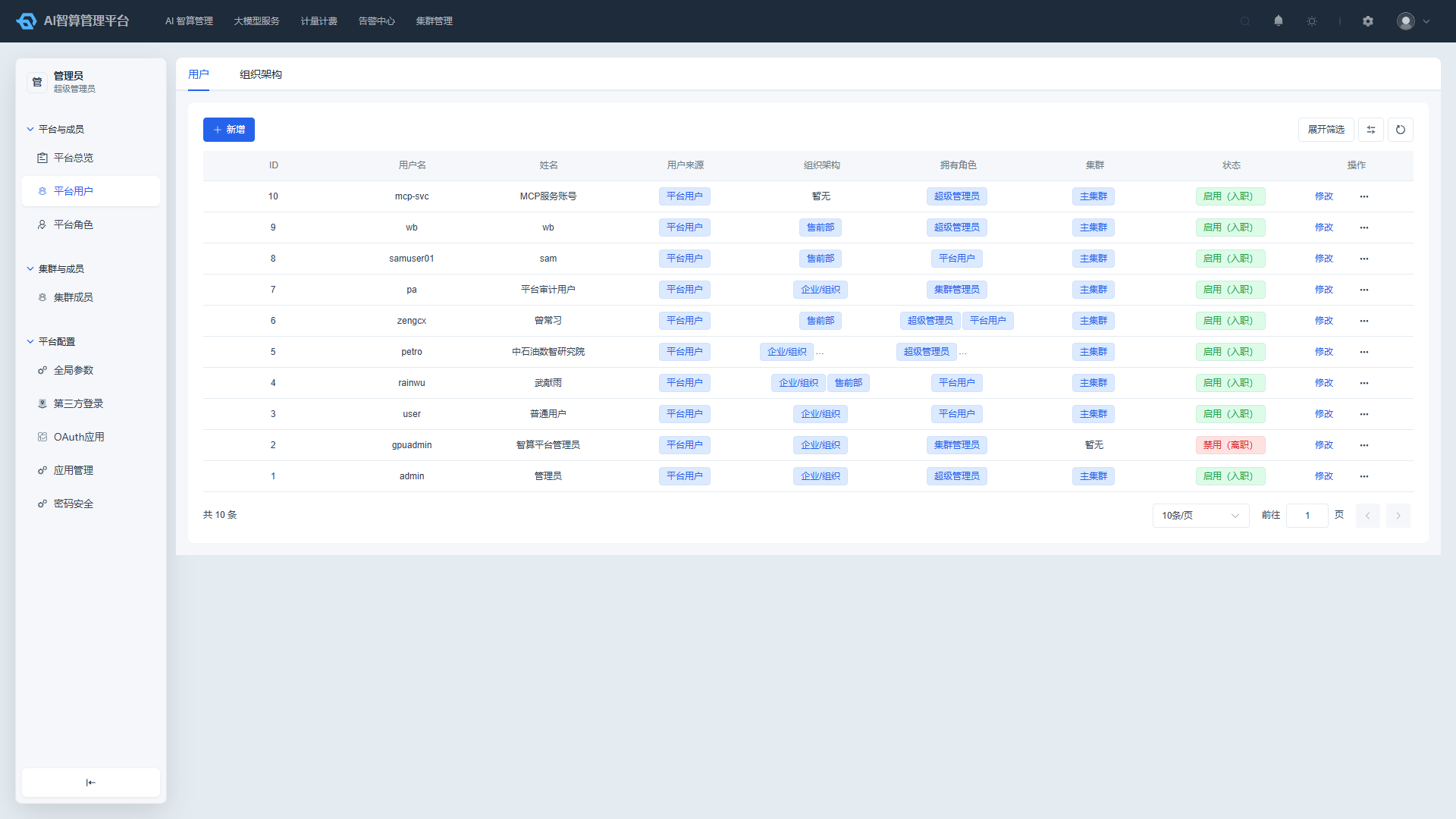
- The page is divided into two tabs: "Organization Structure" and "User List".
- In the "Organization Structure" tab, the department structure is displayed as a tree table, supporting expand/collapse of hierarchy levels.
- In the "User List" tab, the list displays: ID, username, full name, user source, organization structure, assigned roles, workspace, project, status (Enabled / Disabled / Pending Activation).
- Use the top filter bar to search by ID, username, full name, department, and cluster.
Create User
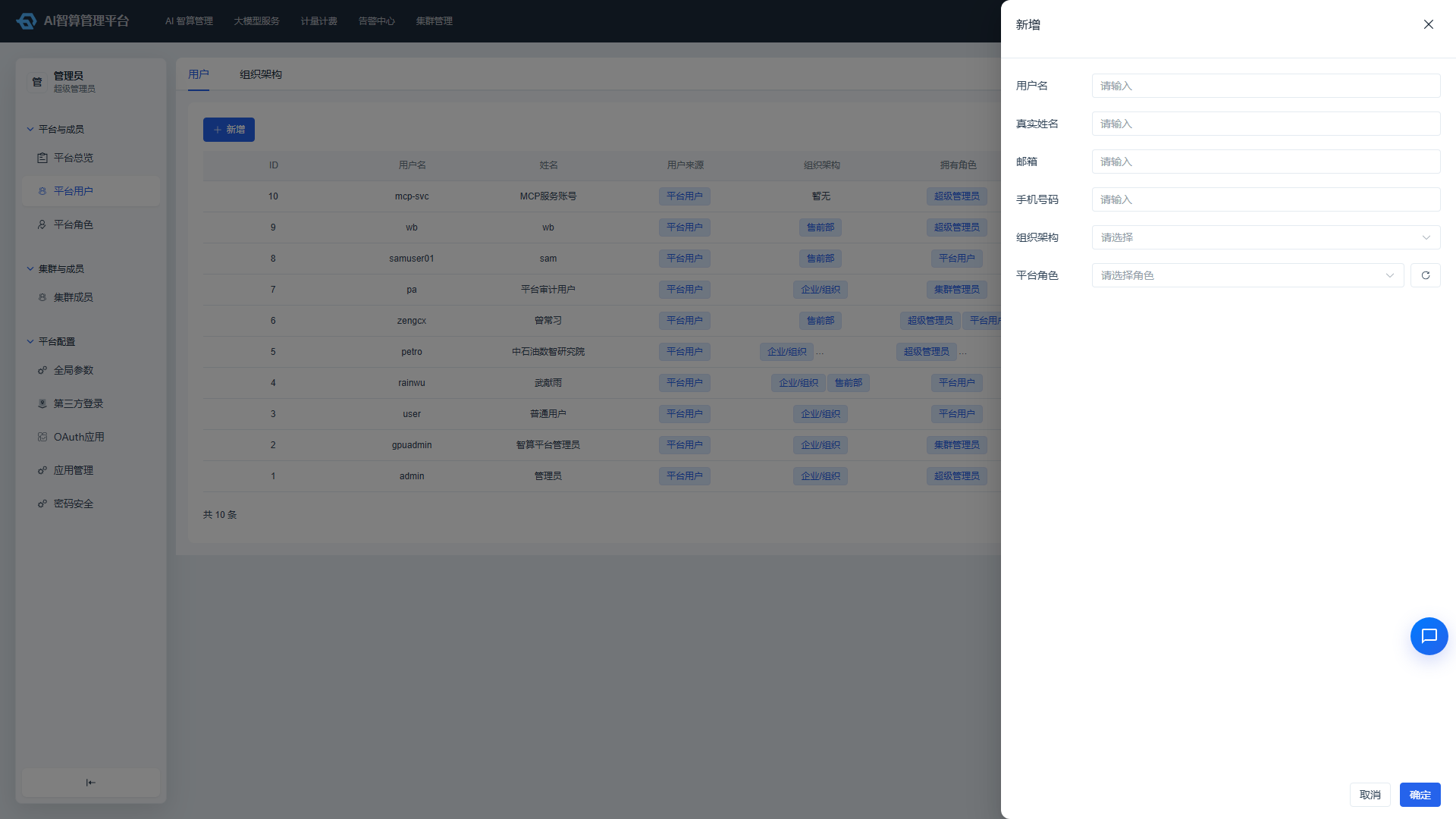
- Click "Add User" on the user list page.
- Fill in: username, full name, password, email/phone, department, role.
- When editing, you can configure associated projects for each workspace.
- Click "Save".
Manage Departments
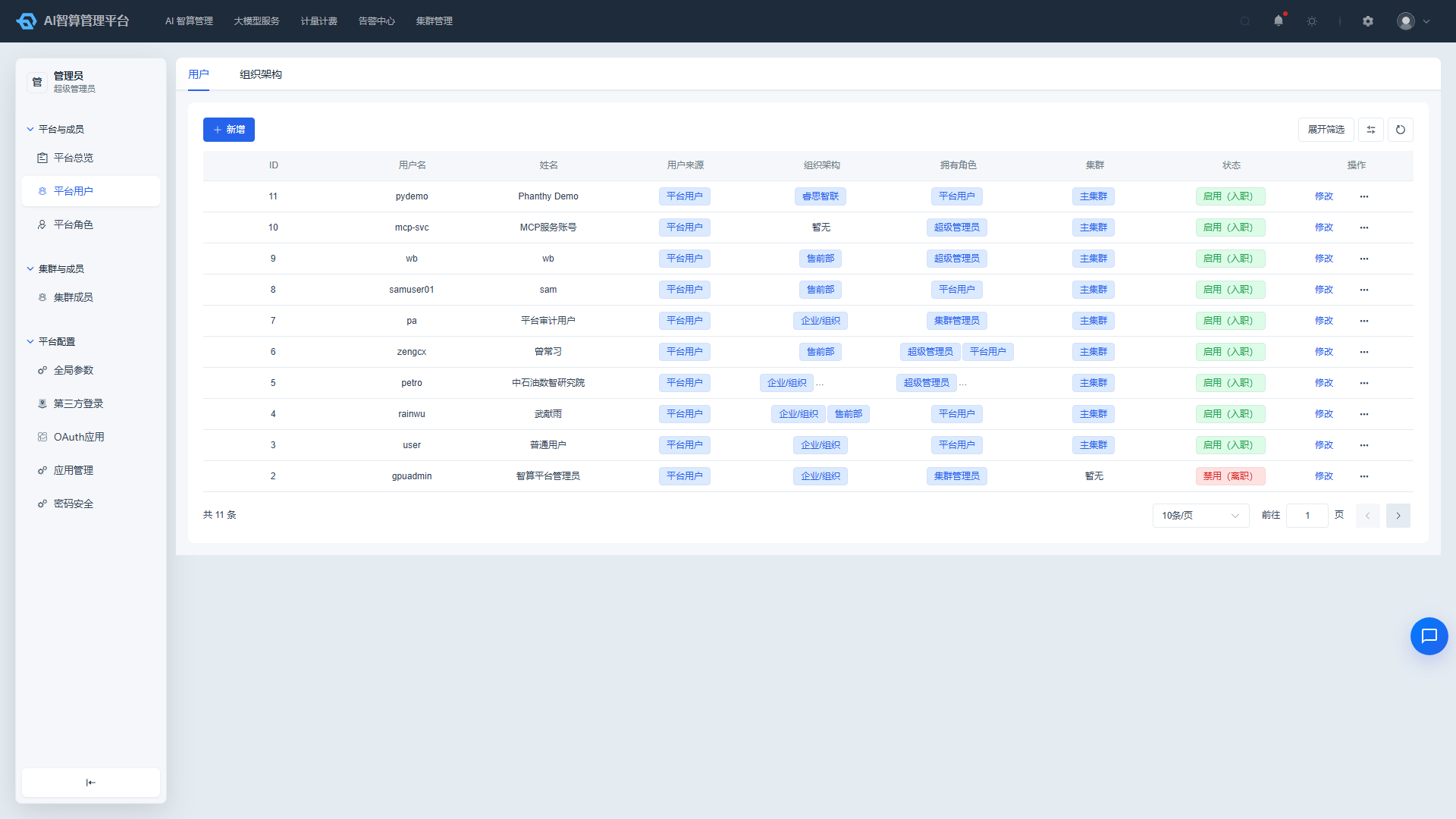
- Click "Add Department" in the "Organization Structure" tab.
- Fill in the department name and parent department to create a department node.
- Click "Edit" or "Delete" in the department row to modify department information or delete the department.
- Click "Configure Members" to add or remove member users from the department.
Manage Users
- Click "More Actions" in the user list row:
- Edit: Modify user information and workspace/project associations.
- Reset Password: Enter a new password and submit to take effect.
- Enable/Disable: Disabled users cannot log in; administrator accounts cannot be disabled.
- Delete: Delete platform-sourced non-administrator users; administrator users cannot be deleted.
Platform Roles
View Roles
- Navigate to Platform Management > Platform & Members > Platform Roles.
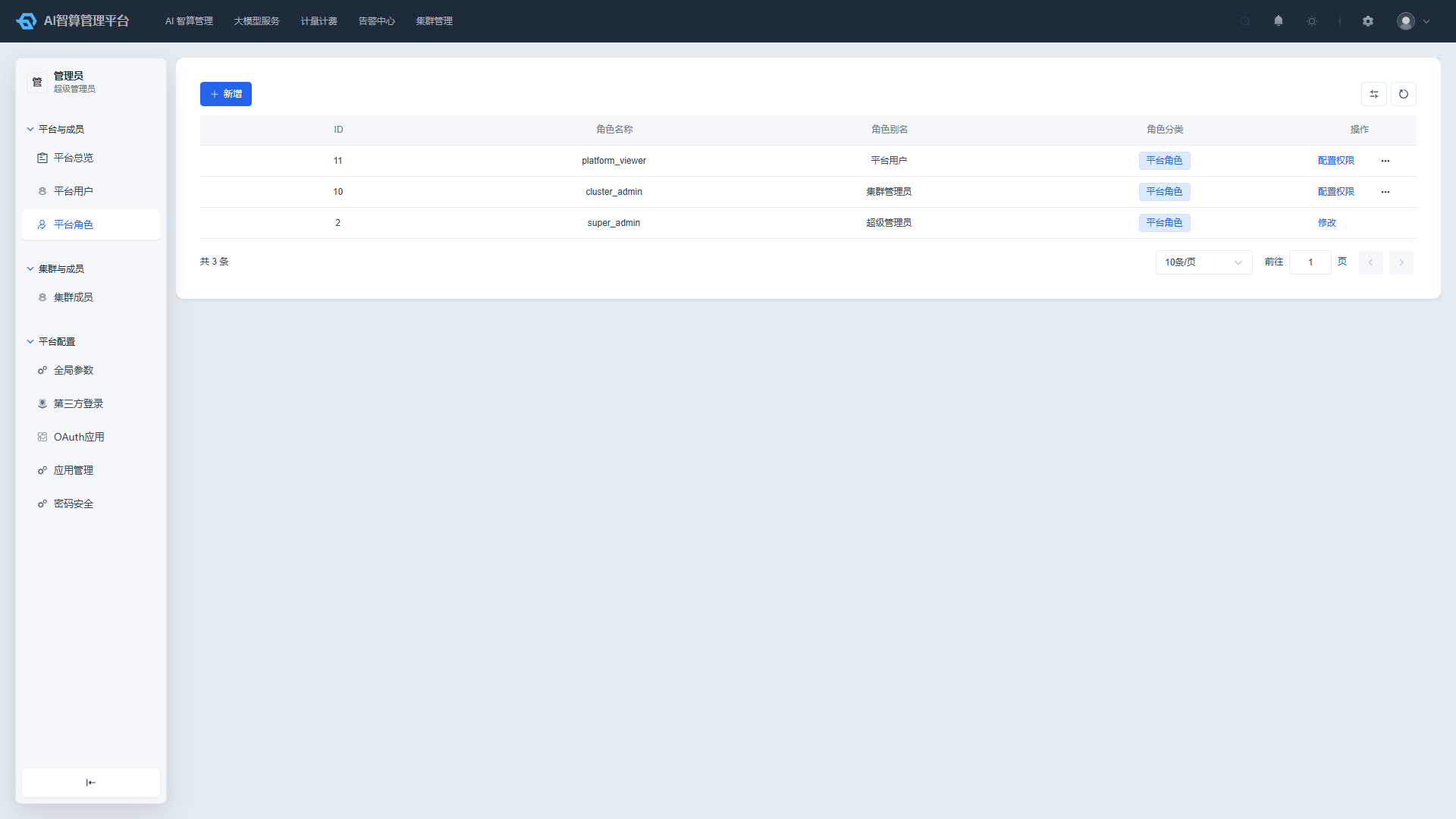
- The list displays: role ID, name (ename), display name (name), role category (Platform Role / Workspace Role / Project Role).
- Use the top filter bar to search by name and category.
Create Role
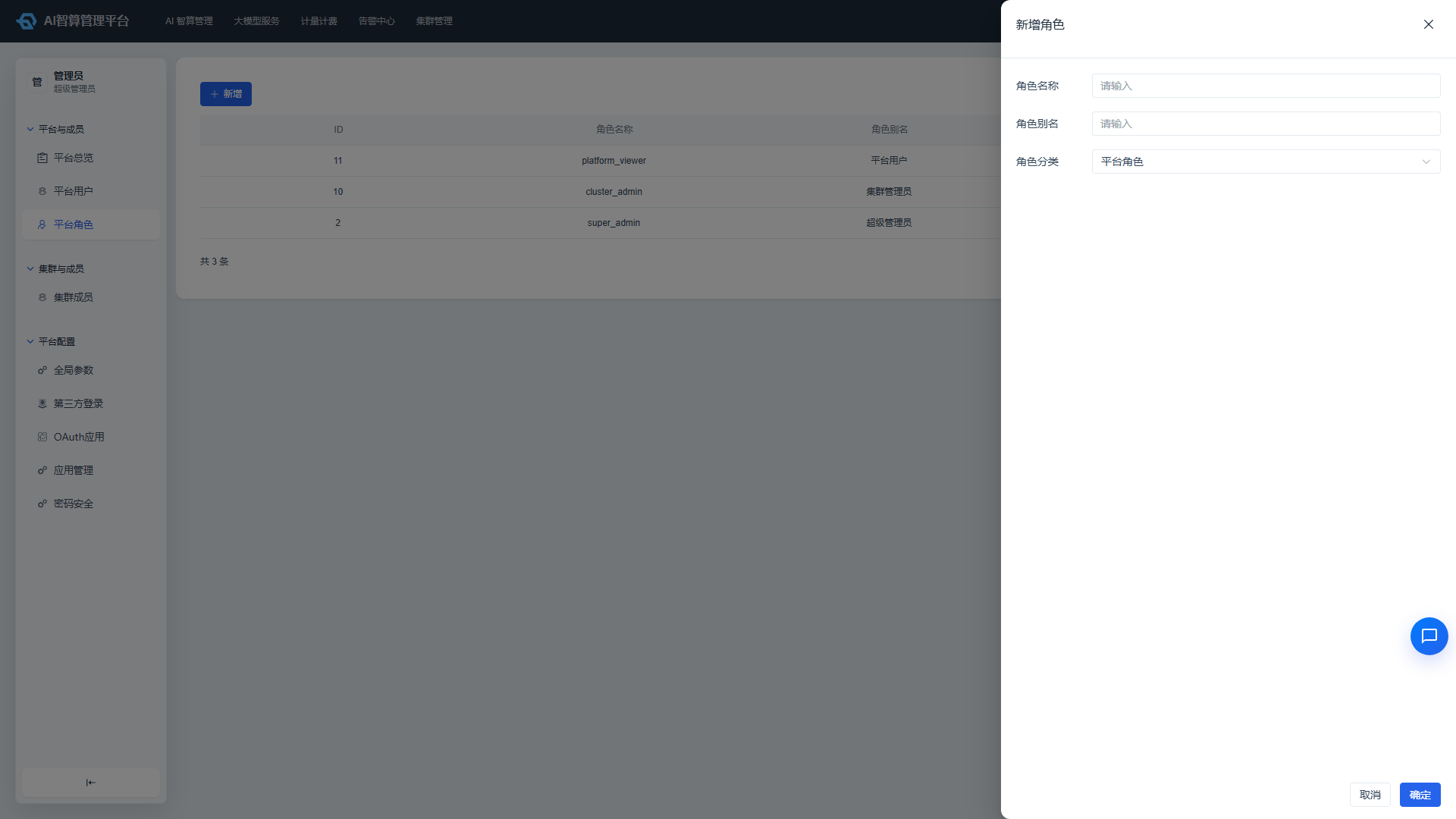
- Click "Add Role" on the Platform Roles list page.
- Fill in:
- Name (ename): English identifier, unique within the system.
- Display Name (name): Display name.
- Role Category: Platform Role / Workspace Role / Project Role.
- Click "Create".
Configure Permissions
- Click "Configure Permissions" in the role list row to enter the role permissions configuration page.
- In the "Menu Permissions" section, select the left sidebar menus accessible by this role.
- In the "API Permissions" section, select the API methods callable by this role.
- Select multiple rows and click "Batch Modify Permissions" to quickly set Create / Read / Update / Delete permissions.
- Click "Save" to apply.
Manage Plugin Permissions
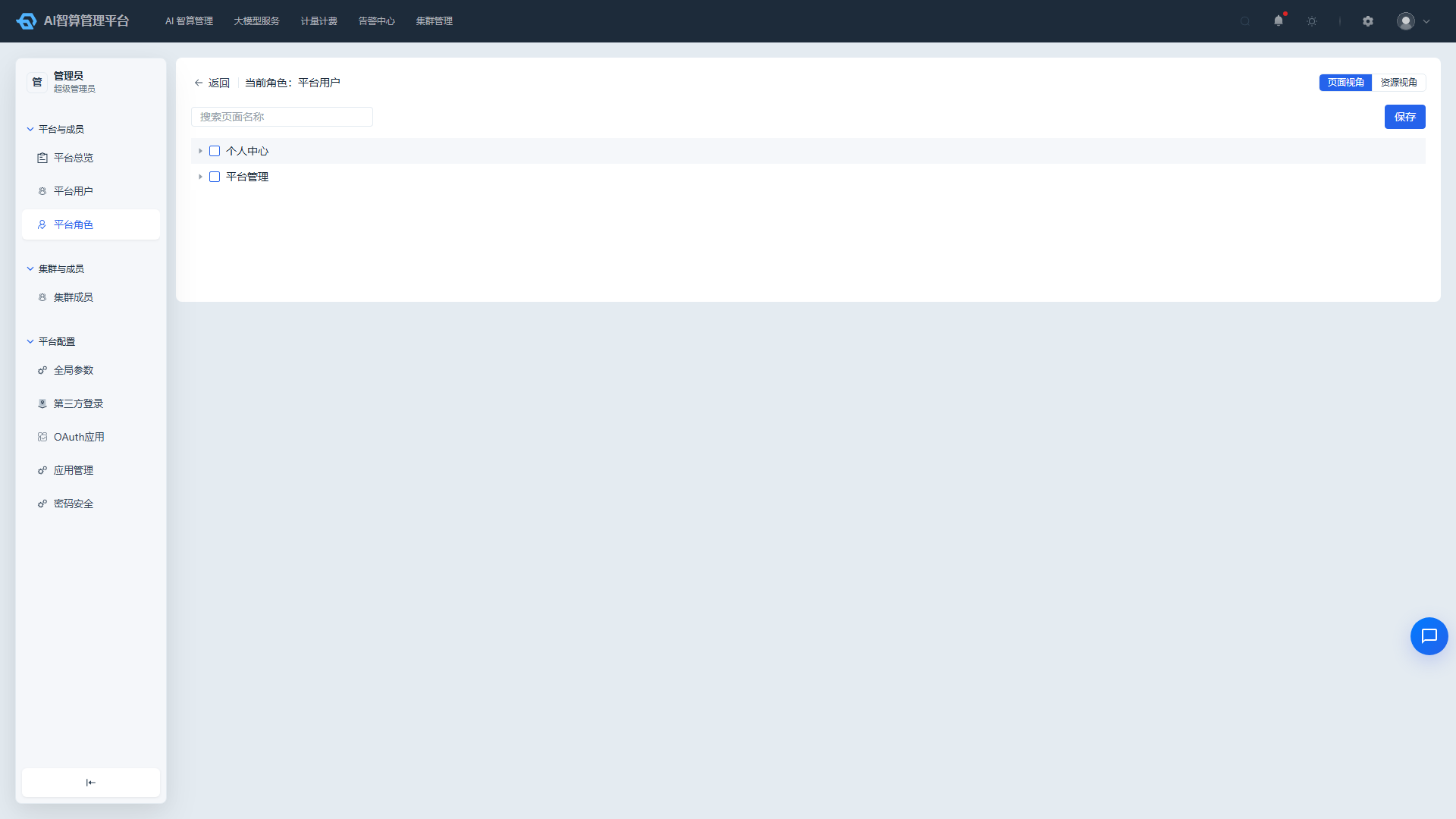
- Click "Manage Plugins" in the role list row to enter the page permissions configuration page.
- Select the front-end pages accessible by this role.
- Click "Save" to apply.
Manage Role Members
- Click "Member Management" in the role list row.
- Add or remove associated users for the role in the modal.
- Click "Confirm" to apply.
Other Operations
- Edit Role: Edit the role name, display name, and category; system read-only roles have editing disabled with a notification.
- Clone Role: Quickly create a new role based on an existing role's permissions.
- Delete Role: System-defined roles hide the delete button and cannot be deleted.
FAQ
Q: The newly added cluster shows as "Inactive" after creation, what should I do? A: Check whether the cluster gateway address and credentials are correct and the network is reachable; click the "Activate" button to retry, and troubleshoot based on the error message if it fails.
Q: What is the difference between platform users and cluster members? A: Platform users are part of the platform-level account system and can log in to the platform; cluster members are role/permission bindings for a user within a specific cluster. A single platform user can have different roles across multiple clusters.
Q: Why can't the super administrator role see certain action buttons? A: Sensitive operations such as configuring permissions and managing plugins are only visible to the super administrator, to prevent regular administrators from accidentally modifying super administrator role settings.
Q: I get a warning about existing members when trying to delete a department, what should I do? A: Please remove all members from the department first, or move members to another department before deleting.