Online Playground
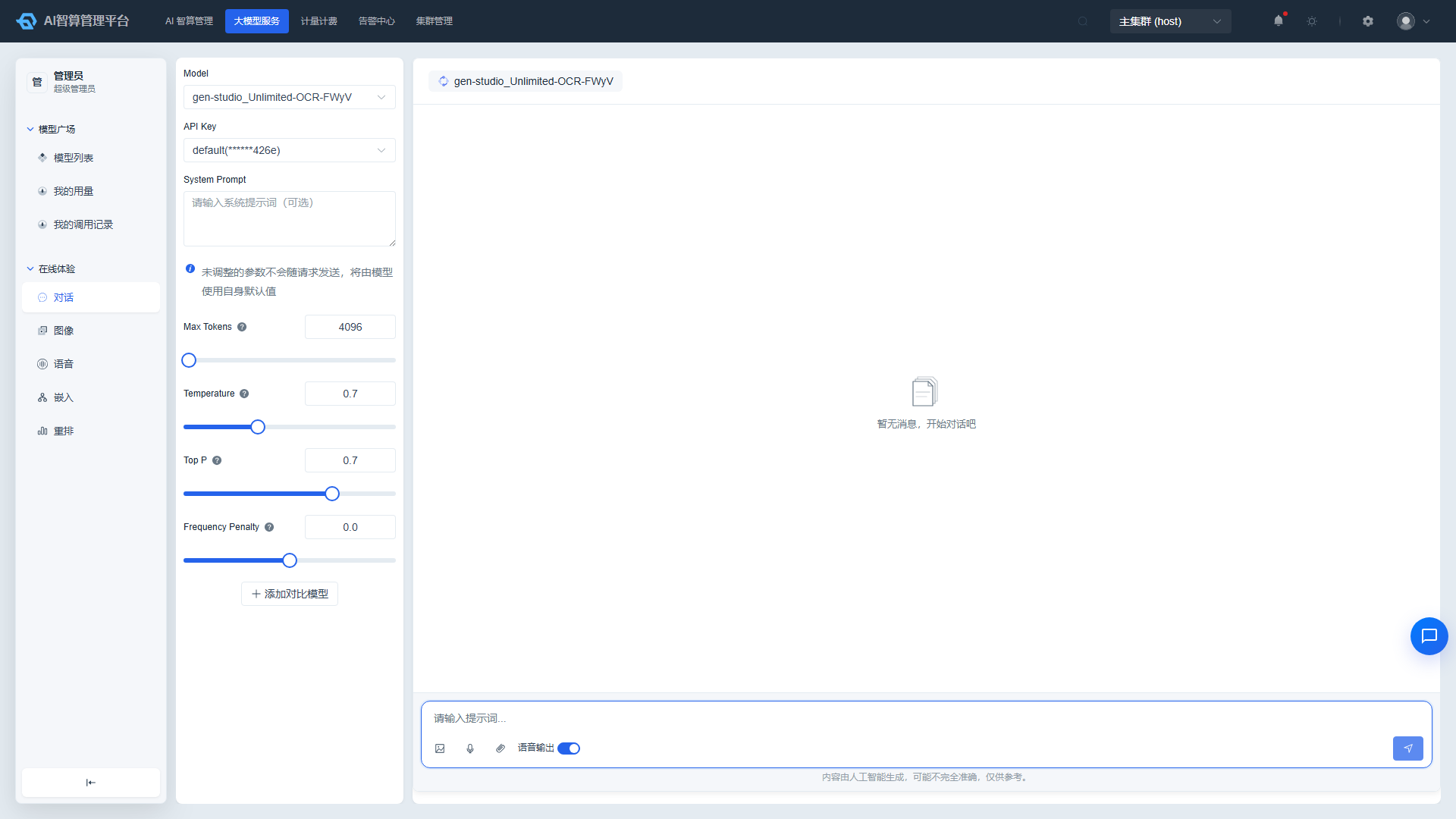
The Online Playground is the Rise AI Platform's ModelX Playground, allowing you to quickly verify model performance without writing any code. The page is divided into 6 tabs by capability: Chat, Image, Video, Voice, Embedding, and Rerank. Each tab follows the same paradigm: configure the model and parameters on the left, interact and view results on the right.
Access path: Left sidebar ModelX Service > Online Playground, page route
/admin/model-x/playground/index. If you click "Try Now" from the Model Marketplace, the system will automatically select the corresponding model and navigate to the matching tab.
Prerequisites
- Verify model availability: Confirm the target model appears in the left model selector (sourced from the Model Marketplace or deployed inference services).
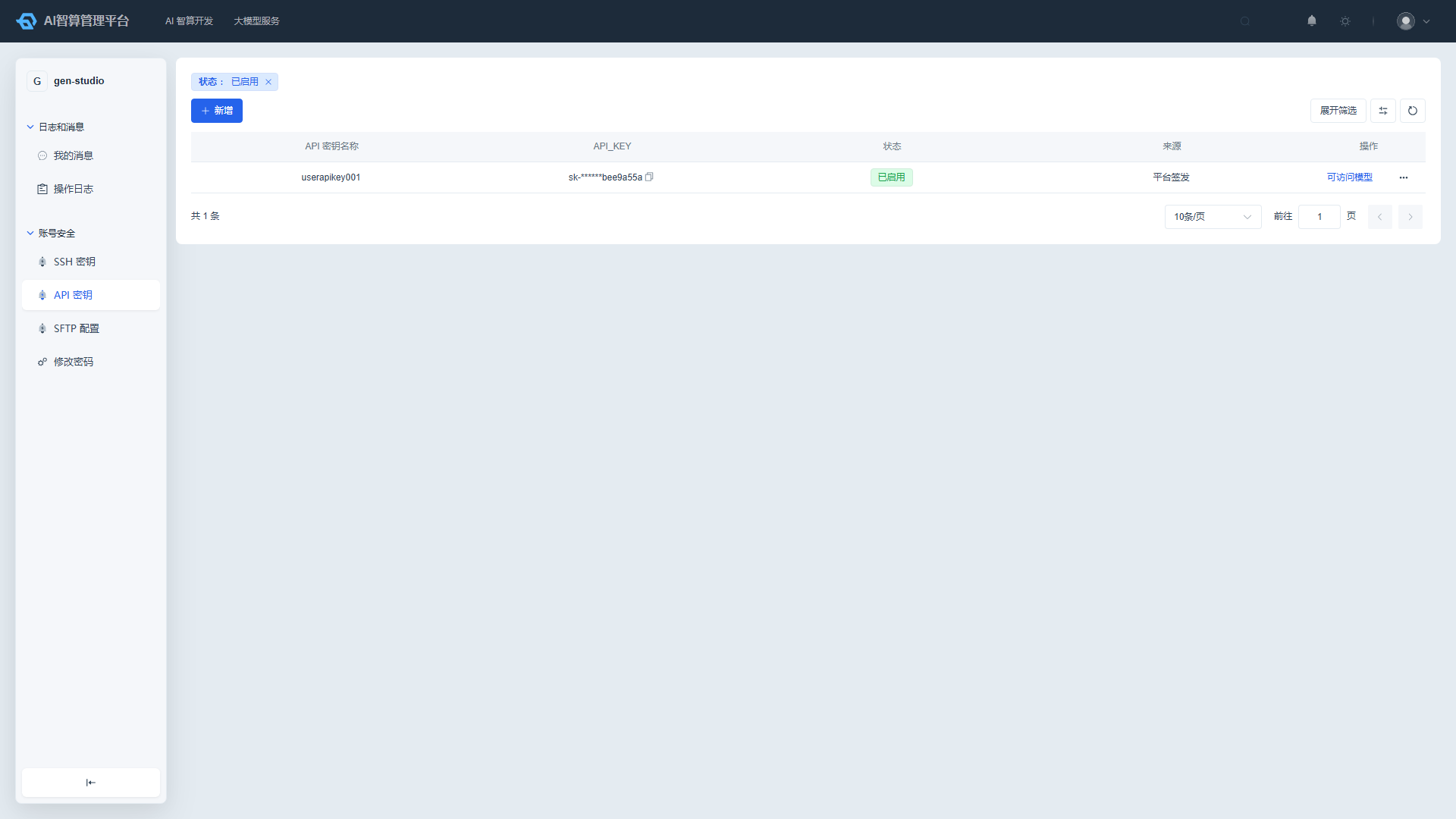
- Prepare an API key: Create and enable a key under User Center > Account Security > API Keys. From the Playground, click "Create API Key" to go directly to that page.
- Confirm permissions: Your current account must have call permissions for the selected model / API key. Unauthorized keys will be grayed out and unselectable.
General Operation Guide
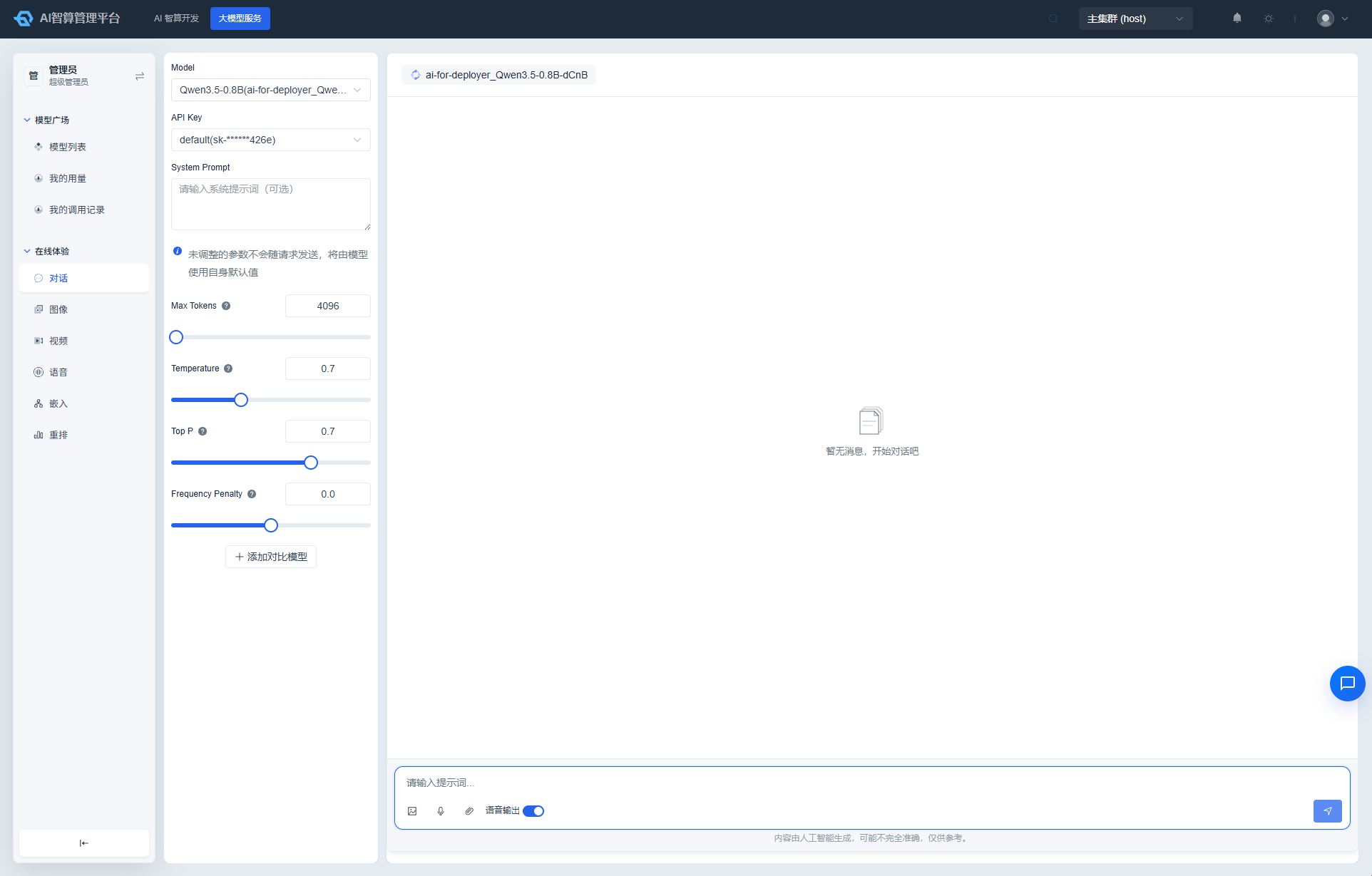
Regardless of which tab you enter, the left configuration panel always includes:
| Setting | Description |
|---|---|
| Model | Displays available models grouped by workspace / provider. When no models are available, click "Create Inference Service" at the bottom to deploy one. |
| API Key | Select an enabled key. Click "Create API Key" when keys are insufficient. |
| Tab-specific parameters | Each tab displays its corresponding parameters below (see individual tab descriptions). |
Right interaction area:
- The top displays the currently selected model name.
- The middle shows history / results.
- The input box at the bottom sends requests; you can stop or clear at any time during generation.
- Each tab's panel header provides a "Call Example" entry; clicking it shows the OpenAI-compatible call example (curl / Python) for the current configuration, ready to copy into your code.
Chat Playground
Page route:
/admin/model-x/playground/text-chat
Single-Model Chat
- Enter the "Chat" tab and select the model to try in the left Model selector.
- Select an API Key.
- (Optional) Enter a system prompt in the System Prompt field, such as "You are a precise coding assistant."
- Adjust model parameters in the parameter form below. Parameters are dynamically rendered based on the model protocol; common fields include:
- temperature: Value range determined by the model; lower values produce more stable outputs.
- top_p
- max_tokens
- Some models also provide JSON object parameters or boolean toggles.
- The chat input box supports file upload: you can attach images, audio, text files, etc. (supported by multimodal models). For omni-class models, a voice input toggle is shown and the model's audio replies can be previewed via the in-message player.
- Enter your question in the bottom input box and press
Enteror click the send button. - The model streams its response; click "Stop Generation" to interrupt at any time.
- Click "Clear" on the conversation card header to delete the current session history.
Dual-Model Comparison
- After configuring the primary model, click "Add Comparison Model" on the left.
- In the comparison configuration area that appears, select the comparison model, API Key, system prompt, and parameters.
- The page displays responses from both models side by side.
- To make the comparison model use exactly the same parameters as the primary model, click "Sync Parameters."
- Click "Cancel Comparison" to return to single-model mode.
In dual-model mode, the same question is sent to both models simultaneously, facilitating comparison of answer quality and speed.
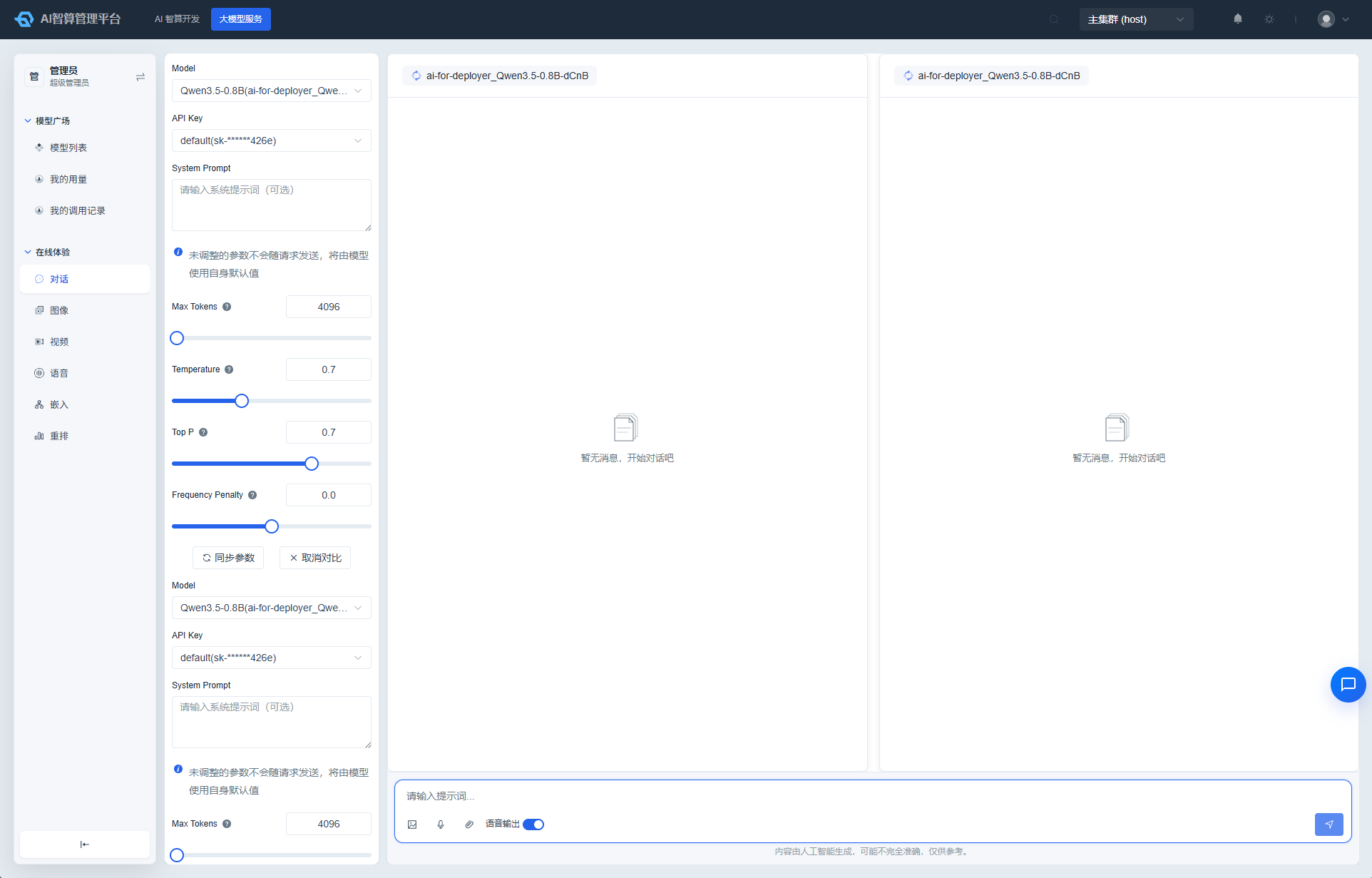
Image Generation
Page route:
/admin/model-x/playground/image-gen
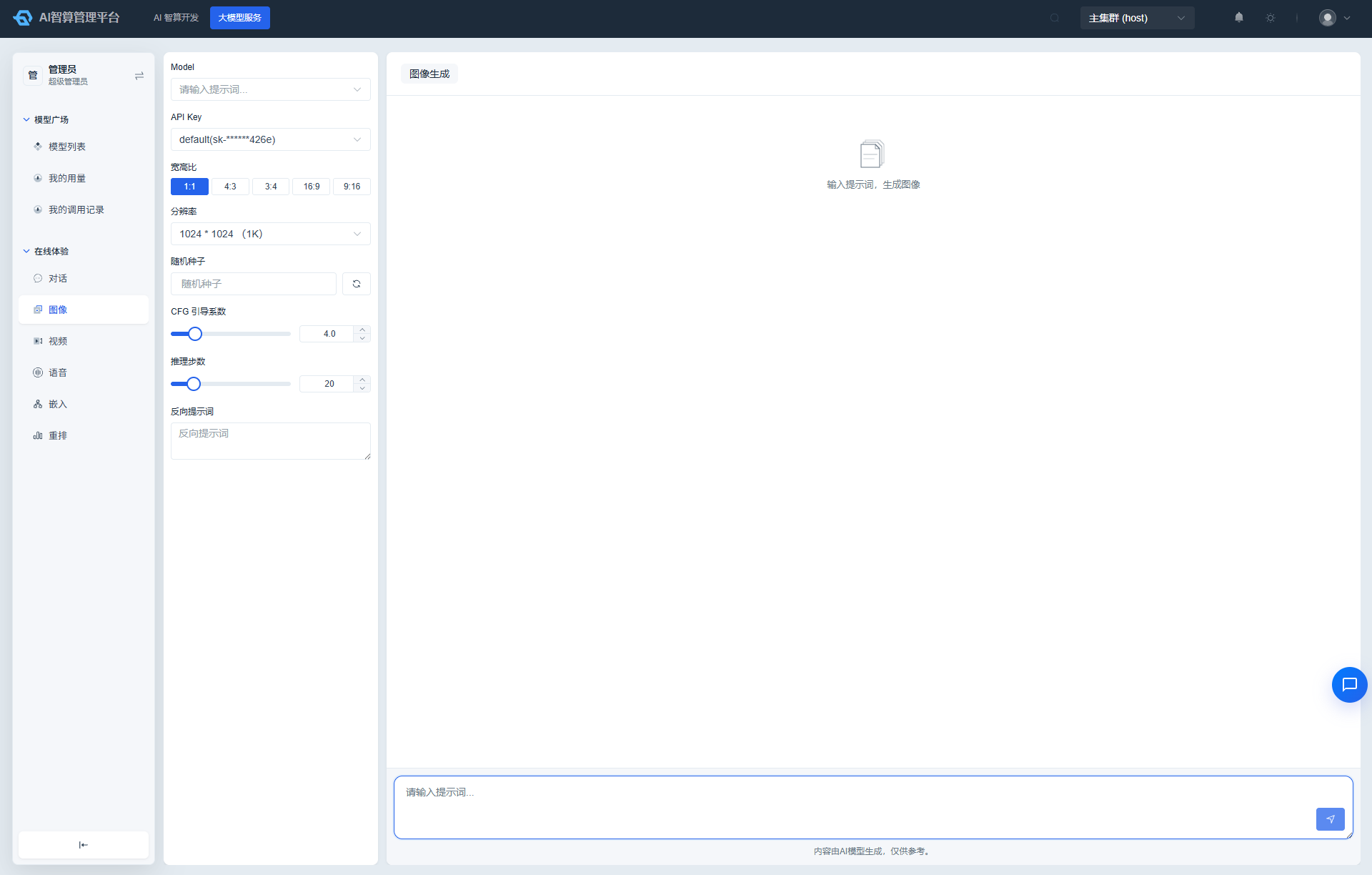
Ideal for quickly verifying text-to-image model performance.
- Select Model and API Key on the left.
- Set the aspect ratio: click
1:1,4:3,3:4,16:9,9:16shortcut buttons. - Select resolution: After switching the ratio, the resolution dropdown will suggest recommended sizes.
- (Optional) Set Seed:
- Manually enter an integer between
0and2147483647. - Or click the refresh button on the right to randomly generate a seed.
- A fixed seed produces reproducible results.
- Manually enter an integer between
- Adjust CFG (prompt relevance):
0–20; higher values make the output more closely match the prompt. - Adjust inference steps:
1–100; more steps typically yield higher image quality at the cost of longer generation time. - (Optional) Fill in Negative Prompt to describe elements you do not want in the image.
- Enter your prompt in the bottom input box and press
Enteror click the send button to generate the image. - After generation:
- Hover over the result to view the model-optimized actual prompt (revised_prompt).
- Click "Download" to save the image locally.
- Click "Clear History" to delete all generation records on this page.
If you receive an error like "image size must be at least … pixels," the current resolution is below the model's minimum. Switch to a higher resolution.
Video Generation
Page route:
/admin/model-x/playground/video-gen
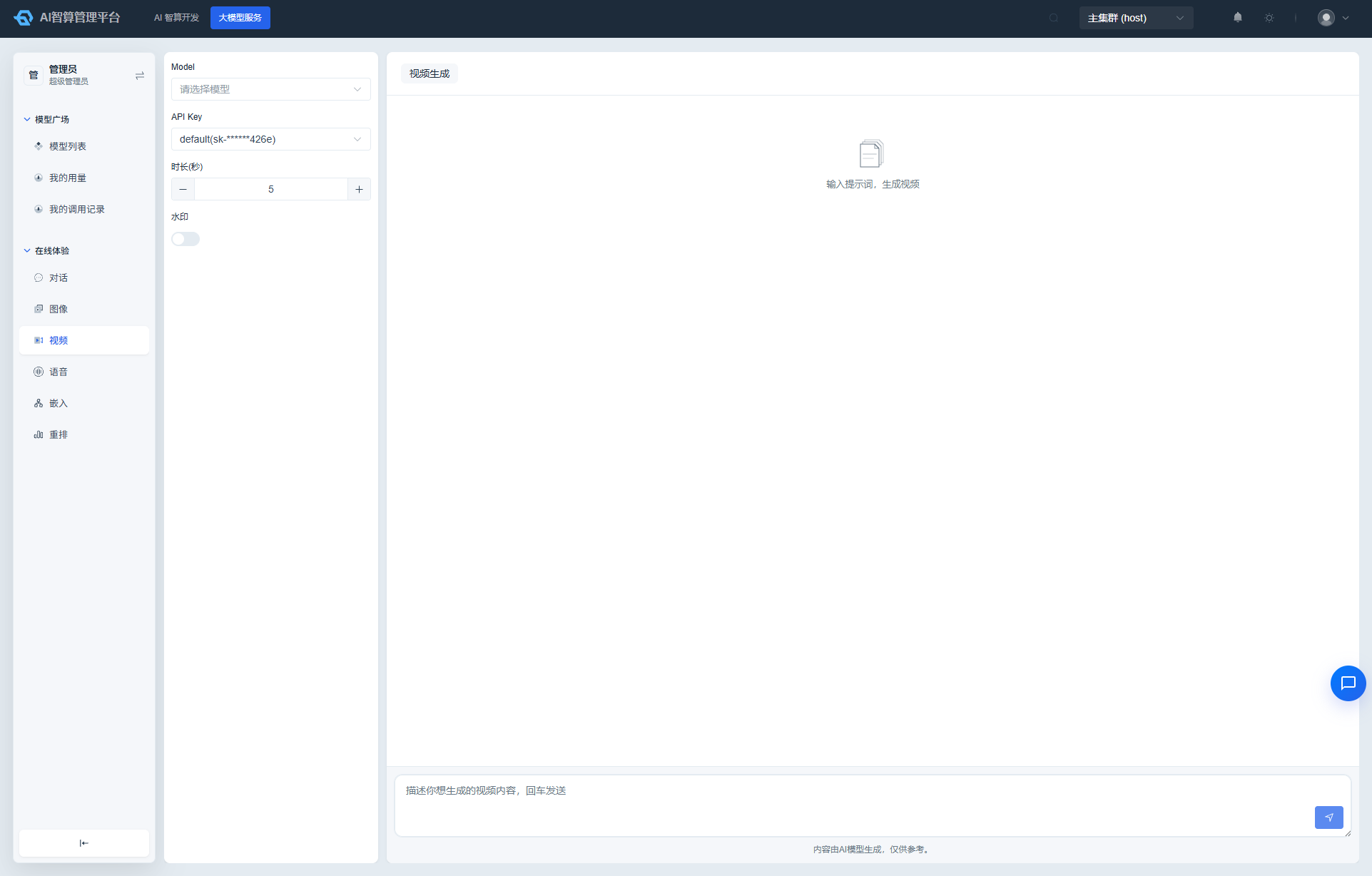
- Select Model and API Key on the left.
- Set duration:
1–15seconds. - Set resolution: options vary by model; choose from the dropdown.
- Toggle the watermark switch on or off; expand Advanced Parameters to configure diffusion-related parameters (such as inference steps, depending on the model protocol).
- Enter a video description prompt in the bottom input box and press
Enteror click the send button. - Video generation is asynchronous task-based: once submitted, the task enters a background queue and the page polls the task status; progress is shown until completion, then the video is fetched automatically for preview in the playback controls.
- Click "Download" to save the MP4 file. If the video URL has expired, click "Reload Video" to attempt re-fetching.
- Click "Clear History" to delete records on this page.
Note: Video generation depends on whether the upstream model provider exposes this interface. If no video generation model is available in the current environment, the "Video" tab may not appear or may be unable to generate.
Voice Playground
Page route:
/admin/model-x/playground/voice
The top tabs switch between Text-to-Speech (TTS) and Speech-to-Text (ASR).
TTS Text-to-Speech
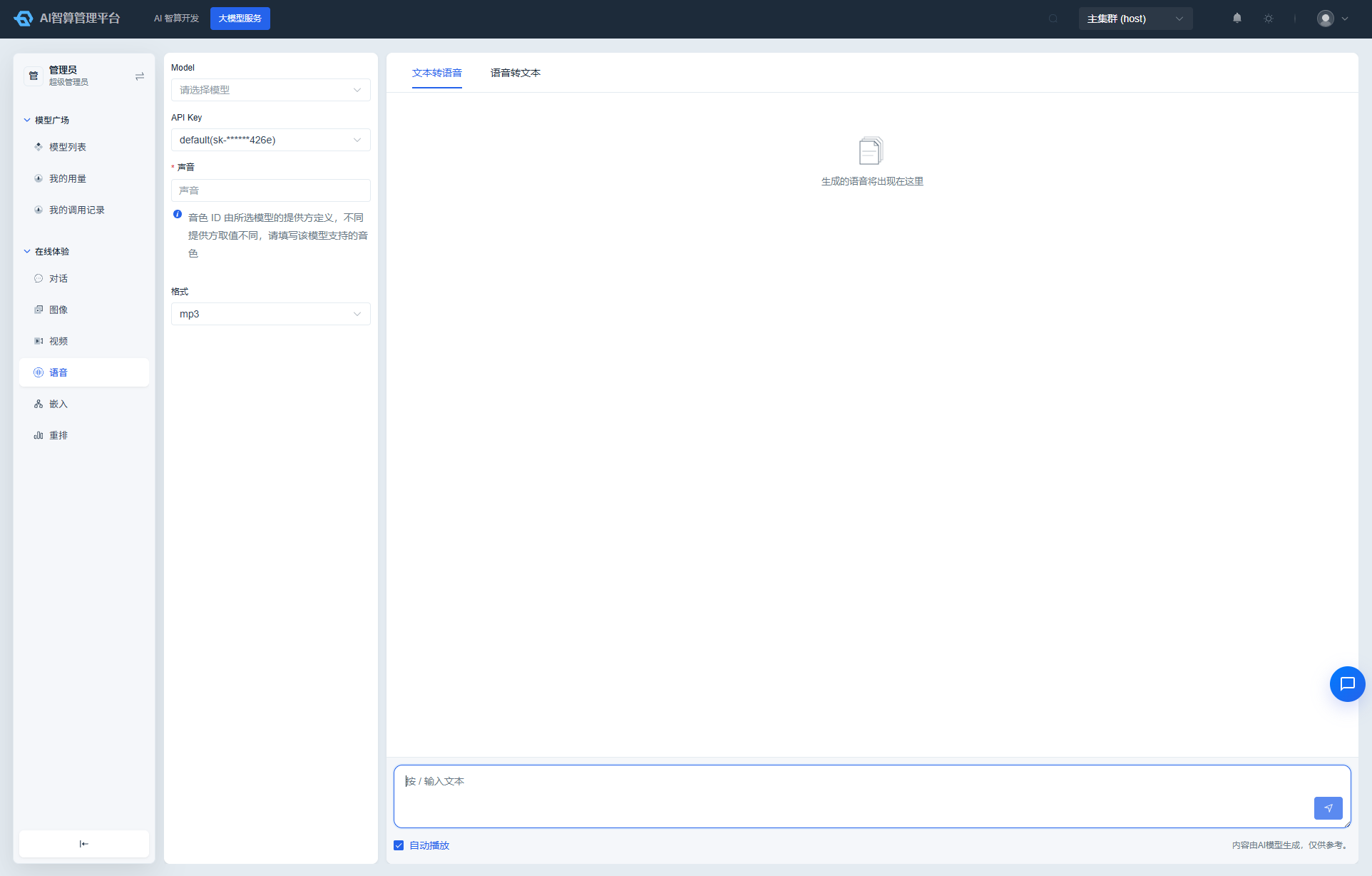
- Switch to the TTS tab.
- Select Model and API Key.
- Fill in voice: Different providers support different voice names; refer to the model documentation. For example:
alloy,zh-CN-XiaoxiaoNeural. Different providers use different dialect endpoints (such as Volcengine openspeech TTS, MiniMaxt2a_v2, etc.); the platform selects automatically based on the model protocol. - Select output format:
mp3orwav. - (Optional) Check auto-play at the bottom to automatically play audio after generation completes.
- Enter the text to synthesize in the bottom input box and press
Enteror click the send button. - After generation:
- Use the player to preview.
- Click "Download" to save the audio file.
- Click "Clear History" to delete records.
The voice field is required. When left empty, the send button will not submit and a prompt will appear below the input box.
ASR Speech-to-Text
- Switch to the ASR tab.
- Select Model and API Key.
- Select response format:
json,text,verbose_json. - Drag or click to upload an audio file (single file size limit: 5 MB).
- Click the send button to start recognition.
- Recognition results are displayed on the right. Click "Copy" to copy the text.
- Click "Clear History" to delete records.
Embedding Playground
Page route:
/admin/model-x/playground/embedding-chat
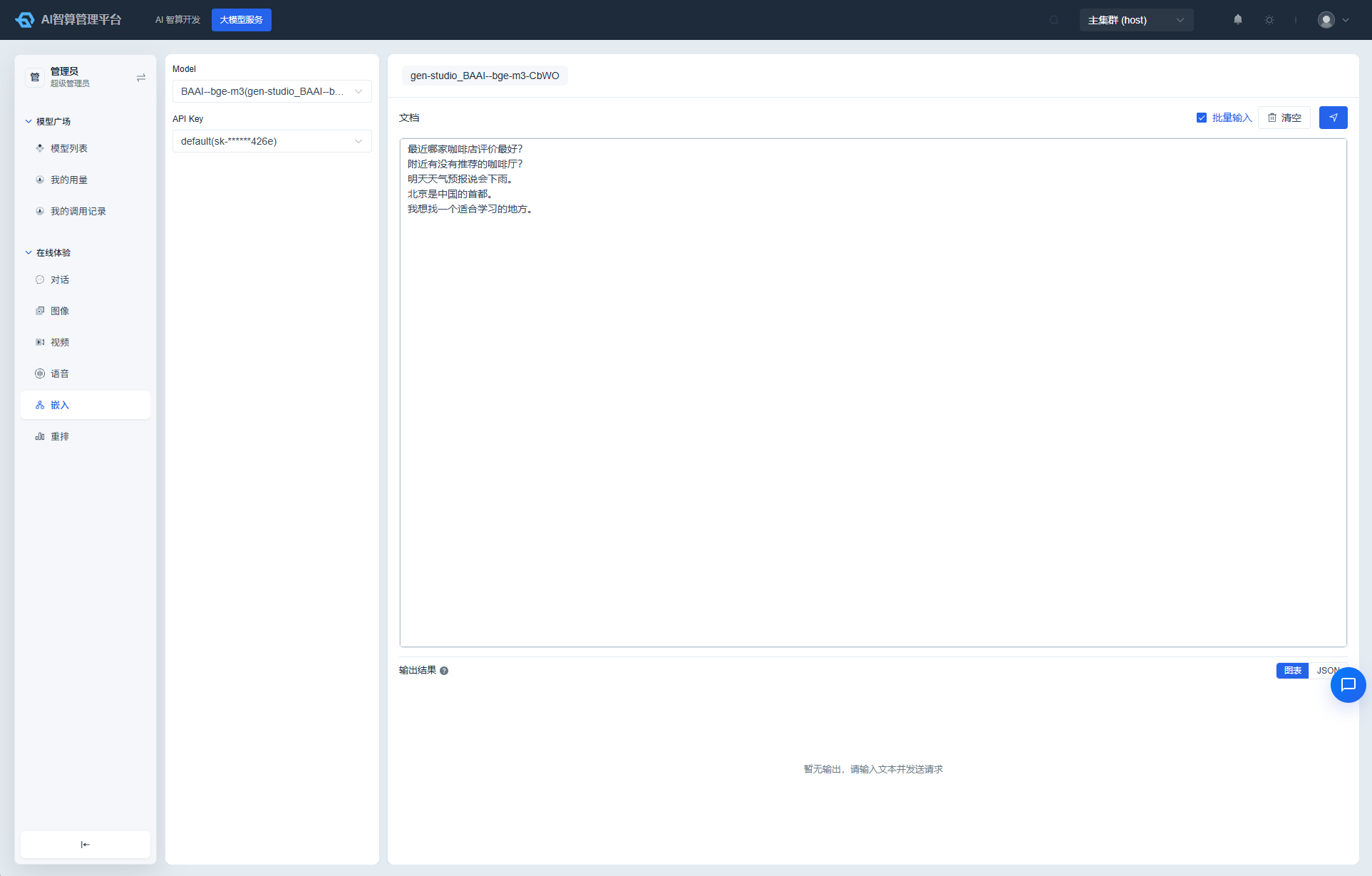
Used to quickly view text vectorization results and visualization distributions.
- Select Model and API Key.
- Enter text to vectorize on the right:
- Line-by-line mode: One document entry per line. Click "Add / Delete" to adjust the number of entries.
- Multi-line batch mode: Paste multiple text segments at once into the large text area.
- Click the send button to submit.
- The results area displays:
- A 2D scatter plot generated by PCA dimensionality reduction of high-dimensional vectors. Hover over points to view the original text and coordinates.
- Switch to JSON to view the full vector array for easy developer access.
- Click "Clear" to reset inputs and results.
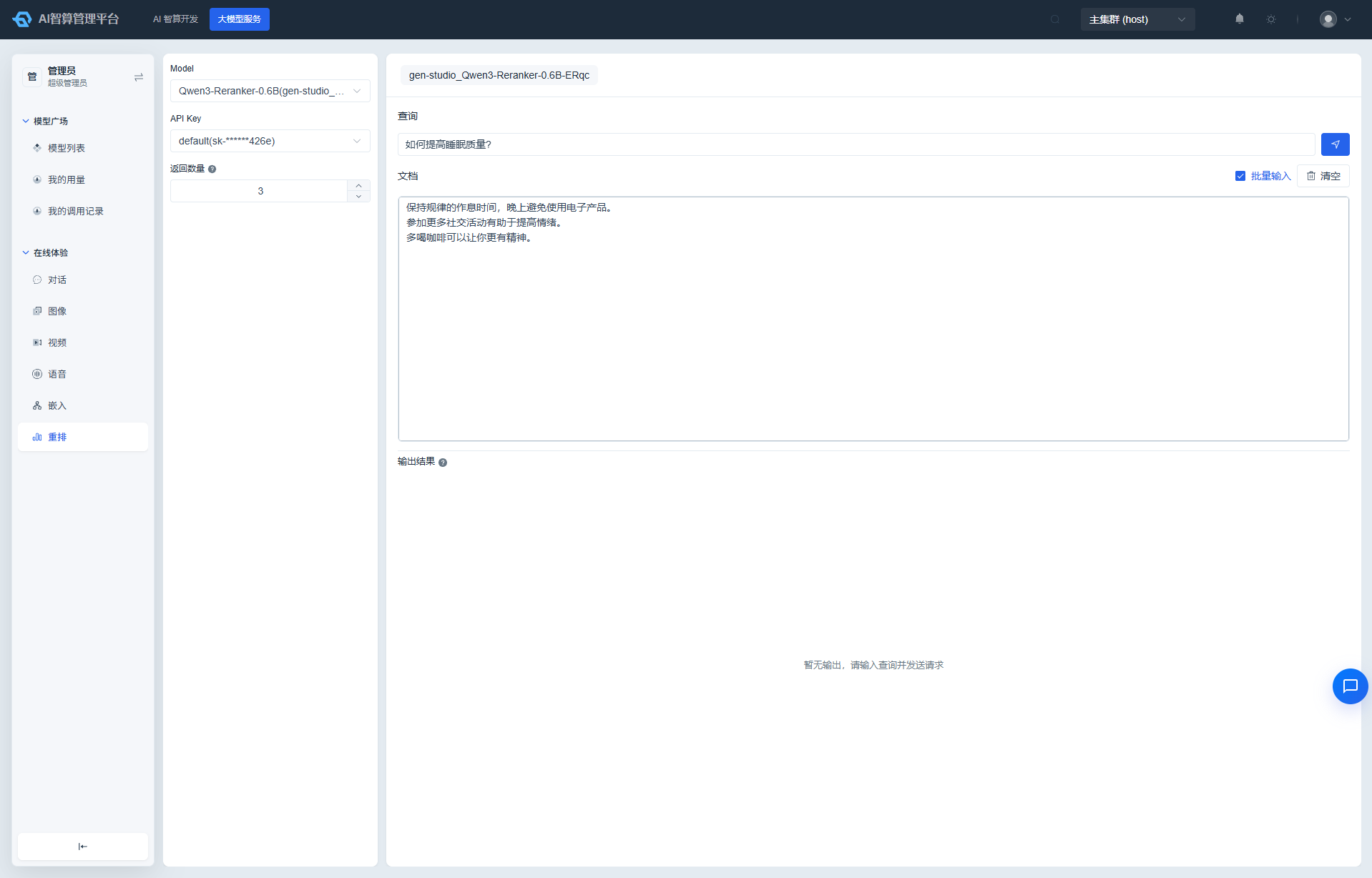
Rerank Playground
Page route:
/admin/model-x/playground/rerank-chat
Used to verify a Reranker model's relevance ranking capability for candidate documents.
- Select Model and API Key.
- Set Top N:
1–20, specifying the number of most relevant documents to return. - Enter query text in the Query input box.
- Enter several candidate documents in the candidate document area:
- Switch to batch mode to paste all at once.
- Add / delete entries line by line.
- Click the send button.
- The results area on the right displays documents ranked by relevance score from highest to lowest, including: rank, original text, score, and a visual progress bar.
- Click "Clear" to reset inputs and results.
FAQ
Q: The model selector is empty. What should I do? A: This means no deployed models are currently available. Click "Create Inference Service" at the bottom of the selector, navigate to AI Development > Compute Services > Inference Service to deploy a model, or ask an administrator to list models on the Model Marketplace.
Q: The API key is grayed out and cannot be selected. A: The key may be disabled for the current model, or its status may be deactivated / locked. Check the key status under User Center > Account Security > API Keys.
Q: Why are my chat parameters different from someone else's? A: The parameter form is dynamically generated based on the selected model's protocol. Different providers (OpenAI, Anthropic, Zhipu, etc.) expose different parameters; the platform only shows fields the model declares as supported.
Q: What voice name should I enter for voice models? A: The voice field is entirely determined by the upstream model; the platform does not enforce an enumeration. Common references: for OpenAI TTS, try alloy, echo, fable; for Azure / Volcengine, refer to their official documentation.
Q: I can't find my image / video generation history. A: Playground history is stored locally in the browser. Switching browsers, clearing the cache, or using incognito mode will cause history loss. Download important results locally in a timely manner.
Q: After switching tabs, are my previously selected model and parameters still saved? A: Each tab's model, API key, parameters, and history are independent. Switching tabs does not affect other tabs.
Q: Does the Online Playground incur charges? A: Generation operations consume tokens or are billed per call. You can view costs via the usage entry in the upper-right corner of the page (if permissions are granted).