Compute Configuration
Compute Configuration is designed for platform administrators to configure GPU scheduling policies, overcommit strategies, virtual devices, resource pools, GPU error code knowledge base, monitoring metrics, and license management.
Access path: Left sidebar K8s Cluster Management > Compute Configuration.
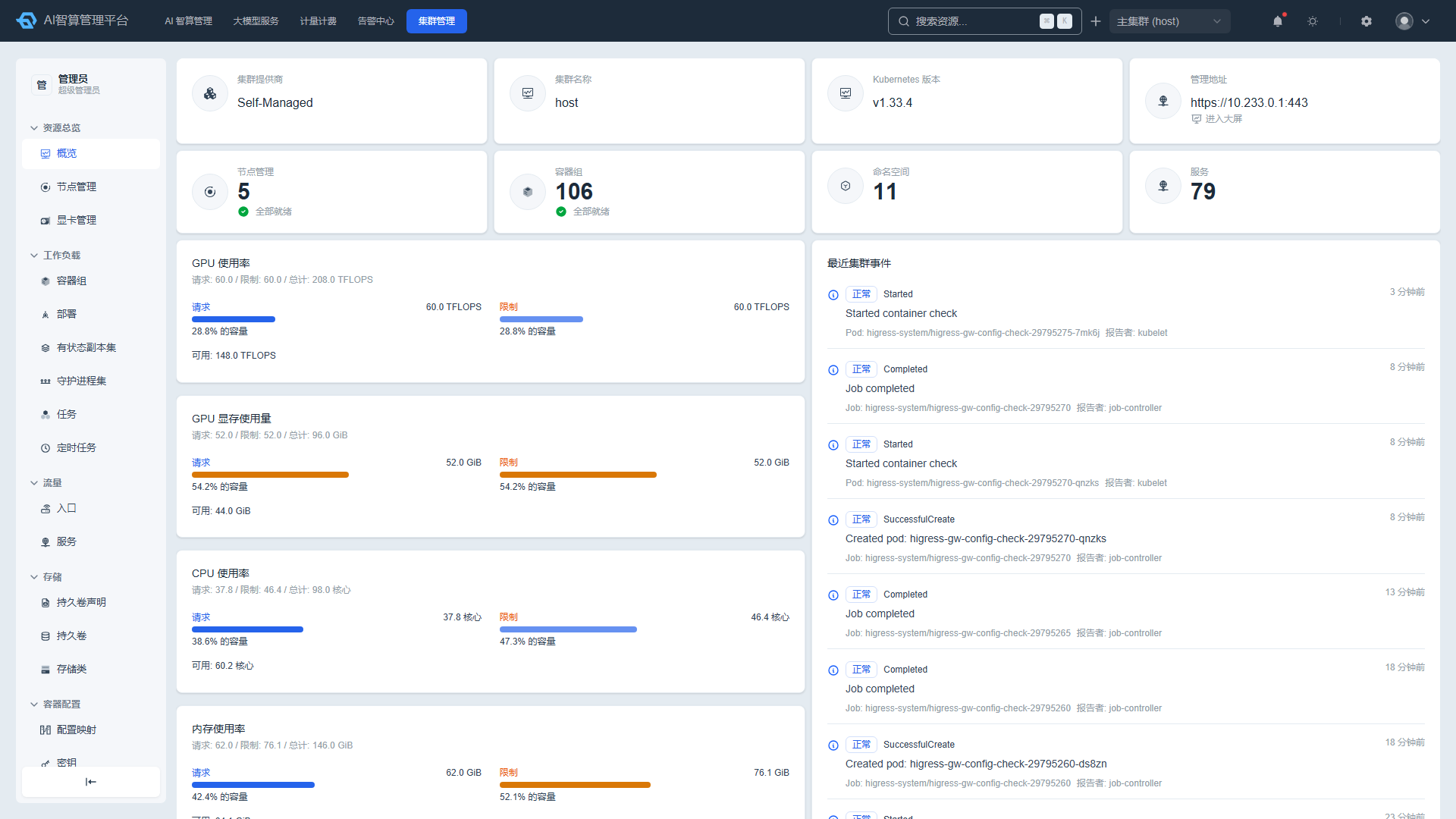
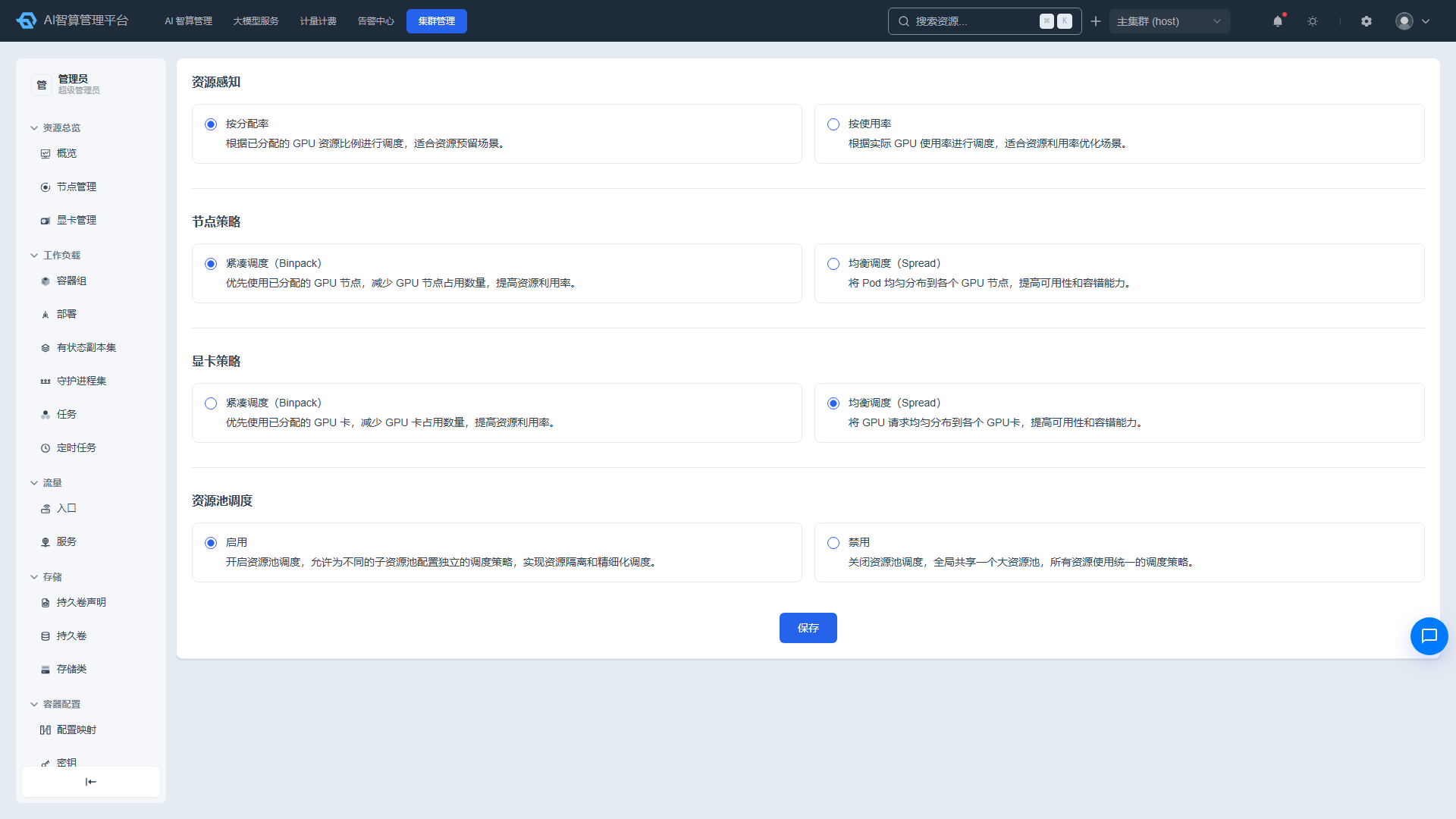
Scheduling Policy
Viewing and Configuring Global Scheduling Policy
- Navigate to K8s Cluster Management > Compute Configuration > Scheduling Policy.
- The page loads and displays the current cluster scheduling configuration.
- Configuration options include:
- Resource Awareness:
- By allocation rate: Schedule based on allocated GPU resources, suitable for resource reservation and dedicated scenarios.
- By utilization rate: Schedule based on actual GPU utilization, suitable for resource efficiency optimization.
- Node Policy:
- Binpack: Prioritize nodes with allocated GPUs to reduce node consumption.
- Spread: Distribute Pods evenly across all GPU nodes to improve availability and fault tolerance.
- GPU Card Policy:
- Binpack: Prioritize GPUs with allocated resources to reduce GPU consumption.
- Spread: Distribute GPU load evenly across all GPUs.
- Resource Awareness:
- Resource Pool Scheduling Toggle: When enabled, independent scheduling policies can be set for different workloads/resource pools; when disabled, the entire cluster is managed uniformly.
- Click "Save" to apply global policies and the resource pool toggle.
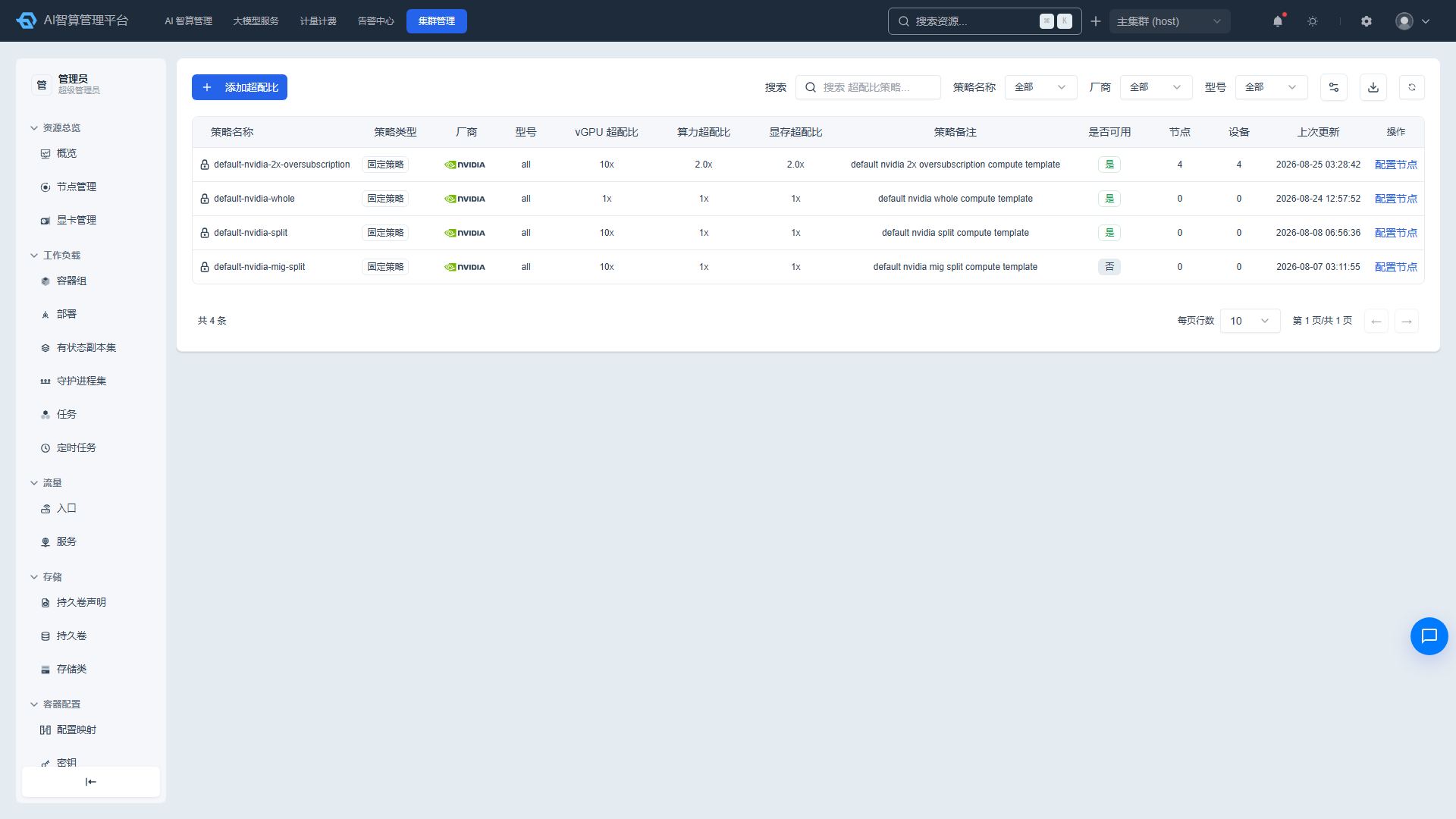
Overcommit Policy
Viewing Overcommit Policies
- Navigate to K8s Cluster Management > Compute Configuration > Overcommit Policy.
- The list displays by default in reverse chronological order: policy name, policy type, vendor, model, vGPU partition ratio, compute overcommit ratio, memory overcommit ratio, remarks, enabled status, node, device, and last update time.
- Use the top search box to search by name, vendor, model, memory, compute, remarks, and update time.
- Supports filtering by name/vendor/model columns, manual refresh, CSV export, and column visibility toggle.
Adding an Overcommit Policy
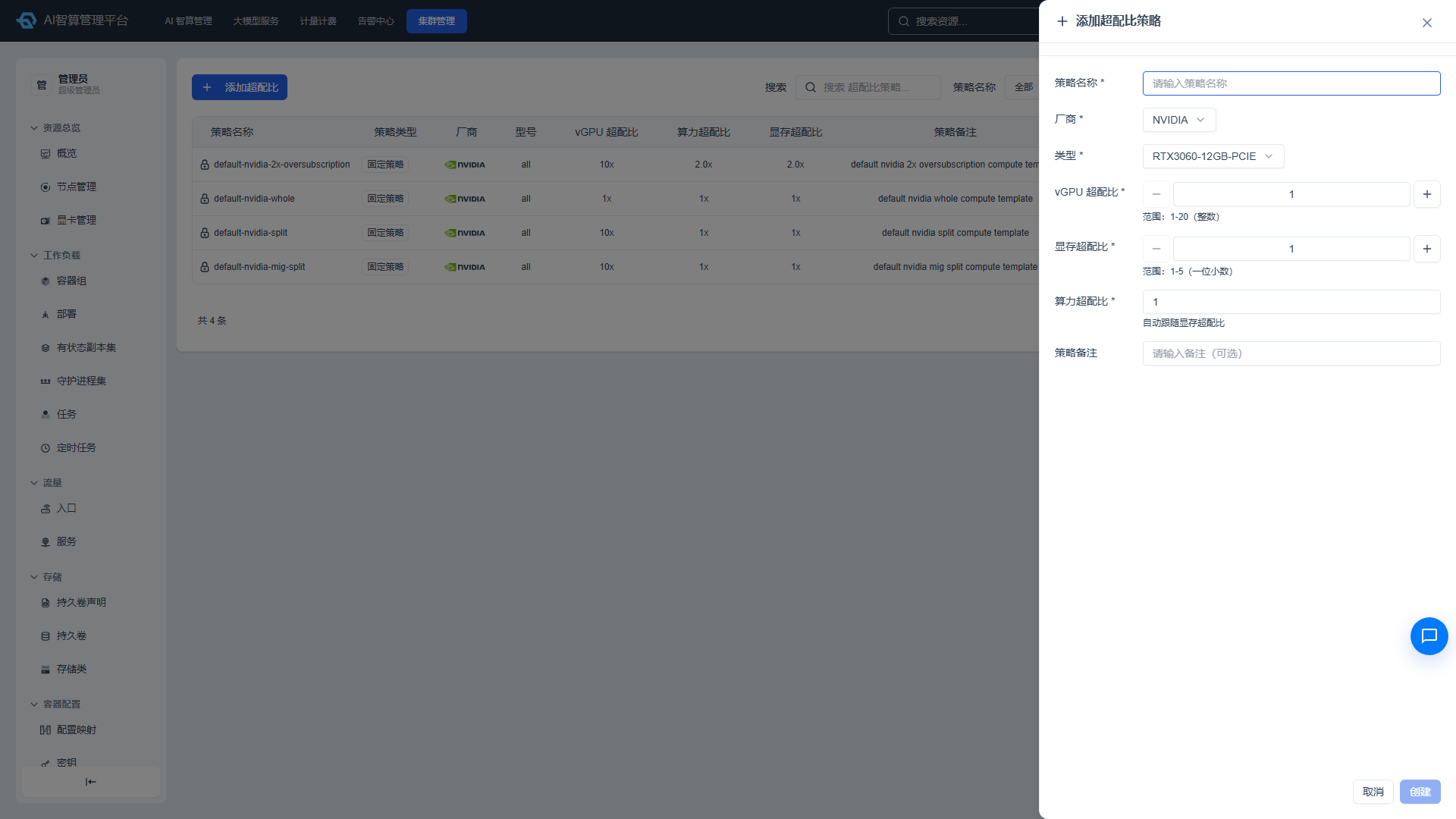
- Click "Add Overcommit Policy."
- Fill in:
- Policy Name: For easy identification.
- Vendor: NVIDIA, Ascend, etc.
- Model: GPU card model.
- vGPU Partition Ratio: e.g., 1/2, 1/4, 1/8.
- Memory Overcommit Ratio: numeric value, e.g., 2.
- Compute Overcommit Ratio: numeric value, e.g., 2.
- Remarks: Optional.
- The partition mode is fixed to soft (hami-core); the partition mode selection is not exposed in the UI.
- Click "Save."
Configuring Node Binding
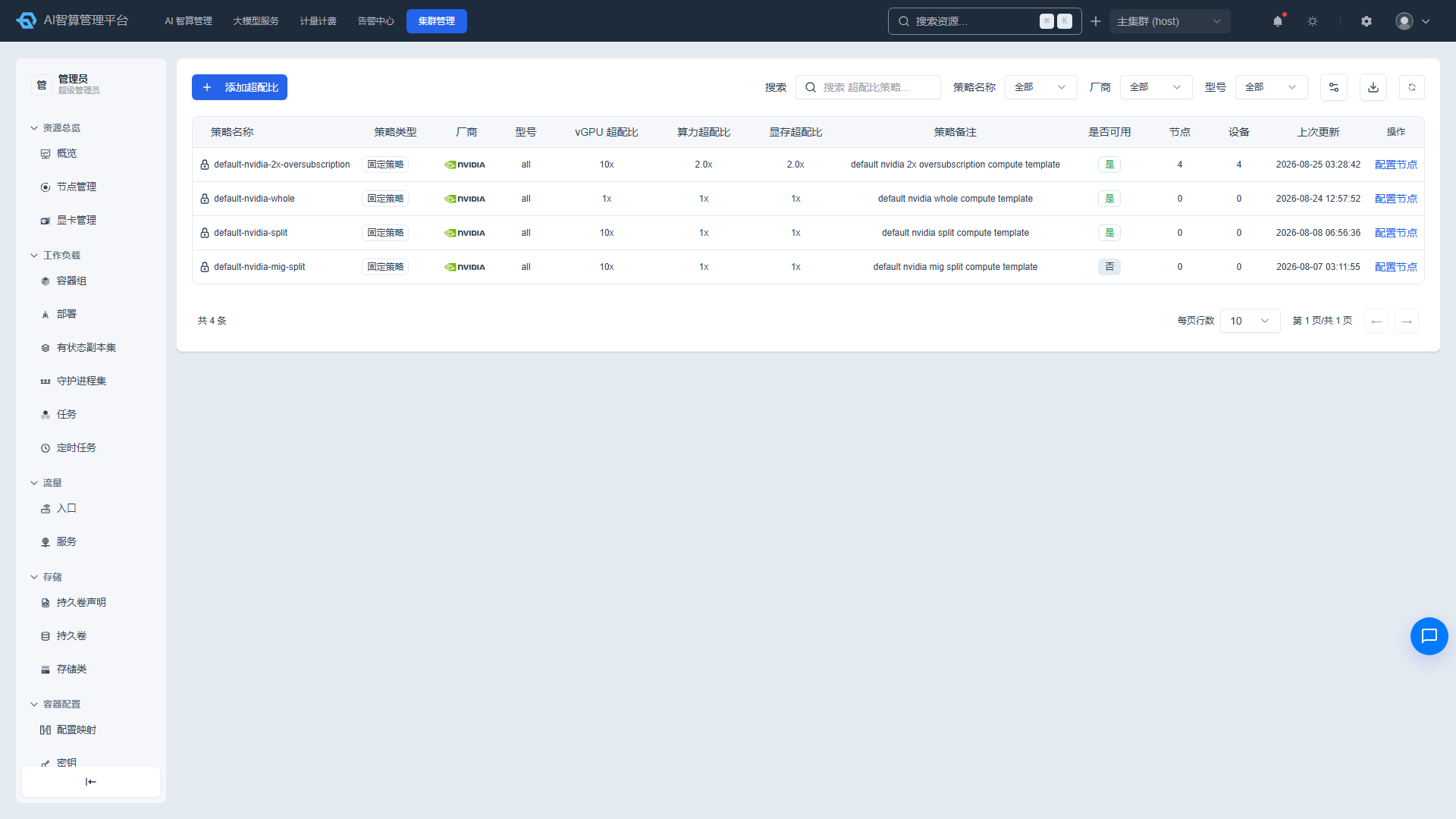
- Click "Configure Node" in the overcommit policy row.
- The multi-select dropdown only lists nodes with matching vendor/model devices that support the corresponding partition mode.
- In hard partition mode, nodes with GPUs already allocated to resource pools are disabled from selection.
- Select nodes and click "Confirm."
Managing Policies
- Edit/Delete: Only custom policies can be edited or deleted; fixed policies are protected and cannot be modified.
- Batch Operations: Supports batch deletion of custom policies.
Virtual Device
Viewing Virtual Devices
- Navigate to K8s Cluster Management > Compute Configuration > Virtual Device.
- The list displays: name (lock icon distinguishes physical/virtual cards), device type, virtual card type (custom/fixed), vendor, model, availability status, compute power, and memory.
- Use the top filter bar to query by available/unavailable status, name, vendor, and model.
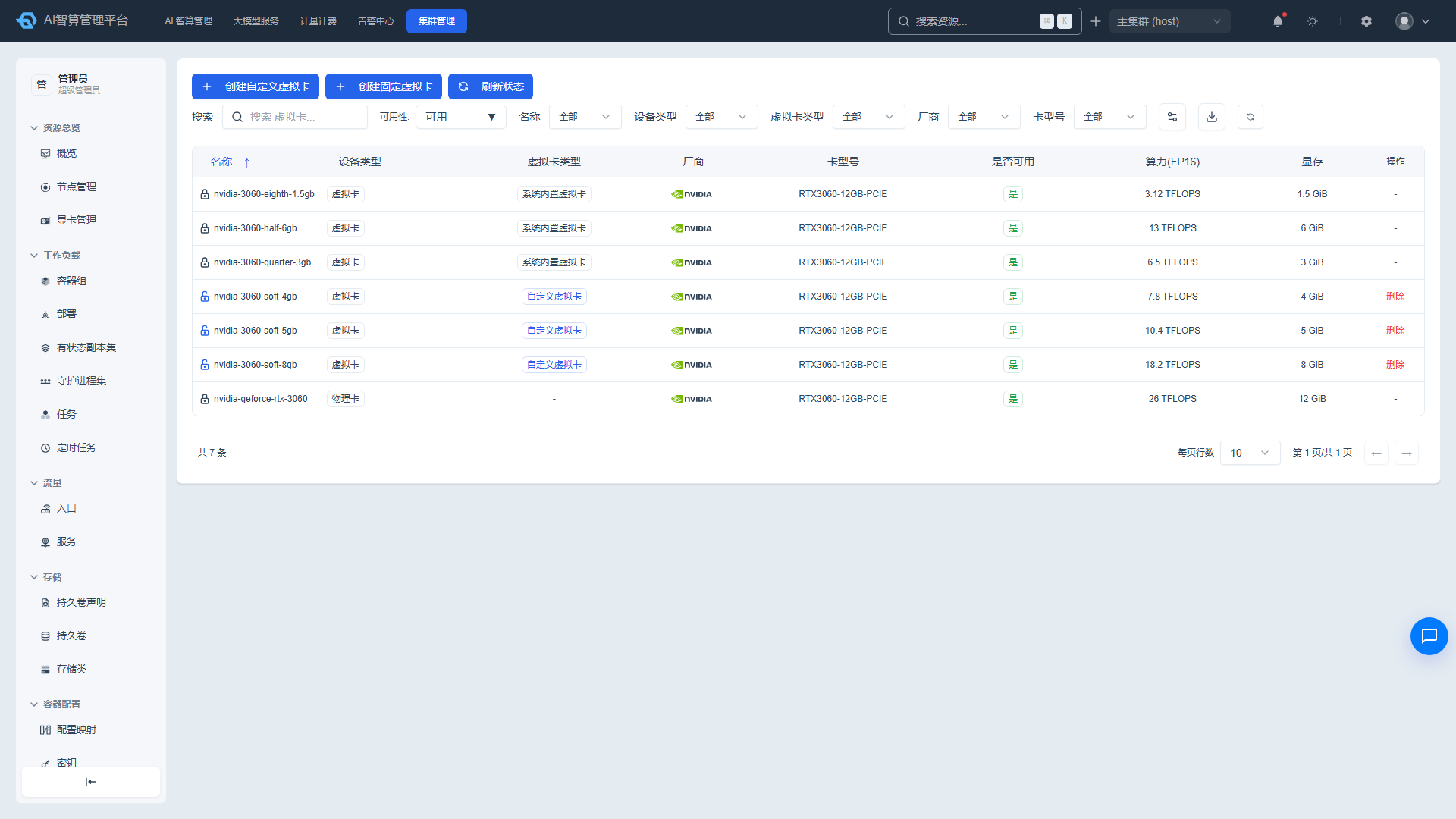
Adding a Custom Virtual Device
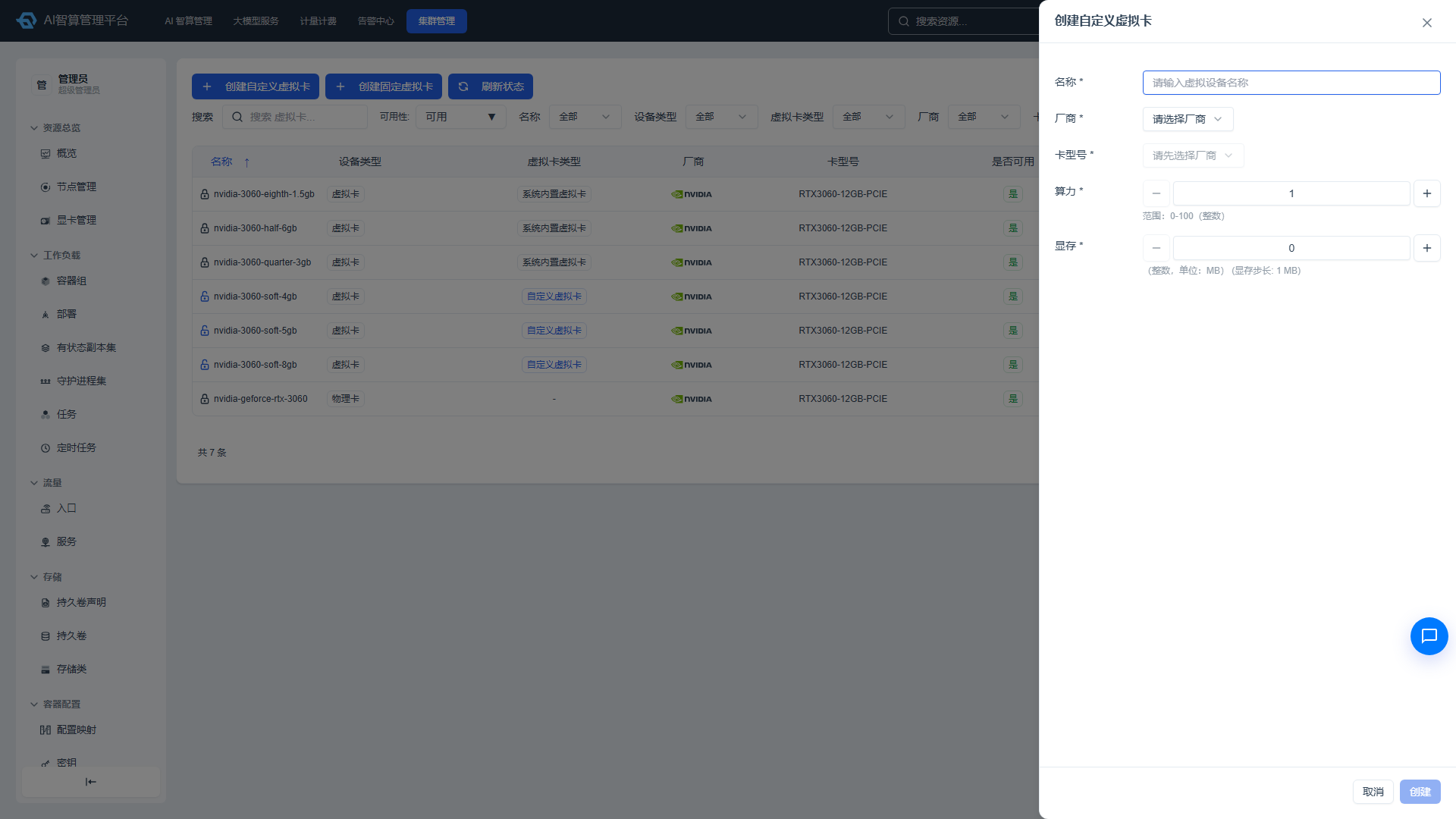
- Click "Add Custom Virtual Device."
- Fill in:
- Name: Virtual card name.
- Vendor and Card Model: Cascading selection; only models that support virtualization and custom partitioning are listed.
- Compute Power: Integer percentage from 1 to 100.
- Memory: Must not exceed the physical model's memory limit.
- Click "Create."
Adding a Fixed Virtual Device
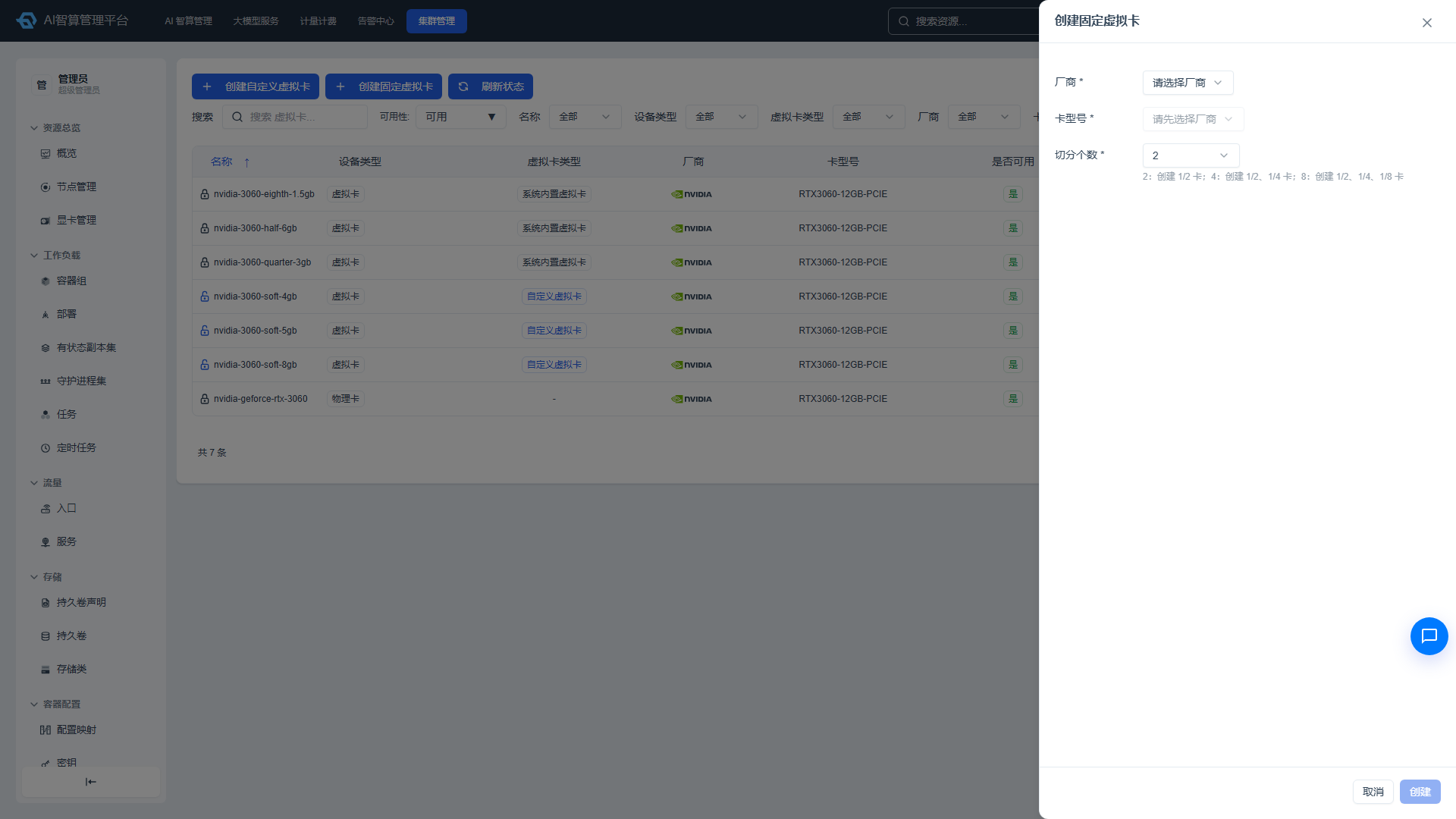
- Click "Add Fixed Virtual Device."
- Select the vendor, card model, and partition count:
- 2 partitions: generates 1/2 tier.
- 4 partitions: generates 1/2 and 1/4 tiers.
- 8 partitions: generates 1/2, 1/4, and 1/8 tiers.
- The system automatically names and batch-creates entries in the format "Model-Tier-Memory GB."
- Click "Create."
Managing Virtual Devices
- Click "Refresh" to sync all device model statuses.
- Only custom virtual devices support row-level deletion; fixed virtual devices are protected.
Resource Pool
Viewing Resource Pools
- Navigate to K8s Cluster Management > Compute Configuration > Resource Pool.
- The list displays: resource pool name (click to navigate to details), tenant labels, policy type (shared/exclusive/reserved/oversold), vGPU quota remaining, compute quota remaining (with allocation rate), and memory quota remaining (with allocation rate).
- Click a resource pool name to enter the detail page.
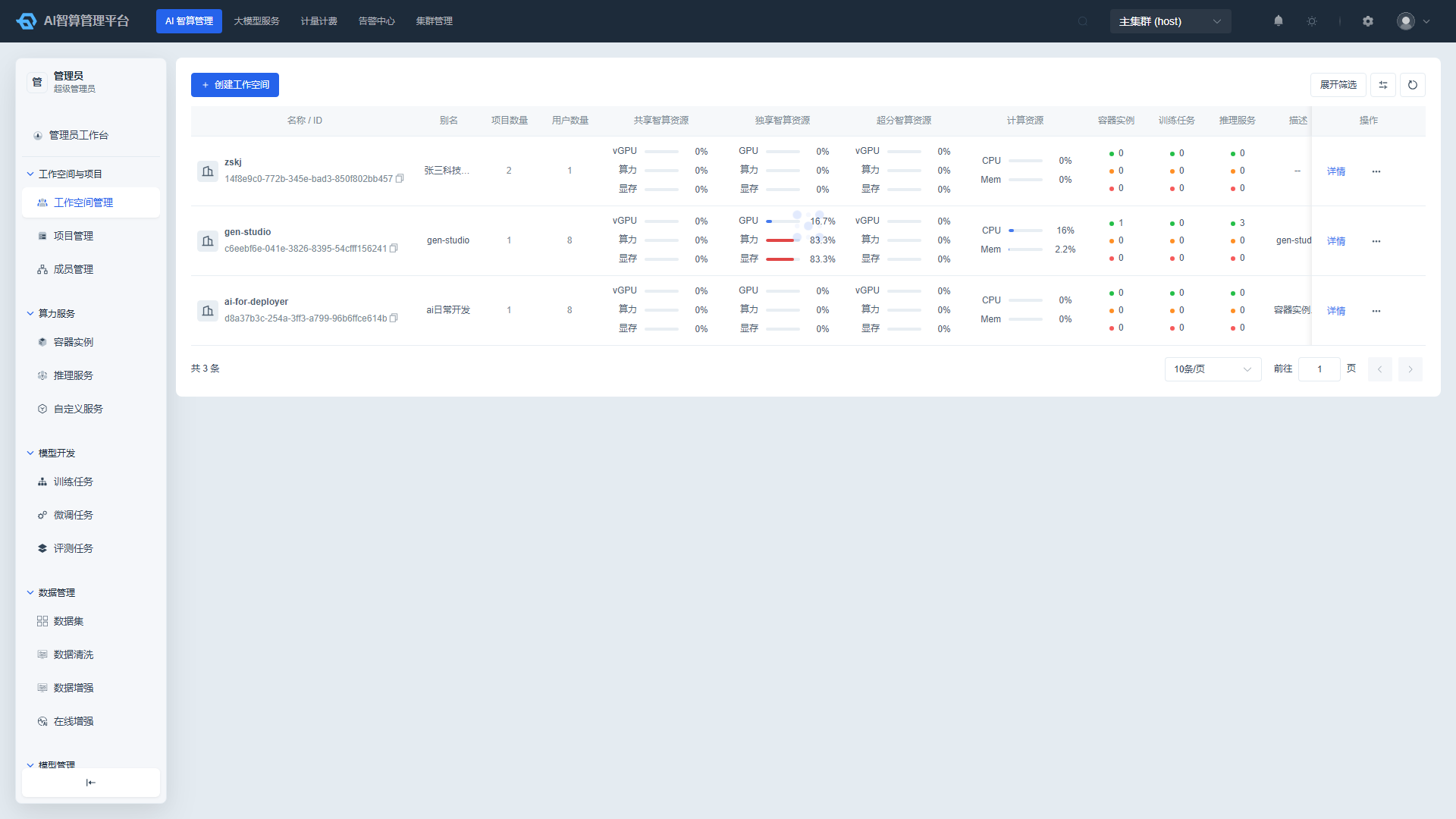
Resource Pool Details
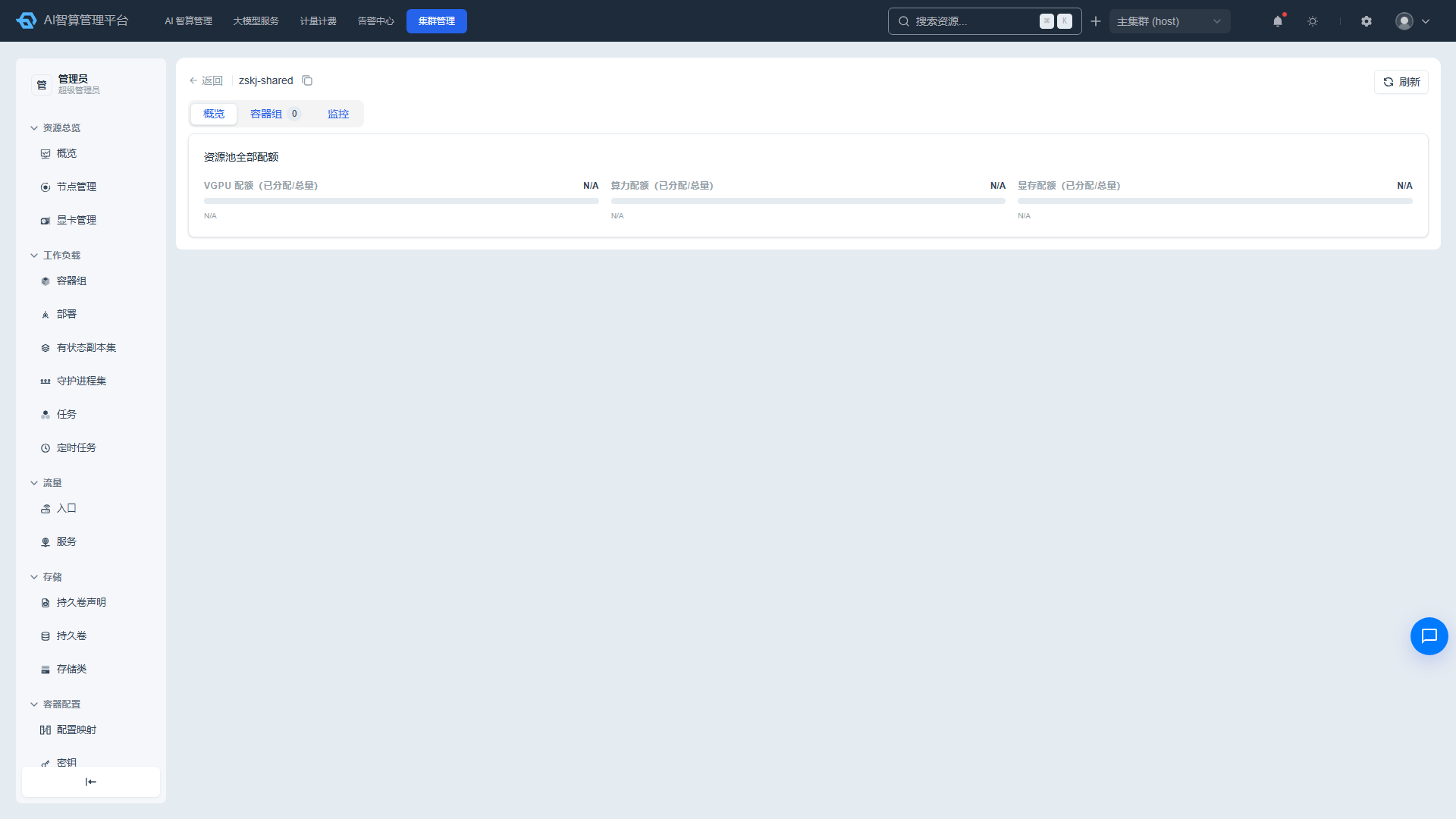
- Overview tab:
- vGPU/compute/memory quota used vs. total ratios.
- GPU device list within the pool (status/model/compute power/memory).
- Pods tab:
- The pool-wide quota card displays vGPU/compute/memory and allocation percentages as donut charts.
- Below that is the GPU device grouped table for this resource pool.
- Monitoring tab:
- GPU allocation trends (compute allocation, memory allocation).
- Usage trends (compute usage, memory usage).
- Power consumption trends, temperature trends.
- Supports time range selection.
GPU Error Configuration
- Navigate to K8s Cluster Management > Compute Configuration > GPU Error Configuration.
- The page covers 9 vendors: NVIDIA, Ascend, Metax, Kunlunxin, Hygon, Cambricon, Enflame, Iluvatar, and Alibaba.
- Select a vendor tab to view the error configuration list: error type, severity level, error code, error message, and error description.
- Use the search box to search across error type, severity, error code, error message, and error description.
- When a vendor does not have detailed error code data available, the page displays an empty state.
- Supports CSV export.
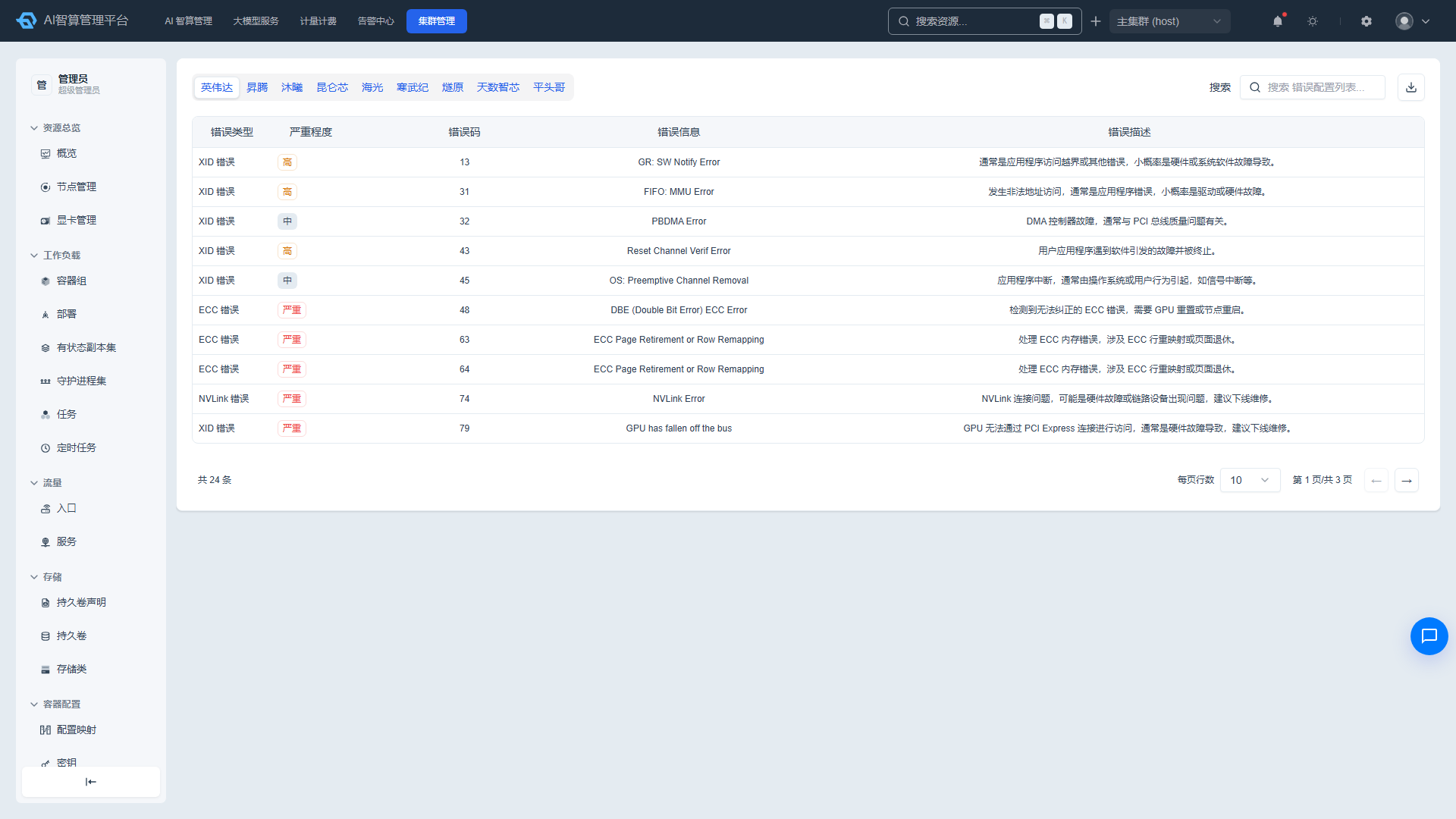
Monitoring Metrics
- Navigate to K8s Cluster Management > Compute Configuration > Monitoring Metrics.
- Left-side category navigation: All / Node Metrics / Device Metrics / Inference Metrics; secondary groups show actual categories (e.g., Errors & Health, Compute, Memory).
- The list displays: metric name, category, priority, unit, normal range, warning threshold, critical threshold, and applicable targets.
- Click a metric name to enter the detail page, viewing metric description, applicable hardware, tiered thresholds, Prometheus metric name and collection method, impact scope, and implementation difficulty notes.
- Supports column sorting, pagination, and CSV export.
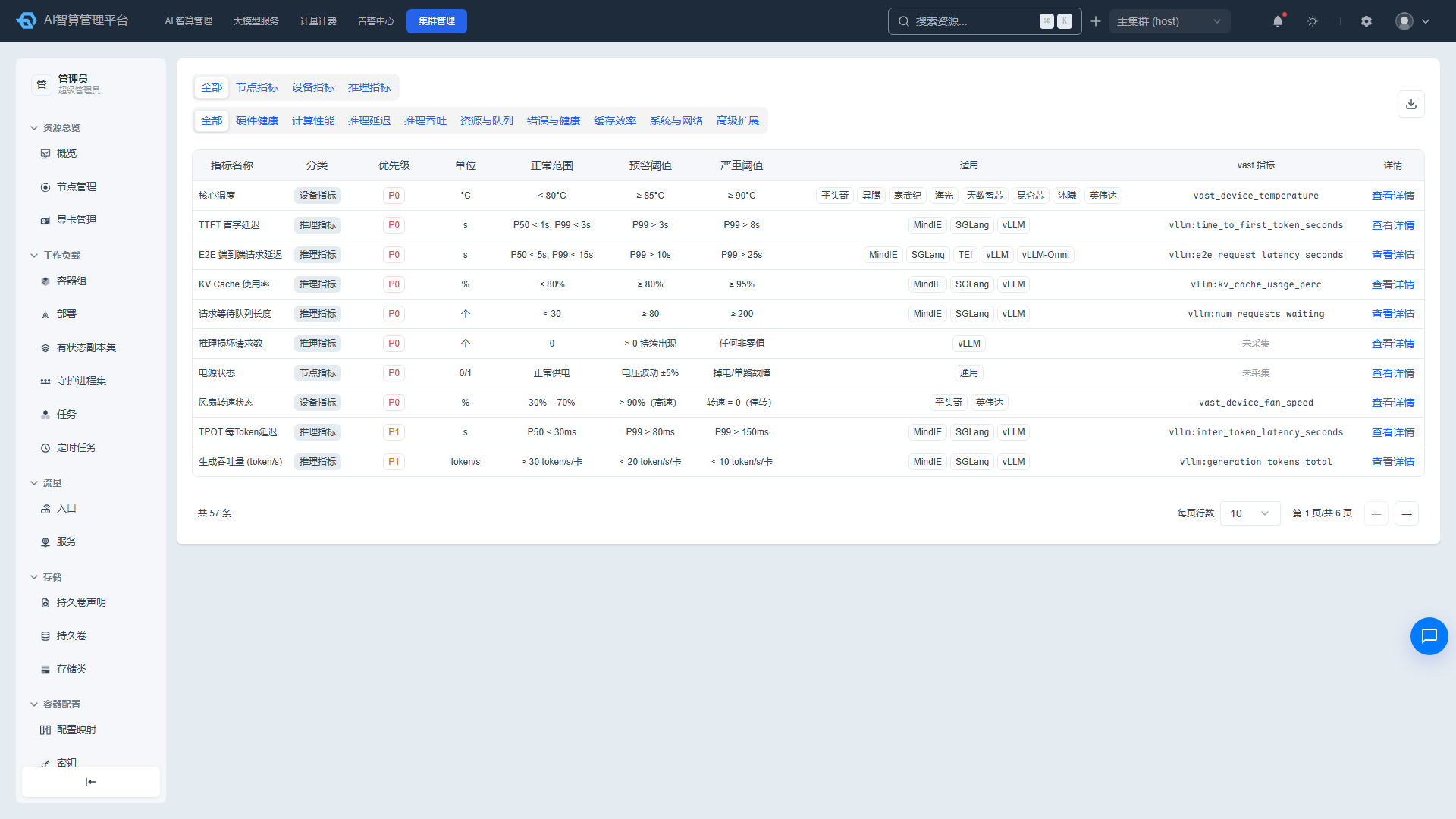
License
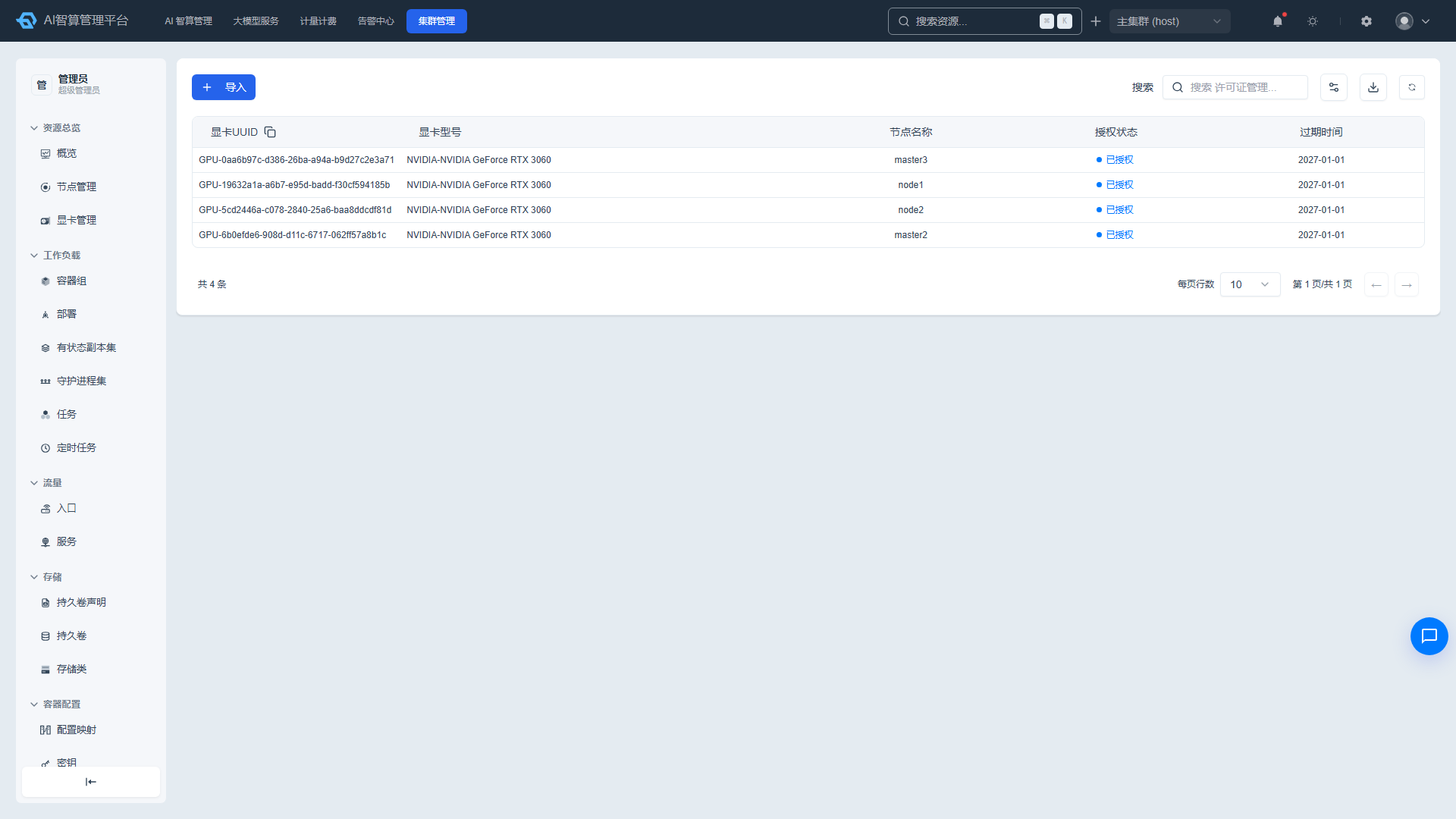
- Navigate to K8s Cluster Management > Compute Configuration > License.
- The list displays: UUID, GPU model, node name, authorization status (unauthorized/expired/authorized), and expiration time.
- Authorization status is distinguished by different colored dots; expired entries display a day count.
- Click "Import" to upload a license configuration file.
- Click "Copy All UUIDs" to copy all license UUIDs to the clipboard at once.
- Supports search filtering and column visibility toggle.
FAQ
Q: How long does it take for a scheduling policy change to take effect? A: The scheduling policy is controlled by the GPU scheduler; changes typically take effect immediately after saving. Newly created Pods will be scheduled according to the new policy; already running Pods are not affected.
Q: Why are some nodes disabled when configuring nodes for an overcommit policy? A: In hard partition mode, nodes with GPUs already allocated to resource pools cannot be bound to a new overcommit policy. Select unallocated nodes instead.
Q: What is the difference between fixed and custom virtual devices? A: Fixed virtual devices are batch-generated in predefined tiers (1/2, 1/4, 1/8). Custom virtual devices allow you to manually specify compute power percentage and memory size.
Q: What happens when a License expires? A: After expiration, the associated GPUs may no longer support partitioning or overcommit functionality. Import a new license promptly.