Resource Overview
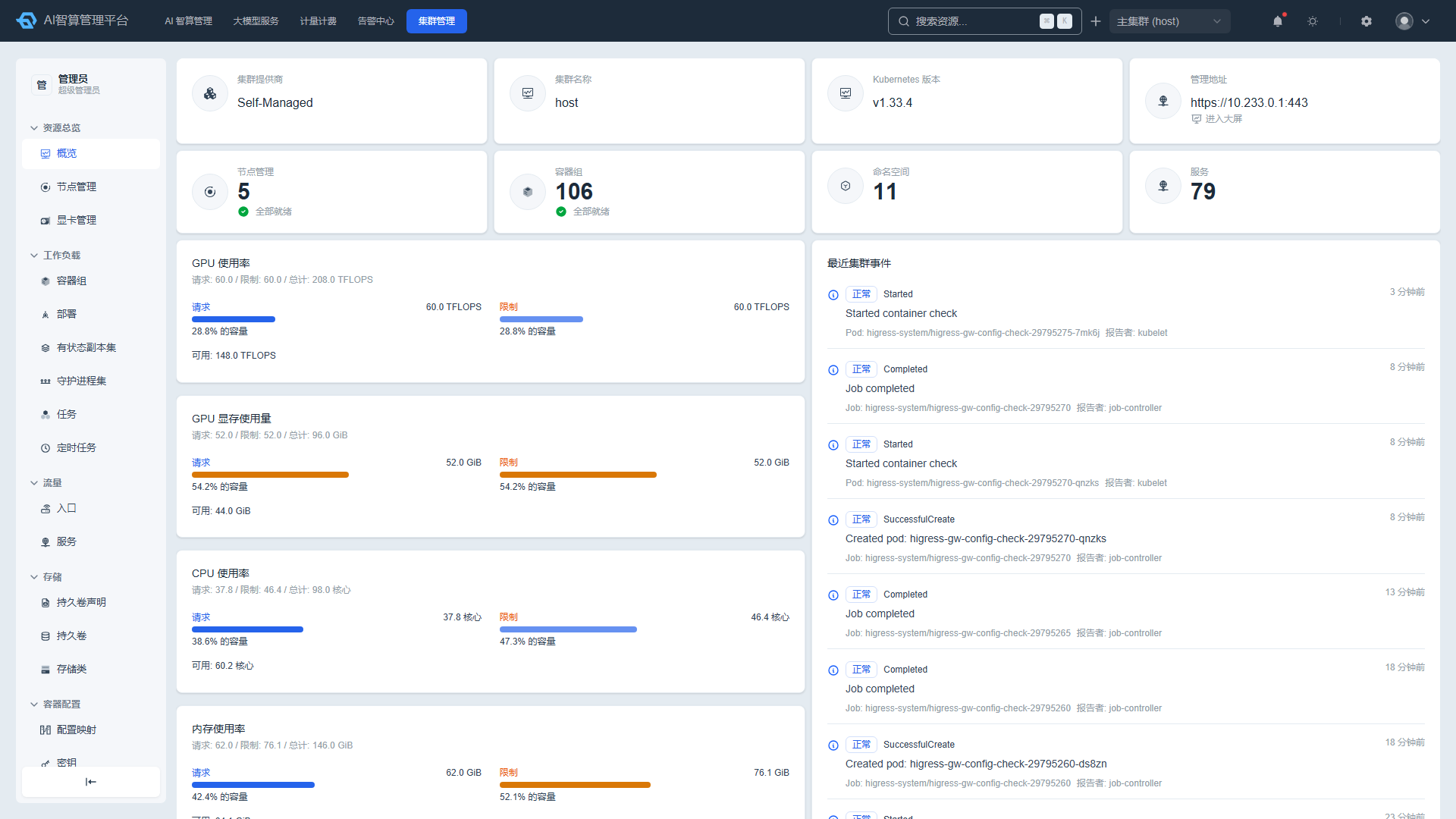
Resource Overview provides a panoramic view of cluster resources, helping operations personnel quickly grasp cluster health, node status, GPU resource usage, and recent cluster events.
Access path: Left sidebar K8s Cluster Management > Resource Overview.
AI Operations Dashboard
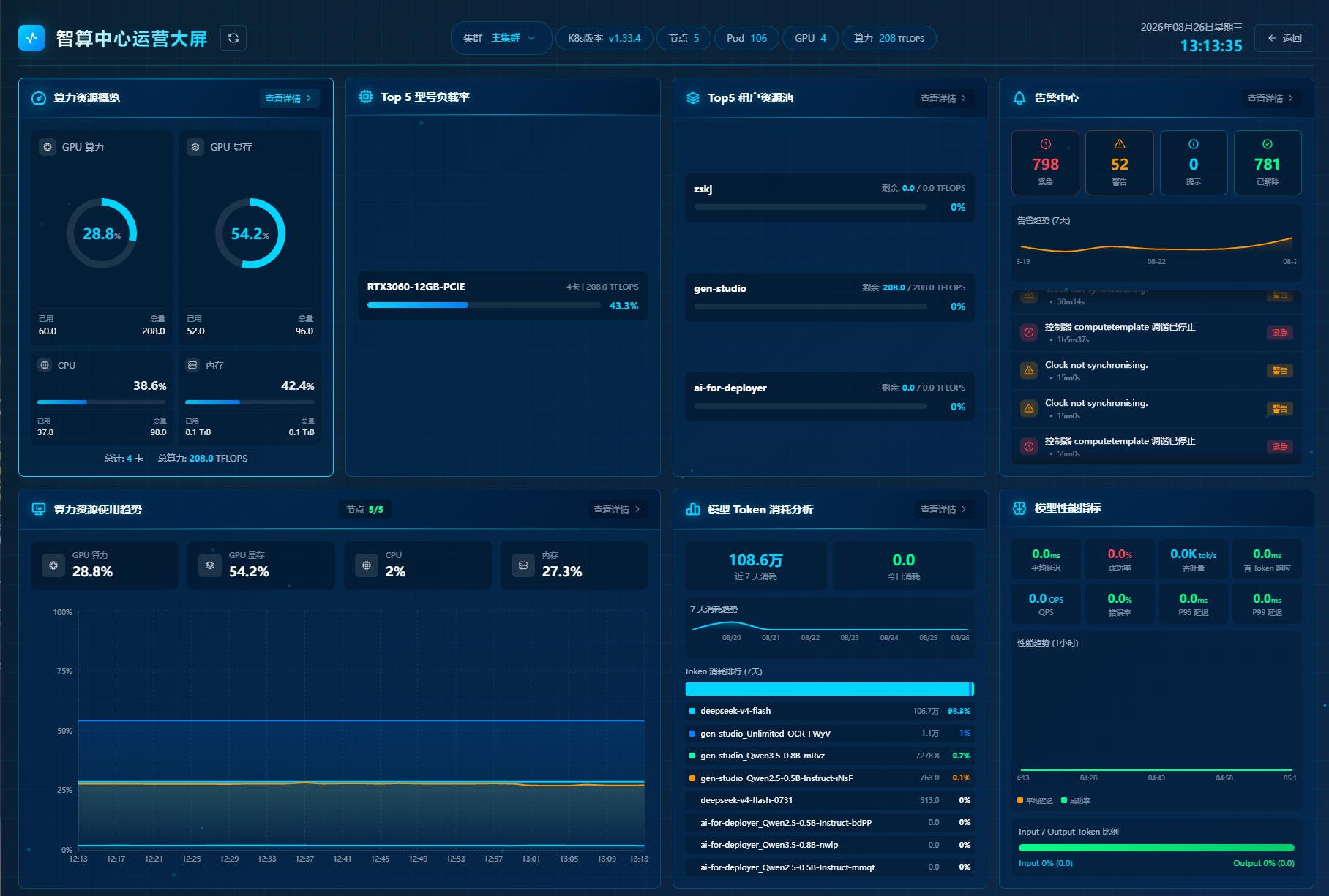
The AI Operations Dashboard provides a cluster-level visualization dashboard for operations and management personnel, displaying key metrics such as compute resources, tenant resource pools, model token consumption, and alerts.
Access path: Left sidebar K8s Cluster Management > Resource Overview > Operations Dashboard, or navigate directly to
/camp/k8s-dashboard/operation.
Viewing Multi-Cluster Overview
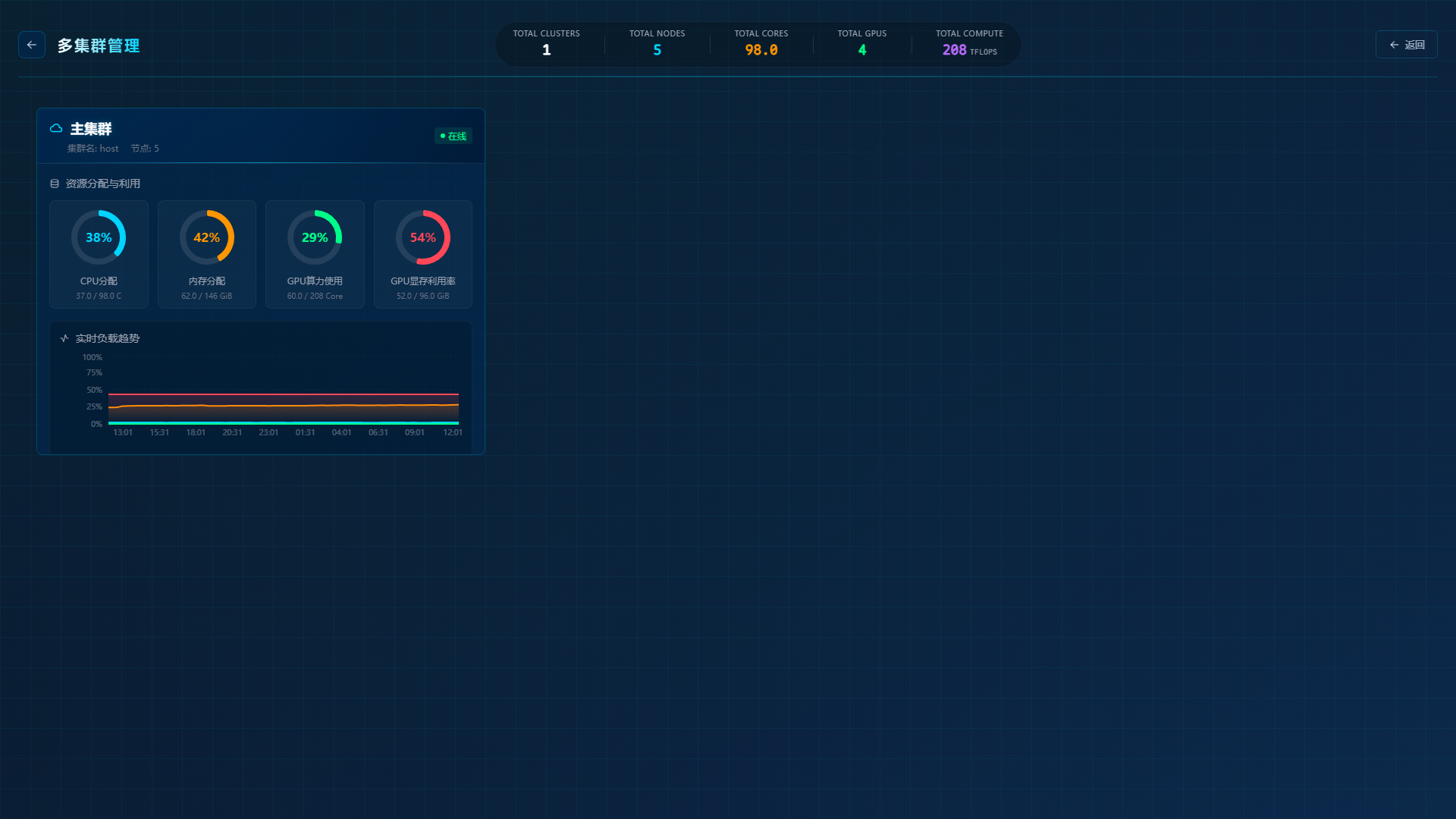
- After entering the operations dashboard, the "Multi-Cluster Management" view is displayed by default.
- The top of the page shows aggregate metrics for all clusters: total clusters, total nodes, CPU cores, GPU cards, total compute power (TFLOPS).
- Each cluster is displayed as a card showing key information:
- Cluster name and online status
- Resource allocation and utilization: CPU allocation, memory allocation, GPU compute usage, GPU memory usage
- Real-time load trends
Entering a Single Cluster Dashboard
- On the Multi-Cluster Management page, click the target cluster card (e.g., "Main Cluster").
- The page navigates to that cluster's operations dashboard, with a URL in the form
/camp/k8s-dashboard/operation/cluster/<cluster-name>. - The single-cluster dashboard includes:
- Compute Resource Overview: Real-time utilization of GPU compute, GPU memory, CPU, and memory.
- Top 5 Model Load Rate: Load rankings by GPU model.
- Top 5 Tenant Resource Pools: Resource pool quotas and usage rates.
- Alert Center: Counts of alerts, warnings, notices, and cleared alerts with 7-day trends.
- Compute Resource Usage Trends: Time-series curves for GPU compute, memory, CPU, and memory.
- Model Token Consumption Analysis: 7-day/today token consumption and model rankings.
- Model Performance Metrics: Average latency, throughput, QPS, cache rate, P99/P95 latency, and more.
Overview
Viewing Cluster Statistics
- Navigate to K8s Cluster Management > Resource Overview.
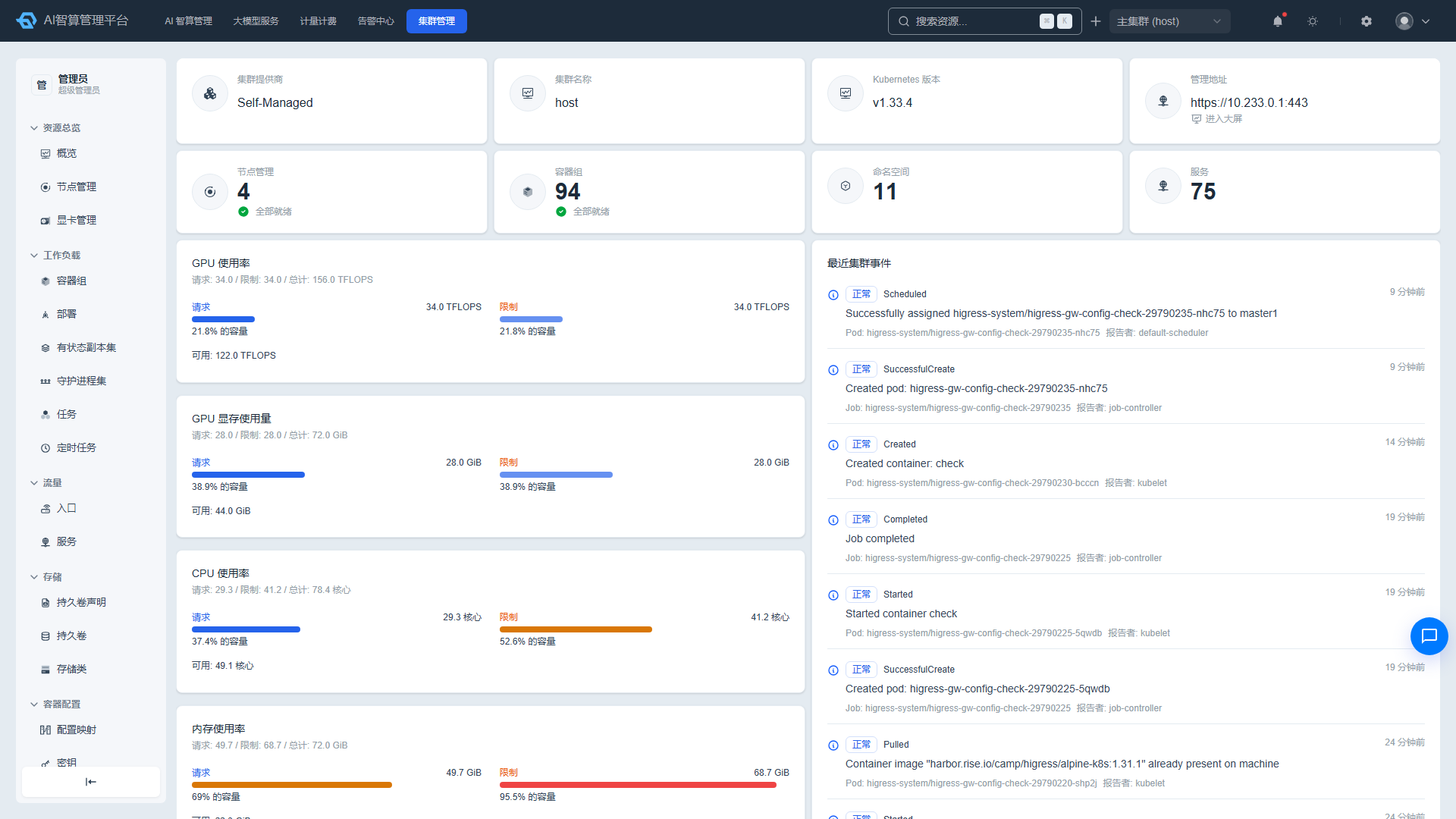
- The top of the page displays cluster basic information:
- Cluster provider
- Cluster name
- Kubernetes version
- Management address
- Number of nodes (including not-ready count)
- Total Pods (including failed/pending count)
- Number of namespaces
- Number of services
- The middle section displays a "Resource Requests" donut chart:
- GPU utilization (TFLOPS): requests / limits / total
- GPU memory usage (GiB): requests / limits / total
- CPU utilization (cores): requests / limits / total
- Memory utilization (GiB): requests / limits / total
- Below that is the "Recent Cluster Events" list, including event content and reporting component (reporter).
Viewing Resource Trends
- If Prometheus is enabled for the cluster, a 24-hour trend chart is displayed at the bottom of the page.
- Charts auto-refresh every 30 seconds, including:
- GPU resource utilization: GPU compute usage, GPU memory usage
- General compute resource utilization: CPU, memory
- Network usage: inbound/outbound
- Disk I/O usage: read/write
- Hover over the curves to view specific values at a point in time.
Node Management
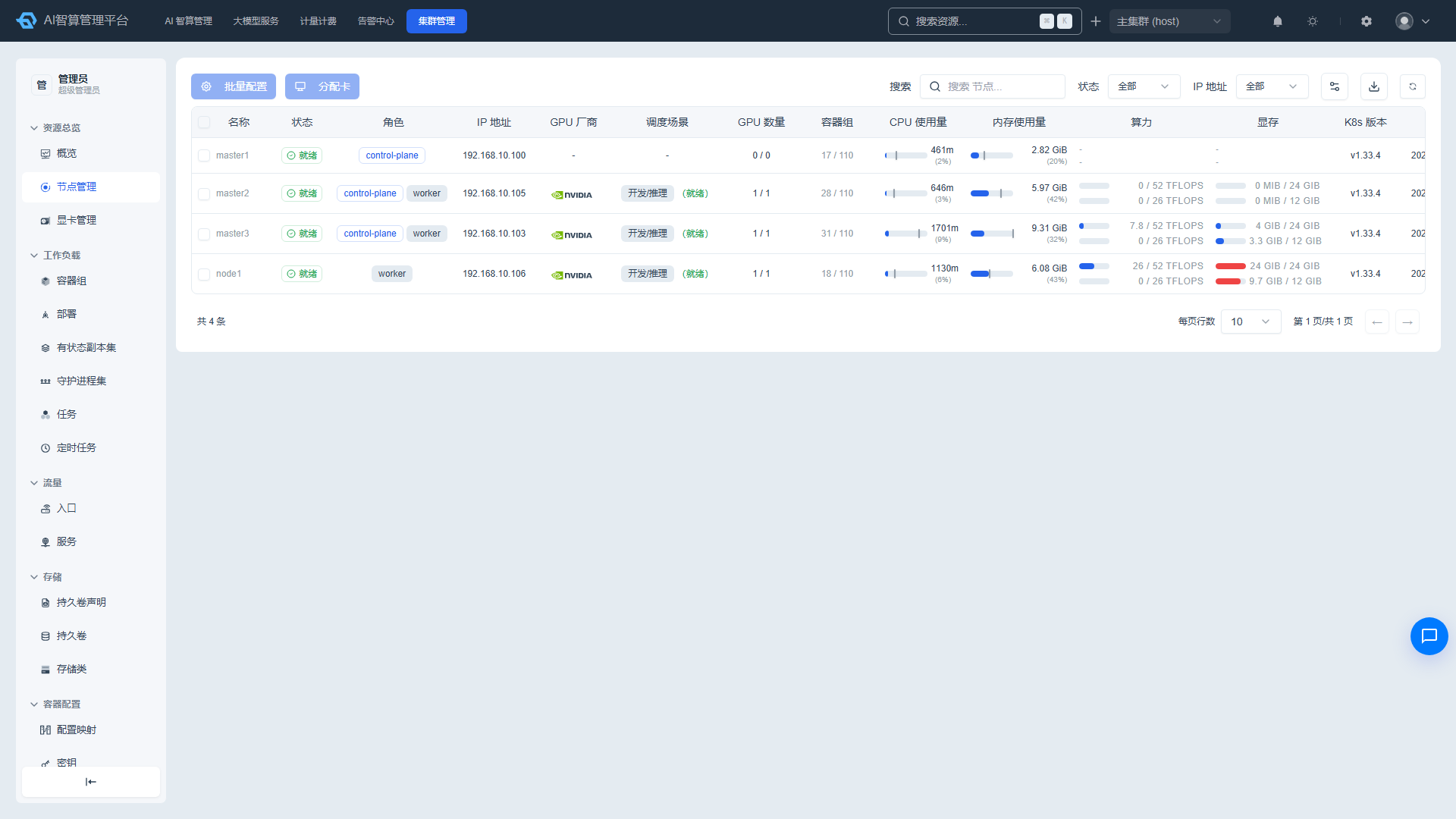
Viewing the Node List
- Navigate to K8s Cluster Management > Resource Overview > Node Management (or click the node entry on the Overview page).
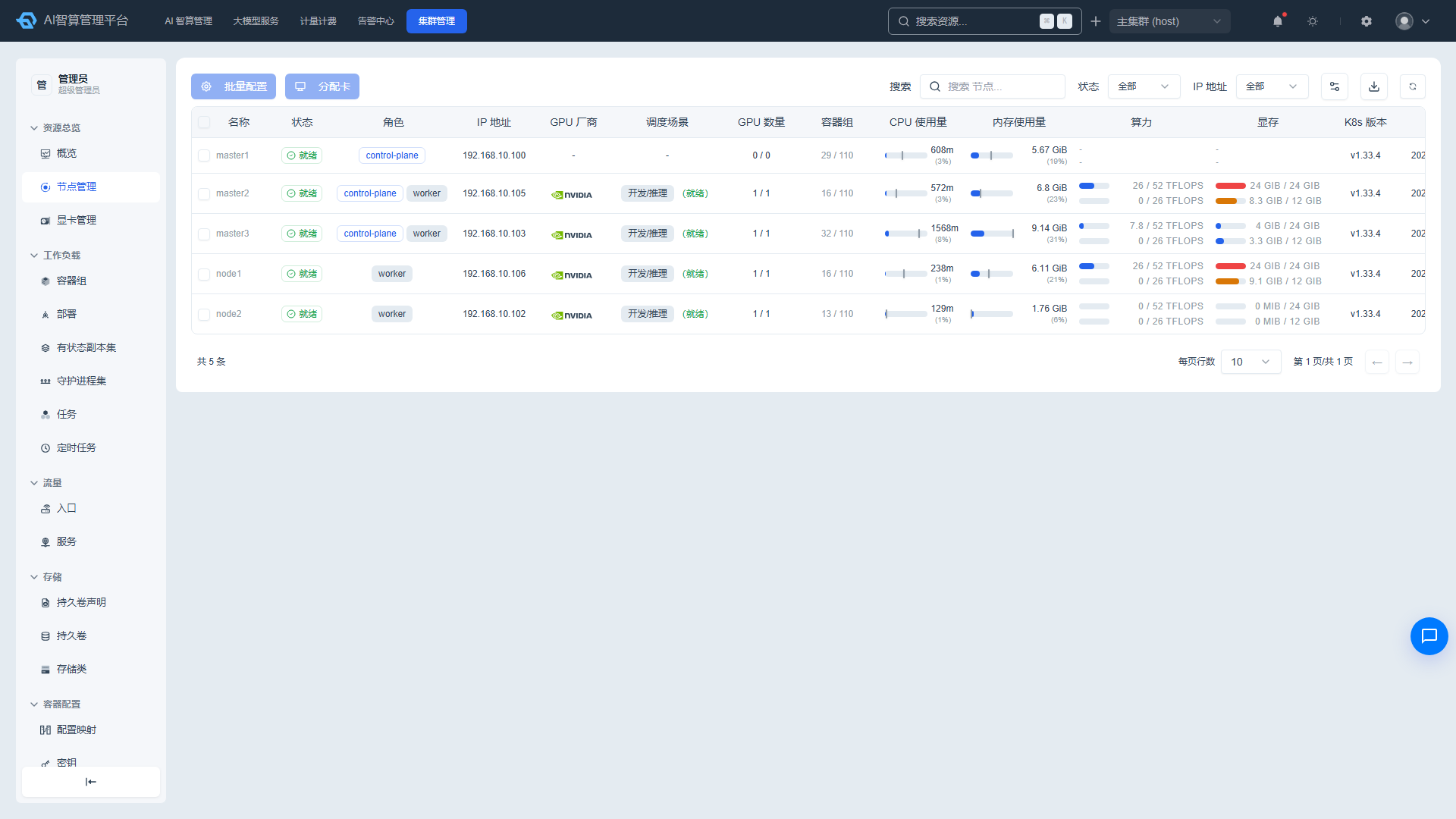
- The list displays: node name, status, role, IP address, GPU vendor, scheduling scenario, GPU count, pods, CPU/memory, compute power, memory, K8s version, and creation time.
- The status column is shown as colored badges: Ready, NotReady, SchedulingDisabled, NetworkUnavailable, MemoryPressure, DiskPressure, PIDPressure, and more.
- Use the top search box to query by name, version, operating system, status, role, or IP; search terms are persisted locally per cluster.
- Click the "Monitor View" button or related entry in the upper-right corner to switch the display mode.
Node Details
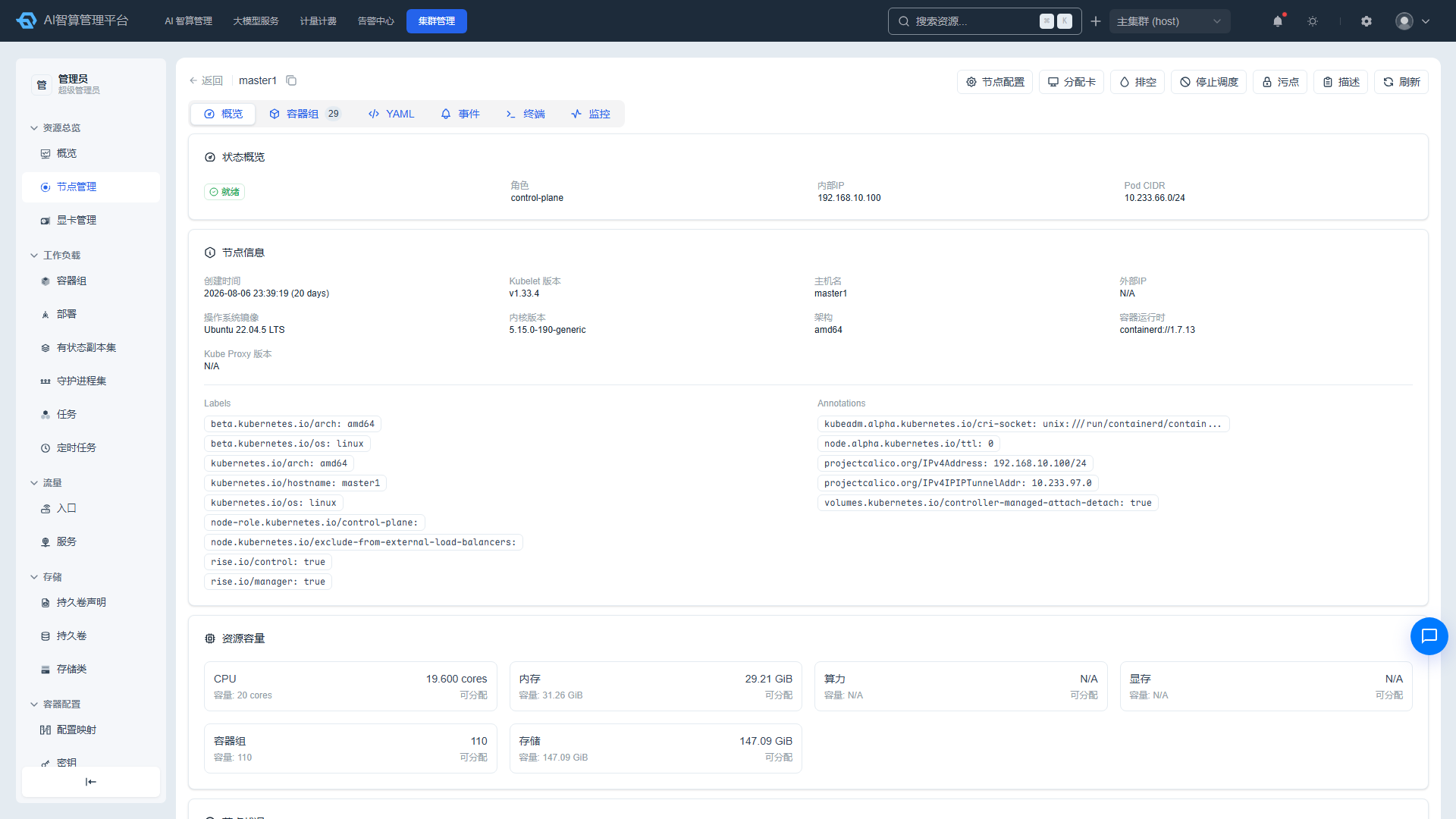
- Click a node name to enter the detail page.
- Overview tab:
- Status overview: node status, role, internal IP, Pod CIDR.
- Node information: Kubelet version, hostname, OS image, kernel version, architecture, container runtime, labels/annotations.
- Resource capacity: CPU/memory/compute/memory/pods/ephemeral-storage capacity vs. allocatable comparison.
- Device configuration health panel: aggregated health conclusion, anomaly causes, reconciliation conditions, remediation suggestions.
- Node taint list and node conditions (Ready/MemoryPressure/DiskPressure, etc.).
- Pods tab: Shows the Pod list on this node; click to navigate to Pod details.
- GPU tab: Displays device configuration and GPU card list grouped by vendor.
- GPU Topology tab: Shows the GPU interconnect topology matrix (e.g., NVLink).
- Monitoring tab: Supports time range selection and auto-refresh intervals (5–60 seconds), displaying metrics such as GPU compute/memory, CPU/memory, network, and disk.
Batch Node Configuration
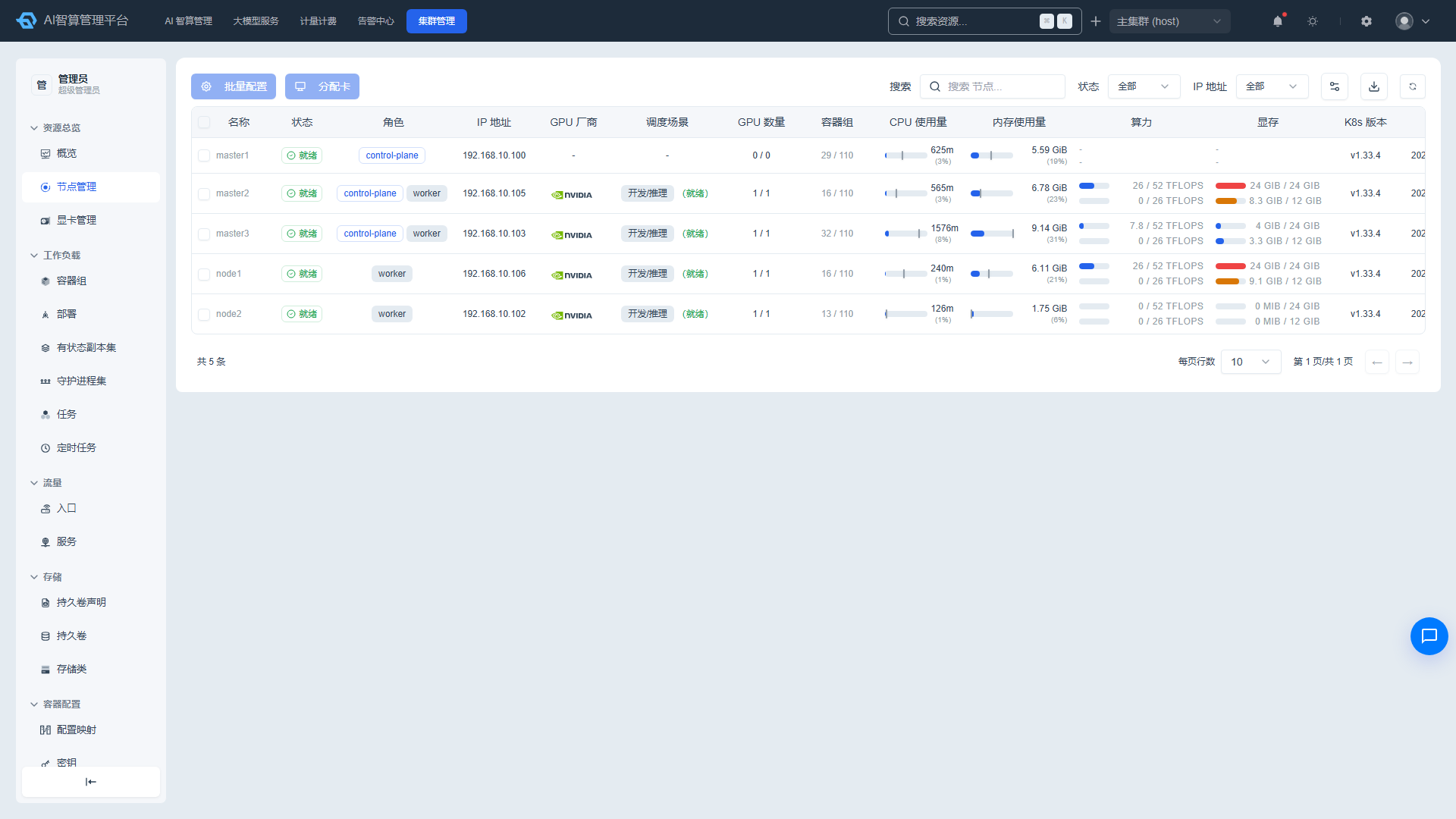
- Select multiple nodes from the left side of the node list.
- Click "Batch Config" to apply device configuration to all selected nodes:
- Scheduling scenario: hami (development/inference), volcano (training/fine-tuning).
- Vendor, full card/hard partition/soft partition/overcommit type.
- Compute template.
- The dialog provides a before-and-after comparison preview and automatically identifies and skips locked nodes.
- Confirm to submit.
Batch GPU Card Allocation
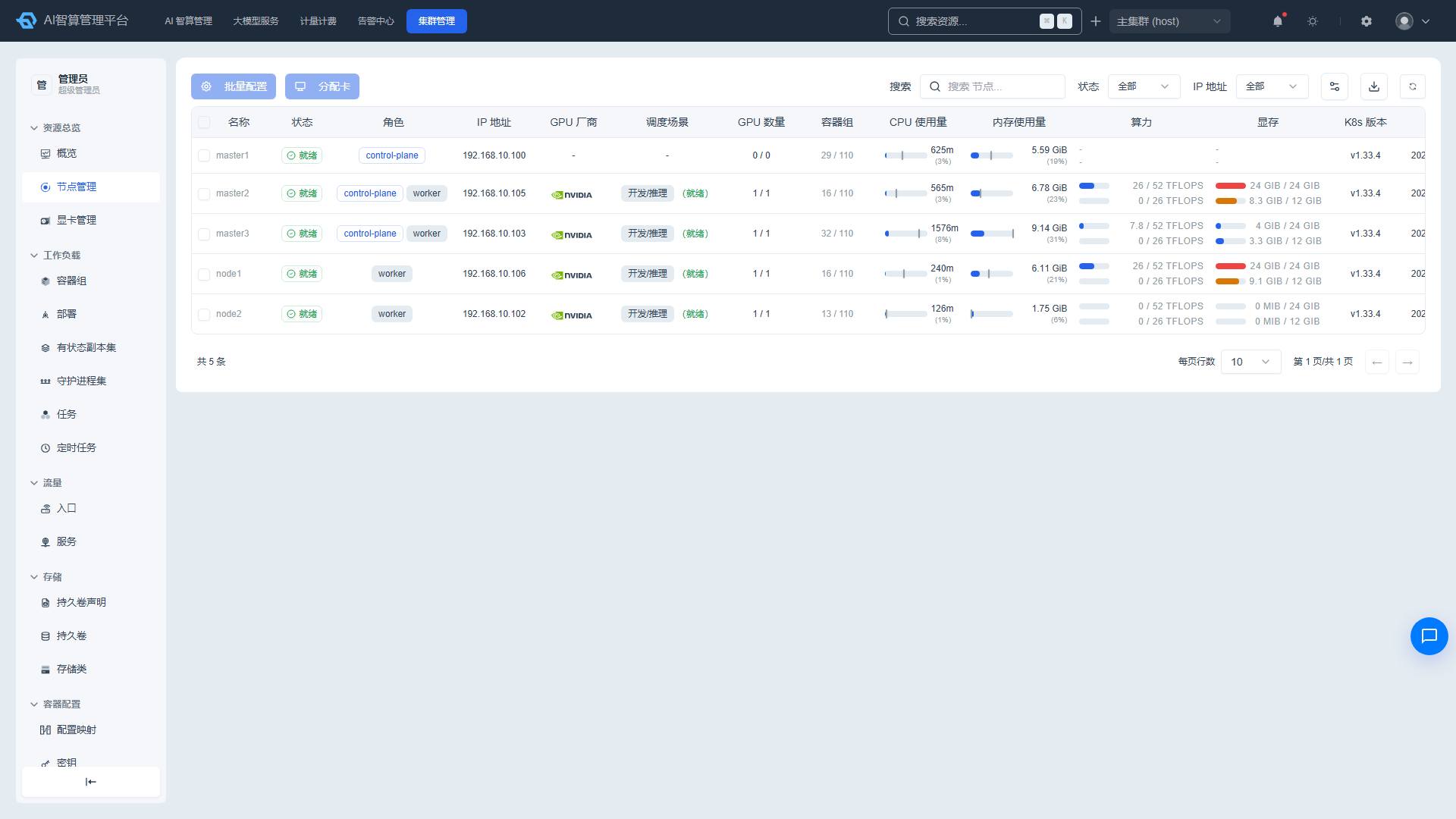
- Select multiple nodes, then click "Batch Allocate Cards."
- Allocate node GPUs to tenant reserved resource pools.
- Select cards node by node; the list displays allocation status and supports unallocation.
- View GPU interconnect topology to assist card selection.
- Confirm to submit.
Node Operations
- On the node detail page, click the corresponding button at the top:
- Node Config: Modify node device configuration.
- Allocate Cards: Allocate node GPUs to a resource pool.
- Drain: Optional force drain, delete local data, ignore DaemonSets, custom grace period.
- Cordon/Uncordon: Control whether the node accepts new Pod scheduling.
- Taint Management: Add/remove NoSchedule/PreferNoSchedule/NoExecute taints.
- kubectl describe: View node describe output.
- Terminal: Open a web terminal to the node.
GPU Management
GPU Overview
- Navigate to K8s Cluster Management > Resource Overview > GPU Management.
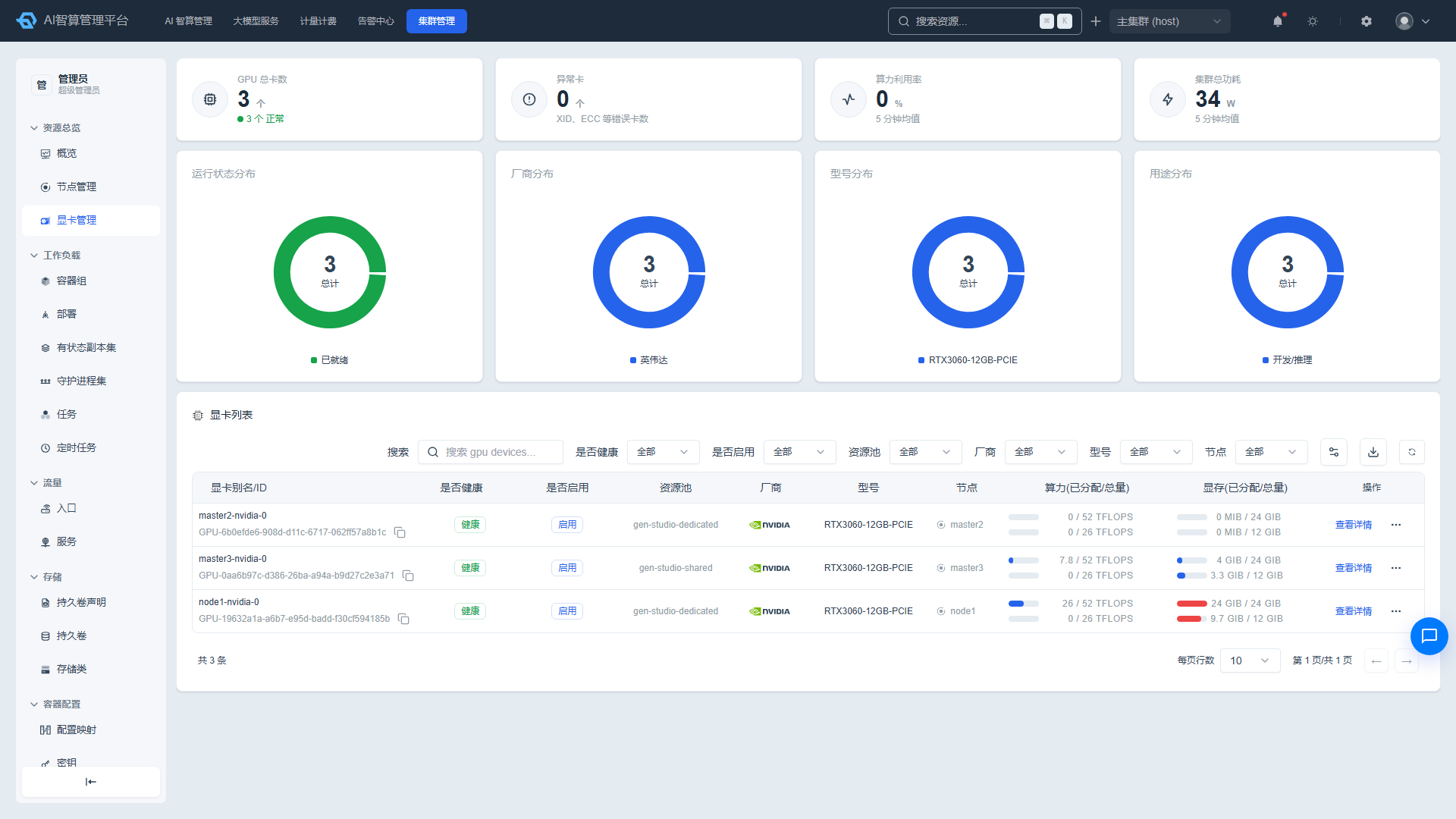
- The top of the page displays:
- Total GPU cards (with normal/anomalous breakdown)
- Anomalous card count (XID, ECC, and other errors)
- Compute utilization (5-minute average)
- Total cluster power consumption
- Below that are distribution donut charts: running status, vendor, model, and purpose.
Viewing the GPU List
- The list displays: GPU alias/ID, health status, enabled status, resource pool, vendor, model, node, compute power (allocated/total), memory (allocated/total).
- The compute and memory columns use dual progress bars to show allocation rate (requests/allocatable) and usage rate (actual usage/physical total).
- Use the top search box to query by alias, ID, model, UUID, node, vendor, health, and enabled status.
- Click a resource pool name to navigate to the corresponding resource pool page; unallocated GPUs display an "Unallocated" label.
Enabling/Disabling GPUs
- Click "Enable" or "Disable" in the GPU list row.
- When disabling, you can choose whether to evict Pods on that card; after disabling, the GPU will no longer accept new Pod scheduling.
- Batch operations: Select multiple GPUs and click "Batch Enable" or "Batch Disable."
GPU Details
- Click a GPU UUID or name to enter the detail page.
- Overview tab:
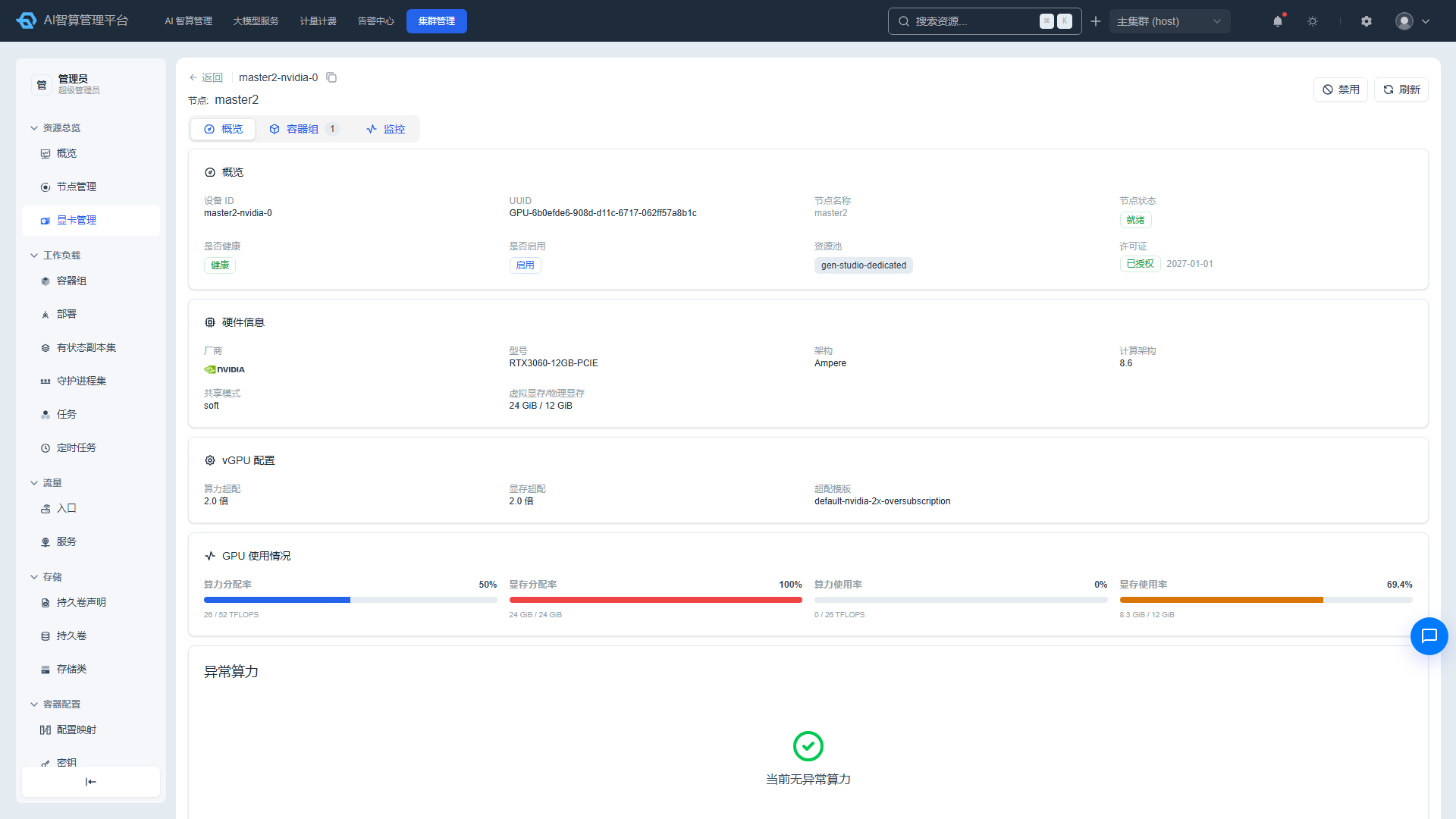
- Device ID, UUID (copyable), node name (navigable), node status, health and enabled status, resource pool.
- License status: authorized/expired/unauthorized and expiration time.
- Hardware information: vendor, model, architecture, compute architecture, sharing mode, virtual memory/physical memory.
- vGPU configuration: compute overcommit ratio, memory overcommit ratio, overcommit template name (read-only).
- Compute Errors tab: Displays an error list with severity, error type, error code, error message, occurrence count, and first/last occurrence time.
- Pod List tab: Shows Pods on the current node that reference this GPU.
- Monitoring tab: Displays compute/memory allocation rate and usage rate, GPU power, GPU temperature, and other trend charts; supports time range selection (10 minutes to 30 days or custom) and auto-refresh intervals (5–60 seconds).
FAQ
Q: The node status shows NotReady — what should I do? A: Check the "Node Conditions" and "Events" tabs on the node detail page. Common causes include network issues, kubelet failures, disk pressure, and memory pressure.
Q: How do I troubleshoot abnormal GPU health status? A: Go to the GPU detail page "Compute Errors" tab to view specific error codes and messages. Refer to the vendor error code knowledge base in "Compute Configuration > GPU Error Configuration."
Q: Some nodes were skipped during batch configuration? A: Skipped nodes may be locked or have running tasks. Check the node status; if necessary, cordon or drain the node first before retrying.