Workloads
Workloads provides operations engineers with visual management capabilities for Kubernetes workload resources including Pod, Deployment, StatefulSet, DaemonSet, Job, and CronJob.
Access path: Left sidebar K8s Cluster Management > Workloads.
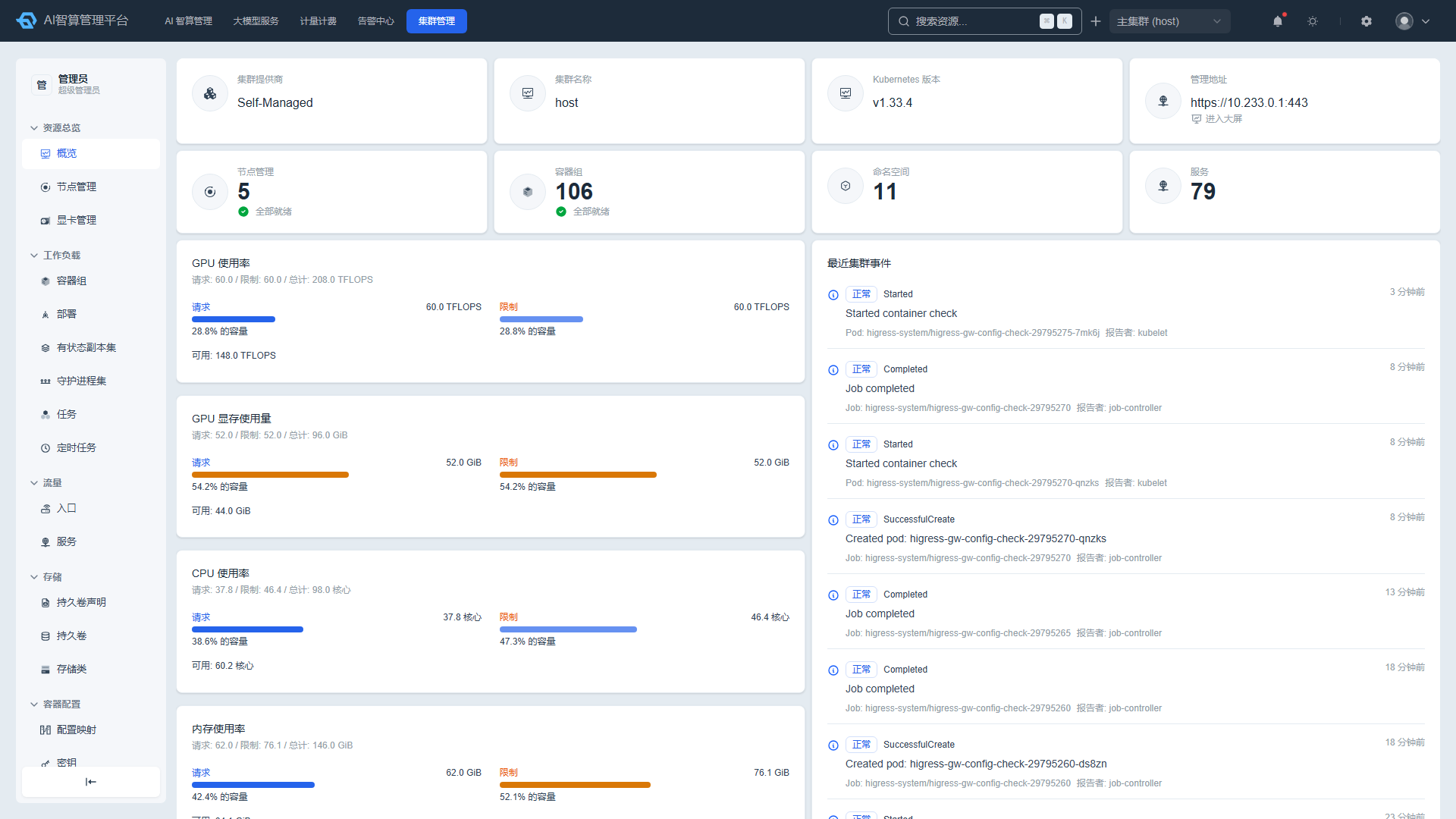
Pod
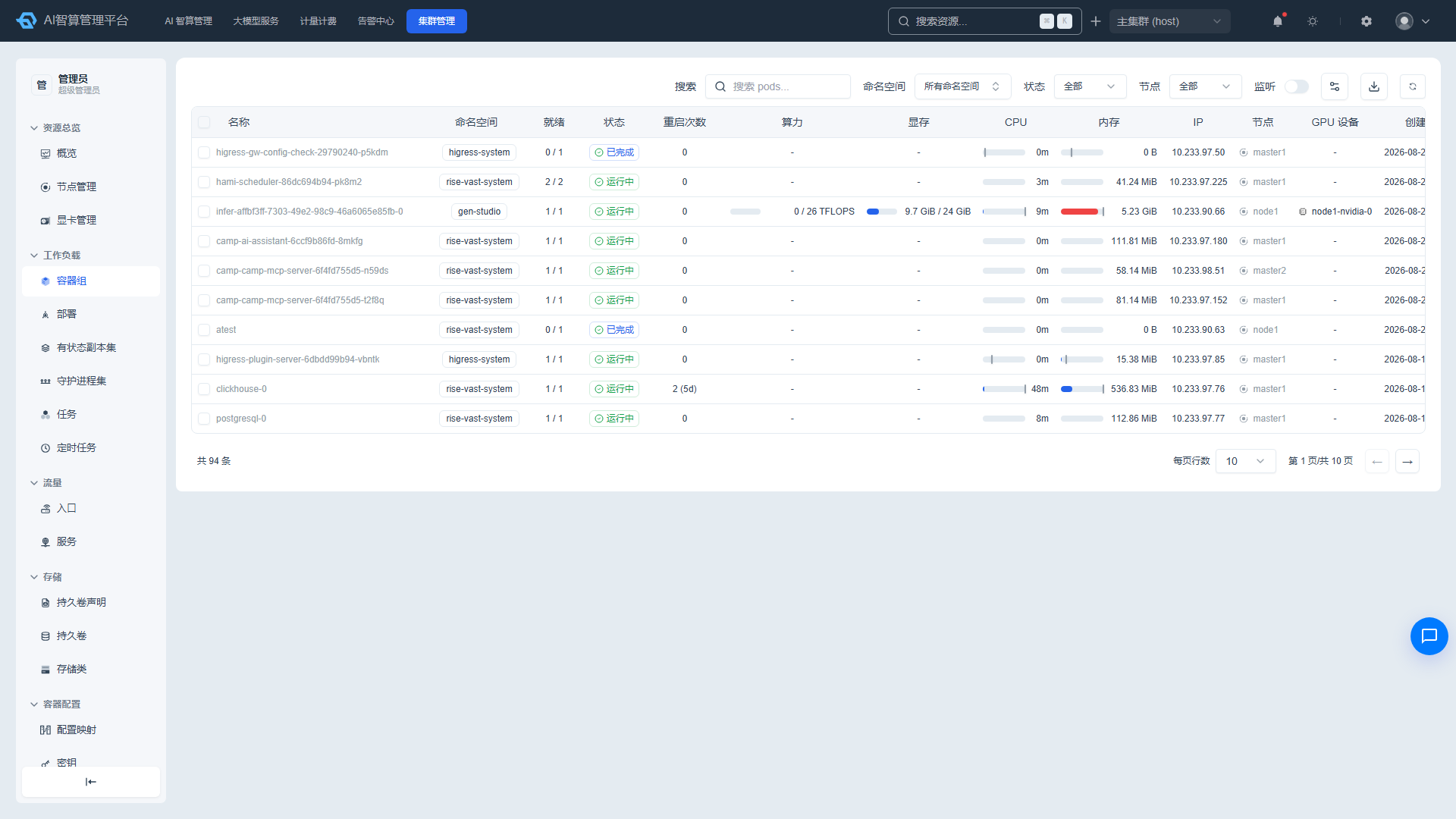
Viewing the Pod List
- Navigate to K8s Cluster Management > Workloads > Pod.
- The list displays: name (hover to copy), ready state, running state (colored badge with label), restart count, compute power, memory, CPU, memory, IP, node, GPU device, and creation time.
- Use the top search box to query by name, namespace, status, node, and more.
- Click the "Watch Mode" toggle in the upper-right corner to enable automatic real-time list refresh.
Common Pod Detail Operations
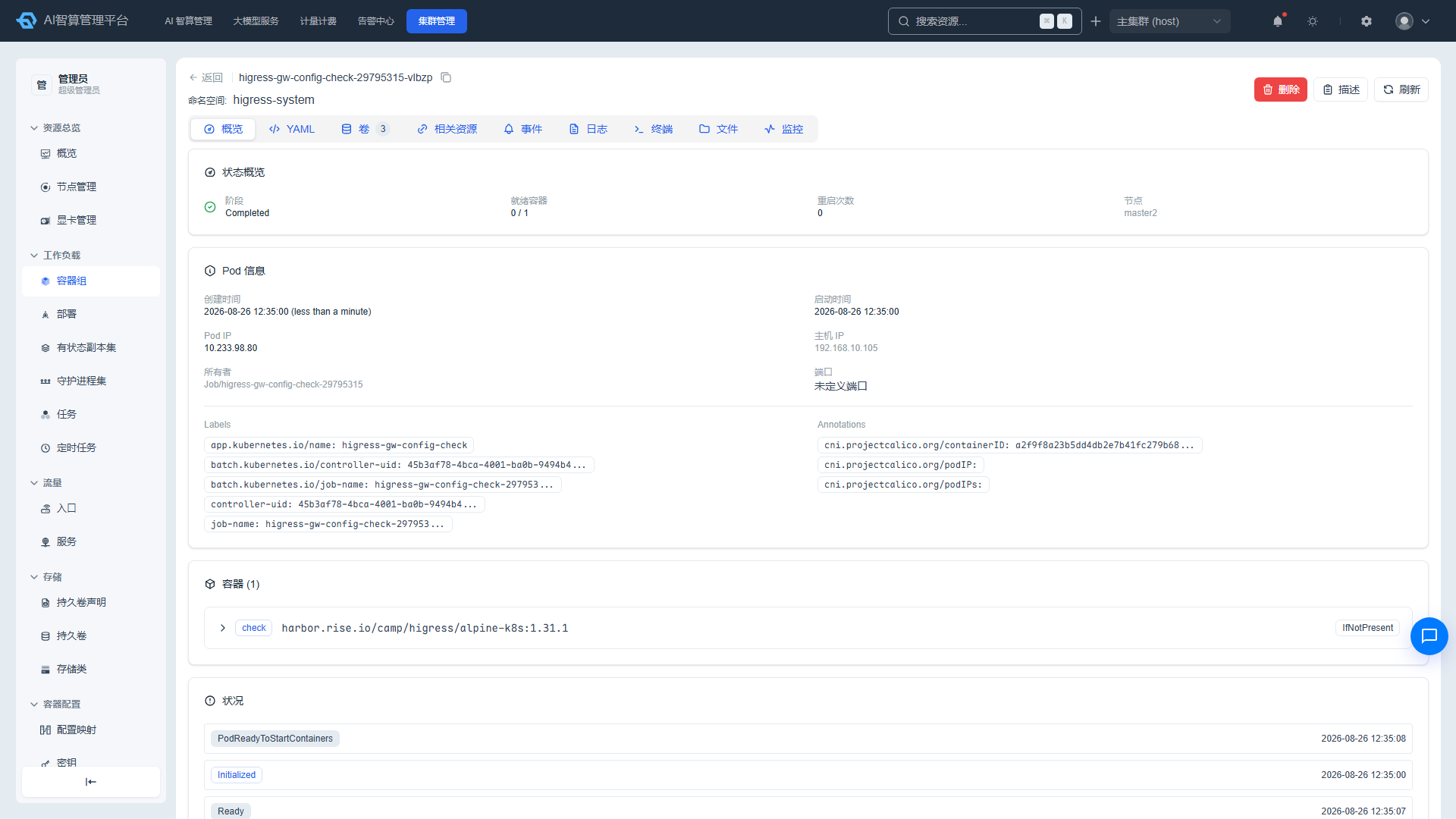
- Click a Pod name to enter the detail page.
- Adjust Resources: In the "Resources" card, adjust CPU/memory requests and limits online without recreating the Pod.
- Adjust GPU: Adjust GPU compute power, memory, and priority online without restarting the Pod.
- Container Terminal: Click the "Terminal" button to open a container Shell in the browser.
- View Logs: Switch to the "Logs" tab to view container runtime logs with scroll loading and search support.
- Browse Files: Switch to the "Filesystem" tab to browse container files in the browser.
- View Monitoring: Switch to the "Monitoring" tab to view CPU/memory/GPU resource usage trends.
- GPU Topology: Switch to the "GPU Topology" tab to view NVLink interconnect relationships between GPUs on the Pod's node.
- Edit YAML: Switch to the "YAML" tab to edit Pod configuration online and save.
- View Describe: Click the "Describe" button to view
kubectl describe podoutput.
Deployment
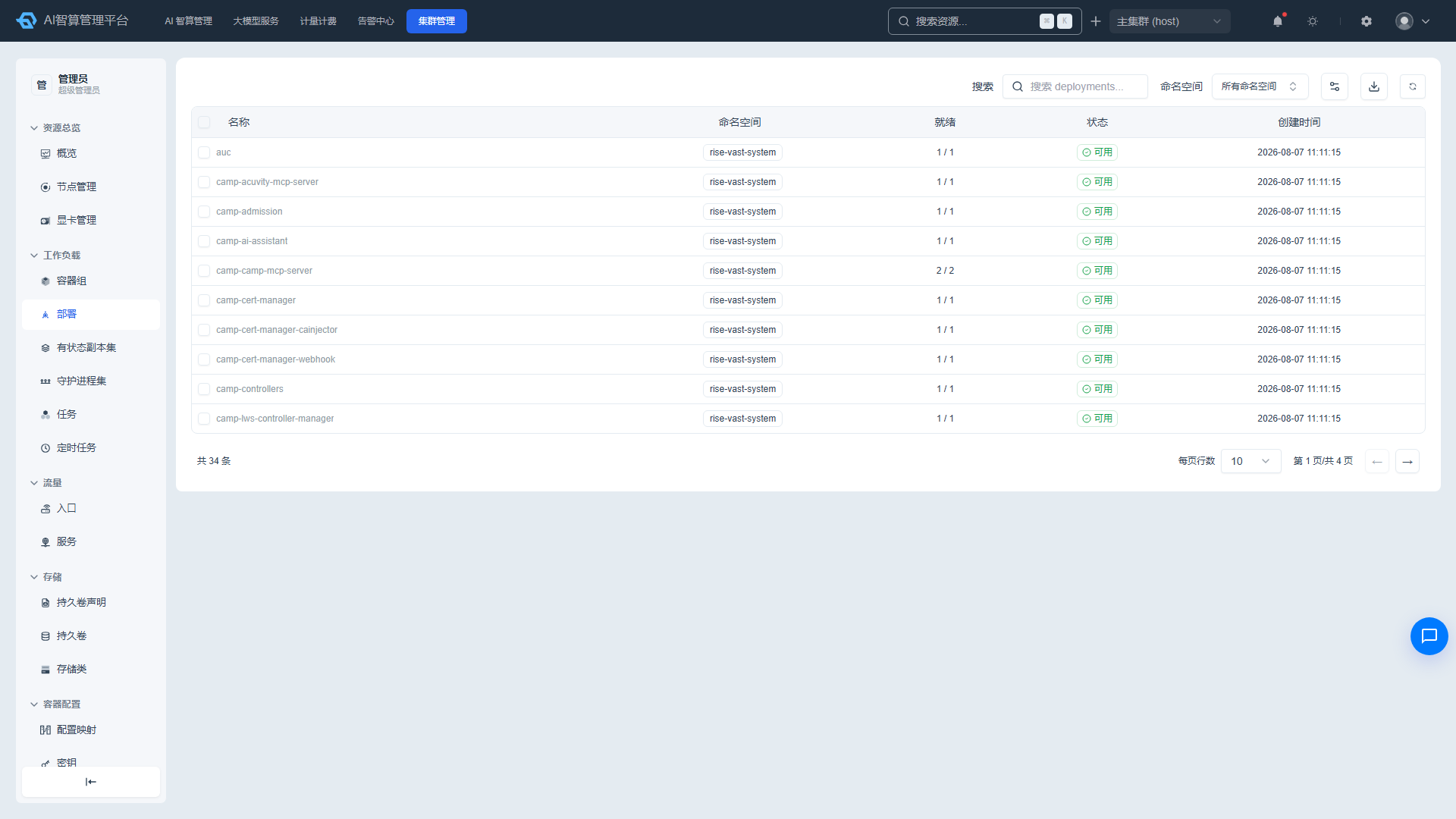
Viewing the Deployment List
- Navigate to K8s Cluster Management > Workloads > Deployment.
- The list displays: name, namespace, status, replica count, labels, and more.
- Click a name to enter the detail page.
Adjusting Replicas and Restarting
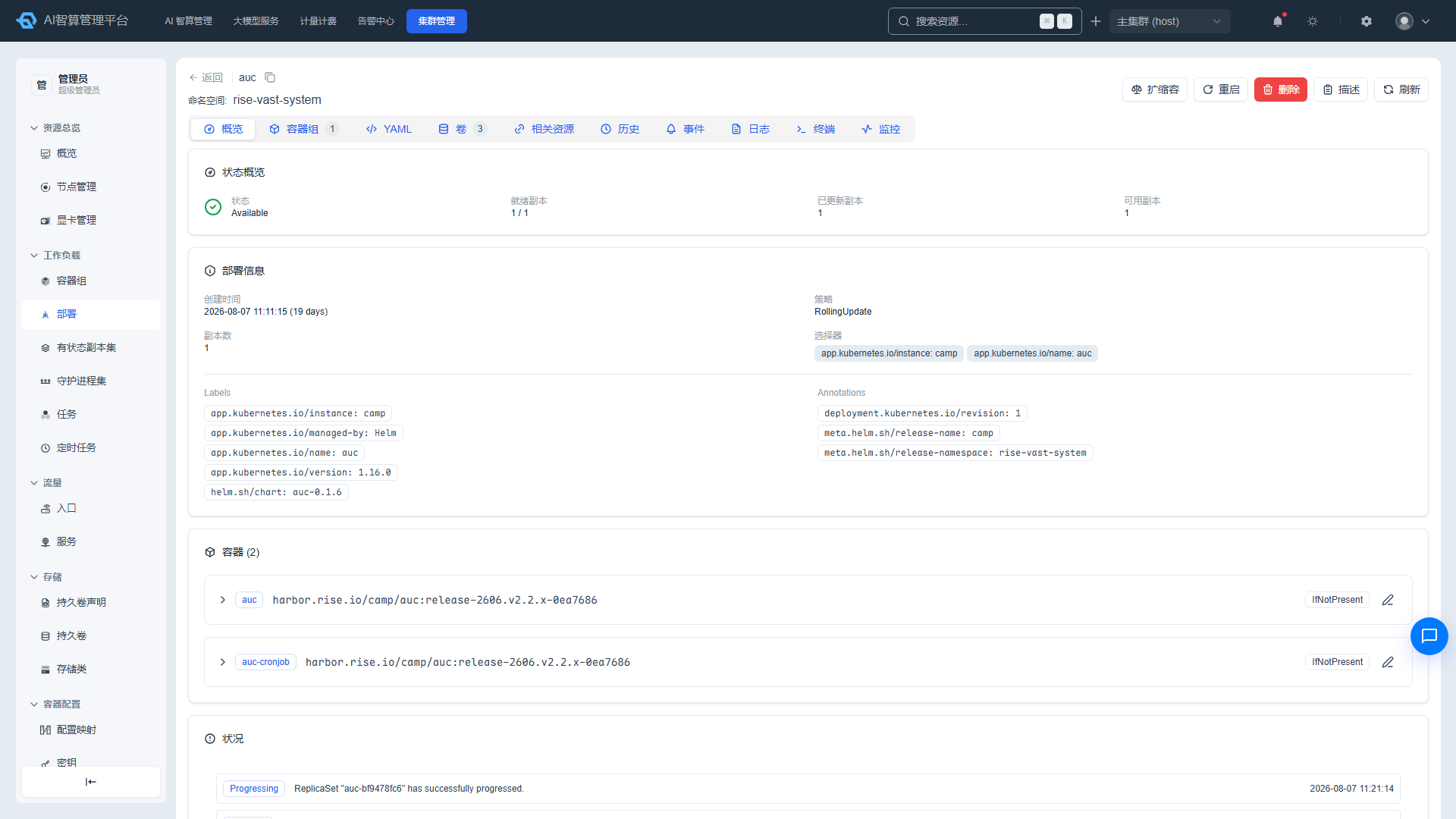
- On the Deployment detail page, click the "Replicas" input field, enter the target replica count, and apply with one click.
- Click the "Restart" button to trigger a rolling restart of the Deployment.
Viewing Version History
- On the Deployment detail page, switch to the "History" tab.
- View each version's ReplicaSet and change records.
- Click "Rollback" to revert to a specific version.
Viewing Pods and Logs
- On the "Pods" tab of the detail page, view the Pod list under this Deployment with real-time refresh support.
- Click a Pod name to navigate to its detail page; click "Logs" to view aggregated logs.
- On the "Terminal" tab, open a container Shell.
StatefulSet
Viewing the StatefulSet List
- Navigate to K8s Cluster Management > Workloads > StatefulSet.
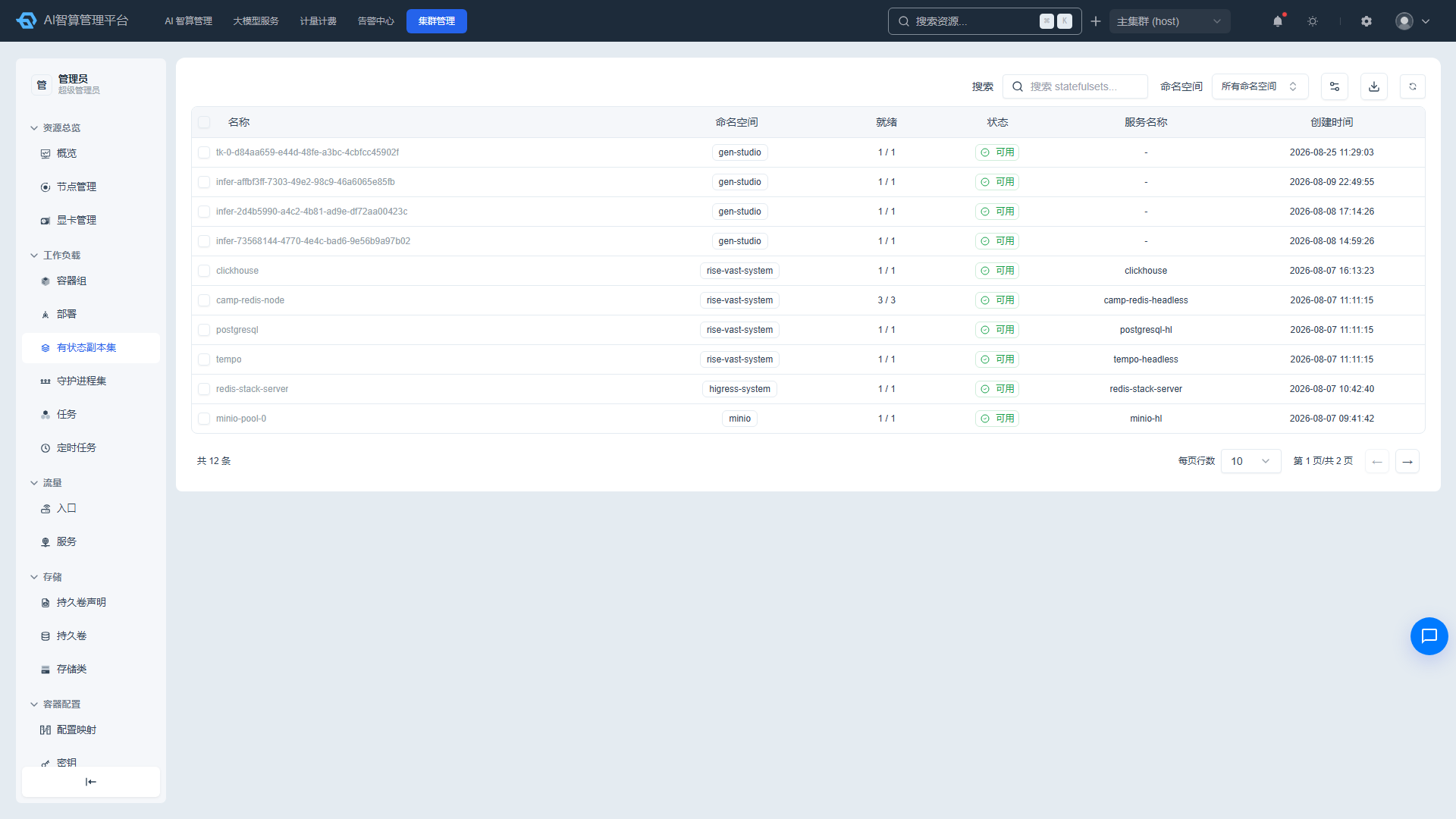
- The list displays: name, namespace, ready count, status, service name, and creation time.
- Supports scaling, restarting, deleting, batch deletion, Describe modal, manual refresh, and CSV export.
StatefulSet Details
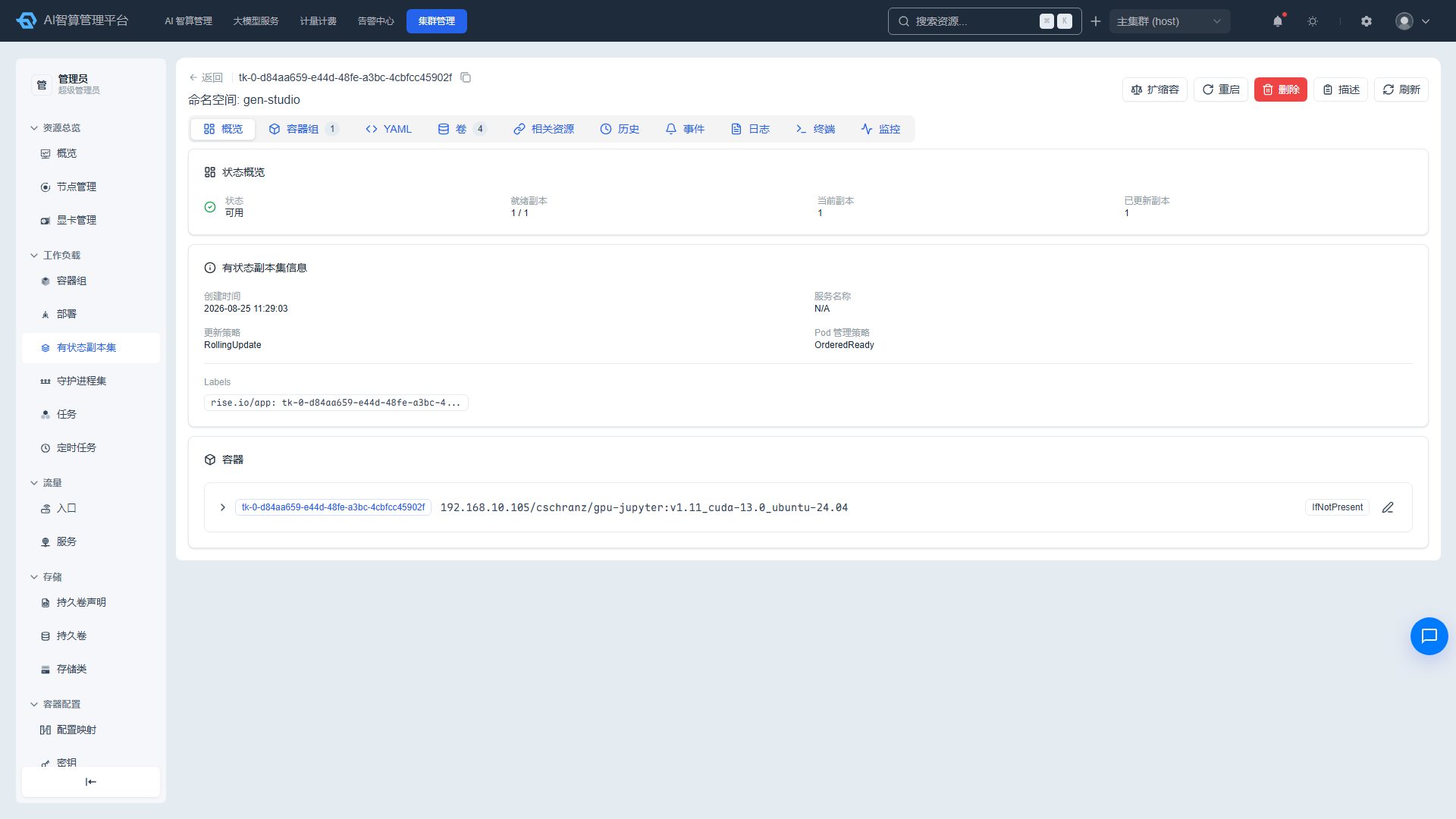
- Click a name to enter the detail page.
- Overview tab: status overview, StatefulSet information, init container and business container cards.
- Pods, YAML, Volumes, Related Resources, History, Events, Logs, Terminal, and Monitoring tabs are similar to Deployment.
- After saving YAML, scaling, or restarting, the page auto-refreshes; refresh stops automatically once ready replicas and updated replicas both reach the desired count.
DaemonSet
Viewing the DaemonSet List
- Navigate to K8s Cluster Management > Workloads > DaemonSet.
- The list displays: name, desired scheduled count, current scheduled count, ready count, available count, status, and creation time.
- Use the namespace selector and search box to filter.
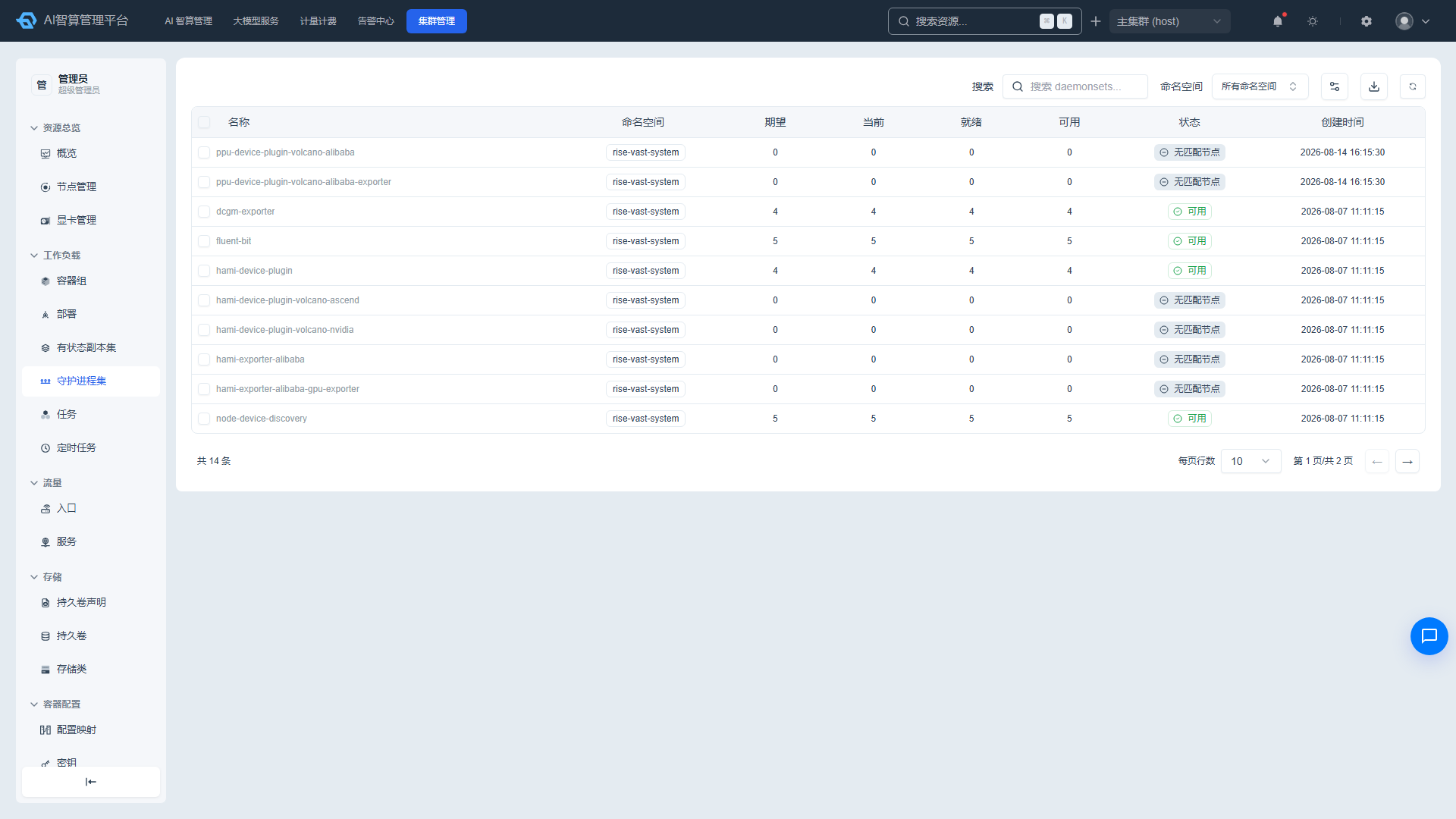
DaemonSet Details
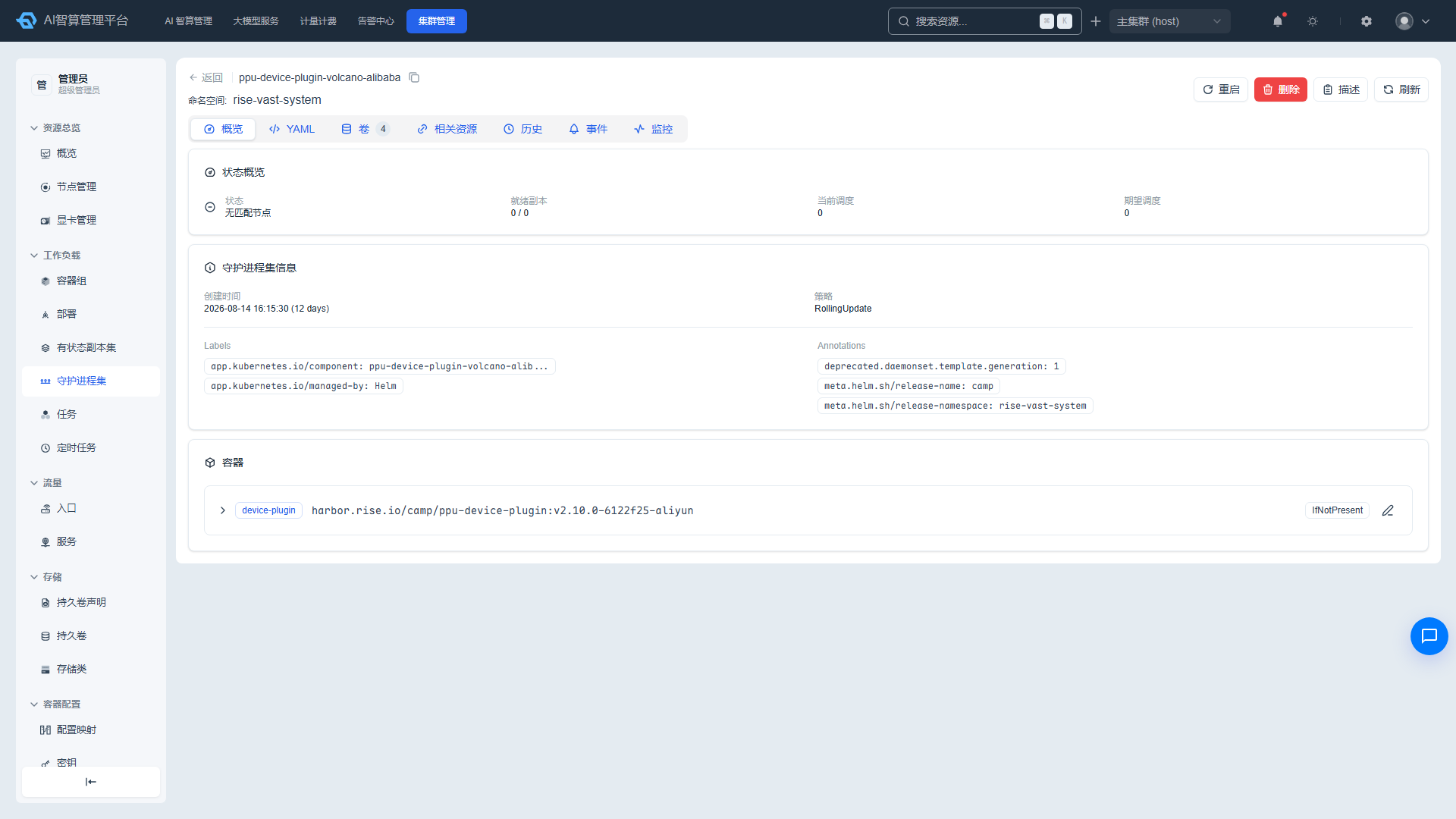
- Click a name to enter the detail page.
- The top provides restart, delete, Describe, and refresh operations.
- When the status is unstable, polling occurs every 1 second; polling stops automatically once stable.
- Overview tab: status, ready/desired replicas, current scheduled count, desired scheduled count, update strategy, labels/annotations, init containers and containers.
- Provides Pods, YAML, volumes, related resources, history, events, logs (by Pod/container), terminal, and monitoring tabs.
Job
Viewing the Job List
- Navigate to K8s Cluster Management > Workloads > Job.
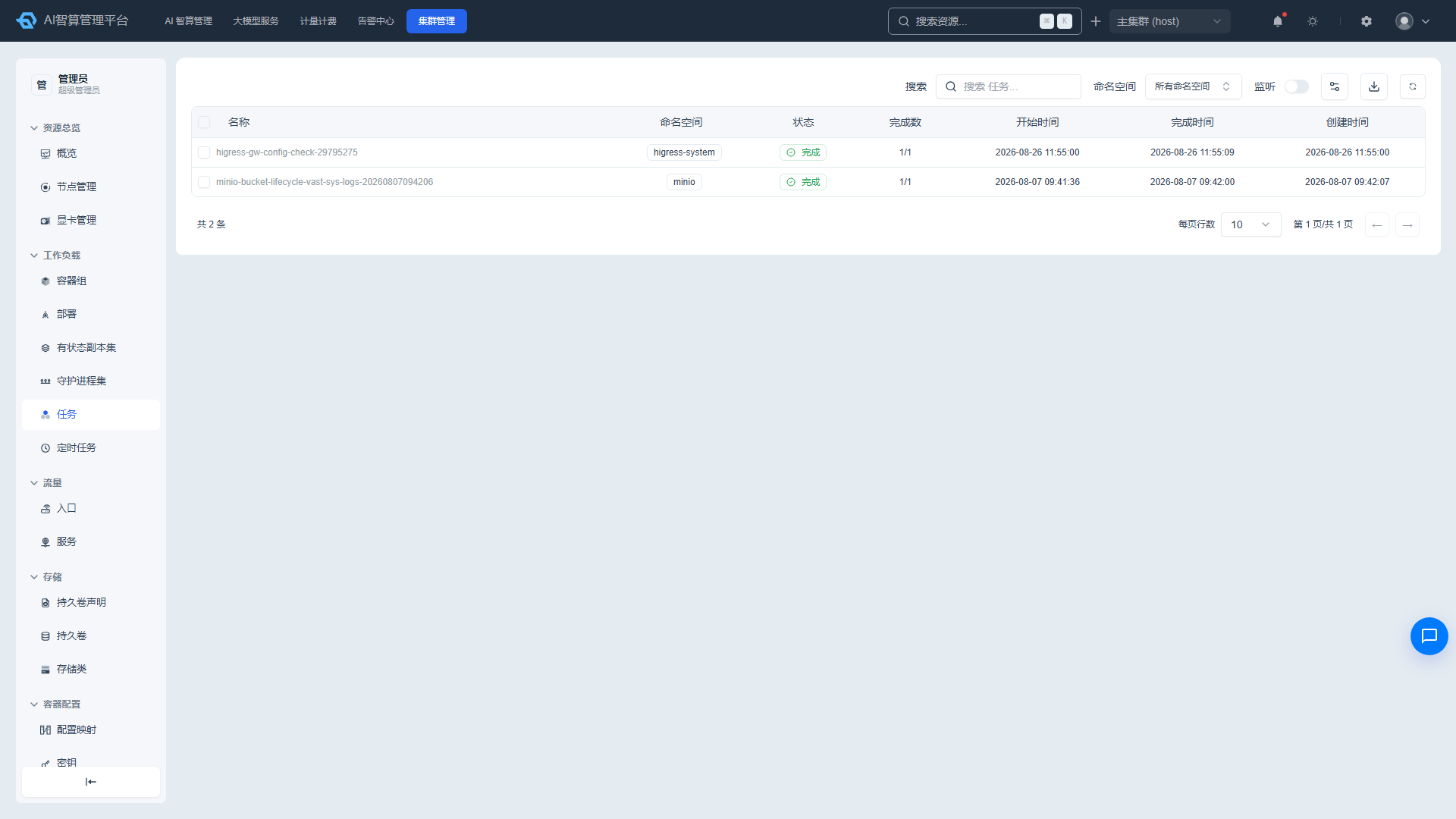
- The list displays: name, status (Complete/Failed/Running), completion count (succeeded/expected), start time, completion time, and creation time.
- Use the namespace selector and search box to filter; supports Watch real-time push toggle.
Job Details
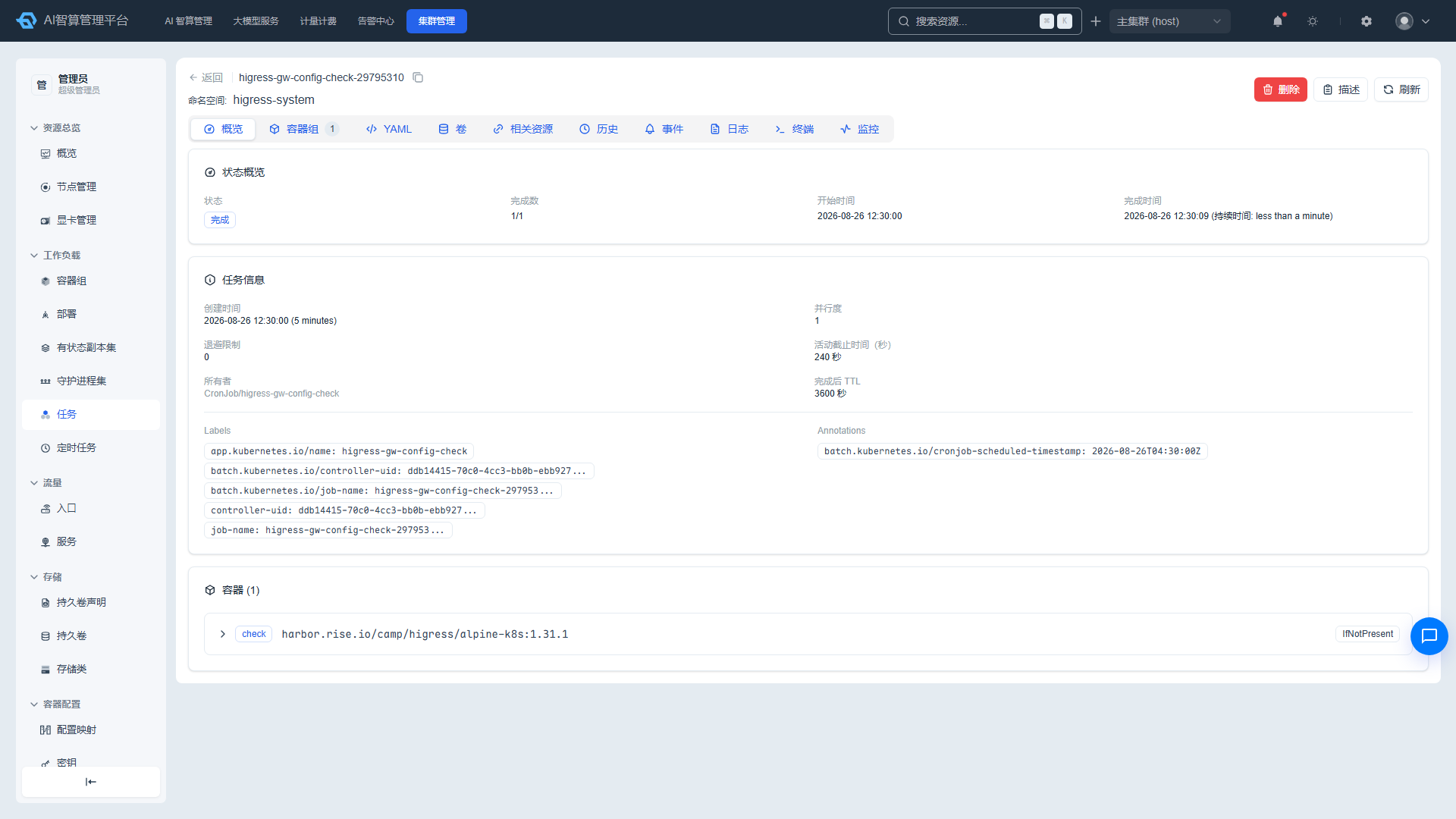
- Click a name to enter the detail page.
- The top provides delete, Describe, and refresh operations.
- Overview tab: status, completion count, start time, completion time (with duration), parallelism, retry limit (backoffLimit), active deadline time, post-completion TTL, owner resource links (e.g., CronJob), init container and container configuration.
- Provides Pods, YAML, volumes, related resources, history, events, logs, terminal, and monitoring tabs.
CronJob
Viewing the CronJob List
- Navigate to K8s Cluster Management > Workloads > CronJob.
- The list displays: name, schedule, status (Active/Suspended), active job count, last schedule time, and last successful time.
- Use the namespace selector (including "All Namespaces") and search box to filter; selecting all automatically displays the namespace column.
CronJob Operations
- On the detail page, click the corresponding button at the top:
- Run Now: Manually trigger a one-time Job.
- Pause/Resume: Control whether the CronJob schedules according to its schedule.
- Delete: Delete the CronJob.
- Describe/Refresh: View describe output or refresh status.
CronJob Details
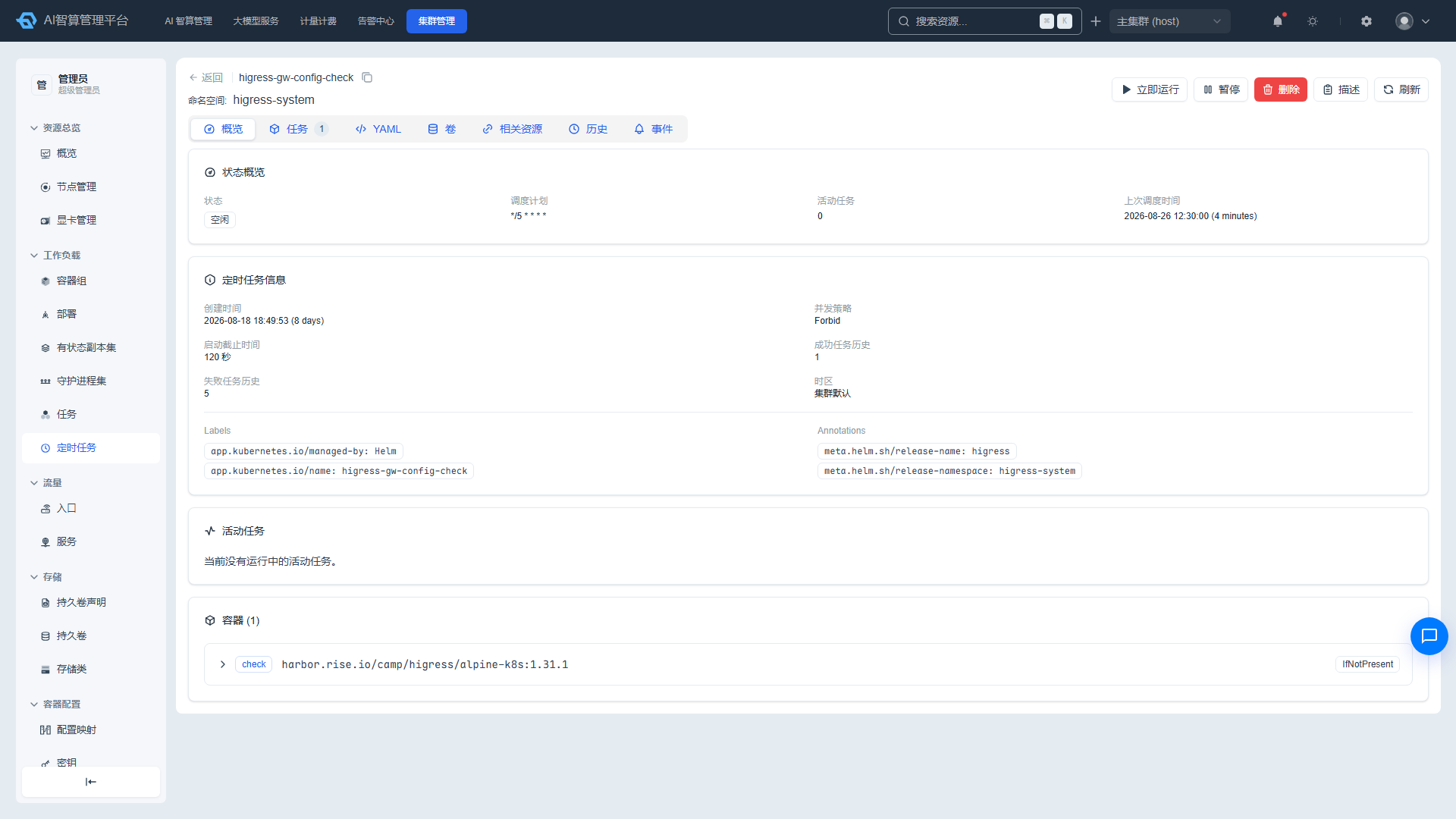
- Overview tab: status, schedule, active job count, last schedule time, concurrency policy, starting deadline time, successful/failed job history retention limits, timezone, active job links, init container and container configuration.
- Jobs tab: Displays the list of Jobs derived from this CronJob with pagination support.
- Provides YAML, volumes, related resources, history, and events tabs.
FAQ
Q: The Pod status remains Pending — what should I do? A: Check the "Events" tab on the Pod detail page. Common causes include insufficient resources, image pull failures, unmet scheduling constraints, and unbound PVCs.
Q: After a Deployment restart, the Pods were not updated? A: If the image and configuration have not changed, a rolling restart will not re-pull the image. Confirm that the image tag or configuration has been modified.
Q: The CronJob is not triggering on schedule? A: Check whether the CronJob status is Suspended, whether the schedule expression is correct, and whether the cluster time is consistent.