Top Navigation
The top navigation bar spans the entire Rise AI Platform, providing cross-cutting capabilities such as cluster switching, message notifications, theme settings, and page search to help users efficiently switch between different clusters and functional modules.
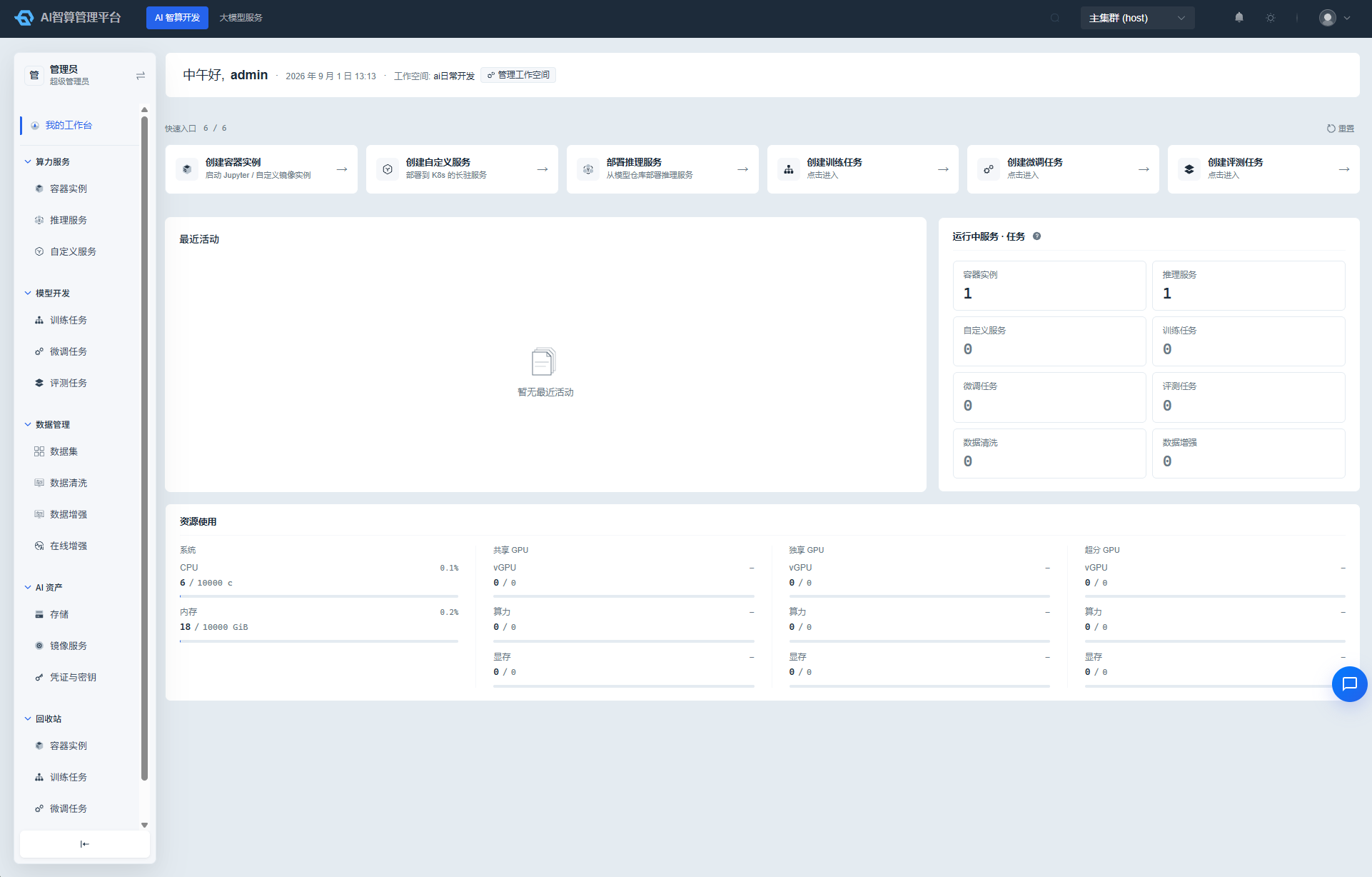
Cluster Switching
- Locate the current cluster name on the left side of the top navigation bar.
- Click the cluster name to expand the cluster dropdown list.
- The list displays each cluster's alias and name, along with its online / offline / abnormal status indicator; only online clusters are selectable.
- Click a target cluster. The page retains the current functional context and only switches the cluster prefix, facilitating unified multi-cluster operations.
Message Notifications
- Click the bell icon on the right side of the top navigation bar.
- The red badge on the icon indicates the number of unread messages.
- The dropdown displays the unread message list, including title, time, and content summary.
- Click a message to navigate to the corresponding page and view details.
- Click "Mark All as Read" to clear all unread badges at once.
- Click "View All Messages" to navigate to the message center page.
Theme Settings
- Click the theme / appearance icon on the right side of the top navigation bar (controlled by a global toggle; may not appear in some environments).
- A theme configuration drawer opens on the right:
- Primary color: Customize the platform theme color.
- Appearance: Light / Dark / Follow System.
- Changes take effect immediately and are saved in the browser's local storage.
Page Search
- Click the search icon on the right side of the top navigation bar, or use the shortcut
Ctrl+K/Cmd+K. - The search panel opens. Enter keywords for the menu or page name.
- Use the up / down arrow keys to select results, then press Enter to navigate.
- Click outside the panel or press
Escto close the search.
FAQ
Q: Why are some clusters displayed in gray in the dropdown? A: Gray indicates that the cluster is currently offline or in an abnormal state and cannot be switched to. Please contact the platform administrator to investigate cluster health.
Q: The page shows an error after switching clusters. What should I do? A: The target cluster may be missing the required resources or you may lack sufficient permissions. Please confirm that the target cluster has the corresponding module deployed and that your current account has access permissions.
Q: Why can't I find the theme settings? A: The theme settings entry is controlled by a platform-wide global toggle. If it is not displayed, the current environment has disabled personalized theme configuration.