AI Assistant
The Rise AI Platform includes a built-in AI intelligent assistant (AI Chat) powered by a large language model (DeepSeek). It provides platform usage assistance, data queries, knowledge base Q&A, and chart visualization through a conversational interface. The assistant uses a "ReAct Agent + MCP tool calling" architecture: after understanding your question, it autonomously decides whether to invoke platform tools to fetch real data, then composes and returns an answer.
Console: Available in both the User Interface (AI Development Platform) and the Admin Console; can be invoked from any page.
Access path: The floating AI Assistant icon in the lower-right corner of the page.
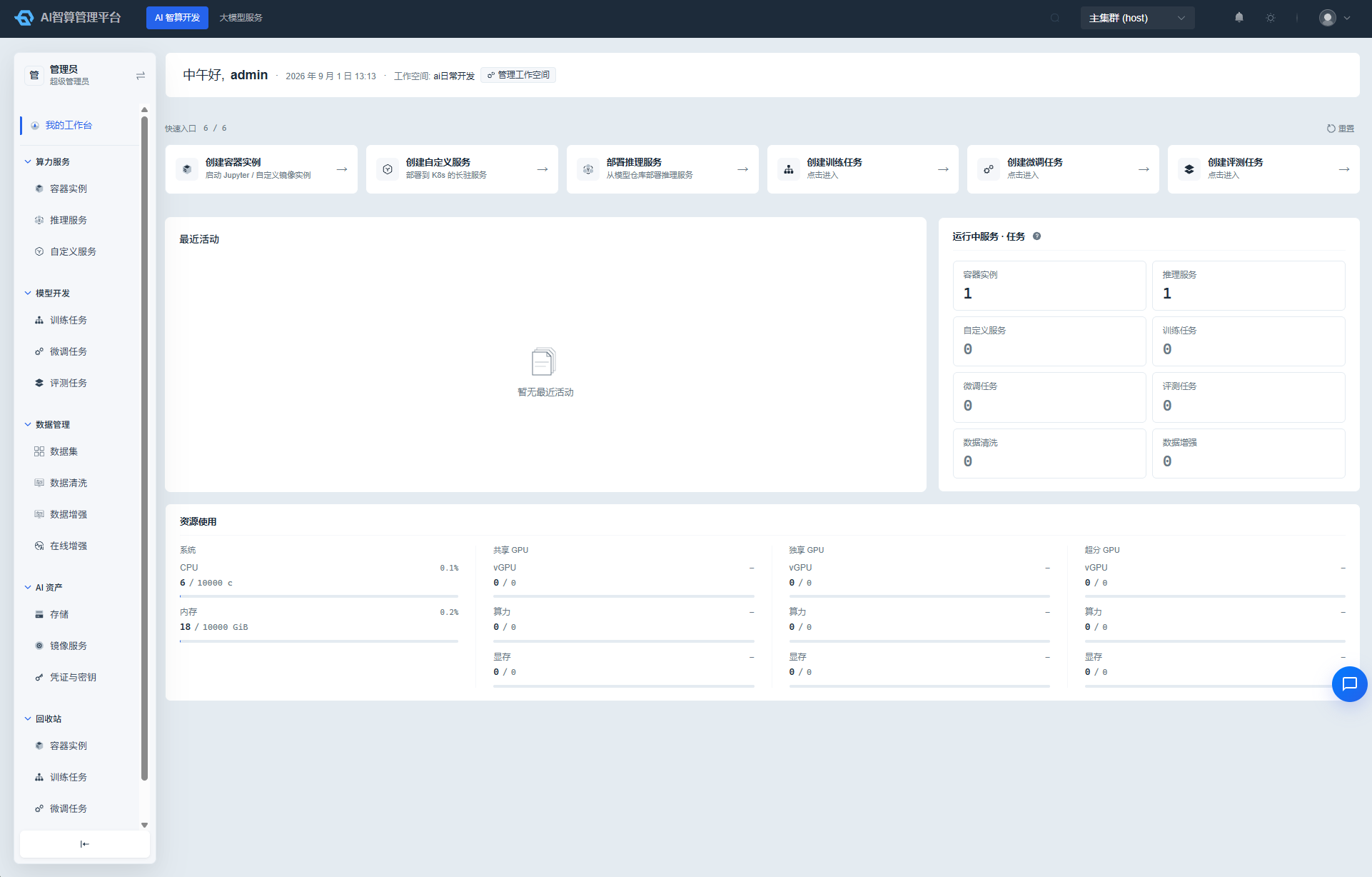
Using the AI Assistant
- On any page, click the AI Assistant floating icon in the lower-right corner to open the chat window.
- The floating icon supports dragging. If it blocks your work area, drag it to another position (the position is remembered for future sessions).
- Describe your question in the input box. For example:
- "How do I create a container instance?"
- "My inference service has been pending for a long time. What should I do?"
- "Check how much of my tenant quota remains."
- Press Enter (or your custom send shortcut) to send. The assistant returns its answer via streaming output, character by character. Answers support Markdown formatting (headings, lists, code blocks, images, etc.), and code blocks include syntax highlighting and one-click copy.
- During generation, a stop button appears next to the input box, allowing you to interrupt the answer at any time. In case of network issues, the frontend automatically retries and displays reconnection status.
- Click the close button in the upper-right corner of the chat window or click the floating icon again to collapse the assistant. The window supports maximizing for a better reading experience.
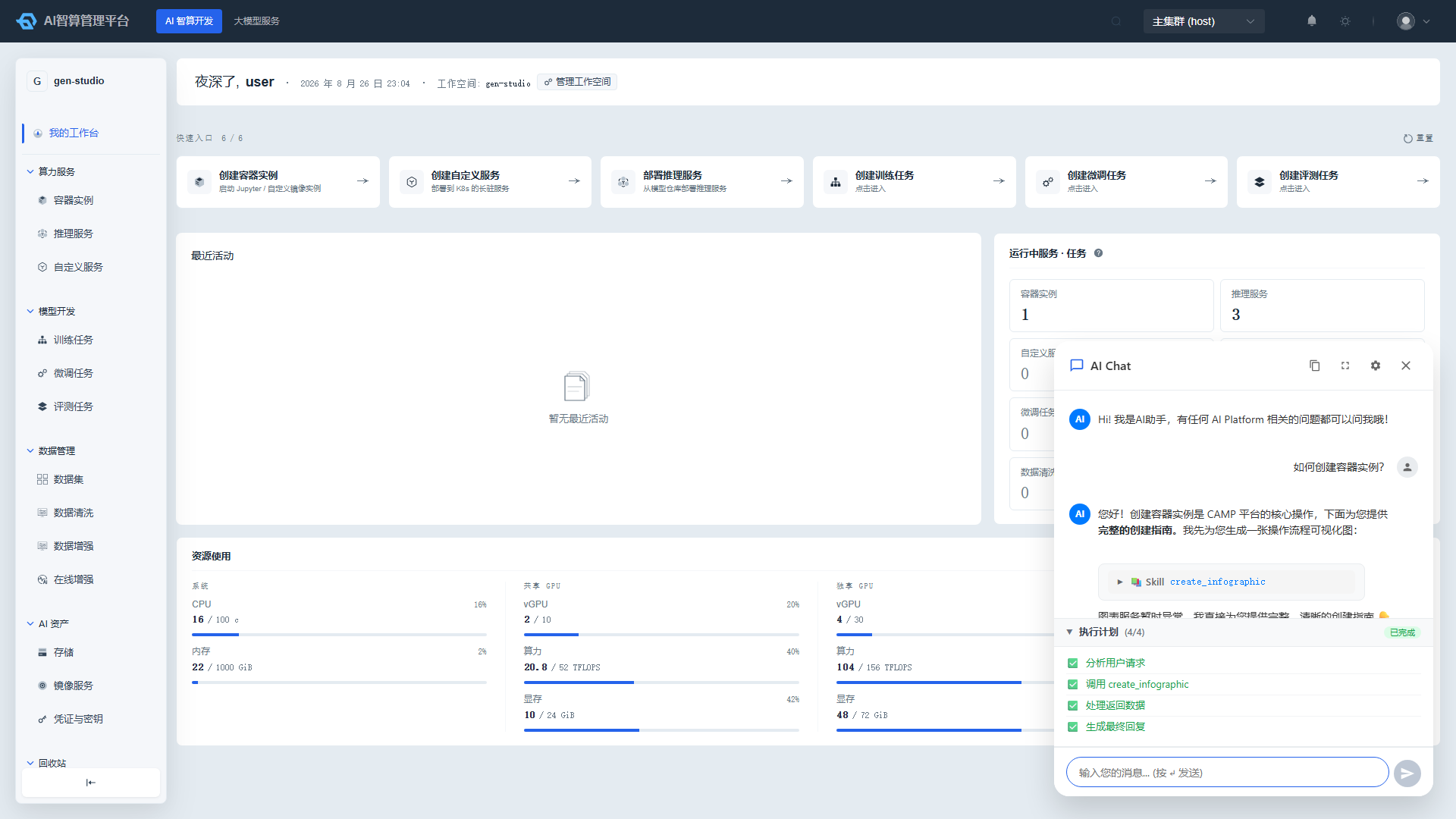
What the Assistant Can Do
Platform Usage Guidance and Knowledge Base Q&A
The assistant is connected to the platform knowledge base (Kubernetes knowledge, platform operation manuals, deployment documentation, etc.) and uses semantic + keyword hybrid retrieval. For day-to-day operational questions, it provides step-by-step guides:
- "How do I create a container instance?" → Returns a complete creation workflow guide
- "What causes training tasks to stay in queue?" → Analyzes common causes and provides troubleshooting steps
- "How do I configure alert notifications?" → Provides the configuration path and operation instructions
Platform Data Queries (MCP Tool Calling)
The assistant connects to platform data services via MCP (Model Context Protocol), enabling direct queries against real platform data and summarized answers. For example:
- Tenants and projects: "How many tenants are there?" / "Look up the details of the gen-studio project"
- Quotas and usage: "How much of my tenant quota remains?" / "How many GPUs are available for this project?"
- Workloads: "What container instances are currently running?" / "List all training tasks in a failed state under this project"
- Resources and specifications: "What compute specifications are currently available?" / "What public images can I use?"
- Billing: "What was yesterday's compute cost for the platform?" / "Show me this tenant's cost trend for the current month"
Each tool call is displayed in a collapsible card showing the tool name, parameters, duration, and return results — the process is fully transparent. See MCP Service for the MCP tool list and permission details.
Data query capabilities require the MCP service to be enabled during deployment and corresponding data tools to be configured. If MCP is not enabled in the current environment, the assistant falls back to usage guidance mode and directs you to the appropriate page.
Charts and Visualization
When an answer involves data comparison or process explanation, the assistant can automatically generate visual content:
- Data charts: Line charts, bar charts, pie charts, radar charts, funnel charts, Sankey diagrams, and 26 other chart types, embedded directly in the conversation as images.
- Infographics: Process flow diagrams, timelines, hierarchy structures, comparison quadrants, and other infographics, which can be clicked to enlarge for preview in the conversation.
You can also make direct requests, such as: "Turn the cost data above into a trend chart" or "Generate a container instance creation process diagram."
Execution Plan Visualization
For requests requiring multi-step processing, the assistant displays an execution plan card below its answer: analyzing the user's request → calling tools → processing returned data → generating the final response. Each step is updated in real time (in progress / completed / failed), so you can clearly see what the assistant is doing.
Multi-Turn Dialogue and Context
- Within the same chat window, multi-turn follow-ups are supported. The assistant carries recent conversation context to understand your references (e.g., "What about that training task?").
- When conversations become lengthy, the assistant automatically summarizes earlier content to prevent context loss.
- The entire conversation record can be copied with one click for easy archiving or forwarding to colleagues.
Capability Boundaries
- Answers only platform-related questions: The assistant is positioned as a Rise AI Platform expert. Non-platform-related questions (e.g., casual chat, general programming) will be politely declined.
- Primarily queries and guidance: The assistant can query platform data and provide operational guidance, but it will not directly modify or delete platform resources on your behalf.
- Inherits your login identity: When querying data, the assistant uses your own login credentials. You can only access data within your own permission scope, consistent with normal page operations.
- Answers are for reference only: For critical operations involving resource changes or billing, please refer to the actual data on the platform page and the corresponding section of this documentation.
FAQ
Q: Is the AI Assistant available in both the User Interface and the Admin Console? A: Yes. The assistant is mounted in the global layout and is visible via the floating entry on any page of both consoles after logging in.
Q: Why didn't the assistant provide the quota data directly, but instead directed me to check on the page? A: Data query capability depends on the MCP service enabled during deployment. If MCP data tools are not configured in the current environment, the assistant can only provide operational guidance. Please contact the platform administrator to confirm the MCP service status. See MCP Service.
Q: The AI Assistant's answer is inaccurate. What should I do? A: You can provide additional context and re-ask (e.g., specifying a workspace or project name), or refer to the documentation page of the corresponding module for authoritative information.
Q: What languages does the AI Assistant support? A: It supports Chinese and English Q&A and automatically matches the response language based on your input.
Q: Are conversation contents saved? A: The current window's conversation is retained in the session context for multi-turn follow-ups. Closing the window and reopening it starts a new conversation.