On-Call Management
"On-Call Management" is used to create on-call teams, configure rotation cycles and on-call time slots, manage members, and integrate DingTalk robots for automatic alert pushing to group chats. It serves as the foundational data source for alert dispatch — the "On-Call Teams" referenced in subscription strategies all originate from here.
Entry path: Left sidebar Alert Center > On-Call Management, page route
/admin/duty/oncall-group/index.
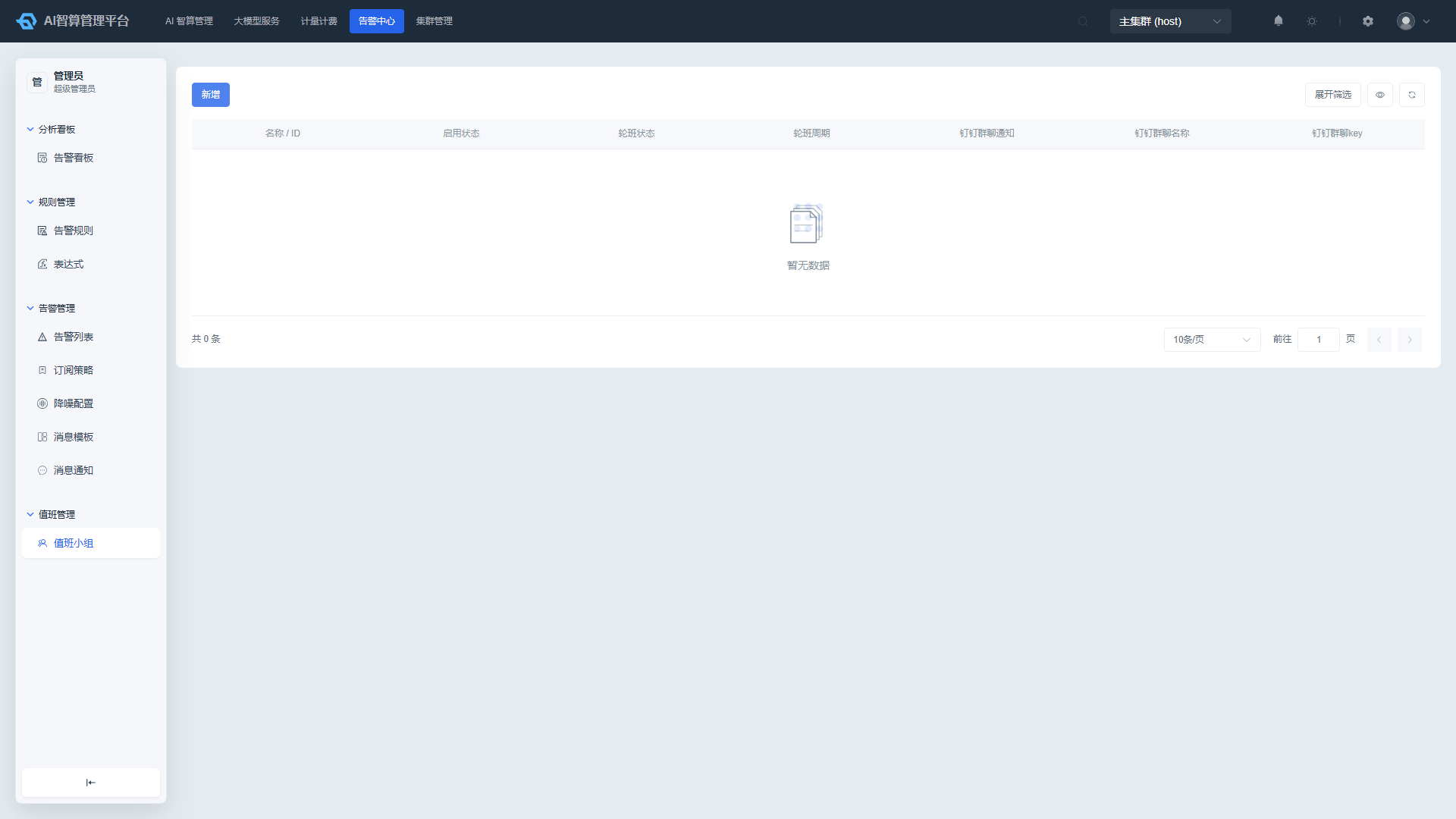
Page Menu
| Page | Route | Description |
|---|---|---|
| On-Call Teams | /admin/duty/oncall-group | View and manage on-call teams |
| On-Call Team Details | /admin/duty/oncall-group/:id | Configure team members and on-call time slots |
Create an On-Call Team
- Navigate to On-Call Management > On-Call Teams.
- Click "New On-Call Team".
- Enter a Team Name.
- Set the Enabled Status: Only enabled teams will participate in alert dispatch; disabled teams will not.
- Set the Rotation Status: Whether to enable rotation.
- Set the Rotation Cycle: Daily rotation, e.g., rotate the on-call person every 1 day.
- Configure On-Call Days: Multi-select by day of week, e.g., Monday through Friday.
- Configure On-Call Time Slots: Multi-select from 24 hourly slots, e.g., selecting 00:00 ~ 23:00 indicates round-the-clock on-call.
- (Optional) Configure the DingTalk Robot:
- Enter the DingTalk Robot Webhook.
- Enter the Group Name / Group Key.
- After configuration, alerts dispatched to this team will be automatically pushed to the corresponding DingTalk group.
- Click "Confirm" to save.
After an on-call team is created, the system automatically calculates the current on-call person based on the rotation cycle and member order.
Manage Team Members
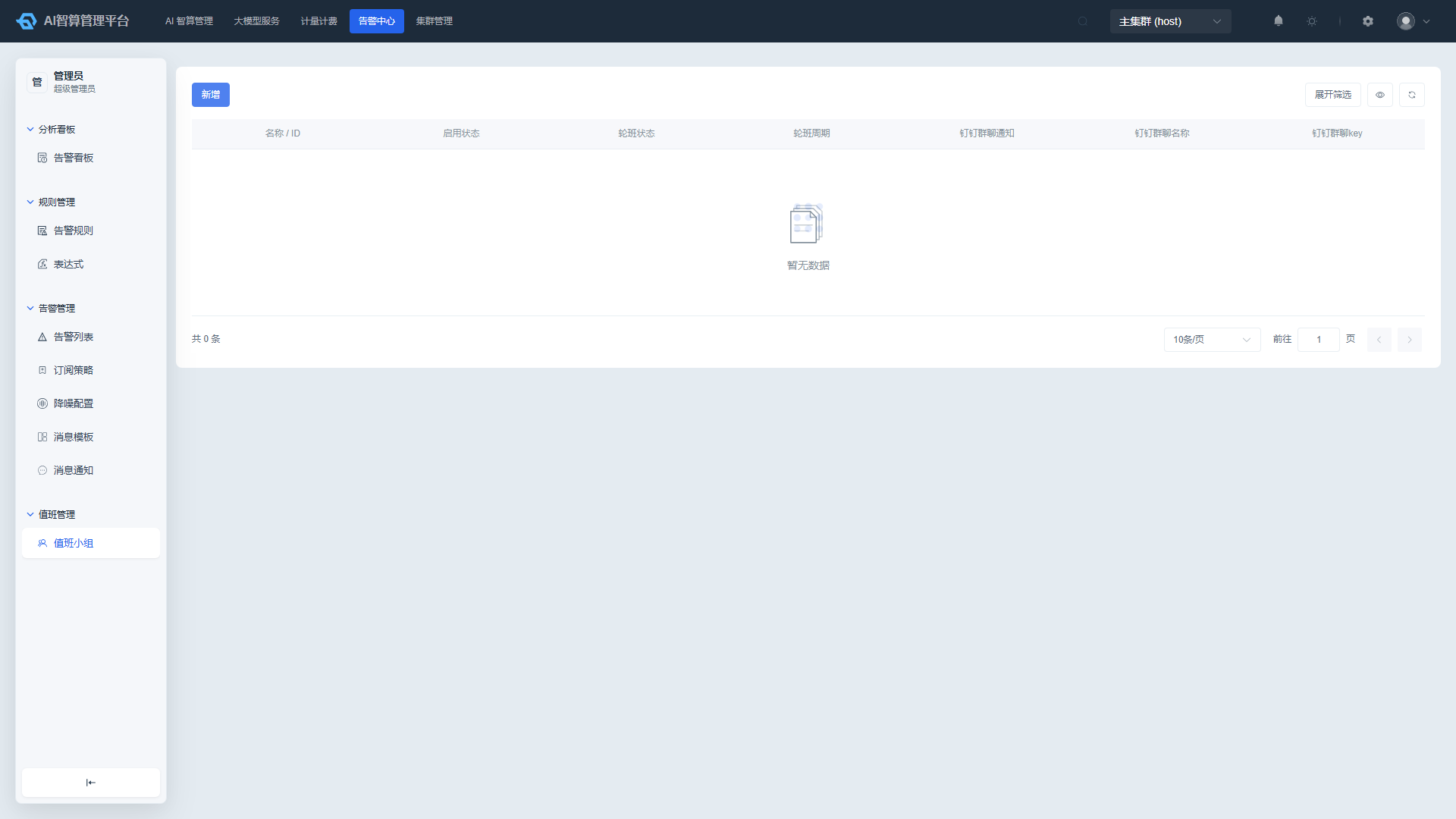
- In the on-call team list, click a team name to enter the On-Call Team Details page.
- The page displays:
- Team basic information: name, ID, enabled status, rotation status, rotation cycle, DingTalk notification status, group name/key.
- On-call information: on-call days, on-call time slots.
- Member list: username, rotation order, user status, current on-call status, rotation participation.
- Click "Add Member":
- Search for the target user in the user selector.
- Members already in the current team, resigned/pending-activation users will be grayed out with a notice.
- After selecting a user, set the Rotation Order (
0 ~ 100; lower numbers take on-call duty first). - Set Rotation Participation.
- Click "Confirm".
- After a member is added, you can in the list:
- Edit: Modify the rotation order and rotation participation.
- Remove: Remove the member from the team (requires confirmation before deletion).
Rotation order determines on-call priority. It is recommended to assign sequential numbers (0, 1, 2…) according to the team's scheduling plan.
Configure DingTalk Group Notifications
- On the on-call team details page, check the "DingTalk Notification Status."
- If the status shows as not enabled, click "Edit" on the team's basic information.
- Fill in:
- DingTalk Robot Webhook: Copy from the DingTalk group robot settings.
- Group Name / Group Key: Used to identify the target group associated with this robot.
- After saving, when alerts are dispatched to this team via a subscription strategy, the system will automatically push alert messages to this Webhook.
The Webhook and Group Key can be copied directly from the list for easy reuse across multiple configurations.
Enable/Disable a Team
- Locate the target team in the on-call team list.
- Row actions:
- Disable: The team will no longer participate in alert dispatch, but members and configurations are retained.
- Enable: Restore dispatch capability.
- The list supports filtering by team name, enabled status, and rotation status.
FAQ
Q: Why weren't alerts notified to the on-call team? A: Please check:
- Whether the on-call team is enabled.
- Whether the current time falls within the configured on-call days and time slots.
- Whether team members have an "Active" status and "Participate in Rotation" enabled.
- Whether the correct on-call team is selected in the subscription strategy.
Q: How is the current on-call person calculated? A: The system rotates automatically based on the rotation cycle and member rotation order. For example, with a 1-day cycle and members A(0), B(1), C(2), one person is on duty each day in sequence.
Q: The DingTalk group didn't receive alert messages. A: Please check:
- Whether the Webhook is valid and not blocked by DingTalk.
- Whether the group robot's keyword/signing configuration matches the content sent by the platform.
- Whether a group chat notification channel is configured in the subscription strategy.
Q: Can resigned users still receive alerts? A: Resigned or pending-activation users cannot be added to on-call teams. If an existing member later resigns, it is recommended to remove them from the team promptly, as it may affect rotation calculations.
Q: Will disabling an on-call team invalidate the subscription strategy? A: When an on-call team is disabled, subscription strategies referencing that team will still attempt to dispatch but will not produce actual notifications. To completely stop dispatching, modify or disable the corresponding subscription strategy.