Rule Management
"Rule Management" is used to create and maintain alert rules. Rules define "when a specific metric meets certain conditions, for how long, and at what severity level an alert is triggered." Rules and expressions are decoupled — expressions can be reused across multiple rules, facilitating unified maintenance of monitoring criteria.
Entry path: Left sidebar Alert Center > Rule Management, page route
/admin/duty/alert-rule/index.
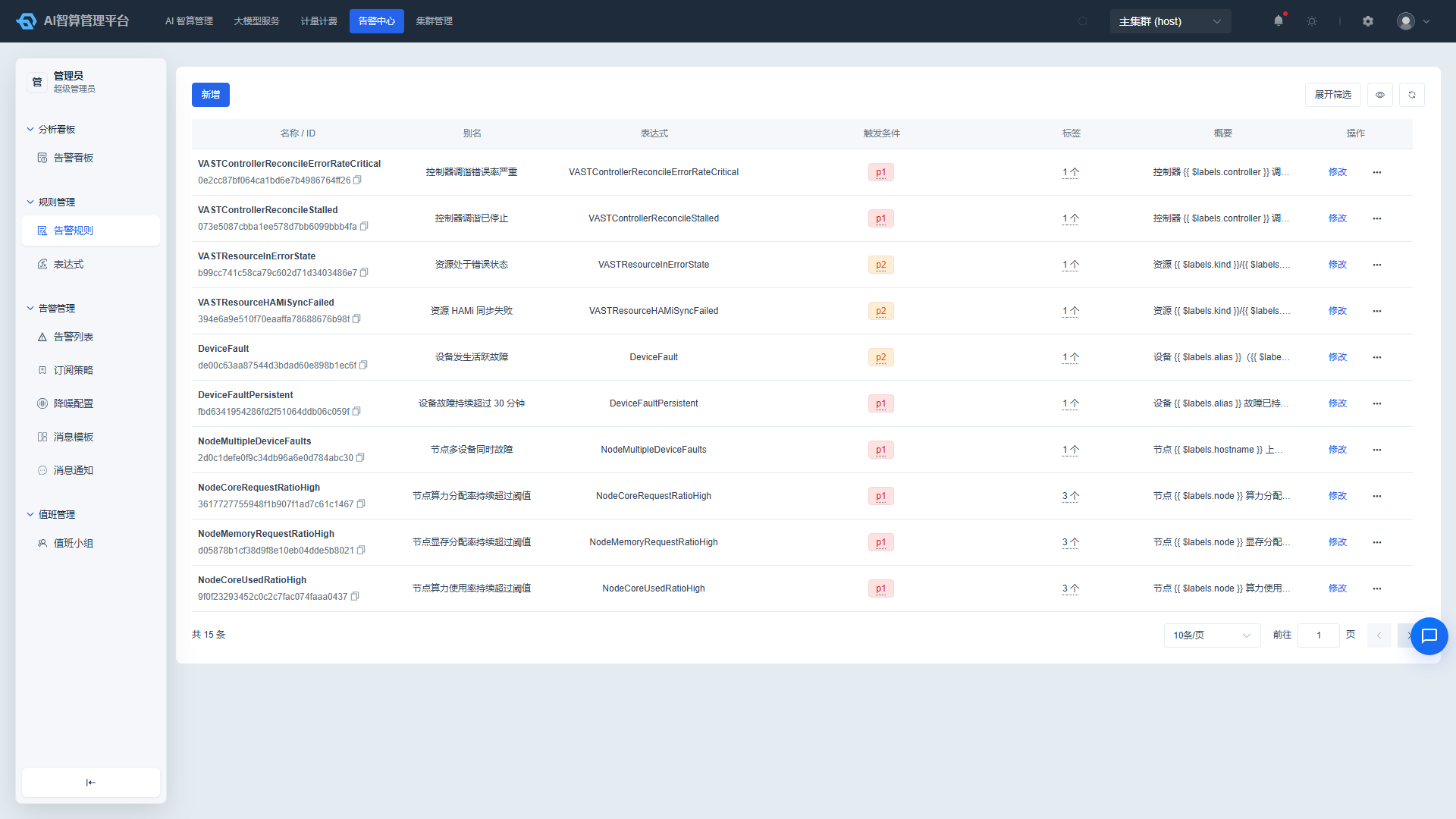
Page Menu
| Page | Route | Description |
|---|---|---|
| Alert Rules | /admin/duty/alert-rule | Create, edit, and delete alert rules |
| Create Alert Rule | /admin/duty/alert-rule/create | New rule form |
| Edit Alert Rule | /admin/duty/alert-rule/edit/:uuid | Modify an existing rule |
| Expressions | /admin/duty/alert-rule-expr | Manage reusable PromQL expressions |
Alert Rules: From Metrics to Alerts
Create an Alert Rule
- Navigate to Rule Management > Alert Rules.
- Click "New Alert Rule".
- Fill in the basic information:
- Rule Name: Globally unique; semantic naming is recommended, e.g.,
gpu-memory-usage-high. - Alias: A display alias.
- Description: Describe the trigger scenario and recommended handling.
- Rule Name: Globally unique; semantic naming is recommended, e.g.,
- Select an Expression:
- The dropdown supports remote search and filtering.
- Options are categorized as system-built-in (blue tag) and custom (green tag).
- Expressions define which PromQL metric to monitor, such as GPU memory usage rate, task failure rate, etc.
- Configure Trigger Conditions:
- Click "Add Trigger Condition" — up to 3 groups can be added.
- Each group includes:
- Operator:
==,!=,>,<,>=,<= - Threshold: A numeric value, supporting up to 4 decimal places; if the expression has a unit configured, the threshold input will automatically display the unit suffix.
- Duration: e.g.,
1m,5m,10m, indicating how long the metric must continuously satisfy the condition before triggering. - Alert Severity:
P1/P2/P3— each severity level can appear only once within a single rule.
- Operator:
- (Optional) Add Labels:
- Fill in key-value pairs, e.g.,
team=ops,service=ai-gateway. - Labels are sent with the alert and can be used for noise reduction, assignment, and filtering.
- Fill in key-value pairs, e.g.,
- Click "Create".
- After successful creation, you are returned to the list page where you can proceed to configure subscription strategies to notify on-call personnel.
It is recommended that each rule cover only one core metric. Avoid setting thresholds too low to prevent alert storms.
Verify Alert Basis
- Locate the target rule in the alert rule list.
- Click "Prometheus Chart" in the row actions.
- The system queries the metric curve in real time based on the rule expression, helping you confirm:
- Whether the metric has recent fluctuations.
- Whether the current value is approaching the threshold.
- Whether the threshold is set appropriately.
- After verification, click "Edit" to adjust the threshold or duration if needed.
Edit and Delete
- Locate the target rule in the list and click "Edit".
- You can modify the alias, description, expression, trigger conditions, and labels; the rule name cannot be changed after creation.
- Click "Save".
- To delete, click "Delete" and confirm the action.
Expressions: Reuse Monitoring Criteria
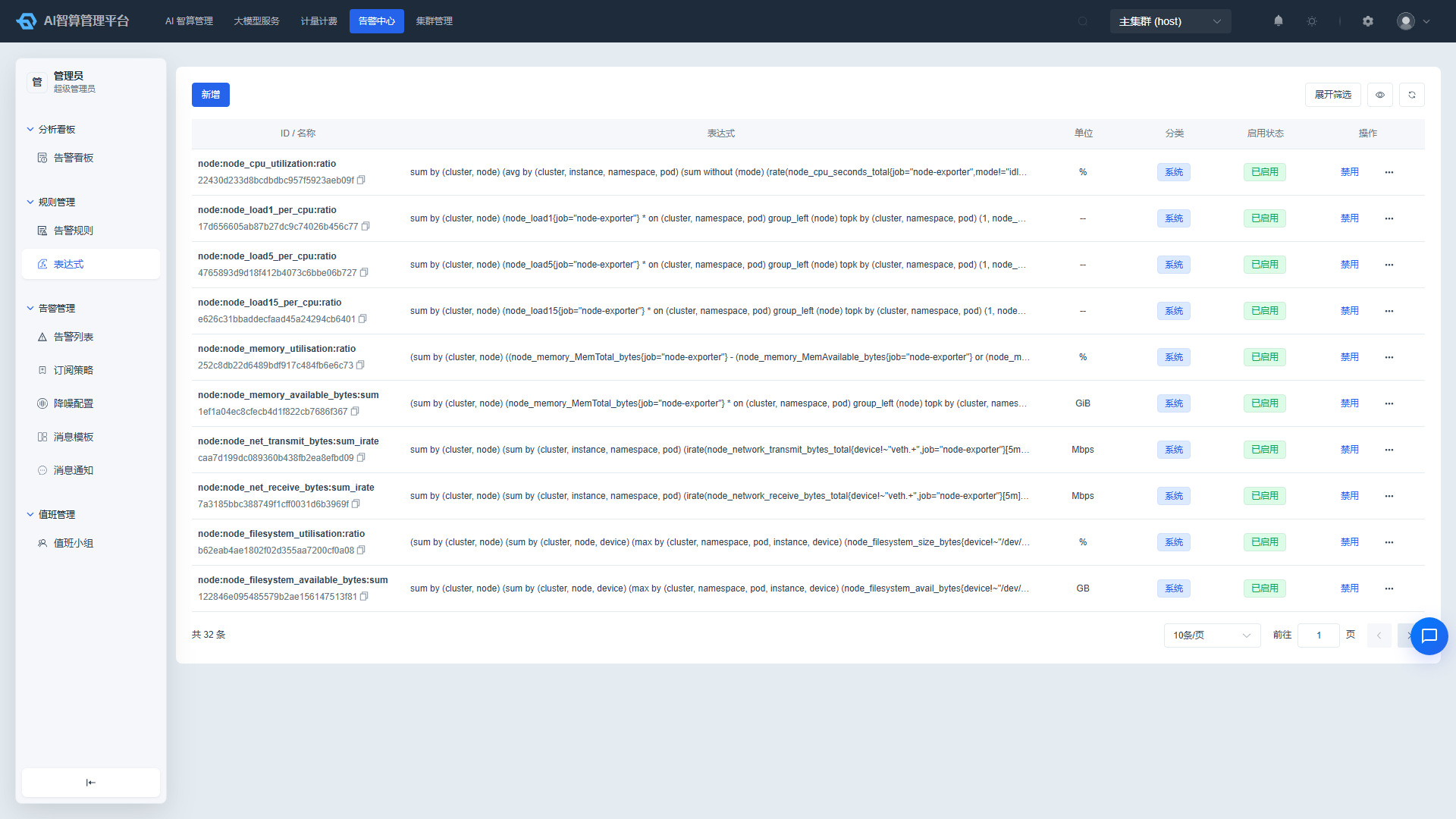
An expression is a PromQL template that describes how to calculate a specific monitoring metric. By managing expressions independently, multiple alert rules can reference the same metric criteria, avoiding duplicate PromQL authoring.
View Expressions
- Navigate to Rule Management > Expressions.
- The list displays: expression name, ID, template content, unit, source category (system/custom), and enabled status.
- Use the top filters:
- Fuzzy search by name.
- Filter by source: System Built-in / Custom.
- Filter by enabled status.
Create an Expression
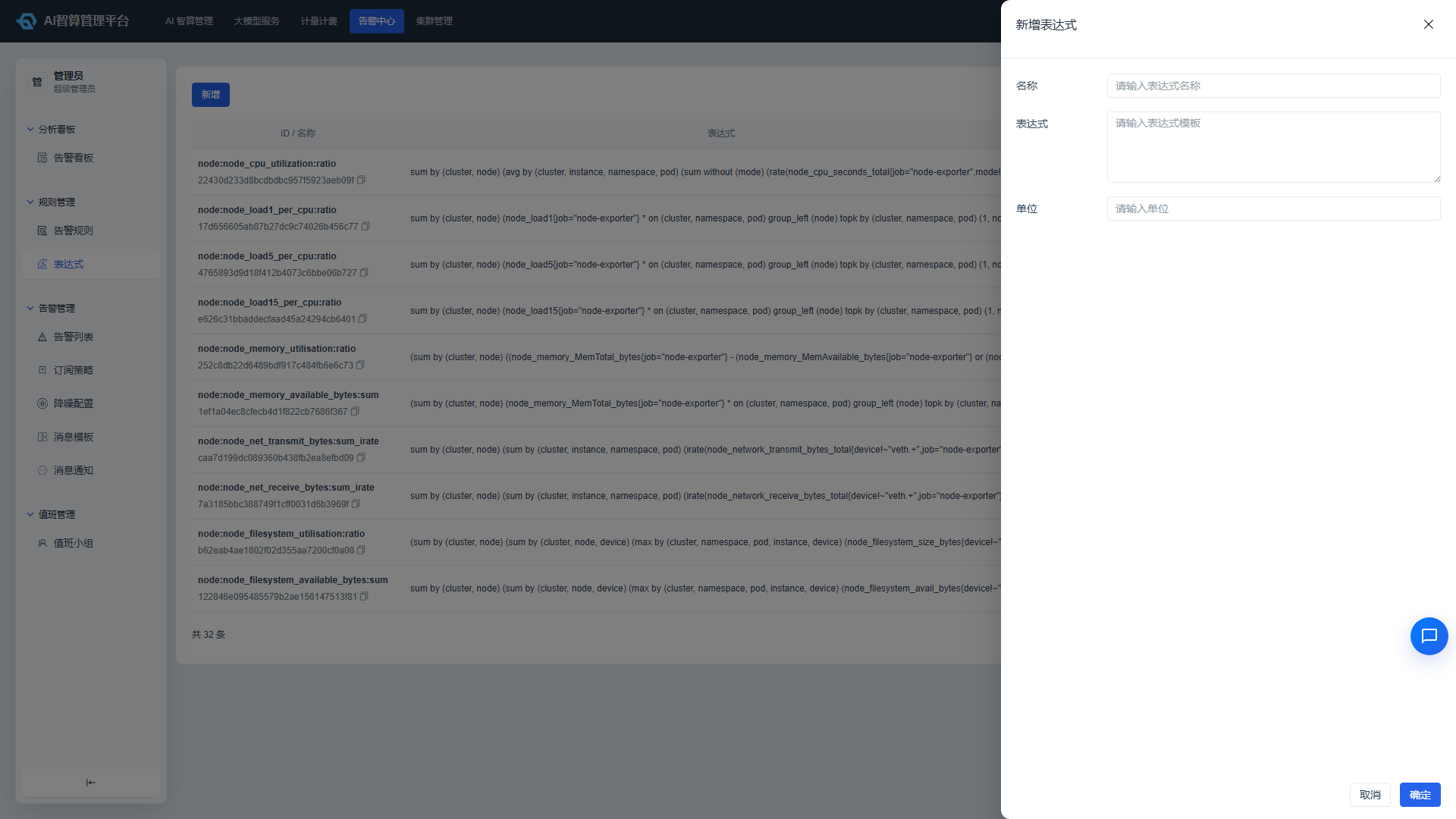
- Click "New Expression".
- Fill in:
- Name: Globally unique.
- Template Content: PromQL expression, e.g.,
avg(gpu_memory_usage_percent) by (node). - Unit: e.g.,
%,MB,count, used to automatically display unit suffixes in alert rule threshold inputs.
- Click "Confirm".
Enable/Disable an Expression
- Locate the target expression in the expression list.
- System-built-in expressions cannot be edited but can be enabled/disabled.
- Custom expressions can be individually enabled or disabled; when disabled, alert rules referencing that expression will not be able to select it.
Modifying an expression affects all alert rules that reference it. Proceed with caution.
FAQ
Q: What is the difference between P1, P2, and P3? A: P1 is the highest severity, typically corresponding to incident-level alerts; P2 is warning-level; P3 is info-level. Different severity levels can be configured with different notification channels and escalation strategies in the subscription strategy.
Q: I created a rule but no alerts are triggering. Why? A: Please check:
- Whether the metric associated with the expression has data.
- Whether the threshold is set too high.
- Whether the duration is set too long.
- Whether the rule is enabled.
- Whether a subscription strategy has been configured to dispatch the alerts.
Q: What is the benefit of having unit suffixes on thresholds? A: The unit comes from the expression configuration. When filling in the threshold, you can immediately see whether it represents a percentage, MB, or count, reducing configuration errors.
Q: Can the alert rule name be changed after creation? A: No. The alert rule name is globally unique and cannot be modified after creation; if a name change is needed, create a new rule.
Q: Can P1 be configured multiple times within a single rule? A: No. Each alert severity level (P1/P2/P3) can appear only once within a single rule.
Q: Will disabling an expression affect existing alert rules? A: Yes. The enabled state of an expression affects all alert rules that reference it; before disabling, confirm that no rules are currently using that expression.