Physical Resource Overview
"Physical Resource Overview" is designed for platform administrators to aggregate compute resource costs from three dimensions — physical nodes, GPU card types, and individual cards — and configure physical resource billing strategies to support cluster operational cost accounting.
Entry path: Left sidebar Billing > Physical Resource Overview, page route
/admin/billing/machine.
Page Menu
| Page | Route | Description |
|---|---|---|
| Node Resources | /admin/billing/machine/node-resource | Physical node cost details and Top analysis |
| Card Type Resources | /admin/billing/machine/node-type-resource | GPU vendor/card model cost analysis |
| GPU Card Details | /admin/billing/machine/card-resource | Individual GPU card cost details |
| Resource Billing Strategy | /admin/billing/machine/strategy | CPU/memory/GPU physical resource pricing |
Node Resources
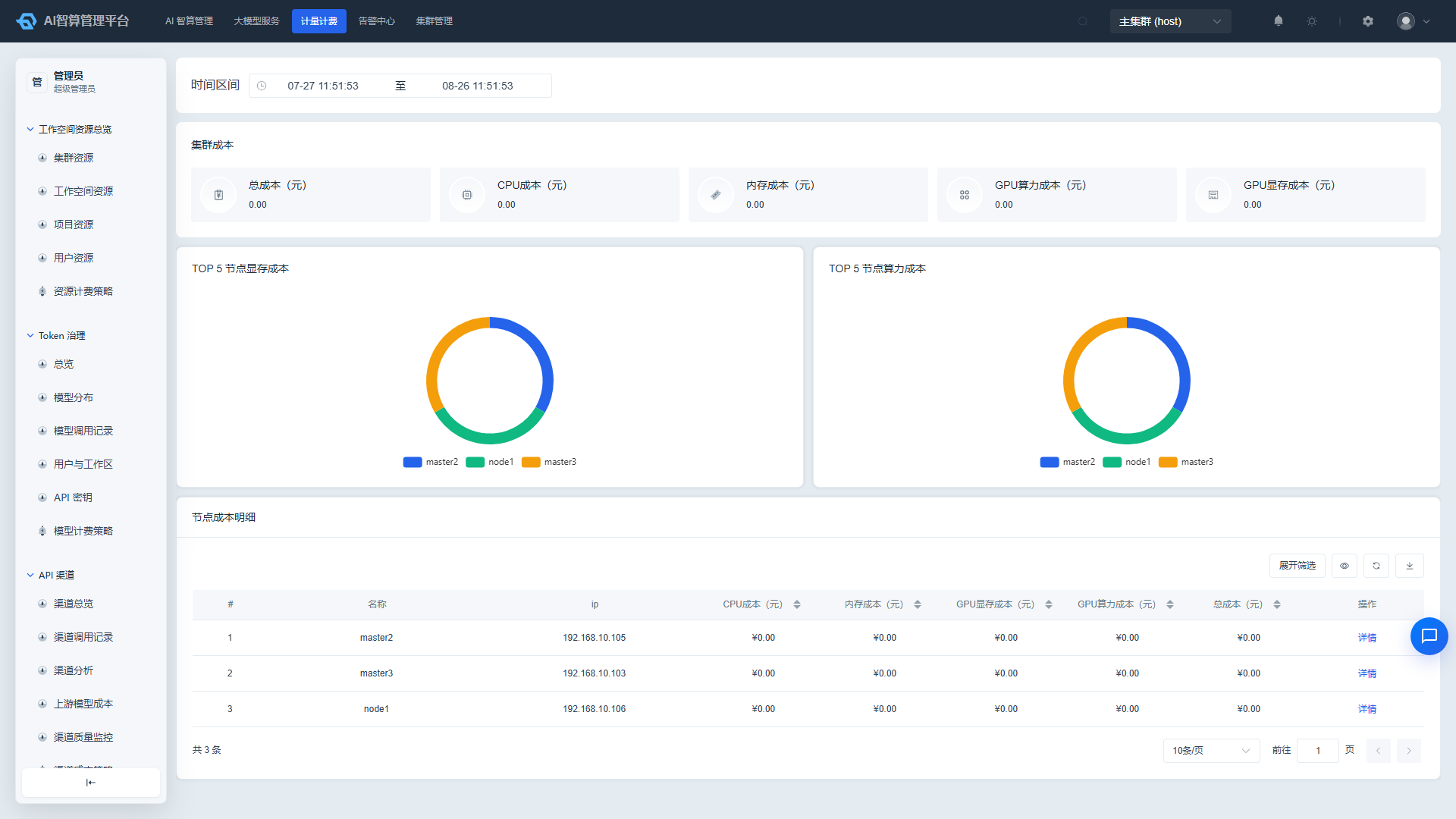
View Node Costs
- Navigate to Billing > Physical Resource Overview > Node Resources.
- The top of the page displays the cluster cost overview: total cost, CPU cost, memory cost, GPU compute cost, and GPU memory cost.
- Below is the node cost detail table: index, name, IP, CPU cost, memory cost, GPU memory cost, GPU compute cost, total cost.
- Use the time range selector at the top to choose the statistics period.
- Use the search box to search by node name (fuzzy) or filter by IP (exact); both the list and statistics update in real time.
Top Node Analysis
- The middle of the page displays two pie charts:
- Top 5 Node Memory Cost Pie Chart
- Top 5 Node Compute Cost Pie Chart
- Hover over a sector to view the specific node and its cost proportion.
Export Data
- Click "Export CSV" in the upper-right corner of the list.
- The system downloads the node cost details under the current filter conditions.
Card Type Resources
View Vendor/Card Model Costs
- Navigate to Billing > Physical Resource Overview > Card Type Resources.
- The top of the page displays a vendor cost pie chart (aggregated by GPU vendor) and a Top 5 card type cost pie chart.
- Below is the card type cost detail table: index, card type name, vendor, GPU memory cost, GPU compute cost, total cost.
- Use the "Vendor" dropdown at the top to filter the card type list; custom vendor names not in the preset list can be entered manually.
Drill Down to GPU Card Details
- In the card type cost detail table, click "View Details" in a row.
- The page navigates to the "GPU Card Details" page with the card type and vendor filters pre-filled automatically.
GPU Card Details
View Individual Card Costs
- Navigate to Billing > Physical Resource Overview > GPU Card Details.
- Use the top filter bar to query by node, vendor, and GPU card model; the three dimensions are cascading — after selecting a vendor, the card model options update automatically.
- The list displays: index, GPU card alias/ID, parent node, GPU card model, vendor, GPU memory cost, GPU compute cost, total cost.
- Custom vendor or model input is supported.
Export Data
- After setting the filter conditions, click "Export CSV".
- The system downloads the GPU card cost details under the current filter conditions.
Resource Billing Strategy
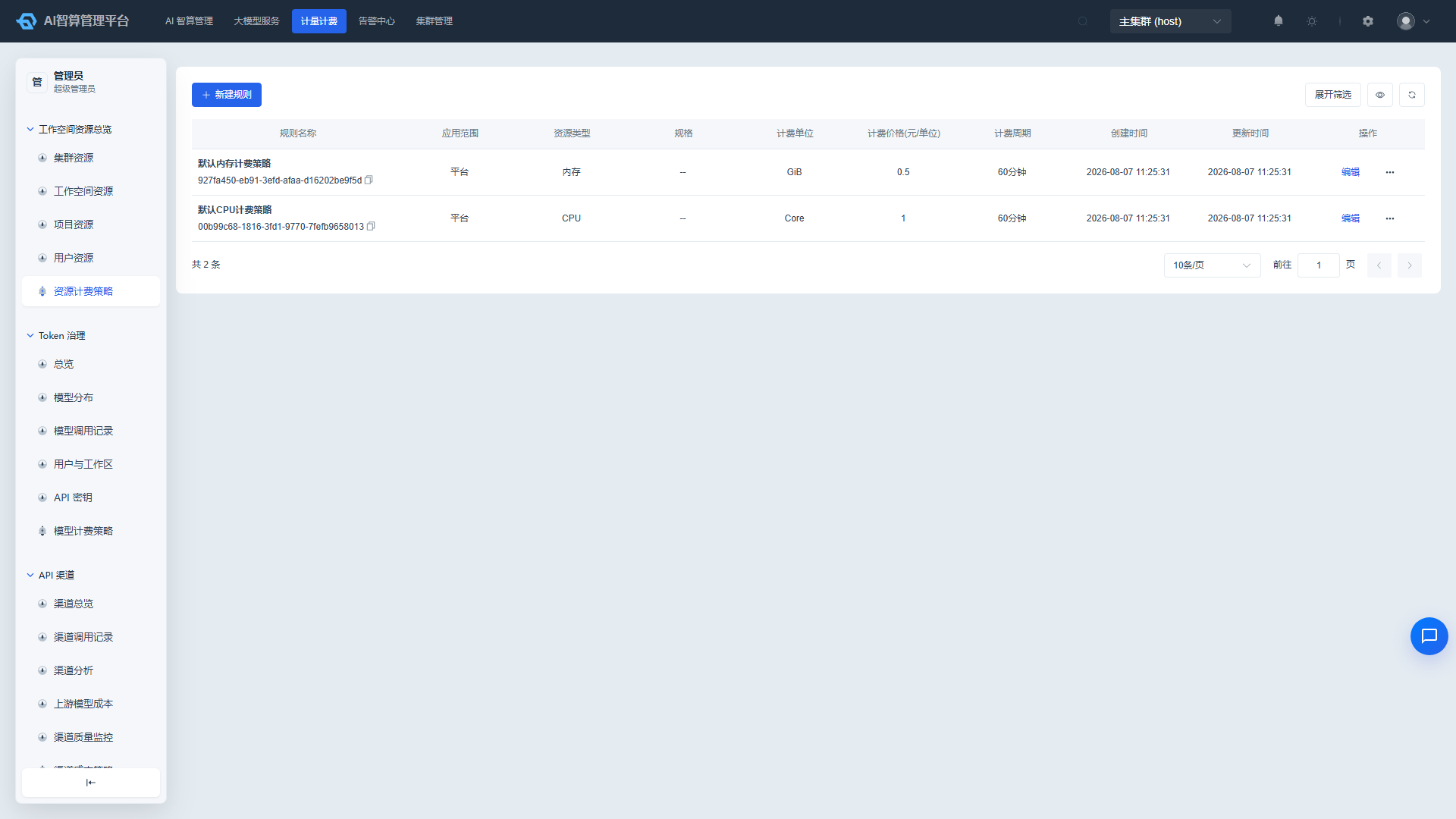
View Billing Strategy
- Navigate to Billing > Physical Resource Overview > Resource Billing Strategy.
- The list displays: rule name, resource type, GPU vendor, card model, billing price, billing cycle, application scope, and rule description.
- Use the top filter bar to query by rule name and resource type.
Create Billing Strategy
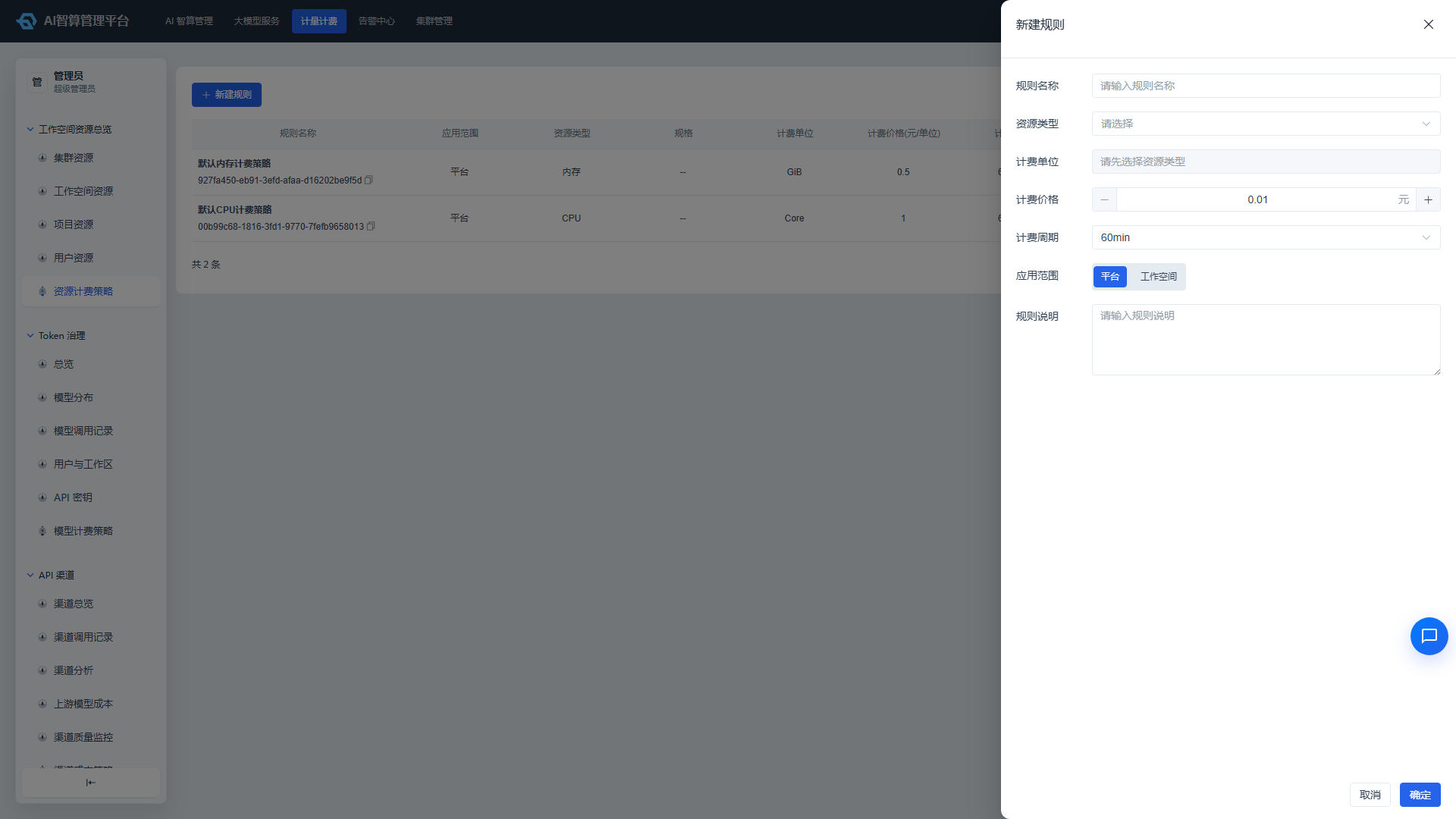
- Click "Create Strategy".
- Fill in:
- Rule Name: An easily identifiable name.
- Resource Type: Machine CPU / Machine Memory / GPU Memory / GPU Compute.
- GPU Vendor + Card Model: Cascading selection when the resource type is GPU-related; locked during editing.
- Billing Price: Unit price.
- Billing Cycle: Hour / Day / Month, etc.
- Application Scope: Platform-wide or a specific workspace.
- Rule Description: Optional.
- Click "Save".
Manage Billing Strategy
- Click "More Actions" in the list row:
- Edit: Modify price, cycle, application scope, etc.; resource type and GPU vendor/card model are locked during editing.
- Delete: Remove a strategy that is no longer in use.
FAQ
Q: What is the difference between physical resource cost and tenant resource cost? A: Physical resource cost aggregates operational costs from the cluster's physical nodes/cards perspective; tenant resource cost aggregates resource consumption and cost allocation from the workspace/project/user perspective.
Q: Why do some nodes show no GPU cost? A: Only nodes that have actually been allocated GPU resources will incur GPU compute/memory costs; pure CPU nodes display only CPU and memory costs.
Q: How long after modifying a billing strategy does it take effect? A: Changes typically take effect immediately; historical costs already incurred are not retroactively adjusted, and only new billing cycles after the modification are affected.