2FA Security Configuration
Two-Factor Authentication (2FA) provides an additional layer of security for platform logins and sensitive operations. When enabled, users must verify their identity through a second method after entering their password when logging in or performing protected operations.
1. Feature Overview
Supported Verification Methods
| Method | Description | Prerequisites |
|---|---|---|
| SMS Verification | Receive a 6-digit code via text message | SMS provider must be configured |
| Email Verification | Receive a 6-digit code via email | SMTP server must be configured |
| Virtual MFA | Use a TOTP authenticator to scan a QR code and generate a dynamic verification code | No additional configuration required; works with any TOTP-compatible authenticator app |
All three methods can be enabled simultaneously, and users can freely switch between them during verification.
Recommended MFA Authenticator Apps (any one will work):
| App | Platform | Notes |
|---|---|---|
| Microsoft Authenticator | iOS / Android | By Microsoft; supports multi-account management |
| Google Authenticator | iOS / Android | By Google; lightweight and simple |
| Authy | iOS / Android / Desktop | Supports multi-device sync |
| TOTP Security Authenticator | WeChat Mini Program | No app installation needed; use directly within WeChat |
| Alibaba Cloud App | iOS / Android | Available for Alibaba Cloud users |
The above are examples only. Any authenticator that supports the TOTP (Time-Based One-Time Password) protocol can be used.
Two Trigger Scenarios
- Login Verification: After entering the username and password, a 2FA dialog appears. The user must complete verification before accessing the platform.
- Operation Protection: When performing a protected sensitive operation (e.g., deleting resources, modifying configurations), the system automatically presents a verification dialog. After successful verification, the original operation is automatically retried.
2. Administrator Configuration (Enabling 2FA)
The following operations require Platform Administrator privileges.
Step 1: Access the Verification Configuration Page
After logging into the platform, navigate to the menu:
Cluster Management > Cluster Configuration > 2FA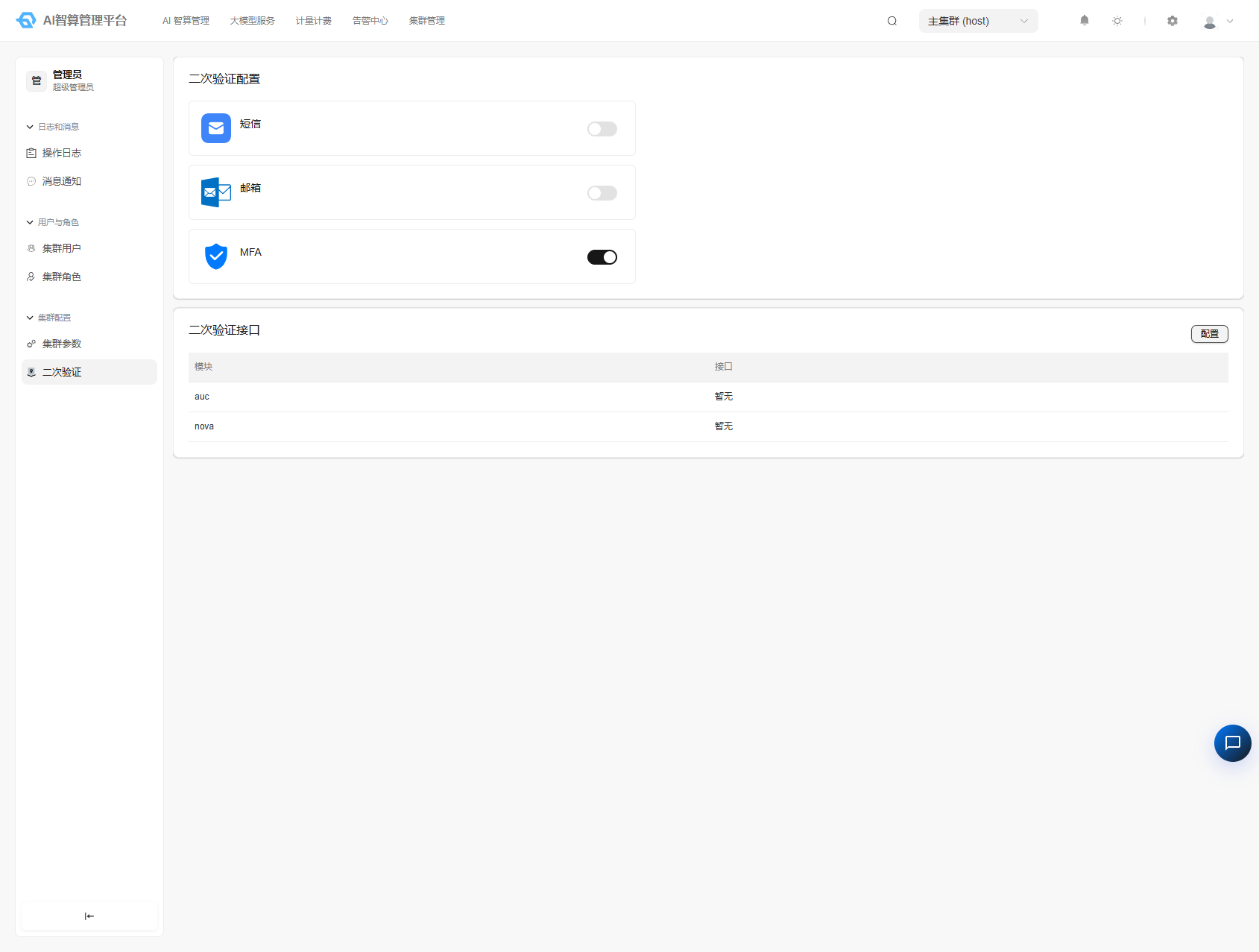
The page is divided into two areas:
- Top: 2FA method configuration (SMS / Email / MFA)
- Bottom: 2FA endpoint configuration (specifies which APIs require 2FA protection)
Step 2: Enable Verification Methods
In the "2FA Configuration" area, click the method name to expand its configuration panel:
Enable SMS Verification
- Click to expand the "SMS" configuration panel
- Fill in the SMS provider configuration
- Click the "Enable" button
Enable Email Verification
- Click to expand the "Email" configuration panel
- Fill in the SMTP server information:
| Configuration Item | Description | Example |
|---|---|---|
| Server Address | SMTP server address | smtp.example.com |
| Port | SMTP port (1–65535) | 465 |
| Username | SMTP login username | noreply@example.com |
| Password / Auth Code | SMTP login password or authorization code | your-password |
| Sender Email | Sender address displayed in emails | noreply@example.com |
- Click the "Enable" button
Enable Virtual MFA
- Click to expand the "MFA" configuration panel
- MFA requires no additional configuration — it is automatically enabled when expanded
- The "Virtual MFA" option will appear in the verification method list
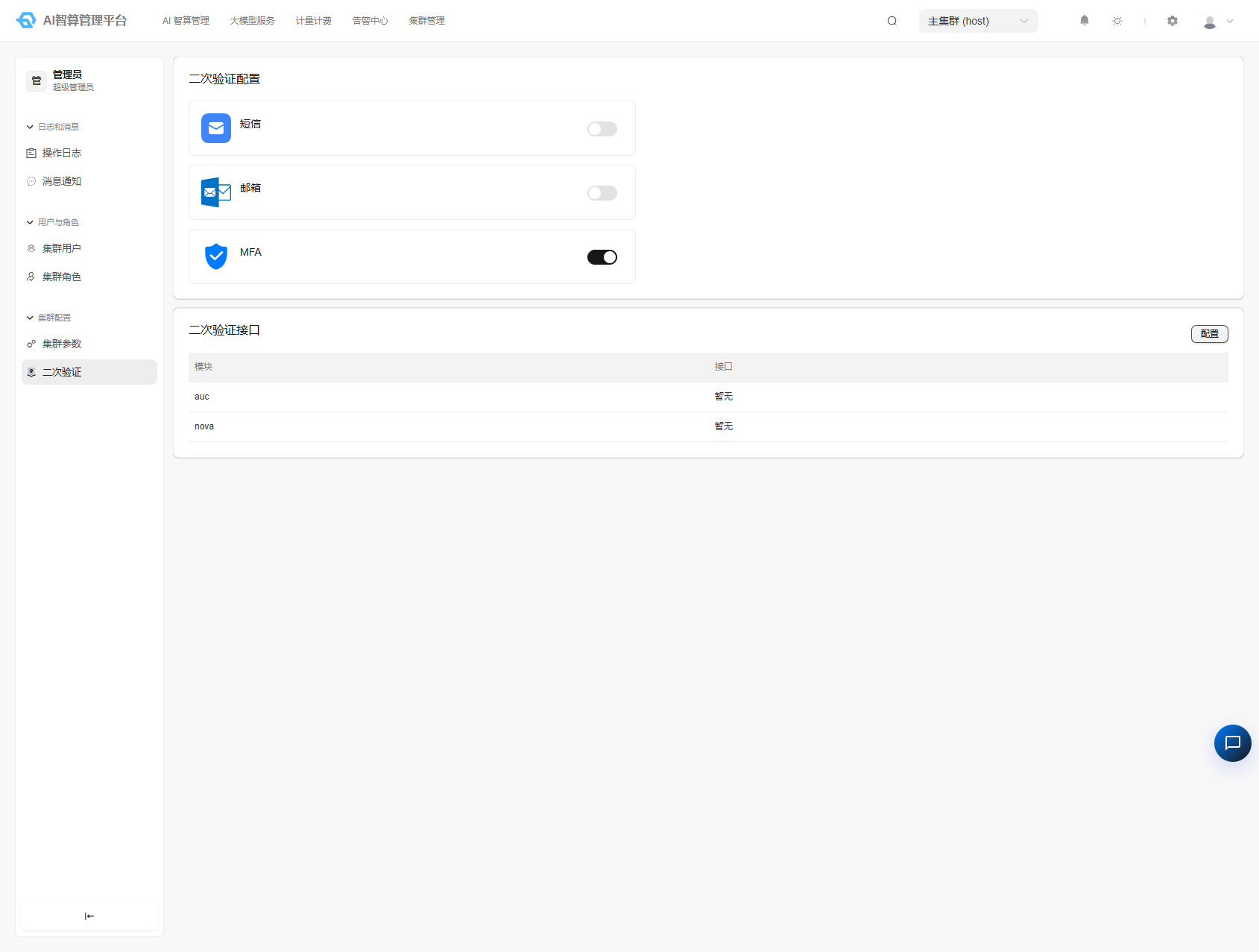
Step 3: Configure Protected Endpoints (Optional)
If the endpoint list is not configured, 2FA will only be enforced at login and will not intercept operations.
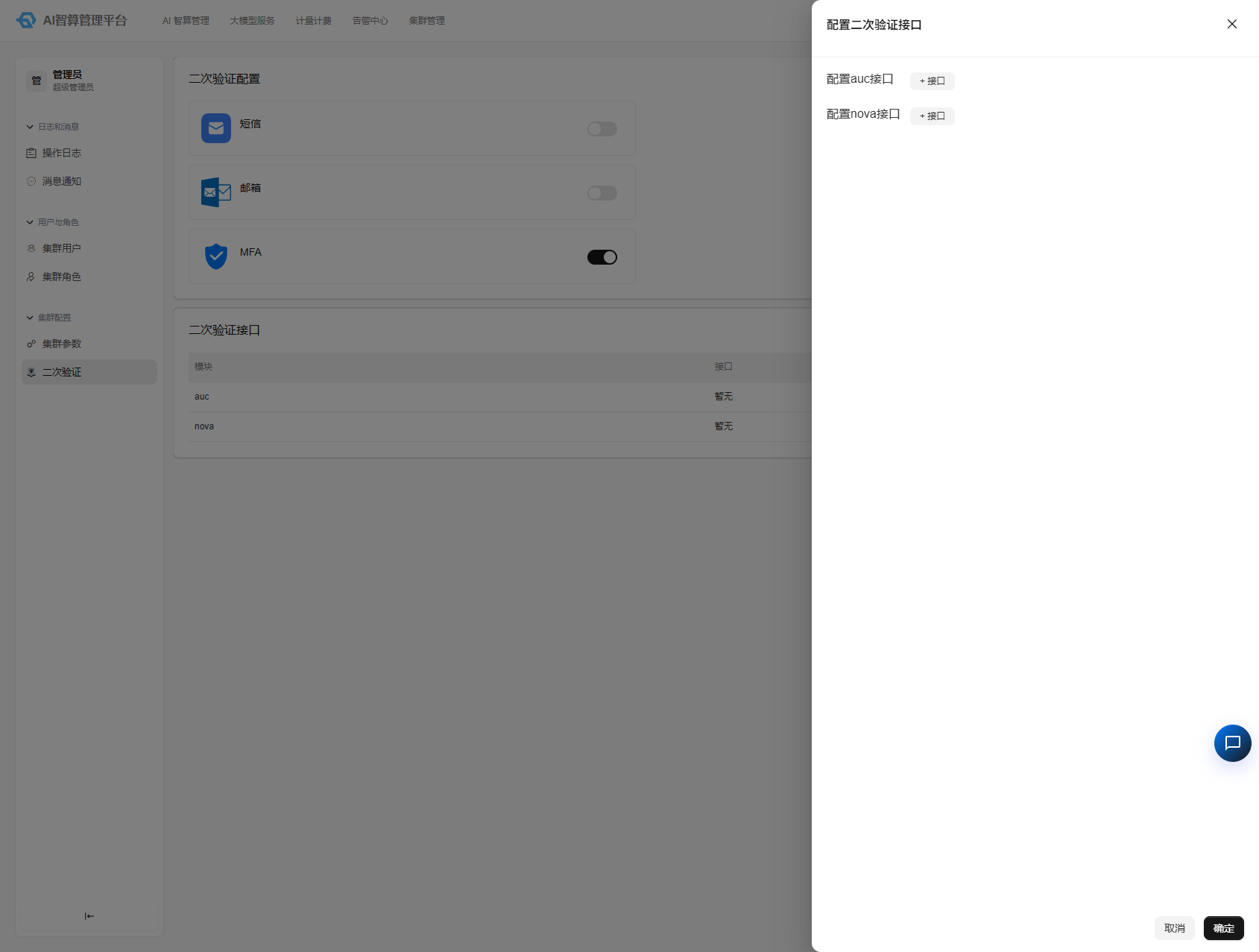
- In the "2FA Endpoints" area at the bottom of the page, click the "Configure" button
- In the drawer that appears, add the API paths that require protection for the auc module and nova module respectively
- Click Save after adding
Verified working endpoint examples:
| Module | Endpoint Path | Description |
|---|---|---|
| nova | /nova.v1.InstanceService/Delete | Delete a single instance |
| nova | /nova.v1.InstanceService/DeleteBatch | Batch delete instances |
The above endpoints have been verified to trigger 2FA correctly. Administrators can add other endpoint paths that need protection based on actual business requirements.
After configuration, when users call these endpoints, the system will automatically present the 2FA verification dialog.
Step 4: Enable Login 2FA
Login 2FA must be enabled through the platform global configuration.
Operation Path:
Cluster Management > Cluster Configuration > Configuration ManagementOn the configuration management page, find or add the LOGIN_NEED_2FA configuration item and set its value to true.
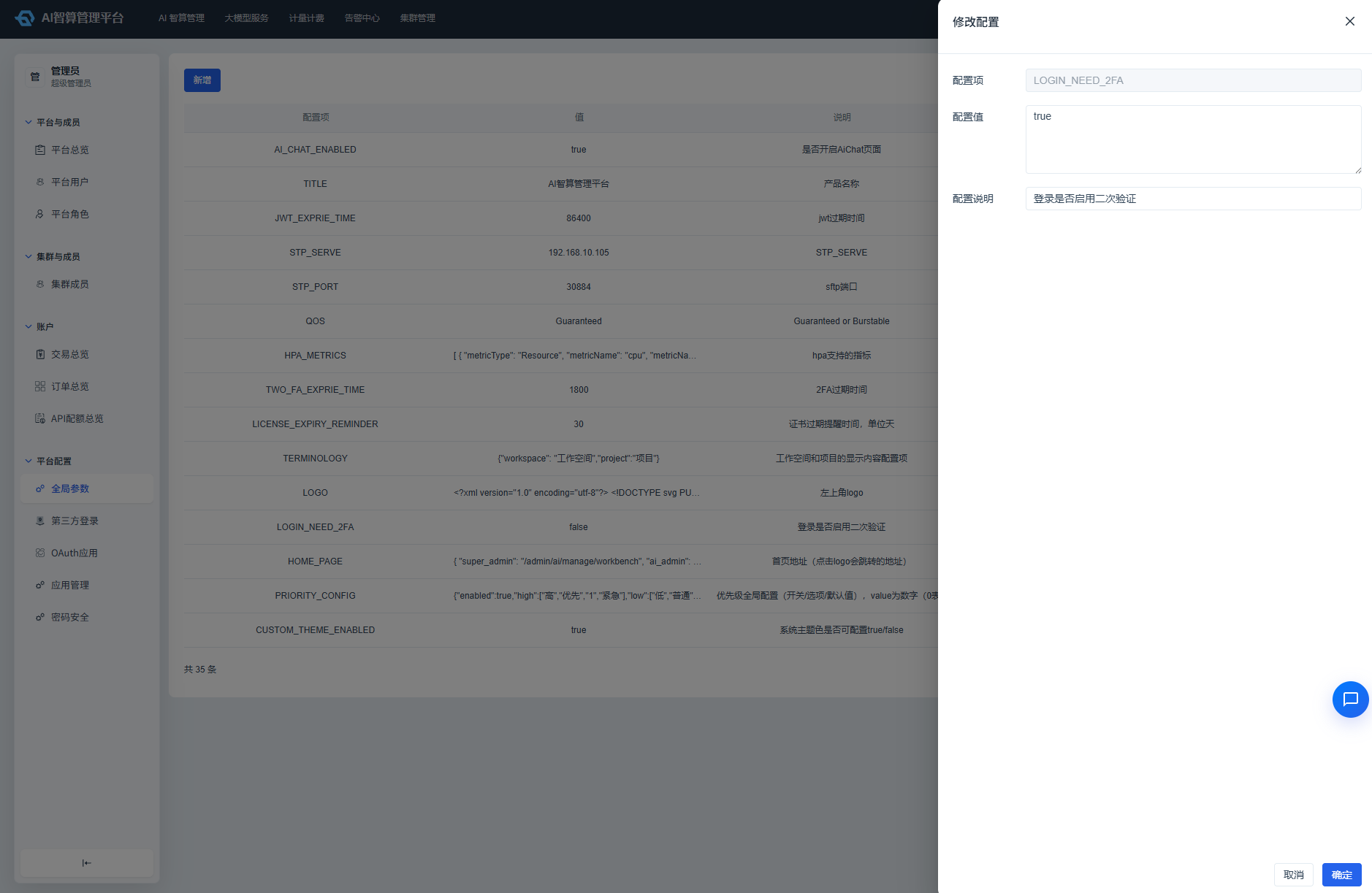
This configuration controls whether the 2FA dialog appears at login. Once set, all users will be prompted for verification when logging in.
3. User Guide
Using 2FA at Login
- Enter the username and password, then click "Login"
- The system displays a "Identity Verification" dialog
- Select a verification method (the first enabled method is shown by default; you can switch manually)
- Enter the verification code and click "Confirm"
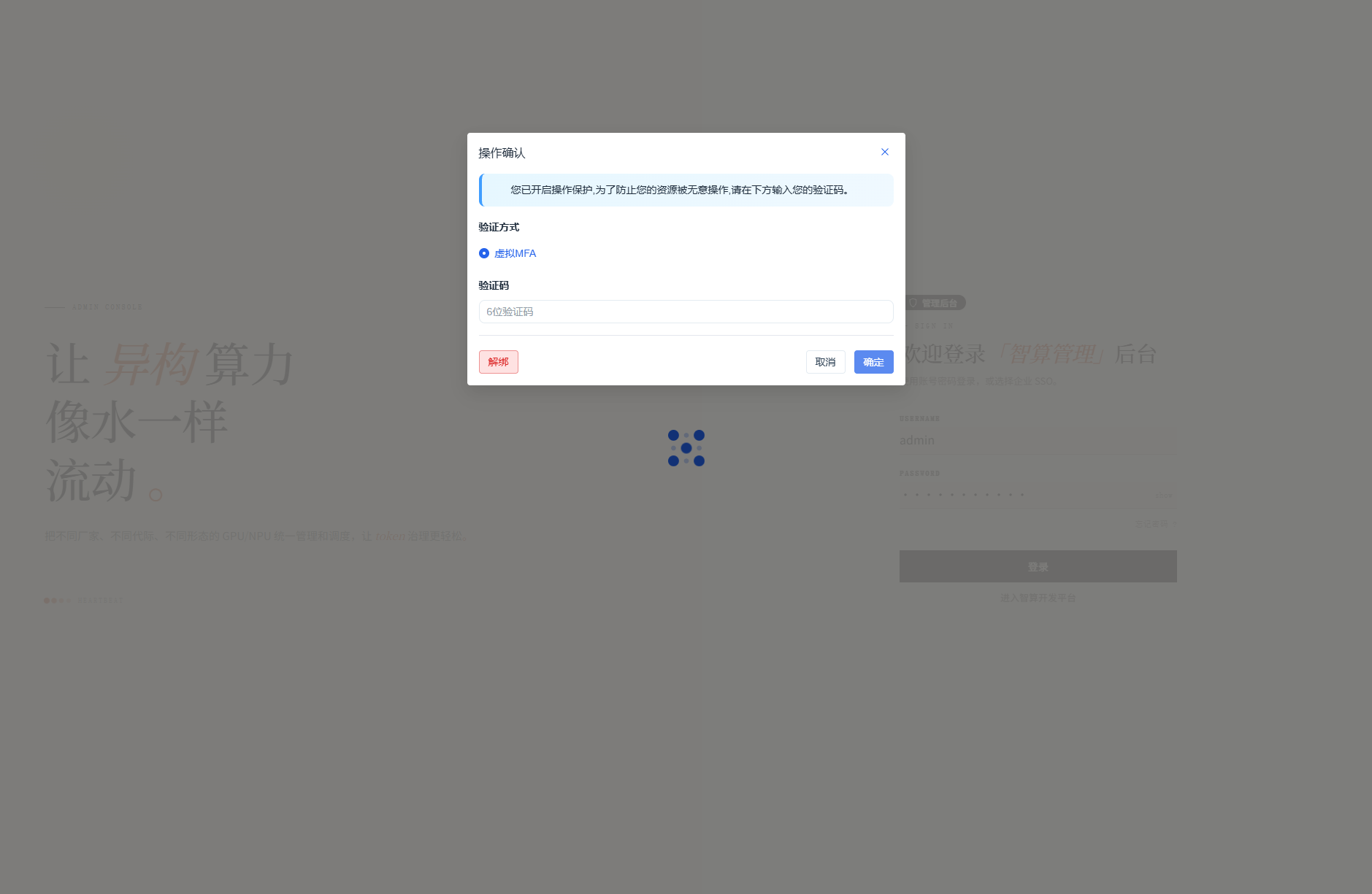
Instructions for each method:
| Method | Steps |
|---|---|
| SMS Verification | Click "Get Code" → check your phone for the text message → enter the 6-digit number |
| Email Verification | Click "Get Code" → check your email → enter the 6-digit number |
| Virtual MFA | Open the authenticator app → scan the QR code (first time) or view the dynamic code → enter the 6-digit number |
Verification codes are valid for 60 seconds. A new code must be requested after expiration.
First-Time MFA Binding
- Select "Virtual MFA" in the verification dialog
- The system automatically displays a QR code
- Open any TOTP-compatible authenticator app (e.g., Microsoft Authenticator, Google Authenticator, Authy, etc.)
- Scan the QR code to complete binding
- Enter the 6-digit dynamic code displayed in the app
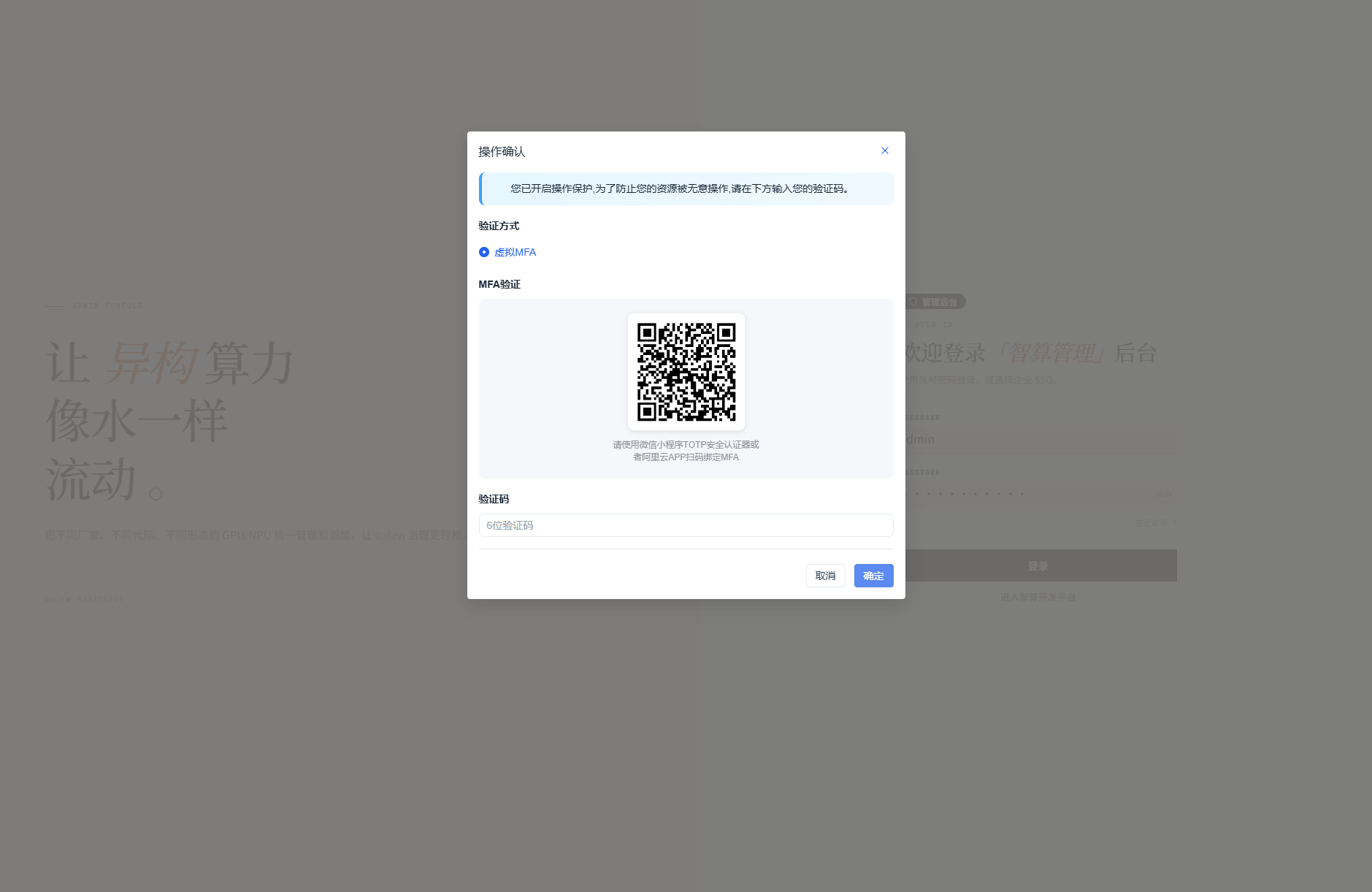
After binding is complete, subsequent MFA verification only requires entering the app's dynamic code — no need to scan the QR code again.
2FA for Operations
- Perform a protected operation (e.g., delete a resource)
- The system automatically displays the verification dialog
- Select a verification method and enter the verification code
- After verification succeeds, the original operation executes automatically
Important: Operation-level 2FA only requires verification once per session. After passing verification, subsequent sensitive operations in the current login session will not trigger the verification dialog again. Verification will only be required again after the user logs out and logs back in. This design balances security with operational efficiency.
Unbinding MFA
If you need to change your authenticator or rebind:
- In any scenario that requires MFA verification, select the "Virtual MFA" method
- Click the "Unbind" button
- Scan the QR code again to bind a new authenticator
4. FAQ
Q: Can all three verification methods be enabled at the same time?
Yes. All three methods can be independently enabled or disabled, and users can freely switch between them in the verification dialog.
Q: What if I lose access to my phone/email and cannot receive verification codes?
Contact the platform administrator to reset your 2FA status through the management console, or temporarily disable 2FA for your account.
Q: What if the phone bound to MFA is lost?
Contact the administrator to unbind MFA, then rebind with a new device.
Q: What is the difference between login 2FA and operation 2FA?
- Login 2FA: Required every time you log in, protecting entry-point security.
- Operation 2FA: Only triggered when performing specific sensitive operations, protecting critical actions. Within the same session, verification is required only once; subsequent operations do not trigger verification again until the user logs out and logs back in.
Both are configured independently and can be enabled simultaneously.
Q: I configured a 2FA method, but the verification window does not appear at login?
Please confirm:
- The verification method has been clicked "Enable" and saved successfully.
- For login verification, confirm that the
LOGIN_NEED_2FAglobal configuration has been enabled. - Clear the browser cache and try logging in again.
Q: Verification code delivery failed?
- SMS: Check whether the SMS provider configuration is correct and whether the SMS balance is sufficient.
- Email: Check the SMTP configuration (server address, port, username, password, sender email) for correctness.
- MFA: No delivery is needed — use the dynamic code generated by the authenticator app directly.
5. Administrator Quick Reference
| Operation | Path |
|---|---|
| Enable/disable verification methods | Cluster Management > Cluster Configuration > 2FA |
| Configure SMTP email | Cluster Management > Cluster Configuration > 2FA > expand "Email" |
| Configure protected endpoints | Cluster Management > Cluster Configuration > 2FA > 2FA Endpoints > Configure |
| Enable login verification | Cluster Management > Cluster Configuration > Configuration Management > set LOGIN_NEED_2FA = true |