Model Management
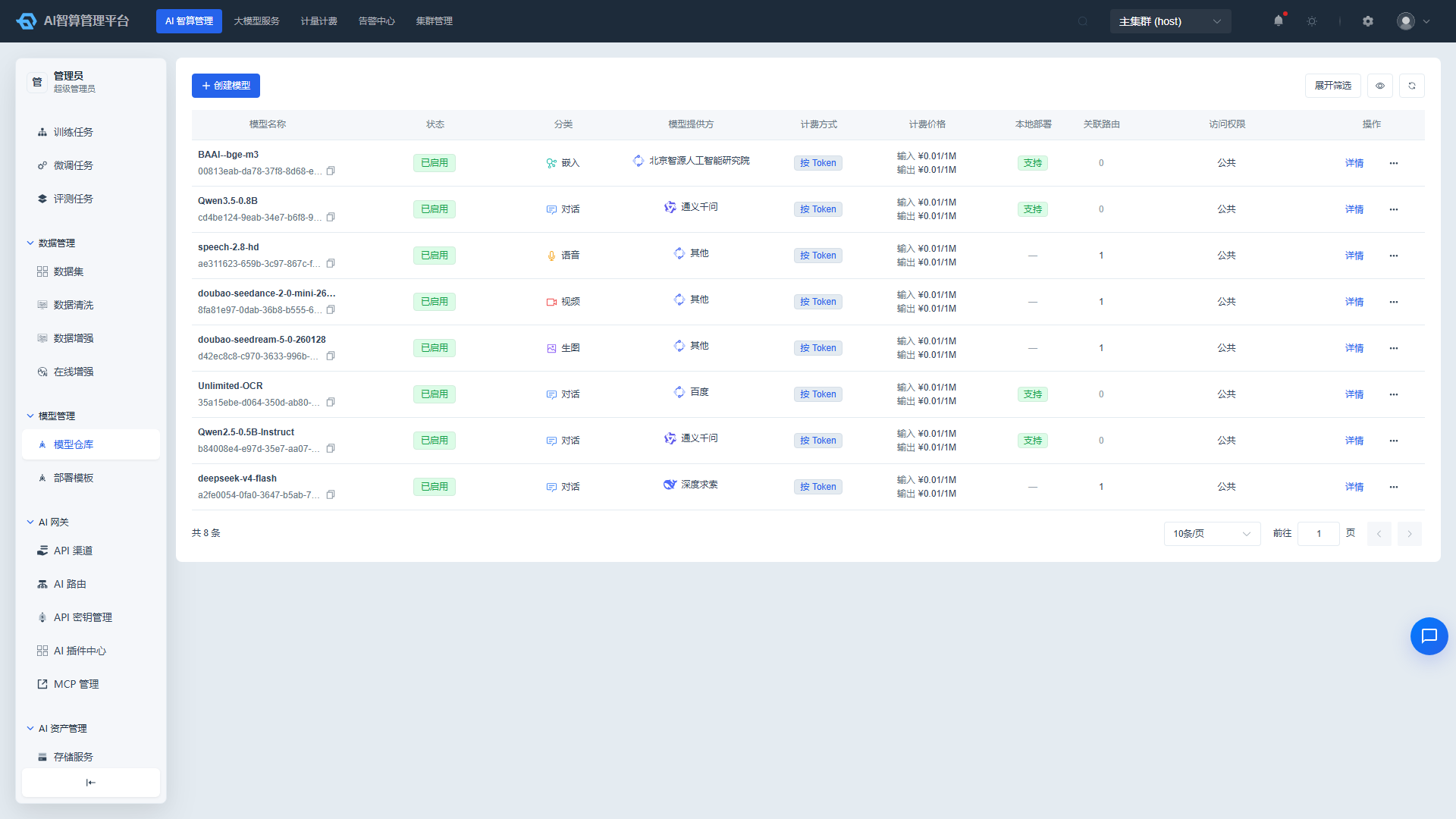
Model Management is used to manage model assets on the platform, including publishing, editing, and listing / delisting models in the model repository, as well as maintaining inference deployment templates. Published models appear in "Model Services > Model Hub" and can also be selected when creating inference services.
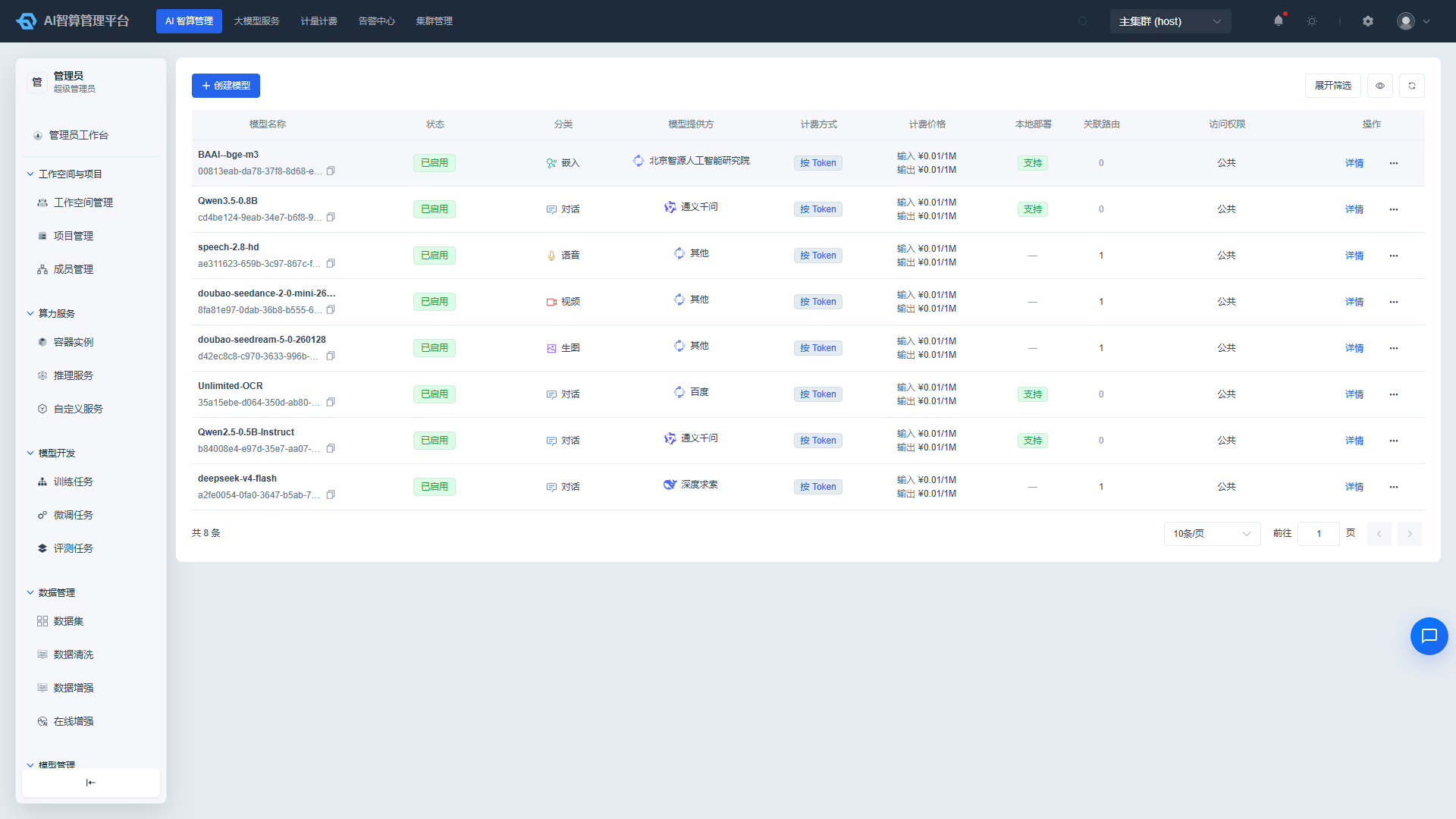
Entry path: Left sidebar AI Compute Management > Model Management, page route
/admin/ai/model-manage.
Page Menu
| Page | Route | Description |
|---|---|---|
| Model Repository | /admin/ai/model-manage/registry | Model asset list and publishing |
| Create Model Repository | /admin/ai/model-manage/registry/create | Publish a new model |
| Model Repository Details | /admin/ai/model-manage/registry/detail/:uuid | View model details and statistics |
| Deployment Templates | /admin/ai/model-manage/deploy-template | Inference service deployment templates |
| Create Deployment Template | /admin/ai/model-manage/deploy-template/create | Create a new deployment template |
Model Repository
View Model Repository
- Navigate to AI Compute Management > Model Management > Model Repository.
- The list displays: Model Name / Alias, Model Category, Provider, Access Permission, Status (Enabled / Disabled), Associated AI Route Count, Creation Time.
- Use the top filter bar to query by model category, provider, access permission, status, and name.
- Click a model name to enter the detail page, which shows basic info, associated AI routes, call statistics, and version management.
Publish a Model
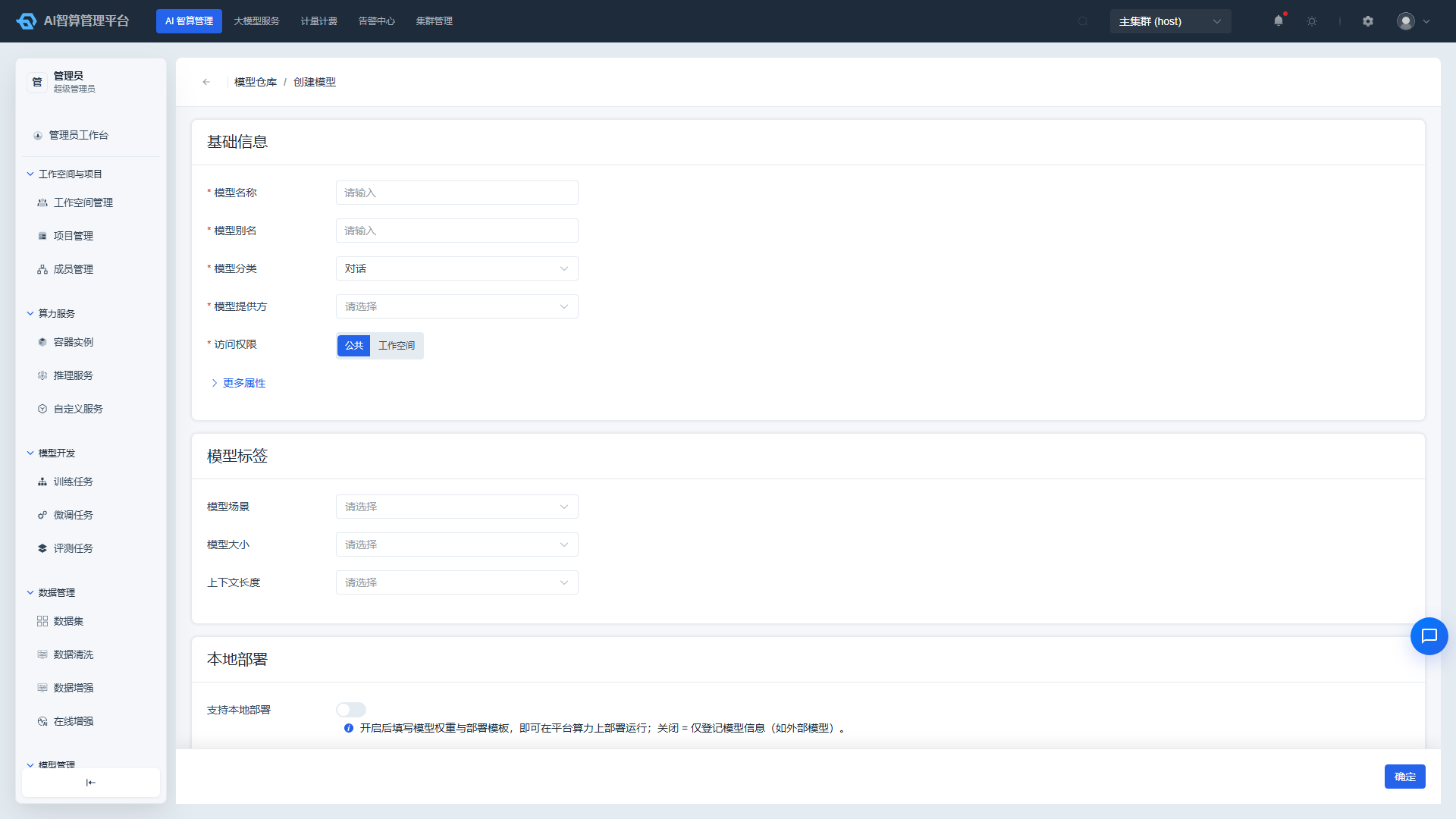
- Click "Create Model" on the model repository list page.
- Basic Information
- Model Name: Unique model identifier; cannot be modified after creation.
- Model Alias: Display name.
- Model Category: LLM / Embedding / Vision / Rerank / Audio / Multimodal, etc.
- Model Provider: Select a registered service provider (e.g., Qwen, Meta, OpenAI, etc.).
- Access Permission: Public / Tenant / Project; tenant / project level requires selecting ownership.
- More Attributes (Optional): Release date, context length, maximum generation length, parameter count, data type, description.
- Model Labels
- Model Scenario: E.g., text generation, code, multi-turn dialogue.
- Model Size, Context Length Labels: Used for Model Hub filtering.
- Local Deployment
- After enabling "Support Local Deployment," fill in the model weight source:
- Local: Enter the model path in platform storage.
- ModelScope / HuggingFace: Enter the repository ID and access Token, then click "Parse" to automatically retrieve file information.
- Select Deployment Template: Associate a previously created deployment template as the default parameter set for inference service creation.
- Model Path / Model File: Local path or auto-populated after parsing.
- After enabling "Support Local Deployment," fill in the model weight source:
- Pricing Information
- Configure five pricing tiers: input / output / cached / cache_write_5m / cache_write_1h.
- Per-call billing models can be configured with a per-call unit price.
- Click "Create" to complete model publishing.
Manage Models
- On the model repository list page, click "More Actions" in the row or the corresponding button on the detail page:
- Enable / Disable: Controls whether the model is visible in the Model Hub and inference service dropdowns.
- Edit: Modify alias, labels, deployment template, pricing, etc.; model name cannot be modified.
- Details: View model basic info, associated AI route count, and call statistics.
- Delete: Permanently removes the model; if the model is referenced by a route or job, the association must be removed first.
Deployment Templates
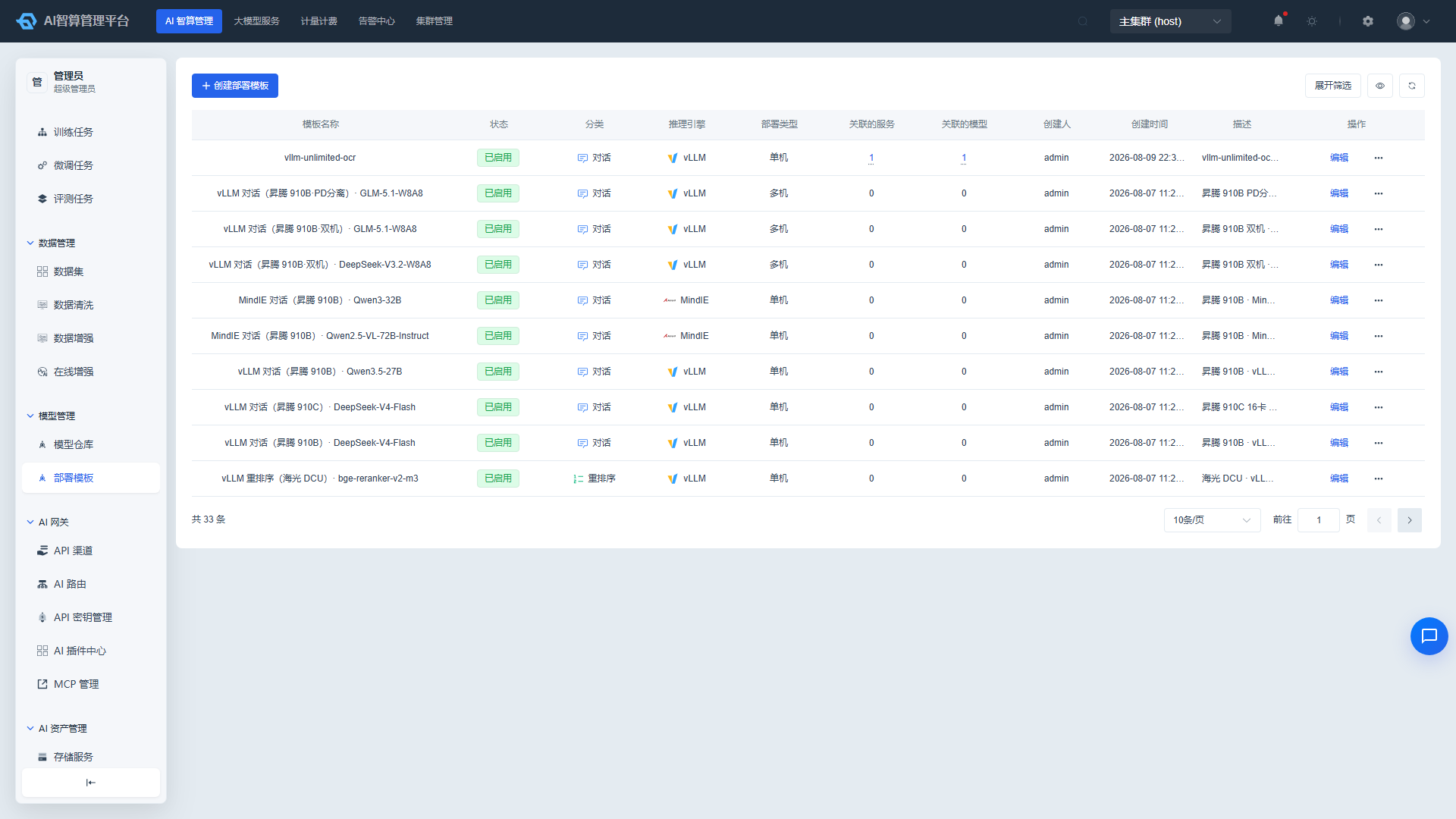
Deployment templates define default images, startup commands, startup arguments, and health check configurations for inference services. They serve as the base template for "One-Click Deploy" and "Create Inference Service."
View Deployment Templates
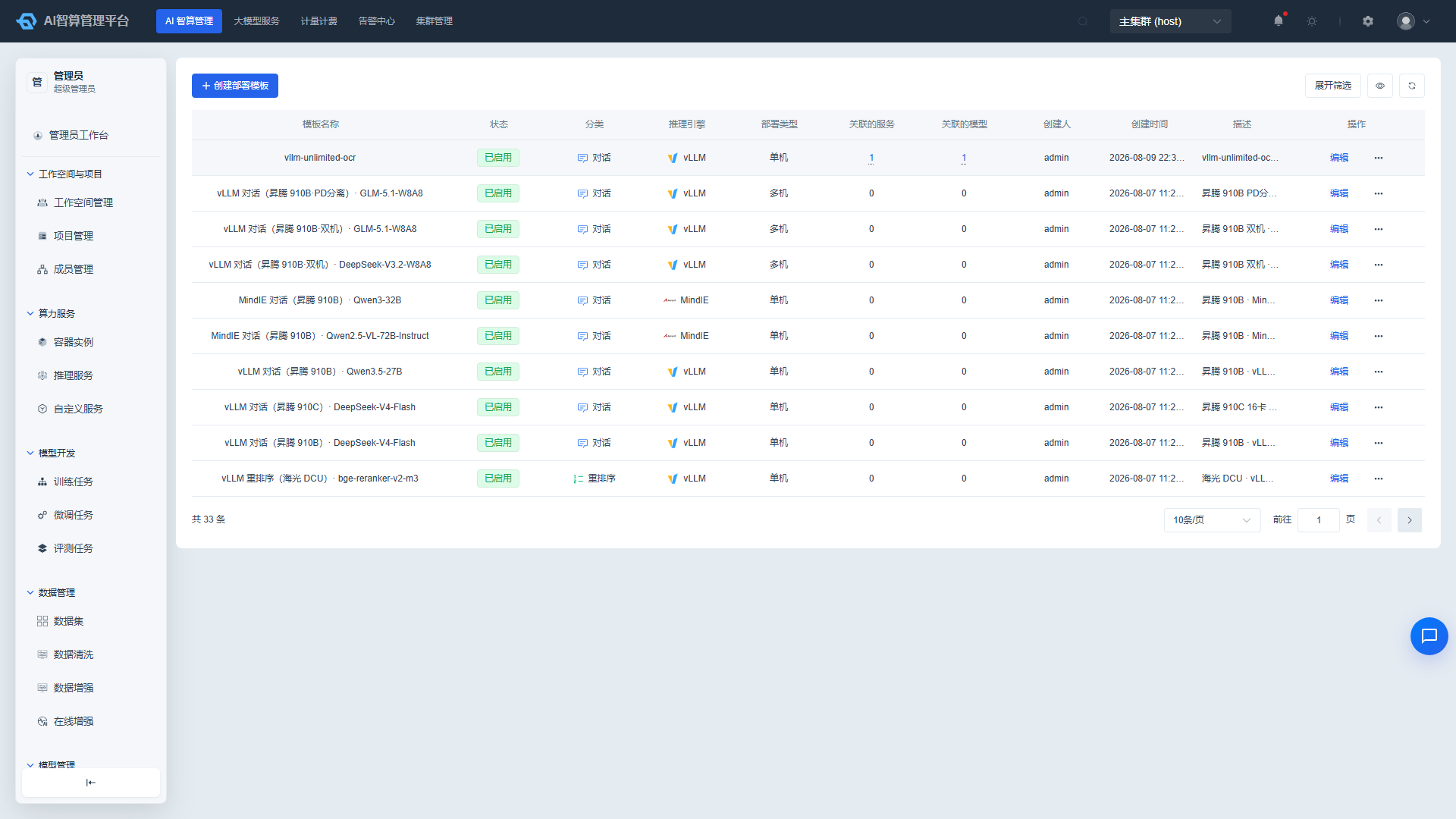
- Navigate to AI Compute Management > Model Management > Deployment Templates.
- The list displays: Template Name, Deployment Type, Inference Engine, Image, Model Category, Status, Creation Time.
- Use the top filter bar to query by deployment type, inference engine, model category, status, and name.
- Click a template name to enter the detail page to view the full configuration.
Create Deployment Template
- Click "Create Deployment Template" on the deployment template list page.
- Basic Information
- Template Name: An easy-to-identify name.
- Deployment Type: Single-node (StatefulSet) / Multi-node (LWS).
- Inference Engine: vLLM / SGLang / MindIE, etc.; after selection, available images are automatically filtered.
- Image: Select a base image or custom image.
- RDMA Policy Editable: Multi-node template only.
- Model Category: The model category this template applies to.
- Template Description: Optional.
- Deployment Information
- Annotations, Environment Variables: Add as key-value pairs.
- Startup Command: One command per line.
- Startup Arguments: Use the argument editor to fill in; supports resetting to engine defaults.
- More Configuration: Health check, workingDir, hostNetwork, hostIPC, startup user.
- For multi-node templates, fill in the Leader node and Worker node startup commands / arguments / more configuration separately.
- Click "Create."
Use Deployment Templates
- When creating an inference service, the "Deployment Template" dropdown lists all enabled templates that match the model engine.
- After selecting a template, the system automatically populates the image, startup command, and startup arguments; users can still modify as needed.
- When publishing a model, you can associate a deployment template in the "Local Deployment" step as the default inference configuration for that model.
FAQ
Q: Newly created model doesn't appear in Model Hub? A: Check whether the model is enabled, whether the access permission is correct, and whether the current user's workspace / project is within the authorized scope.
Q: Parsing HuggingFace repository failed? A: Confirm the repository ID is correct, the repository is public or a valid Access Token has been provided, and the platform can access the HuggingFace network.
Q: How do I fill in startup arguments in the deployment template? A: Use the argument editor to add items one by one, or click "Reset to Default" to restore the engine's recommended parameters; advanced users can directly edit the startup command to override.
Q: How does model pricing take effect? A: After pricing information is saved, costs are calculated by call volume in "Metering & Billing > Token Governance"; if no price is configured, calls are not billed.