Policy Management
Policy Management is designed for platform admins to configure distributed training scheduling policies, training queues, resource recycling strategies, and the job priority system, enabling efficient scheduling and idle resource reclamation of compute resources.
Entry path: Left sidebar AI Compute Management > Policy Management, page route
/admin/ai/schedule.
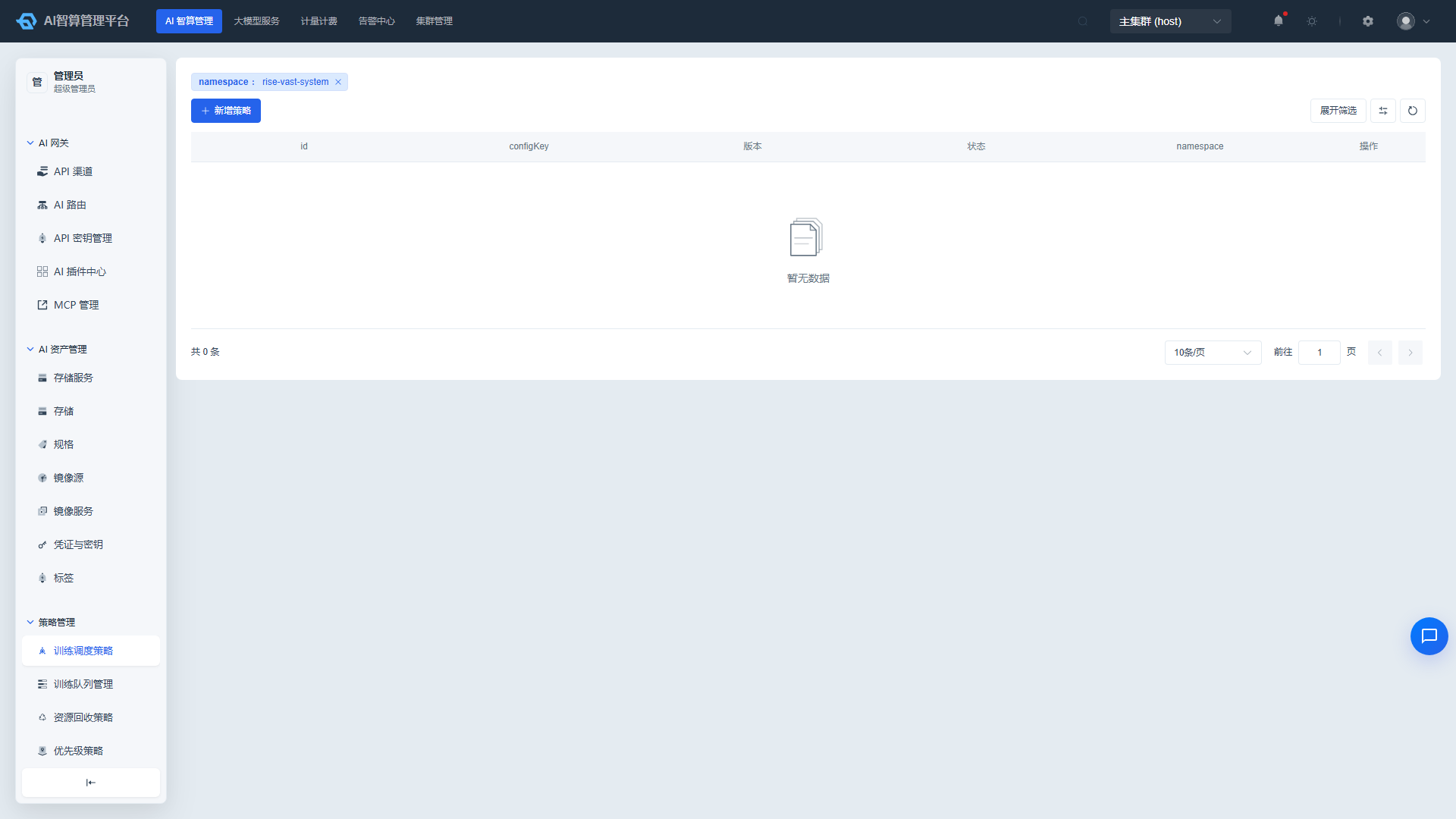
Page Menu
| Page | Route | Description |
|---|---|---|
| Training Scheduling Policy | /admin/ai/manage/schedule-config | Volcano scheduling policy configuration |
| Create Training Scheduling Policy | /admin/ai/manage/schedule-config/create | Create a new scheduling policy |
| Training Scheduling Policy Details | /admin/ai/manage/schedule-config/details/:uuid | View policy version history |
| Training Queue Management | /admin/ai/manage/train-queue | Volcano queue management |
| Resource Recycling Strategy | /admin/ai/manage/recycle-strategy | Platform / tenant / project-level recycling strategies |
| Priority Policy | /admin/ai/manage/priority-config | Global priority toggle and defaults |
Training Scheduling Policy
Training scheduling policies are used to customize the Volcano scheduler's behavior, strategy, and algorithm combinations, affecting the scheduling order and resource allocation of training jobs.
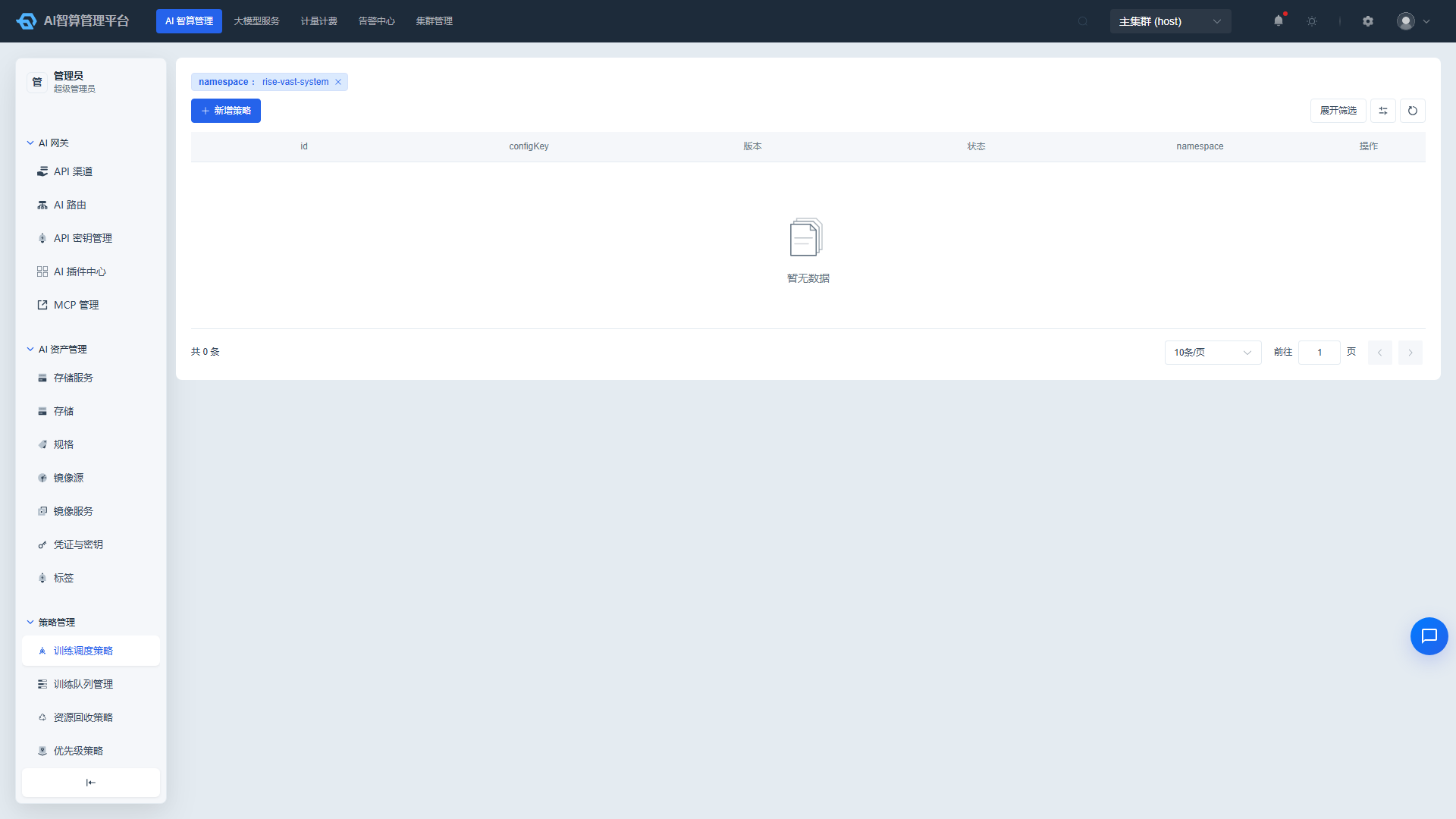
View Scheduling Policies
- Navigate to AI Compute Management > Policy Management > Training Scheduling Policy.
- The list displays: Policy Name, Volcano Version Template, Status (Enabled / Disabled), Namespace, Creation Time.
- Use the top filter bar to query by name, Volcano version template, status, and namespace.
- Click a policy name to enter the detail page to view the current policy's minor version number (creation timestamp) and full configuration.
Create a Scheduling Policy
- Click "Create Scheduling Policy" on the training scheduling policy list page.
- Fill in the basic information:
- Name: Unique policy identifier.
- Volcano Version Template: Select the compatible Volcano version.
- Namespace: The namespace where the policy takes effect.
- Configure scheduling behaviors (multi-select / combine):
- enqueue: Job enqueue behavior.
- allocate: Resource allocation behavior.
- preempt: Preemption behavior.
- reclaim: Resource reclamation behavior.
- backfill: Backfill scheduling behavior.
- Configure scheduling strategies (multi-select / combine):
- priority: Priority strategy.
- gang: Gang scheduling; configurable with
enablepreemptable. - conformance: Conformance strategy.
- Configure scheduling algorithms (multi-select / combine):
- overcommit: Overcommit algorithm.
- drf: Dominant Resource Fairness; configurable with
enablepreemptable. - deviceshare: Device sharing algorithm.
- predicates: Predicate filtering algorithm.
- proportion: Proportional scheduling algorithm.
- nodeorder: Node ordering algorithm.
- binpack: Compact bin-packing algorithm; configurable with arguments.
- Click "Create."
Manage Scheduling Policies
- Click "More Actions" in the list row:
- Enable / Disable: Controls whether the policy is active; manage scope without deletion.
- Edit: Modify scheduling behaviors, strategies, and algorithm combinations; modifications generate a new minor version number.
- Delete: Remove policies no longer in use.
Training Queue Management
Training queues correspond to Volcano queues, used for queue-based scheduling and resource isolation of training jobs.
View Training Queues
- Navigate to AI Compute Management > Policy Management > Training Queue Management.
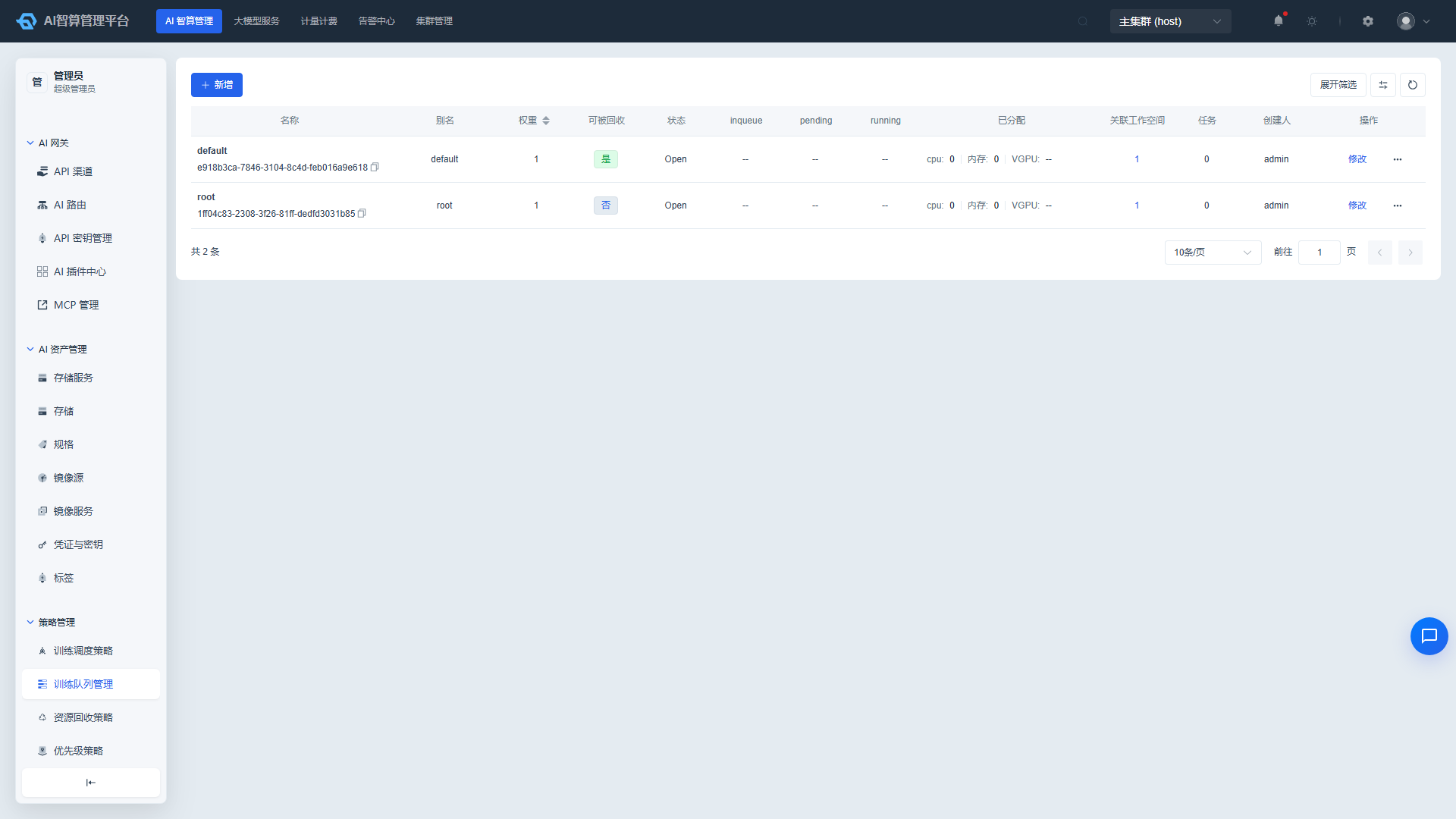
- The list auto-syncs with Volcano queues before each load, displaying: Queue Name / Alias, Weight, Recyclable, Status, Allocated Resources (CPU / Memory / VGPU), Associated Workspace Count, Creator.
- Click a value in the "Jobs" column to navigate to the training job list for that status.
- Hover over the job count to view a summary of associated jobs.
Create a Training Queue
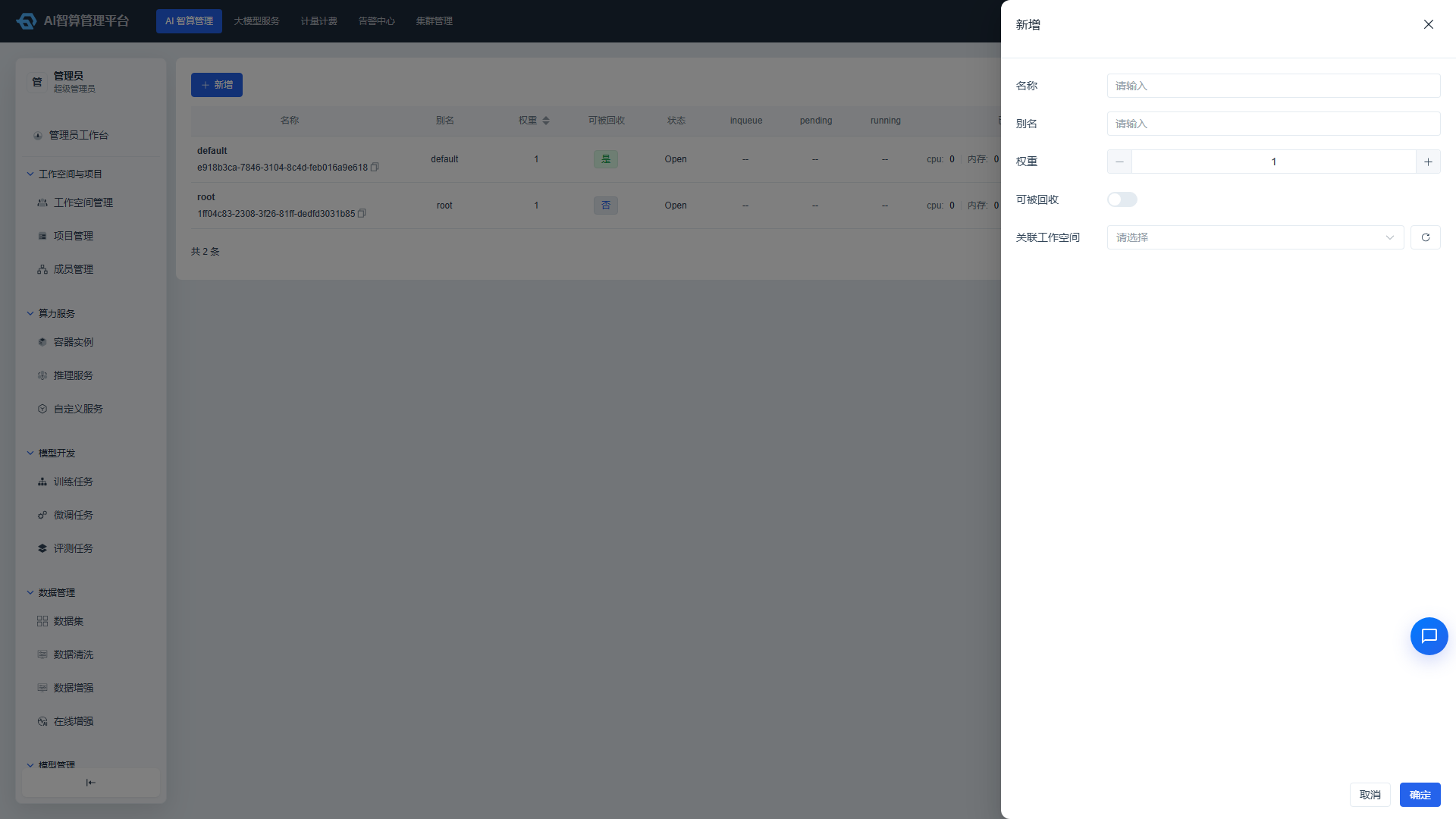
- Click "Create Training Queue" on the training queue management list page.
- Fill in the configuration:
- Name: Unique queue identifier.
- Alias: Display name.
- Weight: Affects queue priority in scheduling; higher values mean higher priority.
- Recyclable: When enabled, this queue's resources can be reclaimed by recycling strategies.
- Associated Workspaces: Select which tenants can use this queue.
- Click "Create."
Manage Training Queues
- Click "More Actions" in the list row:
- Edit: Modify alias, weight, recyclable status, and associated workspaces.
- Delete: System queues (default / root) and queues with running jobs cannot be deleted.
Resource Recycling Strategy
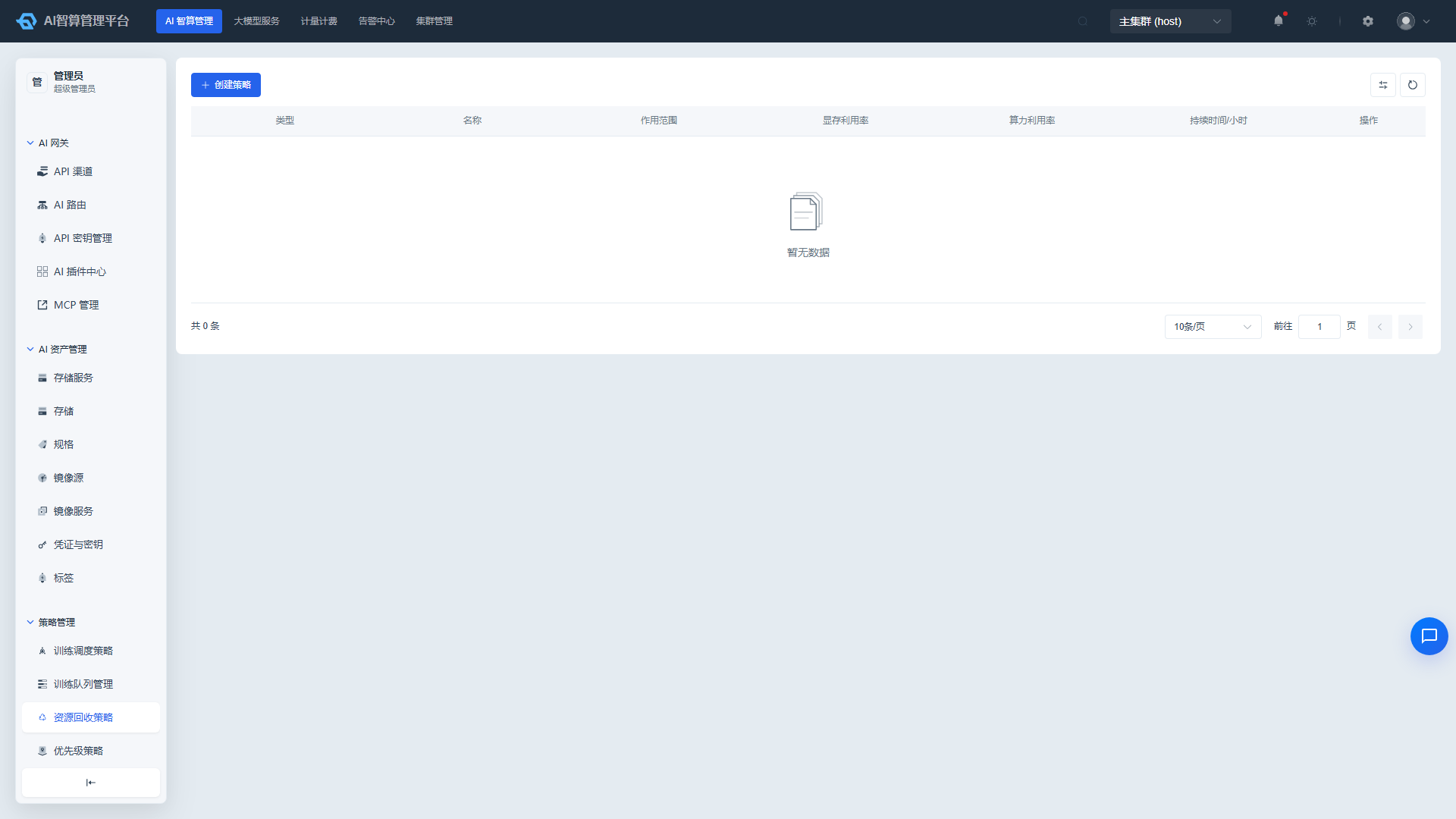
Resource recycling strategies automatically reclaim idle resources based on memory utilization, compute utilization, and duration, covering four compute resource types: container instances, training jobs, inference services, and fine-tuning jobs.
View Recycling Strategies
- Navigate to AI Compute Management > Policy Management > Resource Recycling Strategy.
- The list displays: Type, Name, Scope, Memory Utilization, Compute Utilization, Duration (hours).
- Use the top filter bar to query by type, scope, and name.
Create a Recycling Strategy
- Click "Create Strategy" on the resource recycling strategy list page.
- Select the scope:
- Platform: Applies to the entire platform.
- Workspace: Applies to the specified tenant.
- Project: Applies to the specified project.
- Fill in the configuration:
- Parent Workspace / Project: Select based on the scope.
- Scope: Container Instance / Training Job / Inference Service / Fine-tuning Job.
- Duration: Hours; recycling is triggered when this duration is exceeded and utilization conditions are met.
- Compute Utilization: Percentage threshold; resources below this value are considered idle.
- Memory Utilization: Percentage threshold; resources below this value are considered idle.
- Click "Save."
Manage Recycling Strategies
- Click "More Actions" in the list row:
- Edit: Adjust utilization thresholds, duration, and scope.
- Delete: Remove strategies no longer needed.
Priority Policy
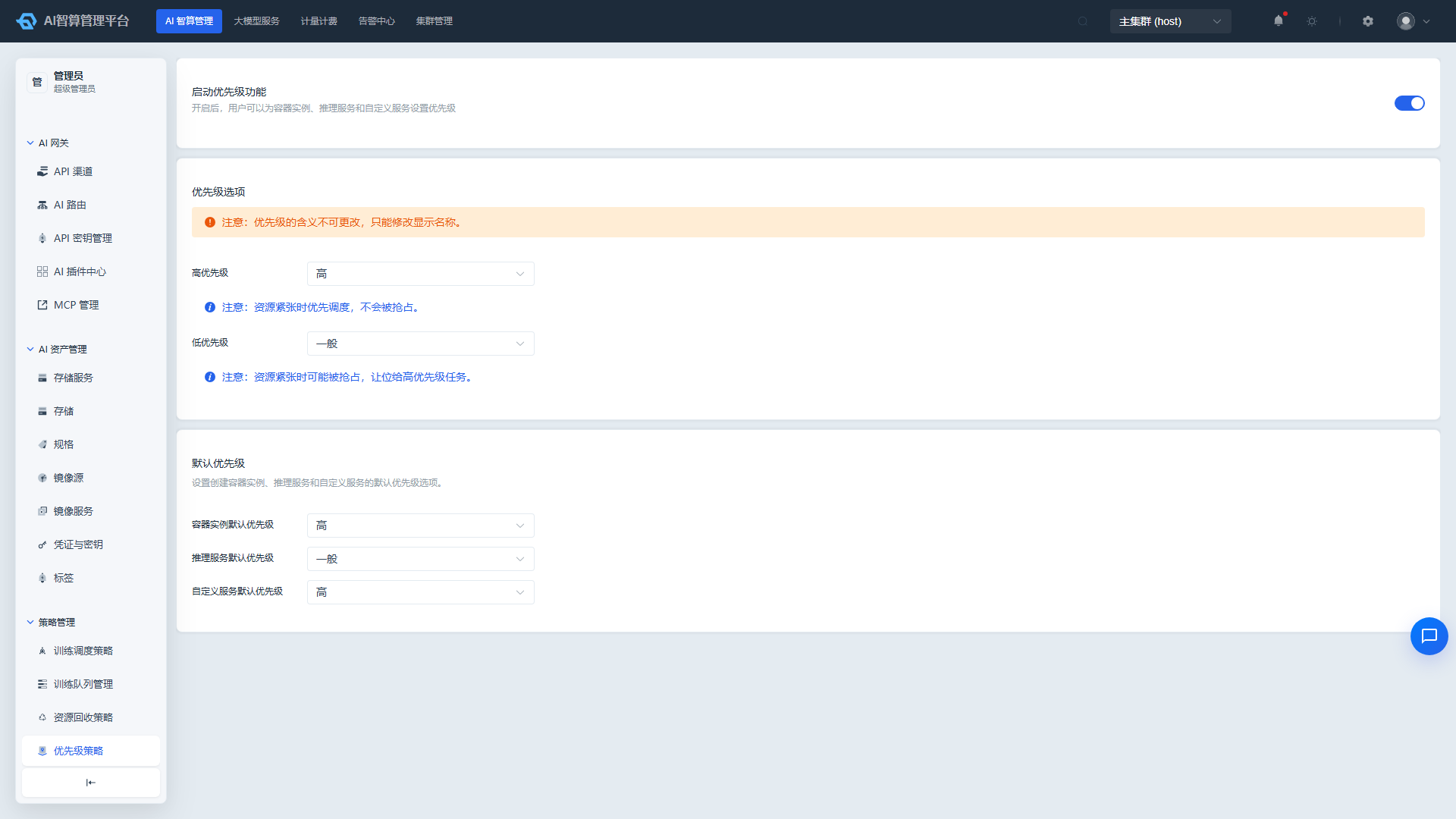
Priority policies configure the default priority when creating jobs, as well as the global toggle for GPU / CPU priority functionality.
Configure Priority Policy
- Navigate to AI Compute Management > Policy Management > Priority Policy.
- Toggle the "GPU Priority" and "CPU Priority" global switches at the top of the page.
- In the table below, set the default priority for three resource types:
- Container Instance: Default priority when creating container instances.
- Inference Service: Default priority when creating inference services.
- Custom Service: Default priority when creating custom services.
- Customize the display names for high / low priority (e.g., change "High" to "Urgent," "Low" to "Normal"); high / low labels update in tandem to maintain correspondence.
- All configuration changes are saved immediately to the platform global configuration without additional confirmation.
FAQ
Q: Training job stuck Pending — is this related to the scheduling policy? A: Possibly. Please check the scheduling policy associated with the job's selected queue, the queue weight, and whether Gang scheduling is enabled such that the minimum available instance count cannot be satisfied.
Q: Will the resource recycling strategy accidentally delete running jobs? A: The recycling strategy evaluates based on dual criteria: utilization threshold and duration. If a job is running but utilization remains below the threshold for the specified duration, it will also be reclaimed. It is recommended to disable the recyclable attribute or set reasonable thresholds for critical jobs.
Q: Why doesn't the queue weight change take effect immediately? A: Queue weights are controlled by the Volcano scheduler; changes typically take several seconds to minutes to reflect in scheduling. You can view the latest synced status in the queue list.
Q: Where do the display names in the priority policy take effect? A: They affect the display names in the priority dropdown when creating container instances / inference services / custom services, as well as the priority column display in lists.