Data Management
Data Management covers the full dataset lifecycle: creation and version management, file upload/preview/editing, Hub import, Data-Juicer-based data cleaning, and LLM-powered generative data augmentation.
Access path: Left sidebar AI Compute Development > Data Management, route
/admin/ai/deployer/data.
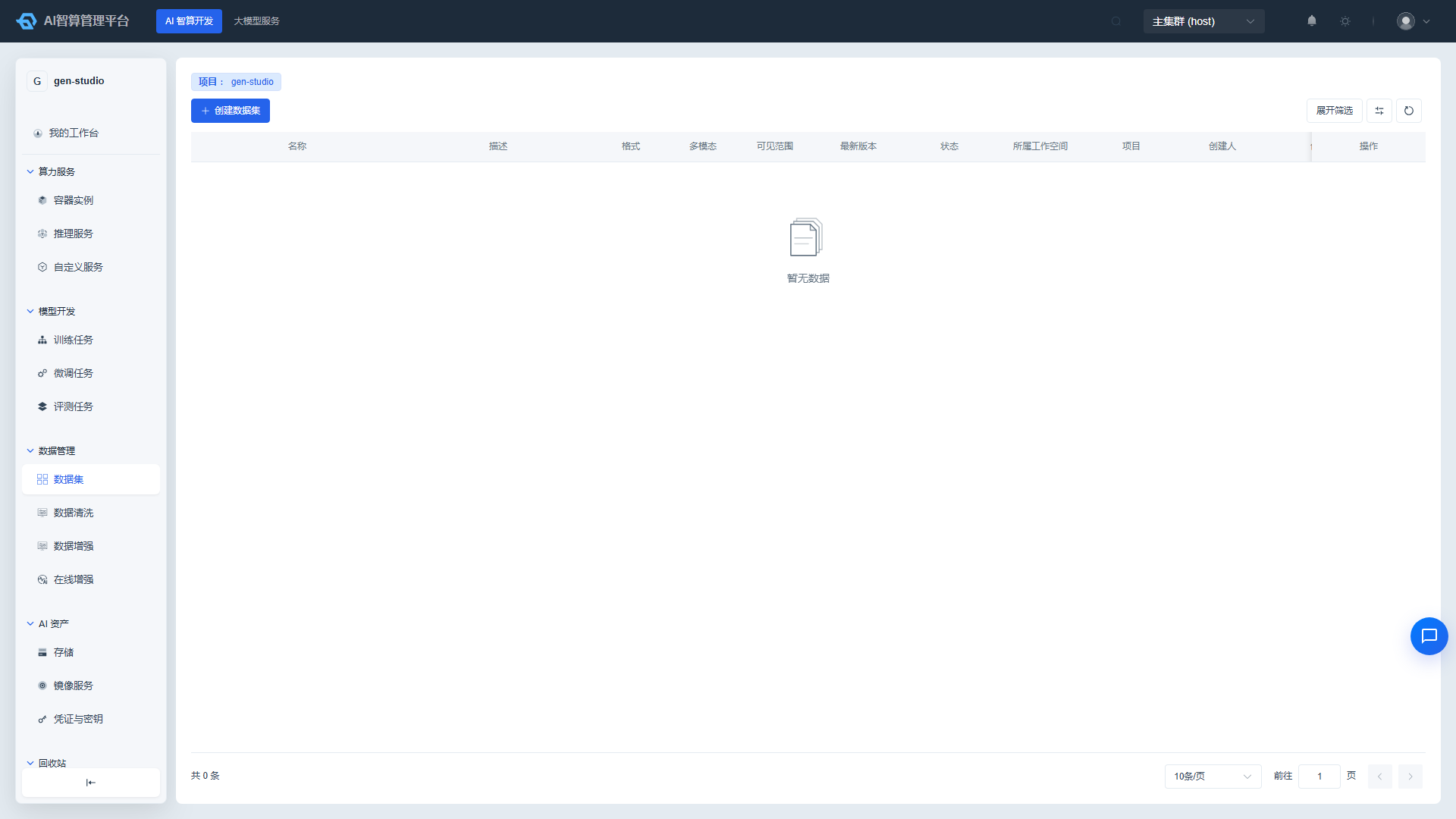
Datasets
Creating a Dataset
- Navigate to AI Compute Development > Data Management > Datasets.
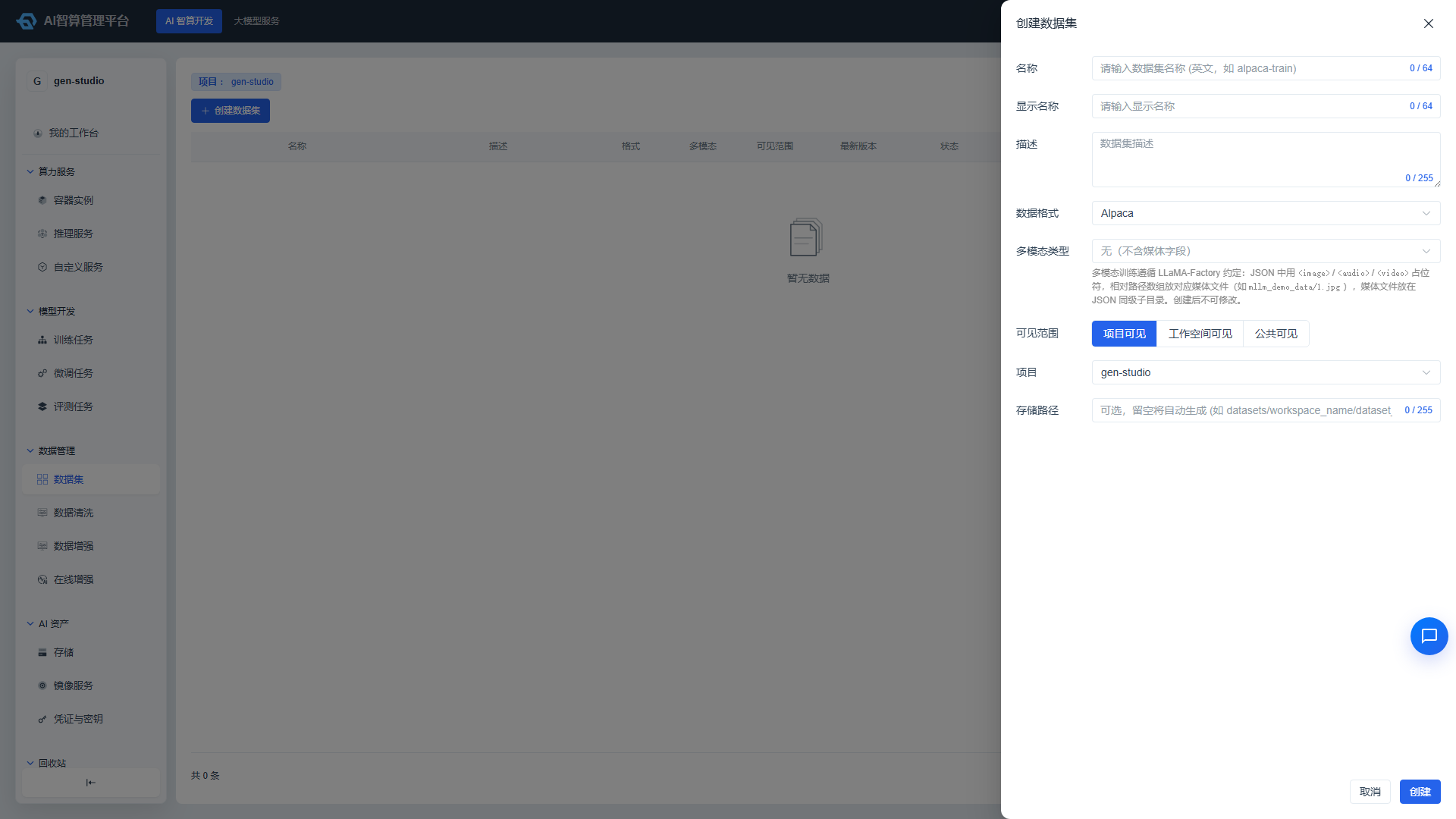
- Click "Create Dataset" and fill in the details in the right-side drawer:
- Name: Letters/numbers/hyphens/underscores, 2–64 characters, e.g.,
alpaca-train. - Display Name: Chinese or English, for easy identification.
- Description: Optional, up to 255 characters.
- Data Format: Alpaca / ShareGPT / Custom.
- Multimodal Type: None / Image / Audio / Video; once selected, it cannot be changed after creation.
- Visibility: Project Visible / Tenant Visible / Public.
- Workspace/Project: Automatically shown based on visibility.
- Storage Path: Optional; if left blank, the system generates one automatically.
- Name: Letters/numbers/hyphens/underscores, 2–64 characters, e.g.,
- Click "Create". After successful creation, you will be taken to the detail page.
Managing Versions and Files
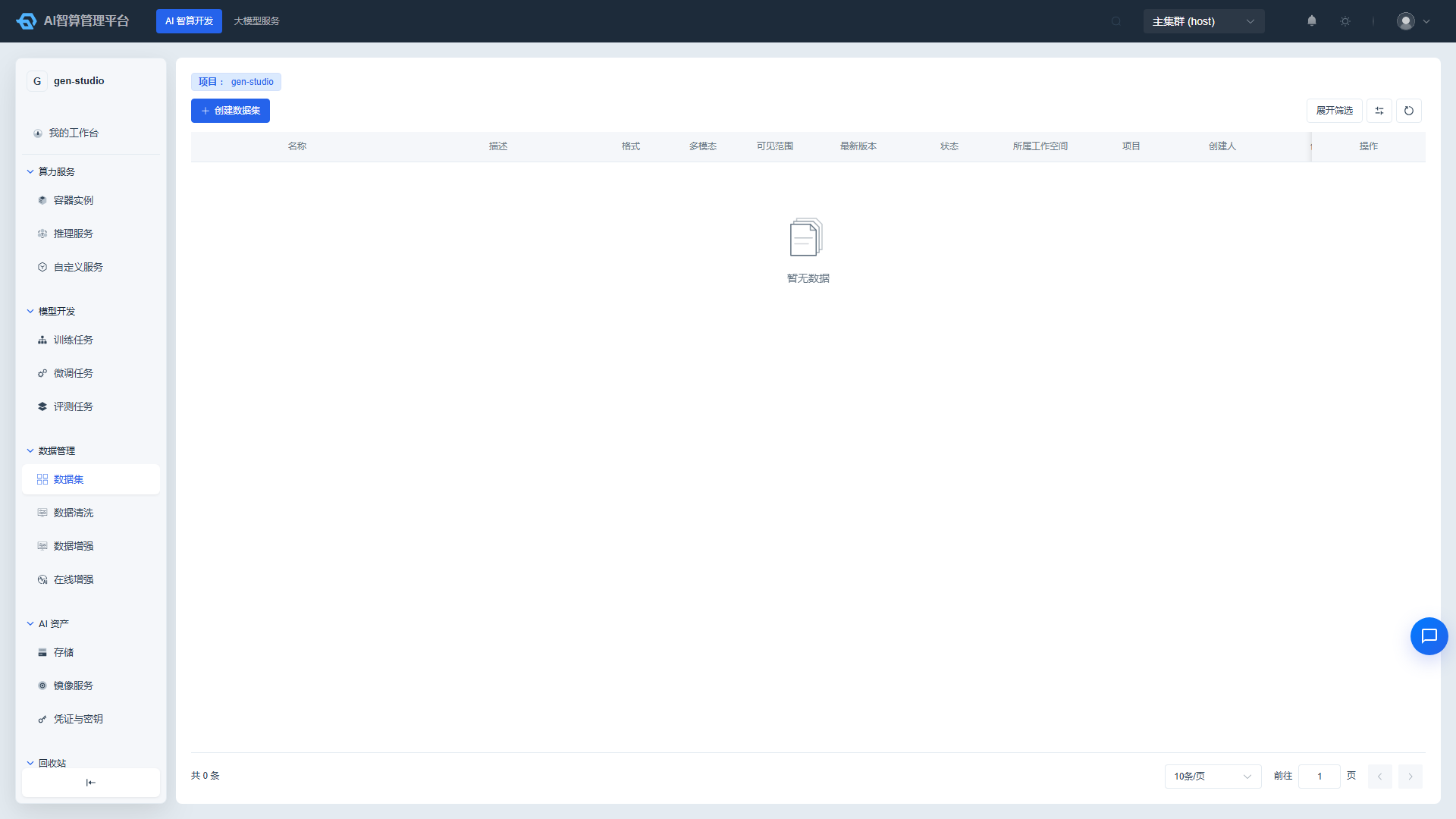
Enter the dataset detail page:
- Create New Version: Click "Create New Version", enter a version name (e.g.,
v1) and description. The system will generate an independent storage path. - Upload Files: Upload local files in the version detail. Nested subdirectories are supported.
- File Operations:
- Preview text/JSON file contents.
- Edit JSON files online.
- Download, delete, rename files or directories.
- Hub Import: Click "Hub Import", select ModelScope or HuggingFace, enter the repository ID. The system will automatically download and create a version. You can view the progress badge during import.
- Version Archive/Delete: Ready versions that are no longer in use can be archived. Not-ready versions can be deleted directly.
Using Datasets
- When creating training/fine-tuning/evaluation jobs, select the created dataset and version from the "Dataset" dropdown.
- For multimodal datasets, ensure media files are placed in a subdirectory alongside the JSON file, and use
<image>/<audio>/<video>placeholders in the JSON.
Data Cleaning
Data cleaning is powered by Data-Juicer, filtering low-quality samples based on rules and outputting results as a new version.
Creating a Cleaning Job
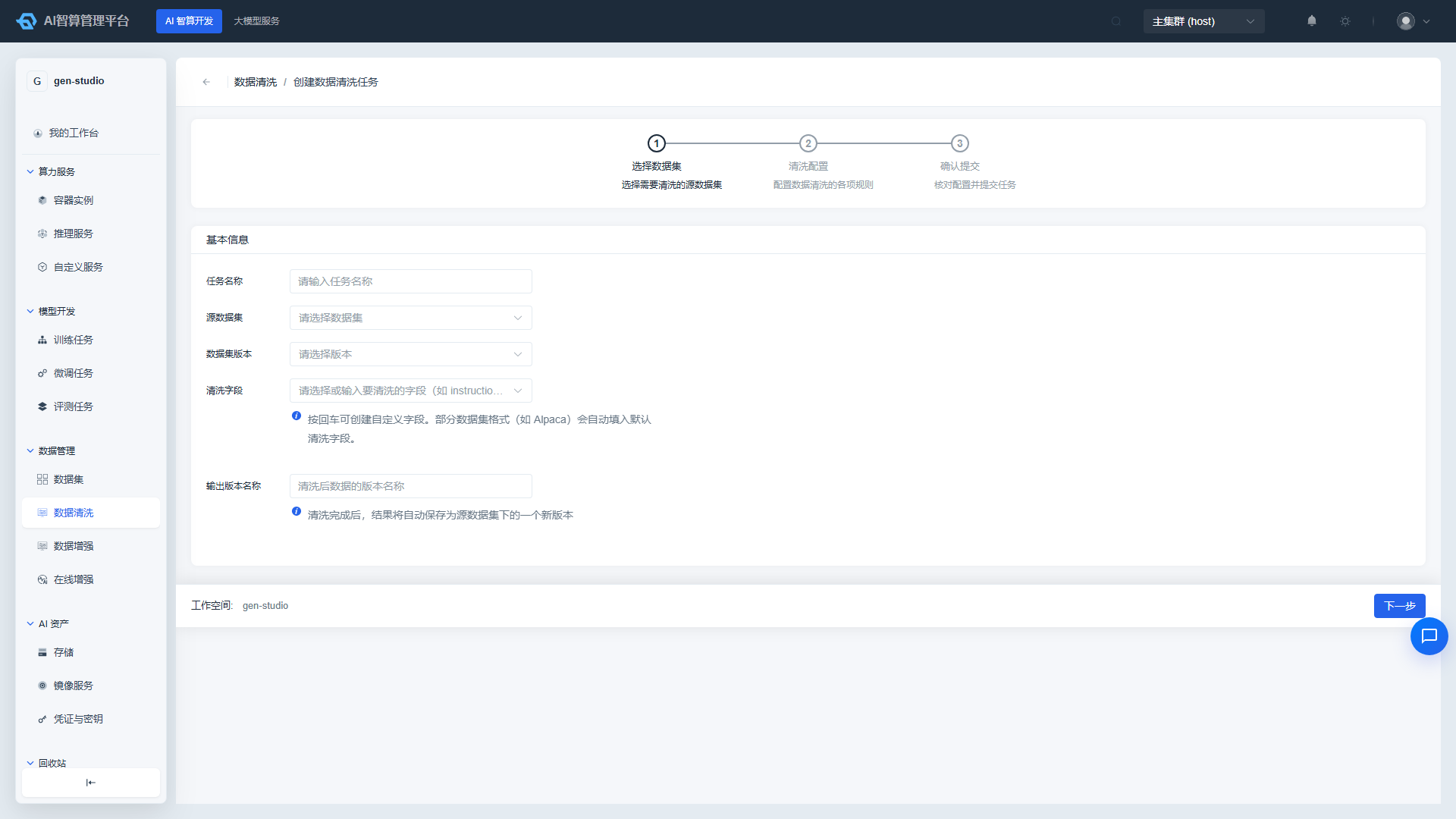
- Navigate to AI Compute Development > Data Management > Data Cleaning and click "Create Data Cleaning Job".
- Step 1: Select Dataset
- Job Name: Lowercase letters/numbers/hyphens.
- Source Dataset & Version: Select the dataset version to clean.
- Cleaning Fields: Select the fields to process (e.g.,
instruction,output,content). Custom fields are supported. - Output Version Name: Cleaning results will be saved as a new version under the source dataset.
- Step 2: Cleaning Configuration
- Cleaning Configuration: Remove garbled characters, remove HTML tags.
- Filter Configuration: Length filter, special character ratio, harmful content filter. Advanced options support language detection and perplexity filtering.
- Deduplication Configuration: Fuzzy deduplication, exact deduplication, duplicate content detection.
- Privacy Protection: Privacy information replacement or removal.
- Normalization Configuration: Unicode normalization, whitespace cleanup, Traditional-to-Simplified Chinese conversion.
- Step 3: Confirm & Submit
- Review the source dataset, cleaning rules, and output version, then click "Submit Job".
- After the job completes, go to the source dataset detail to view the latest version.
Viewing Cleaning Job Details
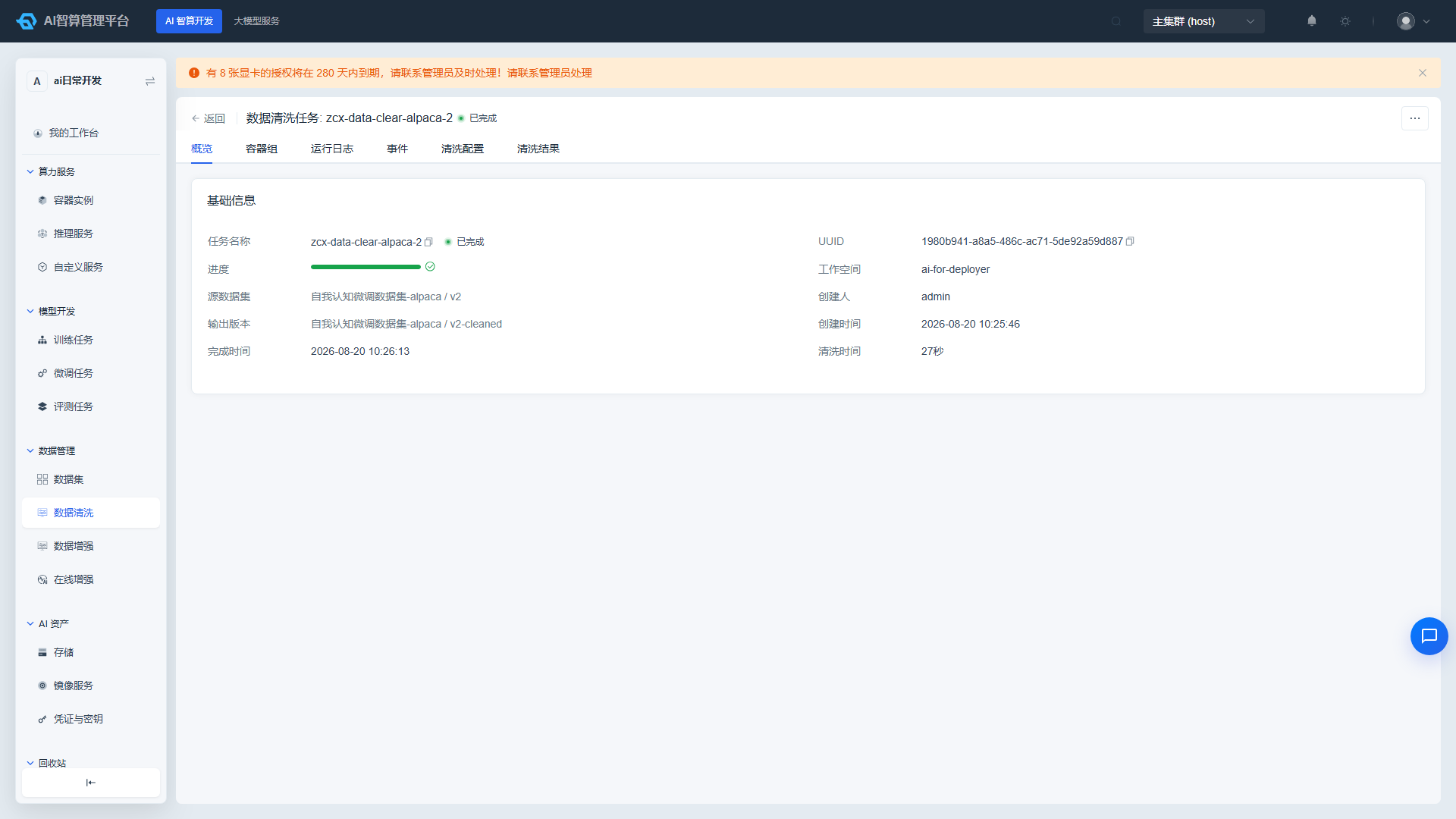
Click the job name in the data cleaning list to enter the detail page, where you can view the cleaning configuration, run status, and logs. When a job fails, you can use this information to determine whether the issue is with the image, startup command, or data format.
Data Augmentation
Data augmentation uses an LLM to rewrite, expand, or generate new samples from existing data.
Creating an Augmentation Job
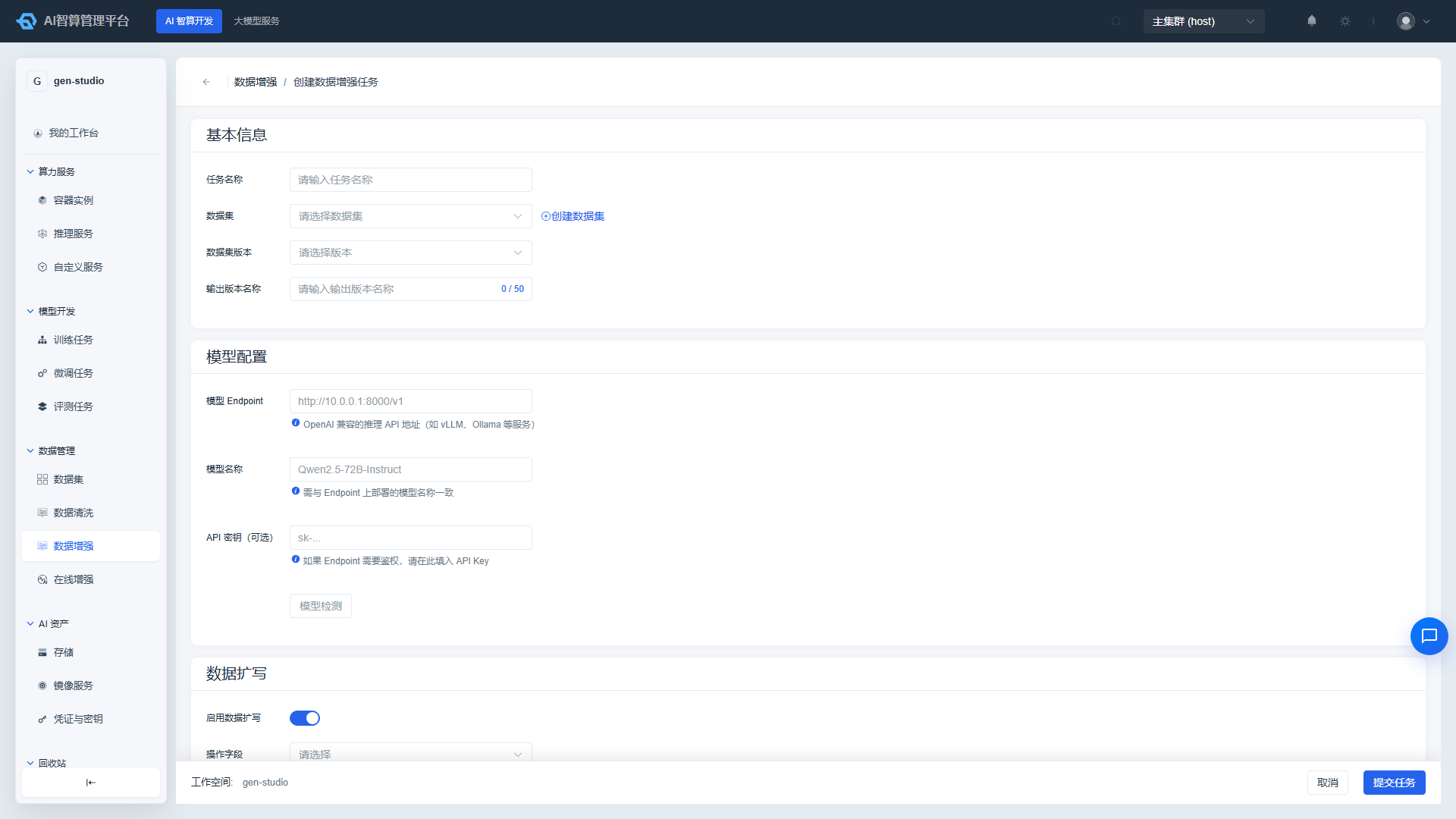
- Navigate to AI Compute Development > Data Management > Data Augmentation and click "Create Data Augmentation Job".
- Select Dataset: Enter the job name, select the source dataset version, and output version name.
- Augmentation Configuration:
- Select the augmentation method (rewrite / expand / continue writing / template-based generation, etc.).
- Configure target fields and prompt templates.
- Select the model and API Key for generation.
- Set generation count, temperature, and other parameters.
- Confirm & Submit: The system will run the augmentation job in the background and generate a new version upon completion.
Viewing Augmentation Job Details
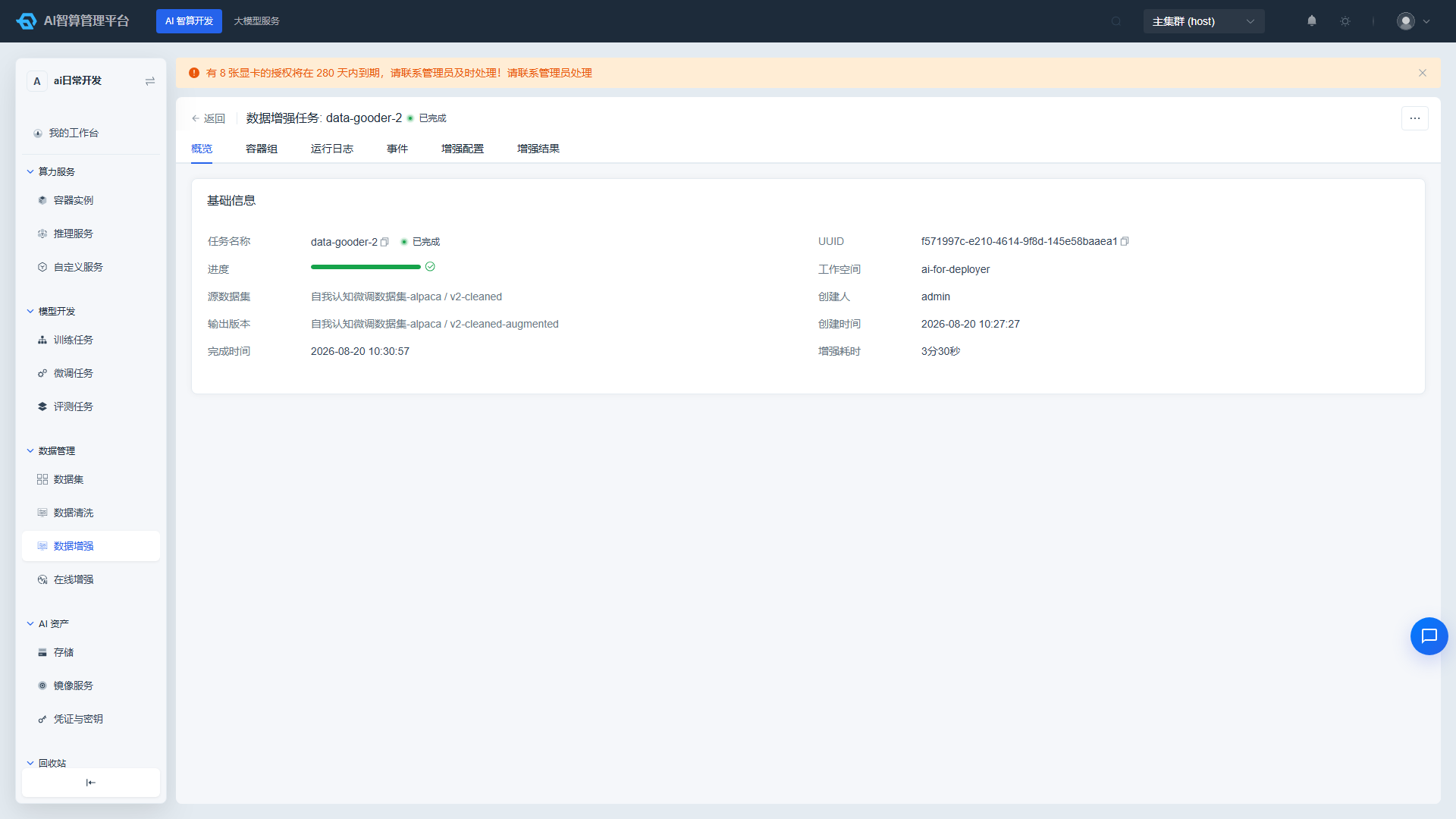
Click the job name in the data augmentation list to enter the detail page, where you can view the augmentation configuration (augmentation method, prompt template, model used), run progress, and generation result statistics. After augmentation is complete, the results are saved as a new version under the source dataset.
Online Augmentation
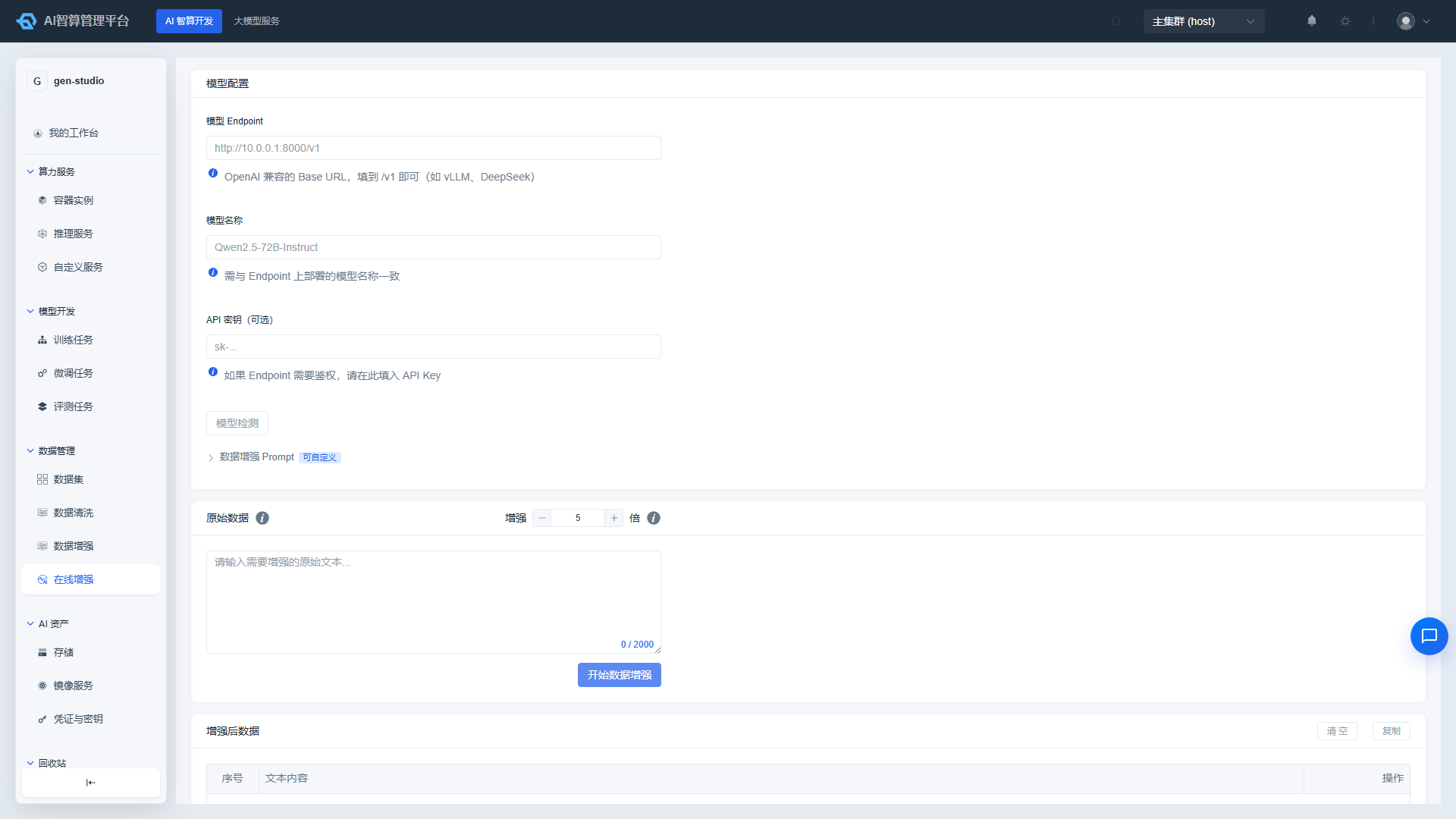
Online Augmentation provides a real-time rewrite/expand interface for individual text entries. No background job submission is required — you can quickly preview results, making it ideal for experimenting with prompt templates.
Using Online Augmentation
- Navigate to AI Compute Development > Data Management > Online Augmentation.
- Configure the model endpoint, model name, and API key, then click "Model Check" to verify connectivity.
- Write the augmentation rewrite prompt in the "System Prompt" text box.
- Enter the single text entry to augment in the "Original Data" text box.
- Set the augmentation multiplier and click "Start Data Augmentation".
- The system displays results in three tiers: all succeeded / partial failure / failed. Augmentation results are shown in a table, supporting single-entry copy/delete, one-click clear all, and one-click copy all.
FAQ
Q: Dataset version status stays in "Creating"? A: Hub imports or large file uploads may take several minutes. Click the version "Details" to check the file count and status. If it fails, an error message will be displayed.
Q: Cleaning job reports "Model path not found"? A: Data cleaning does not load models. This error usually indicates an issue with the task image or startup command configuration. Check the logs on the job detail page.
Q: Multimodal dataset images are not recognized in the fine-tuning job? A: Confirm that you selected the correct multimodal type when creating the dataset and that the media file paths in the JSON match the relative paths of the placeholders.