Compute Services
Compute Services is the most frequently used module by developers, providing three types of workloads:
- Container Instances: GPU-equipped interactive development environments (Jupyter / VS Code / SSH).
- Inference Services: Deploy models as online API services (vLLM / SGLang / MindIE and other engines).
- Custom Services: Publish any container image as a long-running HTTP service.
Access path: Left sidebar AI Compute Development > Compute Services, route
/admin/ai/deployer/compute.
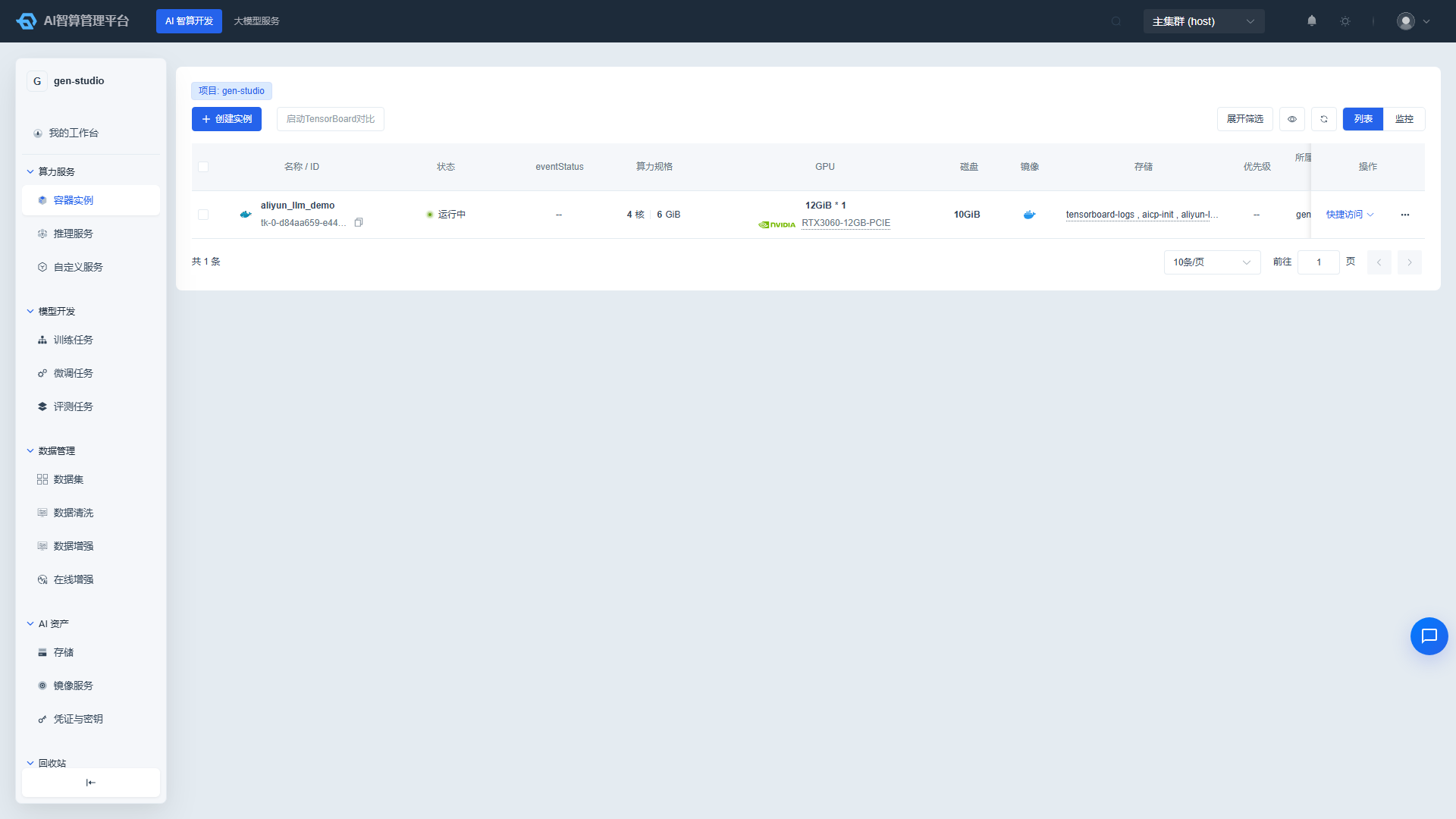
Container Instances
Container instances are ideal for code debugging, running Notebooks, and saving environment images. Each instance corresponds to a Kubernetes Pod. Shutting down does not release resources — only releasing will reclaim them.
Creating a Container Instance
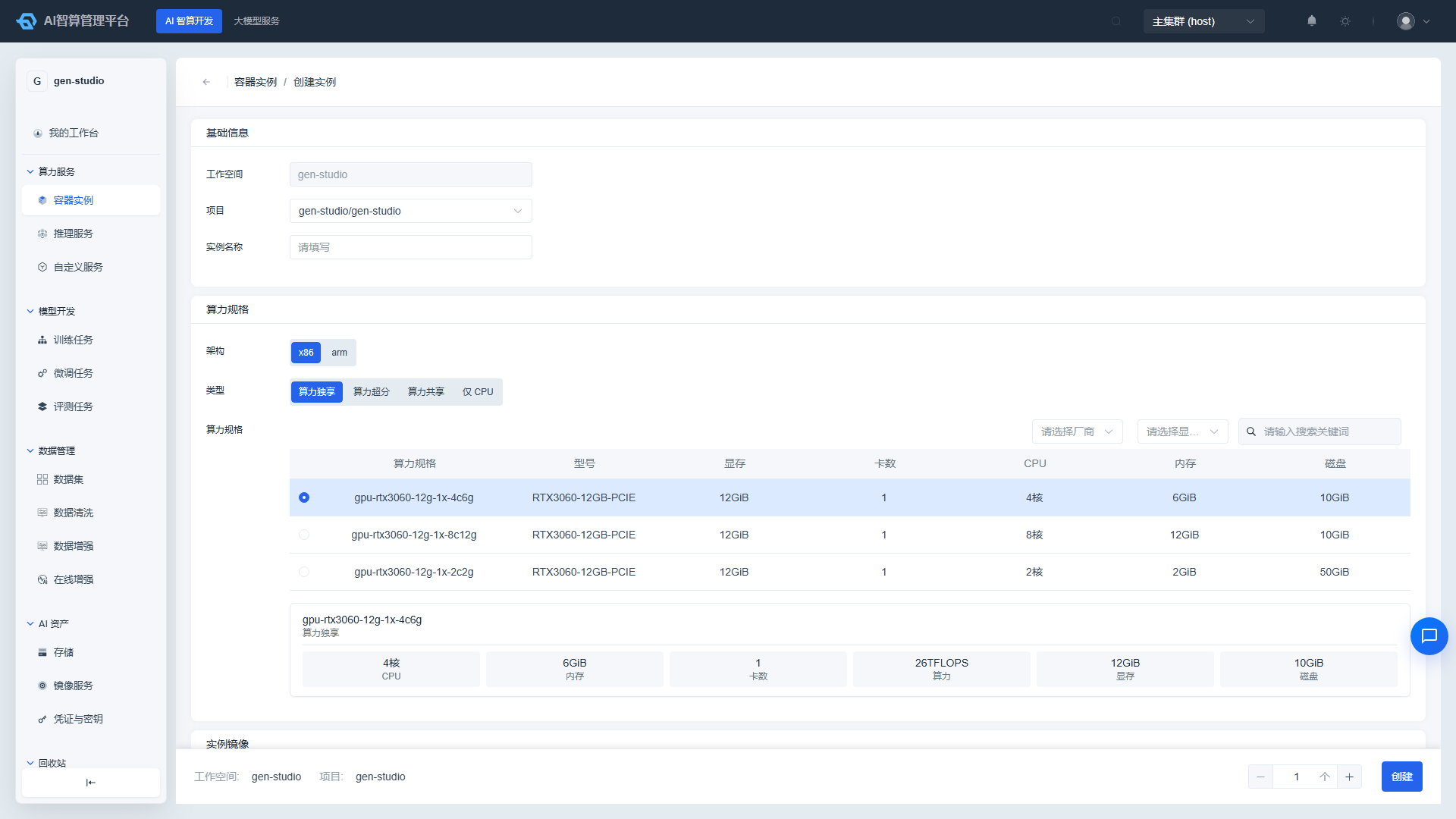
- Navigate to AI Compute Development > Compute Services > Container Instances and click "Create Container Instance".
- Basic Information
- Workspace/Project: Defaults to the current tenant and project. Unauthorized projects will not be displayed.
- Instance Name: 2–50 characters, supports Chinese, letters, numbers, hyphens, and underscores.
- Compute Flavor
- Select architecture (x86 / ARM).
- Select GPU type: Shared GPU, Dedicated GPU, or Over-subscribed GPU.
- Select a row from the flavor list and confirm CPU, memory, GPU card count / compute percentage / VRAM.
- Instance Image
- Base Image: Platform-prebuilt Jupyter / PyTorch / TensorFlow images.
- Custom Image: Images saved or uploaded by the tenant or project.
- External Image Address: Enter the image address for
docker pull; if the registry requires credentials, provide username/password.
- Storage Configuration
- Public Storage: Read-only or read-write storage configured by the platform administrator; multiple selections allowed.
- Custom Storage: Tenant data storage for code, data, and model files.
- Advanced Configuration (Optional)
- Development Tools: Select Jupyter / VS Code / SSH; the list will display the corresponding entry once the instance is running.
- Annotations / Environment Variables: Add key-value pairs that will be injected into the container.
- Web Service Configuration: Expose additional HTTP ports.
- Startup Command / Startup Arguments: Override the image's default startup behavior.
- Secrets: Select previously created image registry secrets or SSH keys.
- Auto Shutdown / Auto Release: Execute automatically after a specific time or after running for N hours.
- Shared Memory: Recommended for multi-GPU communication scenarios.
- Select the number of instances to create (1–10) at the bottom and click "Create".
Using a Container Instance
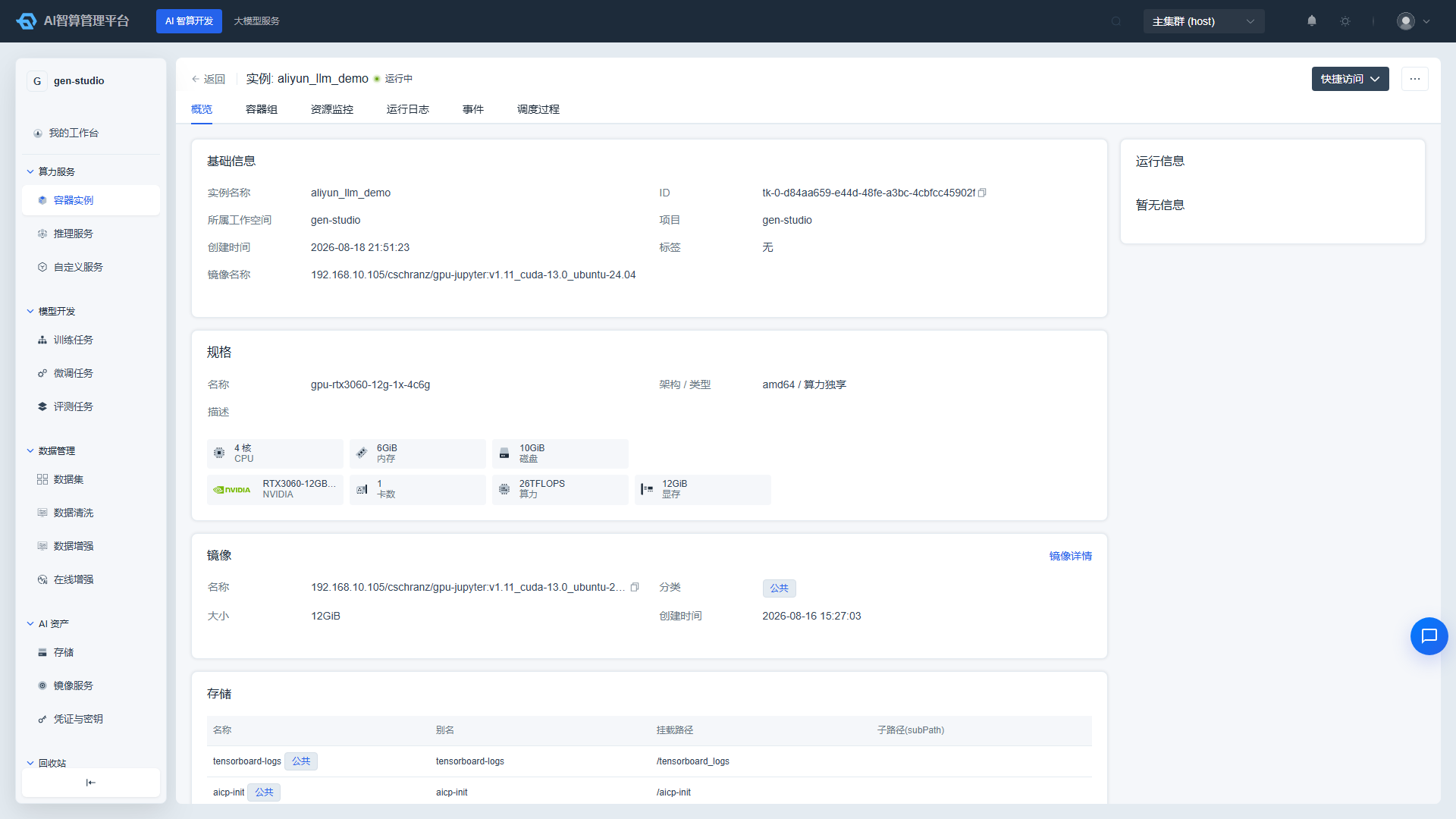
Once the instance status changes to Running:
- Click the Jupyter / VS Code / Web Terminal icons in the list row to enter the development environment.
- Click "SSH Info" to view the login address and port for local IDE remote connection.
- After modifying the environment within the instance, click "Save Image" to save the current container as a new custom image.
Common Operations
| Operation | Description |
|---|---|
| Start / Shut Down | Shut down preserves the disk and stops billing; starting up restores the environment. |
| Release | Permanently delete the instance and reclaim resources. Accidentally deleted instances can be recovered from the Recycle Bin. |
| Clone | Quickly create a new instance using an existing instance's configuration. |
| Edit | Only certain fields (e.g., storage, development tools) support editing and updating. |
| TensorBoard | Select multiple running instances to compare metrics at a glance. |
Inference Services
Inference Services are used to deploy models as APIs callable by the Playground or external systems. The platform deploys using StatefulSet by default, supporting both single-node and multi-node (LWS) modes.
Creating an Inference Service
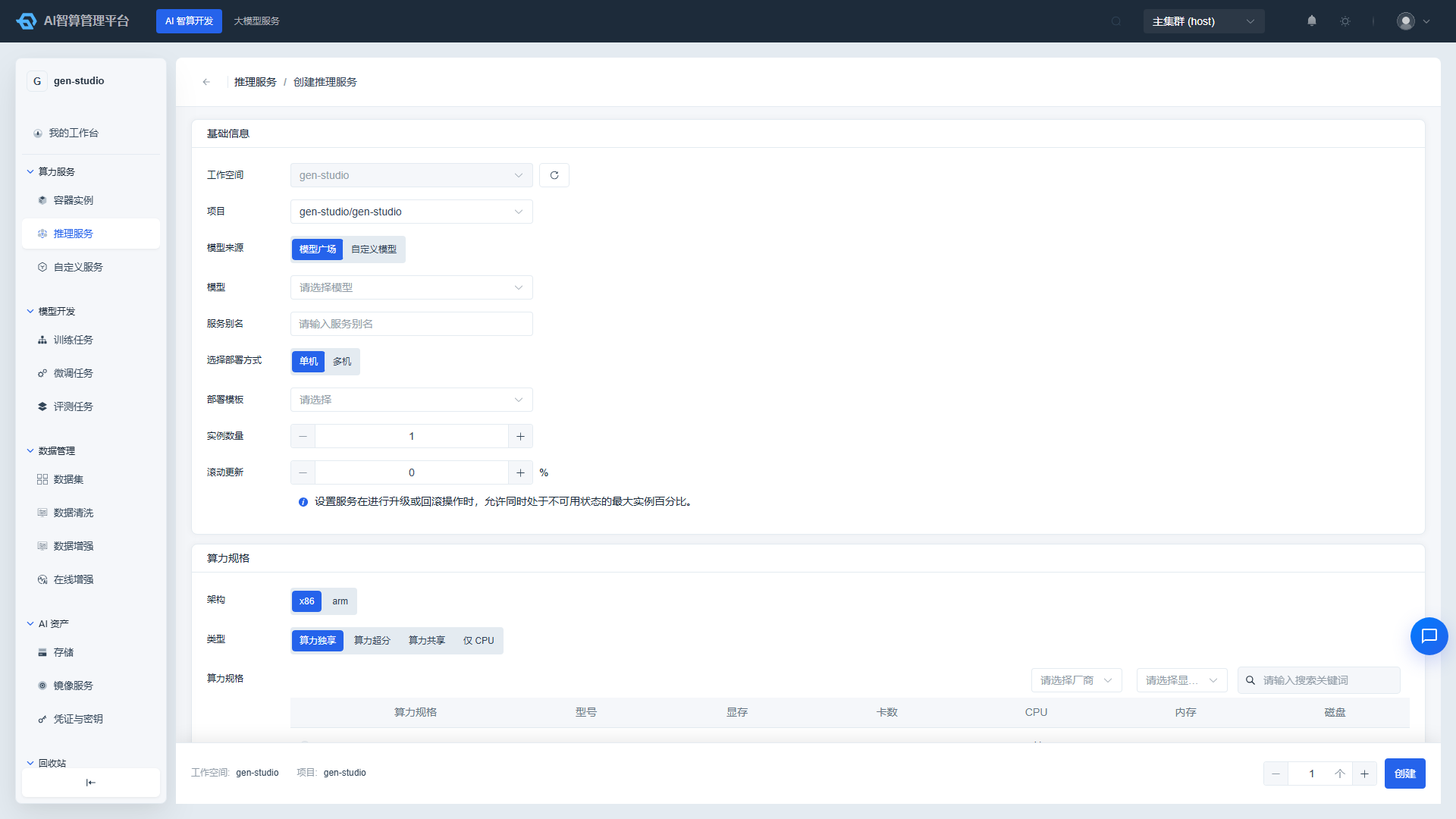
- Navigate to AI Compute Development > Compute Services > Inference Services and click "Create Inference Service".
- Basic Information
- Workspace/Project: Defaults to current context; can be switched in the administrator view.
- Model Source: Select "Model Marketplace" or "Custom Model".
- Model: Select the model to deploy from the dropdown.
- Service Alias: Used to identify the service in lists and API examples.
- Deployment Mode:
- Single-node: Single Pod with one or multiple GPUs, suitable for most models.
- Multi-node (LWS): Multiple nodes forming a Leader-Worker Set, suitable for large-parameter distributed inference.
- Deployment Template: Select a preset vLLM / SGLang / MindIE template; the template determines default startup parameters.
- Instance Count: Number of replicas for the service.
- Rolling Update: Maximum unavailable percentage allowed during upgrades/rollbacks.
- Compute Flavor: Same as container instances — select a GPU flavor.
- Instance Image: Base/Custom/External image. The system will automatically recommend inference engine tags based on the deployment template.
- Storage Configuration: Mount public/custom storage for loading model files or outputting logs.
- Deployment Parameters (Optional)
- Annotations, labels, environment variables, startup command, startup arguments.
- Health Checks: Readiness / liveness / startup probes.
- workingDir, hostNetwork, hostIPC, startup user, shared memory.
- Click "Create" and wait for the service status to change to Running.
Calling an Inference Service
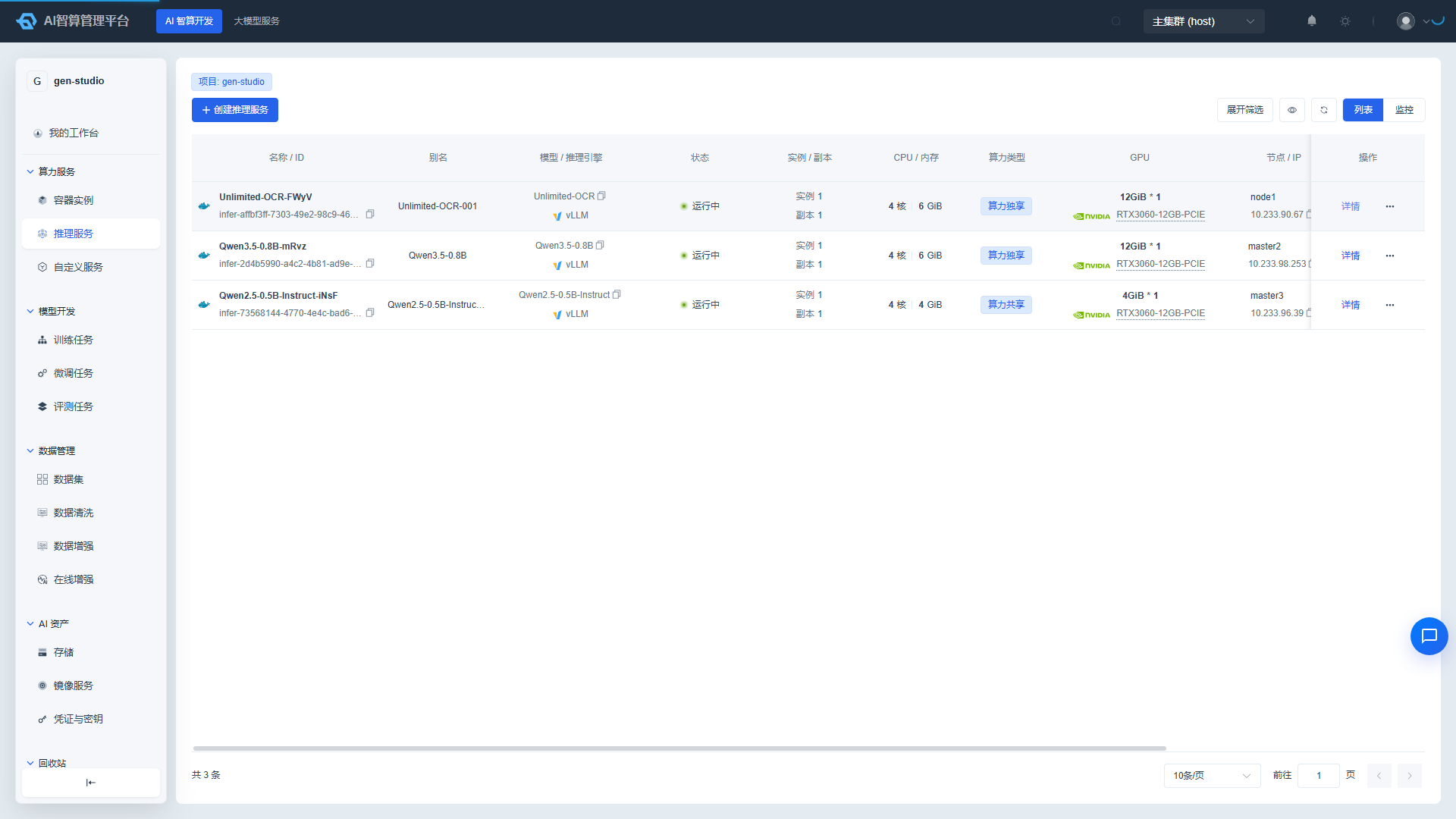
After the service is running:
- Click the service name in the list to enter the detail page.
- The top of the detail page displays the API Endpoint and API Key.
- Copy the curl example, or select this model in ModelX > Online Playground for conversational testing.
Service Operations
| Operation | Description |
|---|---|
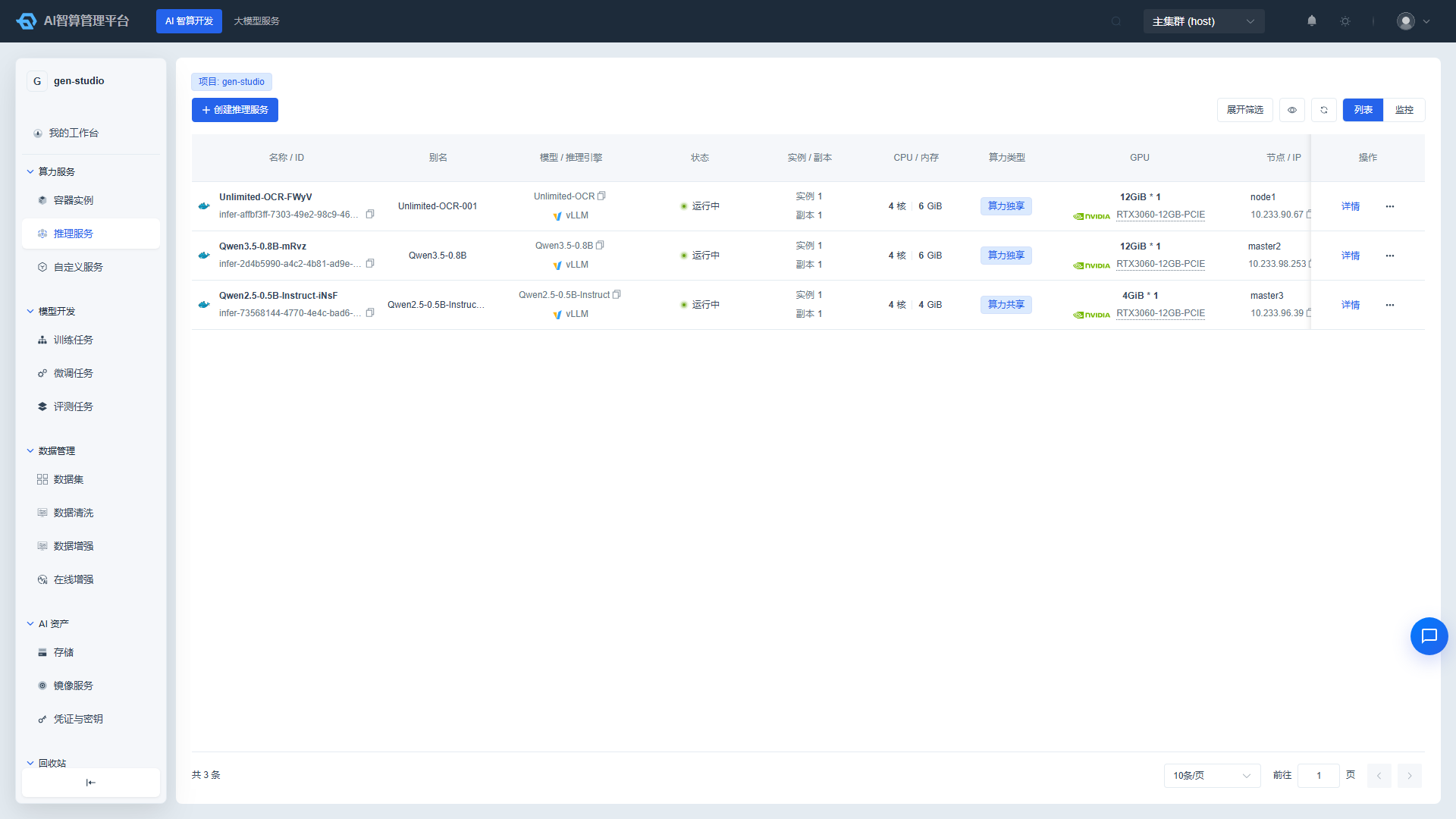
| Start / Stop | Stopping stops billing and releases GPUs while preserving configuration for easy restart. |
| Upgrade / Rollback | Redeploy after modifying configuration or switching model versions; supports version-based rollback. |
| Scale | Manually adjust replica count; also supports HPA for automatic scaling based on GPU/VRAM/QPS. |
| Clone | Quickly create a new service based on the current service configuration. |
| OpenWebUI | One-click binding of the service to the OpenWebUI chat interface. |
Custom Services
Custom Services are suitable for deploying any long-running HTTP application (e.g., model gateways, business APIs, visualization tools). They are backed by Kubernetes Deployment + Ingress.
Creating a Custom Service
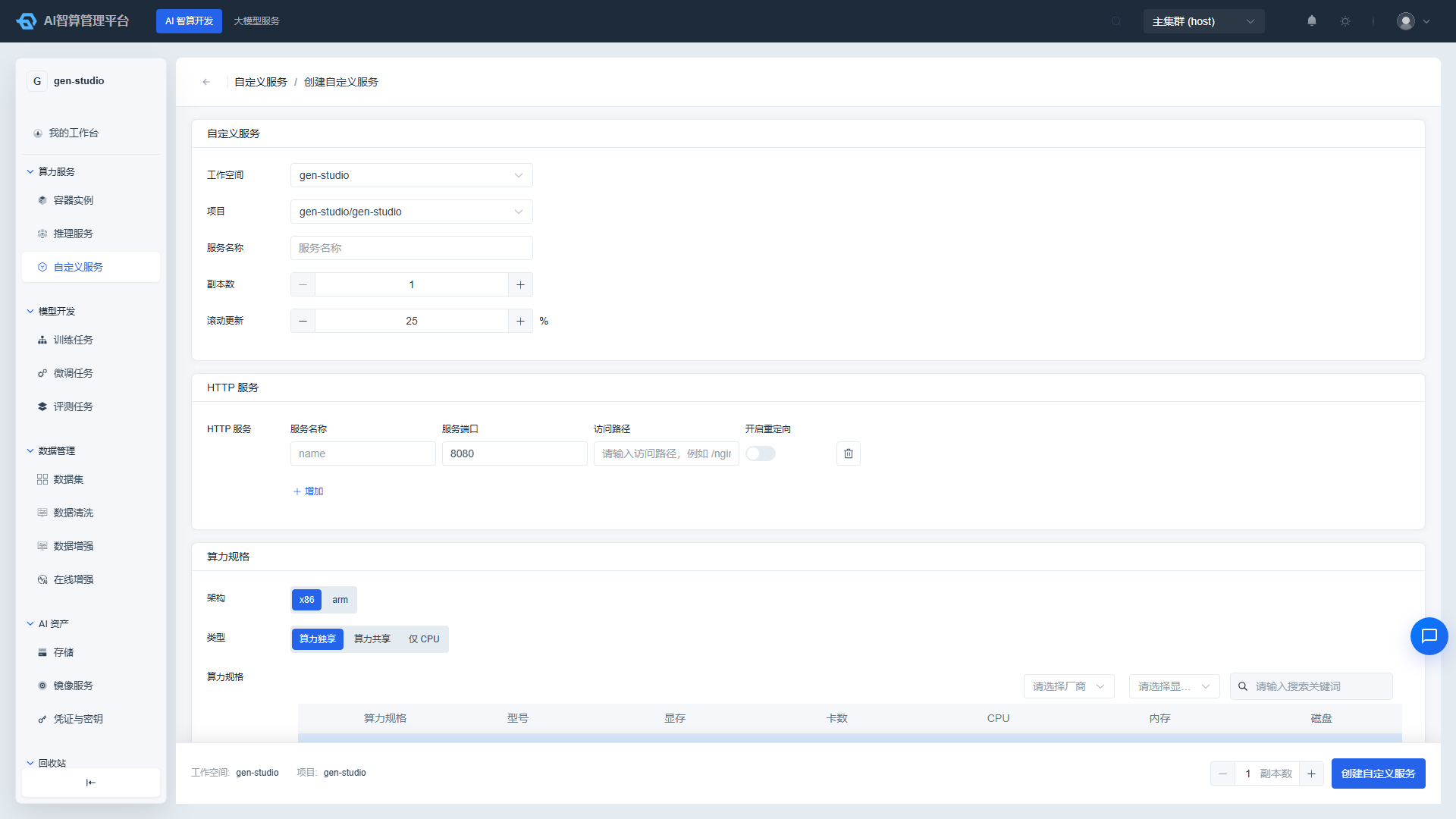
- Navigate to AI Compute Development > Compute Services > Custom Services and click "Create Custom Service".
- Basic Information: Workspace/Project, service name, replica count, rolling update percentage.
- HTTP Service: Add port and path mappings; the platform will automatically generate an Ingress access URL.
- Compute Flavor: If the service does not require GPU, select a CPU-only flavor.
- Instance Image: Select or enter an image address.
- Storage Configuration: Mount required storage volumes.
- Deployment Parameters: Environment variables, startup command, startup arguments, working directory, startup user, etc.
- Advanced Configuration: Health checks, shared memory, scheduled scaling (CronScale), auto scaling (HPA).
- Click "Create".
Accessing a Custom Service
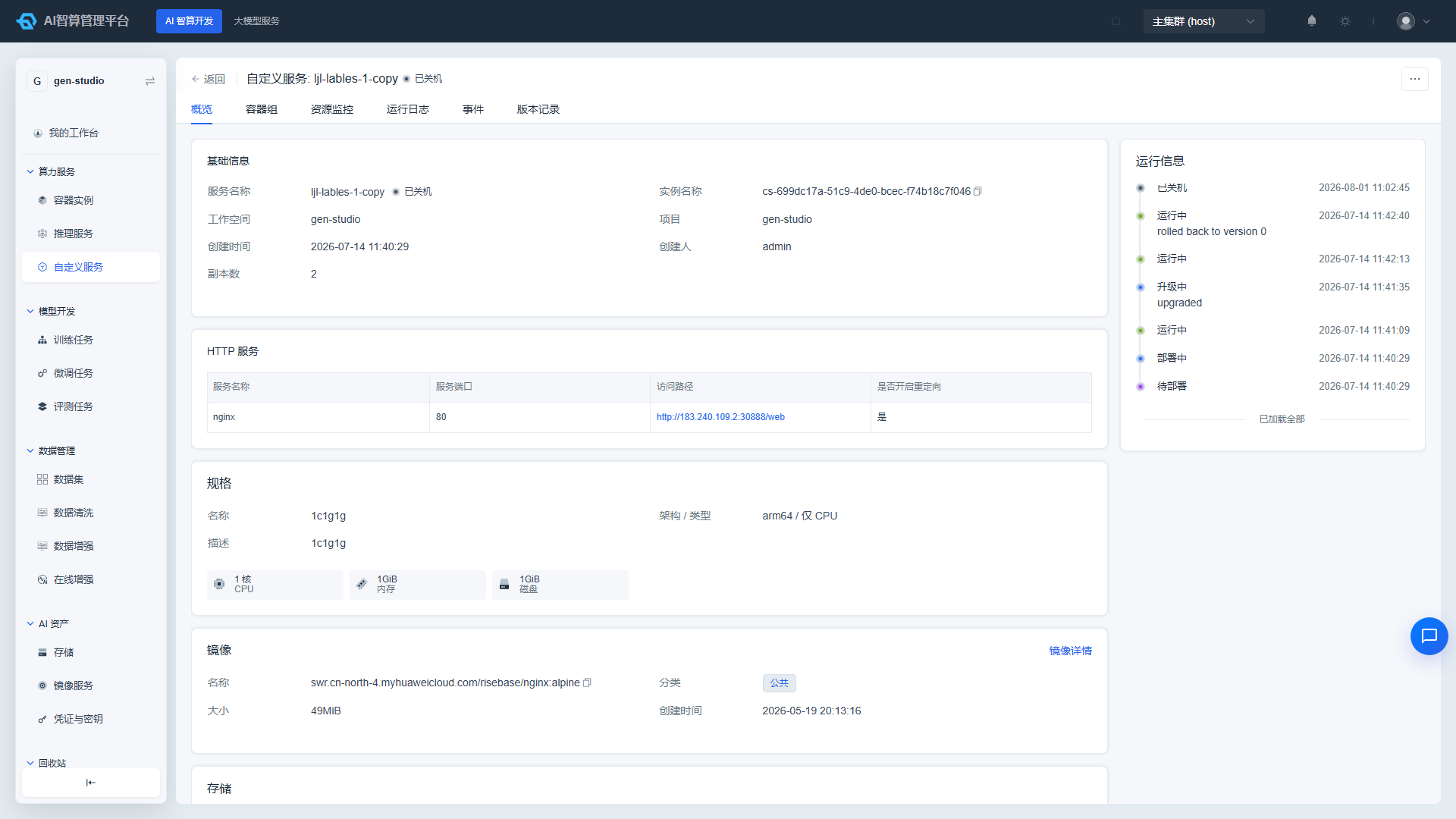
After the service is running, view the exposed Access URL in the list, or copy the URL from the "HTTP Service" tab on the detail page.
FAQ
Q: Instance stays in Pending state? A: Go to the detail page and check "Events" or "Scheduling Events". Common causes include insufficient resource pool quota, image pull failure, or insufficient node GPU resources.
Q: Inference service status is Running but API calls return 503? A: Check the health check configuration and startup parameters in the service details. Confirm that the model file path has been correctly mounted to storage.
Q: How do I bind a custom domain to a Custom Service? A: After configuring the path and port in the HTTP Service settings, the platform automatically generates a cluster domain. For a custom domain, contact the platform administrator to configure Ingress.